Download Computer Software: A Safe, Step-by-Step Guide
Learn how to download software safely across Windows, macOS, and Linux. This comprehensive guide covers sources, licenses, verification, installation, and post-download security to keep your systems secure.


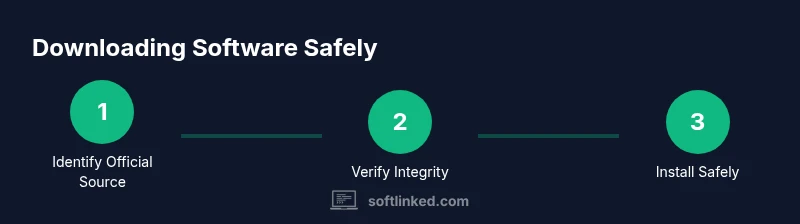
Downloading computer software safely means obtaining installers or packages from trusted sources, verifying authenticity, and following secure installation practices. This quick answer outlines where to download, which checks to perform, and how to install across Windows, macOS, and Linux. By prioritizing official sources, credential protection, and post-download hygiene, beginners and professionals can minimize risk and keep development environments clean. According to SoftLinked, source trust, integrity verification, and cautious handling are the three pillars of safe software acquisition.
What downloading software means in practice
Downloading software is the first step in using new tools on your computer. It covers everything from simple apps to complex development environments. At its core, downloading software means obtaining a packaged bundle from a source you trust, then transferring it to your device for installation. This process is not just about clicking “Download”; it involves understanding the source, the file format, and the correct installation path for your operating system. According to SoftLinked, the most important habit is to start with the official vendor site or a trusted distribution channel to minimize risk. You should also be mindful of the differences between installers, package managers, and portable applications. Installers run on your machine and typically guide you through a setup wizard, while portable applications can run directly from a folder without a formal installation. Understanding these distinctions helps you choose the right option for your needs and reduces the chance of accidentally installing unwanted software or malware. Beyond safety, a thoughtful download strategy includes checking system requirements and compatibility with your hardware and OS version. This is particularly important for developers and students who rely on specific tools that may require up-to-date operating systems, sufficient disk space, and compatible processor architectures. In short, downloading software is a routine but high-stakes activity that benefits from careful source selection, integrity verification, and post-download hygiene. SoftLinked’s approach emphasizes methodical checks, vendor trust, and ongoing security discipline to keep your development environment healthy.
Safety-first: verify sources, signatures, and licenses
Safely downloading software starts with confirming you’re on an official or trusted distribution path. Always use the vendor’s website, a recognized app store, or an approved enterprise repository. Look for HTTPS and a valid TLS certificate in the browser address bar, and double-check the domain against known vendor names. Digital signatures, checksums, and license terms are your next line of defense. A verified signature or a matching hash indicates the file hasn’t been altered since it was published. SoftLinked analysis shows that downloads from official sources and verified hashes greatly reduce exposure to tampered files and malware. After you download, review the license terms to understand usage rights, redistribution limits, and whether the software can be used for commercial purposes. For developers, this is especially important when evaluating SDKs and third-party libraries. Finally, ensure you’re downloading the correct version for your operating system and architecture. A mismatch here can lead to installation failures or, worse, unstable behavior after setup.
Understanding licenses and terms: freeware, shareware, open source, commercial
Software licensing shapes what you can do with a program after you download it. freeware typically allows free use with limited redistribution rights, while shareware may require payment for continued full features after a trial period. Open-source software comes with source code access and varying redistribution rules, often permitting modification and sharing within the license terms. Commercial software usually requires a paid license and may include stricter usage limits and activation requirements. Reading the End-User License Agreement (EULA) carefully helps you avoid accidental violations and legal trouble. When possible, prefer licenses that align with your intended use—personal, academic, or commercial. If you’re a student or developer, open-source options can offer transparency and customizable features, but always verify the source to ensure you aren’t downloading compromised code disguised as open-source. Lastly, keep track of license keys, activation limits, and renewal dates to prevent downtime from expired licenses.
How to recognize trustworthy download pages
A trustworthy download page is more than a clean design—it’s a signal of legitimacy. Start with official vendor domains and avoid unfamiliar mirror sites. Look for a clearly labeled version number, system requirements, and a visible update history. Ensure browsing connections are secure with HTTPS and that the page avoids aggressive pop-ups or installers bundled with extra software. Check for a privacy policy and a support contact; reputable pages provide contact points and transparent policies. If a page prompts quick jumps to download buttons before showing details about the software, be cautious. Finally, review user reviews on independent platforms and confirm that the vendor offers a valid support channel in case you encounter installation issues.
A practical download workflow you can follow
This section translates best practices into a concise workflow you can reuse. Start by identifying the exact software you need and confirm it is available from an official source. Then, verify compatibility with your operating system and hardware, including minimum requirements. Next, download the installer or package from the official site, not from third-party mirrors. After download, validate the file’s integrity using a checksum or digital signature, if provided. Proceed to run the installer with the recommended (default) settings and uncheck any optional add-ons you don’t need. Finally, enable automatic updates where possible and scan the installed software with your malware protection tools. This workflow minimizes risk while keeping your environment ready for development tasks.
Post-download: installation, updates, and security
The moment the file finishes downloading, your focus should shift to safe installation practices. Run installers from user accounts with limited privileges to prevent unauthorized changes. When the installer prompts, choose the default or recommended settings unless you have a compelling reason to customize. Watch out for bundled software offers and opt out of any extras that introduce trackers or bloatware. After installation, immediately check for updates and enable automatic updates if available. Regularly applying patches closes security gaps and keeps dependencies current. Finally, consider keeping the downloaded software version and patch notes in a small inventory log so you can audit changes, identify deprecated features, and plan upgrades with confidence.
Common mistakes and how to avoid them
Common mistakes include downloading from unofficial sources, skipping integrity checks, rushing installations, and ignoring update prompts. To avoid these, always verify the source, compare file size and version against official data, and run a quick malware scan after installation. Don’t rush through permissions or accept default settings without review; installers often offer additional components that can affect privacy and performance. If you’re unsure about a license or an executable’s origin, pause and seek guidance from trusted documentation or official support channels. Finally, maintain a routine for updating both the operating system and installed software to minimize exposure to known vulnerabilities.
Keeping a software inventory and license management
A practical software inventory helps you manage risk and compliance across devices. Maintain a simple catalog noting software name, version, license type, purchase date, and renewal reminders. For developers and IT teams, consider lightweight tooling to automate inventory collection and license tracking. Regular audits reveal outdated components and security risks, guiding timely upgrades or removals. Open-source software should be periodically verified against trusted repositories and security advisories. A robust inventory also supports license compliance reporting during audits and helps you budget for renewals and replacements. By keeping an organized record of what you have and where it came from, you’ll simplify maintenance and maximize security across your software stack.
Tools & Materials
- Supported computer (Windows/macOS/Linux)(Ensure OS version supports target software and is up to date)
- Official vendor or trusted download page(Verify URL begins with https and matches known domain patterns)
- Checksum tool or built-in hash utility(Use SHA-256 when available to verify integrity)
- Web browser with updated security features(Keep browser up to date; disable extensions that could inject installers)
- Secure network (VPN or trusted network)(Avoid public Wi-Fi for software downloads to reduce risk)
- Password manager(Store vendor credentials and license keys securely)
- Antivirus/anti-malware software(Keep active while downloading and scanning new software)
Steps
Estimated time: 15-30 minutes
- 1
Identify official sources
Begin by confirming the software you need is available from the vendor’s official site or a legitimate app store. Cross-check the exact product name, version, and platform. This reduces the risk of counterfeit or bundled packages.
Tip: Bookmark the official page to prevent drift to unofficial mirrors. - 2
Check compatibility and requirements
Read the system requirements and ensure your OS, hardware, and dependencies meet or exceed them. This prevents post-download failures and unsatisfactory performance.
Tip: Note any required libraries or runtimes (e.g., .NET, Java) before downloading. - 3
Download the installer or package
Click the official download button for your platform (Windows, macOS, or Linux). Avoid third-party mirrors and examine the file name for version accuracy.
Tip: Beware of ads that mimic download buttons; always click the vendor-provided link. - 4
Verify integrity and authenticity
If provided, compare the file’s checksum or verify the digital signature to confirm it hasn’t been tampered with.
Tip: Use a separate device to verify signatures if possible. - 5
Run the installer with recommended settings
Execute the installer and select the default (Recommended) options unless you know exactly what to customize. Deselect bundled software if presented.
Tip: Keep an eye out for optional extras that track or install additional components. - 6
Update and secure the installed software
After installation, check for updates and enable automatic updates if available. This closes known vulnerabilities and keeps features current.
Tip: Restart if prompted to ensure changes take effect.
Your Questions Answered
Where should I download software from?
Always choose the vendor’s official site or a trusted app store. Verify TLS/HTTPS, check the domain, and avoid third-party mirrors to reduce the risk of tampered software.
Always use official sources and verify the site’s security before downloading.
How do I verify the downloaded file’s integrity?
If a checksum or digital signature is provided, verify it with a SHA-256 hash or the publisher’s signature to confirm the file hasn’t been altered.
Check the hash or signature to confirm the file’s authenticity.
Are third-party download sites safe?
Third-party sites can host modified or bundled installers. Prefer official sources and trusted platforms; if you must use a third party, verify the file’s integrity and read user reviews carefully.
Be cautious with third-party sites and verify the file first.
What is the role of digital signatures?
Digital signatures provide a way to verify the publisher and integrity of a file. A valid signature confirms the file came from the claimed author and was not altered.
Signatures verify who published the file and that it’s unchanged.
Should I customize installation options?
Only customize if you understand what the options do. Default or recommended settings minimize risk of including unwanted components.
Stick with default options unless you know the implications.
What should I do after downloading?
Run the installer, verify it’s legitimate, install securely, and enable automatic updates. Scan the system afterward if you have concerns.
After download, install carefully and keep everything up to date.
Watch Video
Top Takeaways
- Download from official sources first.
- Verify file integrity before installing.
- Read and understand license terms before use.
- Always enable automatic updates when possible.
- Maintain a software inventory for security and compliance.