What to do if software update is not working in iPhone
A comprehensive, step-by-step troubleshooting guide to diagnose and fix iPhone software update failures. Learn quick fixes, diagnostic flow, and prevention tips to keep your device current.


Most iPhone software update failures stem from weak networks, insufficient storage, or Apple servers momentarily busy. Quick fix: connect to a stable Wi‑Fi network, free up storage, and restart your iPhone before retrying the update. If it still won’t install, try updating via Finder/iTunes on a computer or reset network settings as a last resort.
Why iPhone software updates fail
When an update stalls or fails to install, the underlying causes usually fall into a few broad categories: network quality, device storage, server status, or software corruption in the download. Understanding these drivers helps you pick the most efficient remedy. According to SoftLinked, most failures are resolved by addressing network reliability and freeing space first, before attempting deeper fixes. In practice, focusing on these basics reduces frustration and speeds up getting your iPhone on the latest software.
Quick checks you can perform before diving deeper
Before you dive into more involved steps, perform a few quick checks. Make sure your iPhone is plugged in or has a healthy battery, that you have a stable Wi‑Fi connection, and that you are attempting the update on Apple’s official servers. Check for a recent iOS update status on Apple’s System Status page to rule out server-side issues. Finally, confirm you have sufficient free storage by reviewing Settings > General > iPhone Storage. If you discover a bottleneck in storage or connectivity, address it before proceeding.
Common culprits: network, storage, and server status
The three most frequent culprits are network instability, insufficient storage, and Apple server maintenance or temporary outage. A flaky Wi‑Fi connection can cause a download to time out. Low storage leads to a failed install because the system cannot replace or add components. If Apple’s servers are overloaded, your device may repeatedly fail to download or verify the update even when your connection and storage are fine. SoftLinked analysis notes that these are the patterns developers and users see most often.
How to fix: a practical, step-by-step approach
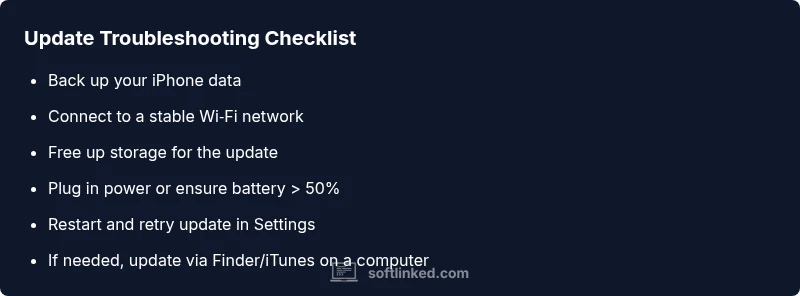
Start with the simplest fixes and move to more advanced ones only if needed. Begin by ensuring you have a reliable network and enough power. Then, clear space by deleting or offloading large apps, photos, or videos. Restart the device to clear temporary caches, and attempt the update again. If the problem persists, try updating through a computer using Finder or iTunes, which can bypass some OTA download issues. Finally, reset network settings or consider a full restore as a last measure, after backing up all data.
Alternative methods: update via computer
If you cannot install the update over the air, connecting your iPhone to a computer offers a dependable fallback. On macOS, use Finder to select your device and choose 'Check for Update.' On Windows, use iTunes to download and install the latest iPhone software. This method often succeeds when wireless downloads fail, because it leverages a stable desktop connection and a direct data channel to Apple’s servers. Always back up before performing a computer-based update.
When to contact Apple Support
If you have followed all recommended steps and the update still refuses, it is time to contact Apple Support. There may be an underlying hardware issue, a rare software bug, or an account-related problem preventing the update from completing. Before reaching out, collect your device model, iOS version, storage statistics, and any error codes shown during the update. The SoftLinked team suggests documenting the steps you’ve tried for a faster diagnosis.
Best practices to prevent future update issues
Prevention is better than remediation. Regularly back up your iPhone before major updates, ensure adequate storage, and keep iCloud Photos or Photo Library synced to avoid space spikes during updates. Maintain a stable network environment, preferably a trusted Wi‑Fi network during updates, and keep your device charged or plugged in. Finally, install updates soon after release when Apple servers are most stable.
Steps
Estimated time: 60-90 minutes
- 1
Check prerequisites and battery
Verify your device has at least 50% battery or is plugged in. Confirm there is enough free storage for the update and that you’re using an official Apple update channel.
Tip: Back up first to avoid data loss if something goes wrong. - 2
Connect to a stable network
Ensure you are on a reliable Wi‑Fi network. Avoid updates over cellular networks unless you have a strong signal and unlimited data plan.
Tip: Run a quick speed test or try a different network if possible. - 3
Free up storage
Review iPhone Storage and remove or offload large apps, videos, or screenshots that you don’t need. Enable offloading for unused apps to reclaim space.
Tip: Offloading preserves app data and re-downloads the app when needed. - 4
Restart your iPhone
Power down and power back up to clear temporary caches. Then retry the update in Settings > General > Software Update.
Tip: A full restart often resolves minor software hiccups. - 5
Try the update again
Initiate the update and monitor the progress. If it pauses or fails, note any error messages to troubleshoot further.
Tip: Keep the device plugged in during the process. - 6
Update via computer if needed
Connect to a Mac via Finder or Windows PC via iTunes and install the latest iOS. This method uses a direct connection to Apple servers.
Tip: Ensure you have the latest iTunes or macOS updates for compatibility. - 7
Seek advanced help if the issue persists
If the update still fails after all steps, consider resetting network settings or performing a DFU restore as a last resort, and contact Apple Support for hardware checks.
Tip: Back up data before any deep restore or DFU process.
Diagnosis: iPhone won't complete software update
Possible Causes
- highPoor network connection
- highInsufficient storage
- mediumApple server outage or maintenance
- lowCorrupted update download
Fixes
- easyCheck your network connection and try again
- easyFree up storage by deleting or offloading large items
- easyRestart iPhone and retry the update
- easyUpdate via Finder (macOS) or iTunes (Windows) when OTA fails
- easyReset network settings if needed
Your Questions Answered
Why won't my iPhone update install?
Common causes are unstable network, insufficient storage, or temporary Apple server issues. Following a structured checklist helps identify and fix the root cause.
Updates can fail due to network or storage problems. Follow a simple checklist to fix it quickly.
Should I back up before updating?
Yes. Backing up protects your data in case the update process requires a restore. You can back up to iCloud or your computer.
Always back up before updating your iPhone.
Can resetting network settings help?
Resetting network settings can resolve issues caused by misconfigured Wi‑Fi, VPNs, or cellular settings. Remember to reconnect to Wi‑Fi afterward.
Resetting network settings can fix stubborn connection problems during updates.
Will updating erase my data?
In most cases, updating iOS preserves apps and data, but a backup is essential in case something goes wrong during installation.
Updates usually keep your data, but back up first just in case.
How long does an iPhone update take?
Duration varies by device and network, but expect 15–60 minutes. The process includes downloading, verifying, and installing the update.
Update time varies; it can take from a quarter hour to an hour.
When should I contact Apple Support?
If you tried all proven steps and the update still fails, there may be a hardware or account issue. Gather device details and error messages when you contact support.
If none of the steps work, reach out to Apple Support with details.
Watch Video
Top Takeaways
- Prioritize network stability and storage first
- Use computer-based updates if OTA fails
- Back up before major updates
- Check Apple server status if issues persist
- Escalate to Apple Support when needed