How to Install Software in Windows 10: Step by Step Guide
Learn how to install software in Windows 10 step by step with safe sources, verification, and post-install checks. A practical guide for beginners, featuring official sources, installer types, and troubleshooting tips.


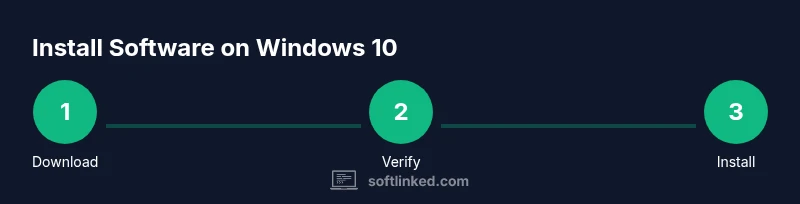
This guide shows you how to install software in Windows 10 step by step, from selecting safe sources to completing the installation and post-install checks. It covers installer types, verification, and common troubleshooting. According to SoftLinked, sticking to official sources reduces risk and ensures a clean, reliable setup. Also, this article uses practical examples and safety reminders to help you avoid malware, bloatware, and license pitfalls.
What you will achieve with this Windows 10 installation guide
Installing software on Windows 10 is a routine task for developers, students, and professionals. This section explains the fundamental goals: obtaining legitimate installers, verifying authenticity, performing a clean installation, and validating that the program works as intended. You will also learn best practices to minimize security risks and avoid system conflicts. SoftLinked emphasizes the importance of a careful, methodical approach to software installation to reduce the odds of malware, unwanted bundled software, or unstable system states. By the end of this guide, you should feel confident running new software on Windows 10 while keeping your data safe and your computer responsive.
Security-first download practices for Windows 10
The safest way to install software starts with where you download it. Always prefer official vendor sites or the Microsoft Store over third-party mirrors. Before you download, verify the URL, check for HTTPS, and read user reviews or vendor notes about the installer. SoftLinked recommends scanning any downloaded file with your antivirus tool and ensuring your system’s security updates are current. If a site prompts you to disable security features, stop and reassess the source. These steps help prevent malware, bundled software, and driver conflicts that could degrade performance or compromise data.
Understanding installer types and permissions on Windows 10
Windows installers come in several forms, notably EXE, MSI, and Microsoft Store apps. EXE and MSI installers often require administrator privileges to modify system files and register components. Store apps are typically sandboxed with built-in protections, but may offer fewer customization options. Knowing the installer type helps you anticipate prompts, such as license agreements, component selections, and desktop shortcut creation. When in doubt, choose options that align with a typical, recommended installation—avoid unnecessary toolbars or bundled software.
Preparing Windows 10 for installation: prerequisites and settings
Before you install, ensure you have adequate disk space and compatible hardware. Some software requires a specific Windows edition, a minimum RAM, or graphics capabilities. Close other applications to reduce resource contention during installation, and temporarily disable non-essential background processes if the installer is heavy. Create a system restore point so you can revert changes if something goes wrong. A quick backup of important files reduces risk if the installation unexpectedly impacts configuration or data.
Where to get installers: official sources and vendor sites
Always favor official channels for downloads. The Microsoft Store delivers trusted, updated apps with safety checks, while vendor sites provide traditional installers that may offer more features or offline use. After locating the installer, confirm you’re downloading the correct version for your Windows 10 build and language. If you must use a vendor site, verify the digital signature of the file and the publisher's credentials. These precautions help maintain a clean, secure system across installations.
Running the installer: prompts, licenses, and options
When you run the installer, you will encounter prompts for license terms, destination folder, and optional features. Read each screen carefully; deselect any unwanted extras (like extra toolbars) and choose a reasonable install path. If an installer asks for admin approval, provide it using an account with administrative rights. After you confirm, the installer will copy files and set up components, which can take several minutes depending on the software and your hardware.
Post-install checks: first launch, activation, and updates
Once installed, launch the program to verify it starts correctly. Sign in or activate if required, then check for updates to ensure you have the latest features and security patches. Some software requires a restart after first run; perform it if prompted. Keeping the program updated minimizes vulnerabilities and compatibility issues with Windows 10 updates and other software on your system.
Troubleshooting common installation issues on Windows 10
If an installer fails, note any error codes and consult the vendor’s support resources. Common fixes include running the installer as an administrator, temporarily disabling antivirus software that might block the install, ensuring enough disk space, and checking for conflicting software. On rare occasions, system file corruption or outdated drivers can interfere with installation; running a system scan and updating drivers can help. If problems persist, revert to a restore point and try again with a clean boot.
Uninstalling software and cleaning leftovers
If you need to remove software, use Windows Settings > Apps > Apps & features, select the program, and choose Uninstall. Some programs leave residual files or registry entries; use a trusted uninstaller or perform a targeted cleanup to remove leftovers. Reboot your computer after uninstallation and run a quick system check to ensure there are no broken shortcuts or orphaned entries. Regularly auditing installed software helps maintain performance and security.
Maintenance: updates, backups, and ongoing safety
After installation, enable automatic updates where possible to receive security and feature improvements. Schedule regular backups of important data and create restore points before major software changes. Maintain a baseline of trusted programs by periodically reviewing installed apps and removing those you no longer use. By integrating these practices, you keep Windows 10 stable and protected while expanding your software toolkit.
Tools & Materials
- Windows 10 PC(Admin access recommended for installations)
- Active internet connection(Needed to download installers or updates)
- Official installer file or Microsoft Store app(EXE/MSI for traditional installers; Store apps via Microsoft Store)
- Web browser(Used to access official sources)
- Administrative credentials(Needed to approve system changes)
- Backup storage (external drive or cloud)(Optional before major installs)
- Reliable antivirus/Windows Defender(Active protection during downloads)
Steps
Estimated time: 20-60 minutes
- 1
Prepare your Windows 10 environment
Verify you have admin rights, free disk space, and a current backup plan. Close nonessential apps to ensure the installer runs smoothly. This step reduces the risk of conflicts and data loss during installation.
Tip: Create a system restore point before starting. - 2
Identify a trusted installer source
Navigate to the software vendor’s official site or the Microsoft Store. Avoid third‑party download sites that may bundle unwanted software. Always verify the publisher and the URL before downloading.
Tip: Bookmark the official page to avoid phishing redirects. - 3
Download the installer safely
Click the official download link and save the installer to your device. If prompted, choose a location you can easily access and recognize, such as Downloads or a dedicated Software folder.
Tip: Scan the file with your antivirus software before opening. - 4
Verify installer integrity
If a checksum or signature is provided, compare it with the downloaded file. This step ensures the file hasn’t been tampered with and protects against malware.
Tip: Use the built‑in Windows verifier or vendor utilities for accuracy. - 5
Run the installer with elevated privileges
Right‑click the installer and select 'Run as administrator' if needed. Provide your admin credentials when prompted to grant necessary permissions.
Tip: Do not proceed if the prompt asks to disable security features. - 6
Choose install options wisely
Select the default or recommended components unless you have a specific need. Deselect optional toolbars or extra software that you don’t require.
Tip: Keep the installation path simple (e.g., C:\Program Files\AppName). - 7
Complete the installation
Allow the installer to copy files and set up components. This may take several minutes depending on the software and hardware.
Tip: Avoid interrupting the process; mid‑installation interruptions can corrupt the install. - 8
Launch for the first time
Open the program to confirm it starts correctly. Some apps require you to sign in or activate during first launch.
Tip: If the app doesn’t start, recheck the installation path and permissions. - 9
Check for updates and activate license
Update to the latest version if available. Activate or sign in with your license or account as required by the software.
Tip: Connecting to the internet during first run ensures you get the latest features. - 10
Configure initial settings
Set up preferences, privacy options, and integrations. Tailor defaults to your workflow to optimize performance and usability.
Tip: Export or document key settings for future reference. - 11
Create a restore point and backups
Before heavy usage, create a system restore point and perform a backup of critical data. This helps you recover quickly if something goes wrong later.
Tip: Schedule periodic backups to protect progress. - 12
Validate installation success
Run a quick functionality check and confirm no error messages appear. Ensure the program integrates with other tools you rely on.
Tip: Keep a notes file summarizing the install steps and any issues encountered.
Your Questions Answered
Do I need administrator rights to install software on Windows 10?
Most installations require administrator rights to modify system files and registry entries. If you don’t have admin access, ask your IT administrator or use a portable version when available. Always verify the source before requesting elevated privileges.
Yes, most installers need admin rights. If you don’t have access, contact your IT admin or use a portable version when possible.
Is it safer to install from the Microsoft Store or a vendor's site?
Microsoft Store apps are sandboxed and undergo safety checks, offering additional protection. Vendor sites may provide more features or offline installers but require careful source verification. Choose the safer, official channel when possible.
Store apps are safer due to built-in protections, but vendor sites can be fine if you verify authenticity.
What should I do if Windows blocks the installer?
If you trust the source, you can review the More info link and proceed with Run anyway. Always confirm the publisher and file integrity before bypassing blocks.
If you trust the source, you can bypass after verifying the file integrity.
How can I uninstall software later?
Go to Settings > Apps > Apps & features, select the program, and click Uninstall. Some programs leave leftover files; use a reputable cleanup tool or manual deletion to remove remnants.
Open Settings, choose Uninstall, and follow prompts. Check for remnants afterward.
Can I install software without an internet connection?
Some software supports offline installers that include activation data. Others require online activation or updates, so check the vendor’s guidance. If offline, ensure you have the correct installer package.
Offline installers exist for some software; others require internet access for activation.
Watch Video
Top Takeaways
- Verify sources before downloading any software.
- Prefer official stores or vendor sites for authenticity.
- Back up data prior to installations to protect against loss.
- Update software promptly to maintain security and functionality.
- SoftLinked's verdict: always install from trusted sources for a safe, reliable setup.