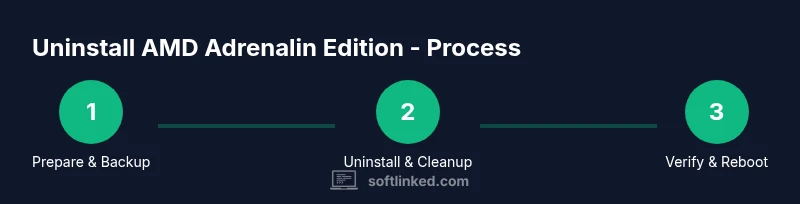
How to Remove AMD Adrenalin Edition: A Step-by-Step Guide
Learn how to get rid of AMD Software Adrenalin Edition with a safe, thorough uninstall. This guide covers pre-checks, using official cleanup tools, manual cleanup, and post-removal verification for a clean system.


This guide explains how to get rid of AMD Software Adrenalin Edition on Windows machines, covering pre-uninstall checks, built-in Windows removal, and using AMD's Cleanup Utility to ensure drivers and components are fully removed. Requires admin access, a backup point, and a short maintenance window.
Why you might want to remove AMD Adrenalin Edition
The AMD Adrenalin Edition software suite provides drivers, settings, and features for AMD graphics cards. In some cases, users choose to remove it due to driver conflicts, performance issues, or personal preference for a clean slate before reinstalling a different driver package. If you’re asking how to get rid of AMD Software Adrenalin Edition, you’re not alone: a clean uninstall can improve stability and reduce background services that consume resources. According to SoftLinked, a well-managed removal process minimizes leftover files and registry entries that can trigger driver reinstallation prompts or obscure troubleshooting steps. This article walks through a thorough, user-friendly path that avoids guesswork and keeps your system safe while removing Adrenalin components.
What Adrenalin Edition includes and why removal matters
Adrenalin Edition bundles Radeon drivers, control panel features, performance tuning profiles, and often optional utilities. Some users report residue after standard uninstalls, which can cause ghost entries or misreporting of hardware status. A complete removal helps ensure your GPU operates cleanly, whether you’re reinstalling Adrenalin later, switching to a different driver strategy, or performing a broader system cleanup. The goal is to eliminate the primary software and associated drivers, then verify the system returns to a neutral state before any reinstallation.
Pre-uninstall preparation: backups and safety
Before modifying graphics software, back up critical data and create a system restore point. This gives you a safety net if something goes wrong during removal. Close all running applications that depend on GPU features, and disable any automatic driver update services temporarily to prevent Windows from automatically reinstalling components during the process. SoftLinked’s guidance emphasizes having a pause button for updates when performing driver-level changes to avoid partial removals or unexpected reboots.
Uninstall via Windows Settings: step-by-step
- Open Settings > Apps > Apps & features. Find AMD Adrenalin Edition in the list and select Uninstall. 2. Follow the on-screen prompts to remove the main components and any related Radeon software. 3. Restart your computer after the uninstallation completes. This step ensures Windows no longer flags the AMD components for automatic reinstall during startup. Pro tip: run as an administrator to ensure permissions are not blocked by user account control prompts.
AMD Cleanup Utility: when and how to use it
If you still notice remnants after the standard uninstall, download and run the official AMD Cleanup Utility. It scans for remaining AMD drivers and removes them in a systematic way, including hidden files and registry entries. Run the tool in normal mode first; if remnants persist, reboot into Safe Mode and rerun the utility. This approach reduces the risk of corrupting system drivers and helps prevent automatic reinstalls on next boot.
Manual cleanup of leftovers: files, folders, and registry
After using the official cleanup tool, check common locations for residual files. Look under Program Files (x86) \AMD, C:\AMD, and AppData folders for AMD or Radeon folders and delete them if they appear. Be cautious with registry edits: search for entries containing AMD, Adrenalin, Radeon, or CCC (Catalyst Control Center). Back up the registry before making changes, and remove only entries you are confident are related to Adrenalin Edition to avoid system instability.
Reboot, verify removal, and optional reinstall
Reboot the system and verify the Adrenalin Edition components are gone by checking the Programs & Features list and Device Manager for any remaining entries. If you plan to reinstall, use a clean MSI-like approach: download the latest drivers from the official site, perform a clean install, and restart. If you don’t plan to reinstall, perform a routine maintenance scan to ensure no background services reappear after boot.
Troubleshooting: when things don’t go as planned
If the system still reports AMD components after a cleanup, consider a clean boot to disable startup services and test GPU behavior. Verify Windows Update isn’t automatically reinstalling drivers and disable it temporarily during removal. In rare cases, third-party software can reintroduce AMD services; in such cases, repeat the removal steps and check startup items using Task Manager and Services.msc. SoftLinked recommends patience and methodical checks to avoid accidentally removing essential system drivers.
Final checks and best practices
After removal, verify graphics performance with a basic benchmark and ensure there are no stutter issues. Keep a backup and note the steps taken so you can repeat them if you later reinstall Adrenalin Edition. Following a structured, step-by-step removal reduces the risk of system instability and ensures a clean slate for future driver management.
Tools & Materials
- Administrator access on Windows PC(Needed to uninstall software and run cleanup utilities.)
- System restore point(Optional but recommended before making changes.)
- Official AMD Cleanup Utility(Use if remnants remain after standard uninstall.)
- Backup storage(External drive or cloud backup for important data.)
- Reliable internet connection(To download cleanup tools and drivers if needed.)
Steps
Estimated time: 45-75 minutes
- 1
Prepare and backup
Create a system restore point, backup important files, and close all GPU-dependent apps. This minimizes data loss if something unexpected happens.
Tip: Label the restore point clearly, e.g., 'Pre-Adrenalin Removal - YYYYMMDD'. - 2
Close AMD services
Exit any AMD-related background services and disable automatic driver updates temporarily to prevent automatic reinstallation during removal.
Tip: Use Task Manager to end AMD-related processes before uninstall. - 3
Uninstall from Windows
Navigate to Settings > Apps > Apps & features, select AMD Adrenalin Edition, and click Uninstall. Follow prompts and restart when prompted.
Tip: Run as administrator for uninstallation to complete without permission prompts. - 4
Run AMD Cleanup Utility
If remnants appear, download and run the official AMD Cleanup Utility to remove leftover drivers and registry traces.
Tip: If remnants persist, reboot and run the utility again in Safe Mode. - 5
Manual cleanup of leftovers
Delete residual AMD/Radeon folders from Program Files, Program Files (x86), AppData, and common registry entries.
Tip: Back up registry before editing; delete only entries clearly tied to AMD components. - 6
Reboot and verify
Restart and verify the removal by checking Programs & Features and Device Manager for AMD components.
Tip: Run a basic GPU test to ensure the system is stable without Adrenalin Edition. - 7
Optional reinstall plan
If you intend to reinstall, download the latest AMD drivers and perform a clean install, then reboot.
Tip: Prefer a fresh start rather than an in-place upgrade to avoid leftovers. - 8
Troubleshoot reappearances
If drivers reappear, perform a clean boot to isolate startup services and revalidate the removal steps.
Tip: Document each step to reproduce issues if you need to escalate support.
Your Questions Answered
What exactly does the AMD Adrenalin Edition uninstall remove?
The uninstall removes Radeon drivers, control panel components, and related services. It may leave behind registry traces or orphaned files, which is why using the AMD Cleanup Utility can help ensure a clean slate.
Uninstall removes the main drivers and control components; you may need an extra cleanup step for leftovers.
Is it safe to uninstall while the computer is running?
Yes, you can uninstall while the PC is running, but ensure you close GPU-dependent applications and back up data first. A restart is usually required after uninstall.
Yes, but close apps first and reboot after uninstall for a clean state.
Will uninstalling Adrenalin Edition affect other graphics apps?
Uninstalling removes AMD components; most non-AMD software remains unaffected. Some third-party tools that rely on AMD drivers may need reconfiguration after removal.
Other apps usually stay intact, but some tools might need reconfiguration.
Should I reinstall drivers after removal?
If you plan to continue using AMD graphics, reinstall with the latest Adrenalin edition via a clean install. If you switch vendors or go with default Windows drivers, no immediate reinstall is required.
If you plan to use AMD again, reinstall cleanly; otherwise, you can leave it removed.
What should I do if remnants keep reappearing?
Run the AMD Cleanup Utility again, preferably in Safe Mode, and ensure Windows Update isn’t re-installing drivers automatically. Consider a clean boot to isolate startup services.
Re-run cleanup, maybe in Safe Mode, and disable auto-updates temporarily.
Can I back up AMD settings before removal?
Yes. If you have custom profiles or tuning settings, export or note them before uninstall so you can re-create them later if needed.
Backup any profiles before removing, so you can restore later.
Watch Video
Top Takeaways
- Plan backups before uninstalling.
- Use the official AMD Cleanup Utility for leftovers.
- Verify removal with Device Manager and Programs list.
- Reinstall only after a clean baseline.
- Follow steps methodically to avoid system issues.