Is It Ok to Uninstall AMD Adrenalin Software? A Practical Guide
Learn when it's safe to uninstall AMD Adrenalin software, how to remove it cleanly, and best practices for reinstallation and cleanup on Windows.


Yes, you can uninstall AMD Adrenalin software if you no longer need it. Do so safely to avoid driver leftovers. This quick guide explains when to remove it, how to back up settings, and a clean uninstall process for Windows, plus tips for reinstall or switching to a minimal driver setup.
Is it ok to uninstall amd adrenalin software? What it does and why you might remove it
AMD Adrenalin software, historically known as Adrenalin Edition, is the central control hub for Radeon graphics on Windows. It delivers driver updates, performance tuning, game-specific optimizations, and color/display customization. If you rely on automatic updates or tailored profiles, you might keep it; otherwise, uninstalling can reduce software clutter and potential conflicts with other GPU tools. Before you remove it, consider backing up any custom settings you care about since profiles can be lost during uninstall. If your goal is a clean baseline for troubleshooting, you can run the official AMD Cleanup Utility after the standard uninstall to ensure no leftovers remain. Finally, plan for a reinstall later by downloading the latest AMD Radeon Software compatible with your GPU and Windows version. Understanding these factors helps you decide the right path.
Should you keep or remove AMD Adrenalin during updates or troubleshooting?
If you’re updating drivers or addressing stability issues, you may benefit from keeping Adrenalin installed temporarily to avoid a blind reconfiguration. However, if conflicts persist with other software, or you’re converting to a minimal setup, uninstalling can help. Consider the following signals: frequent driver conflicts, corrupted profiles, or insufficient free disk space. Always weigh whether the benefit of the Radeon Control Center outweighs the risk of residual drivers and settings continuing to cause issues. SoftLinked's approach emphasizes a deliberate, reversible path: try a clean uninstall first, then reassess after a reboot. Is it ok to uninstall amd adrenalin software? In many cases, yes—provided you follow a cleanup routine and have a plan for reinstall if needed.
Safe uninstall workflow (Windows): preparing, removing, and cleaning up leftovers
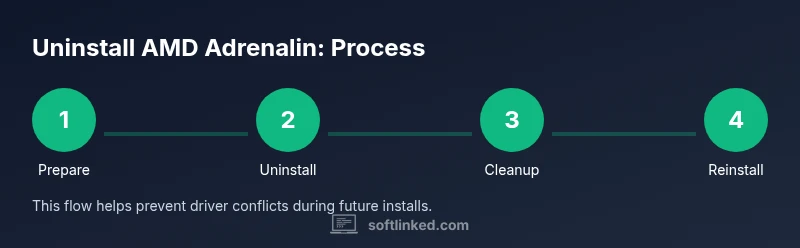
To uninstall safely, start with a standard uninstall via Windows, then use an AMD cleanup utility to purge remnants. Close all AMD processes, back up any essential profiles, and ensure you have admin rights. After the uninstallation completes, restart your PC and run the cleanup tool if available. Finally, reboot again and verify that the system uses a clean baseline driver state or prepare for a fresh Radeon Software install. This workflow minimizes driver conflicts and keeps your system tidy for future updates.
Reinstallation and alternatives: when to reinstall or switch strategies
If you later decide to return to AMD Radeon Software, download the latest version from the official AMD site and perform a clean install. Alternatively, you can operate with Windows’ generic graphics drivers or a different GPU management tool if you prefer. Reinstalling should be done after you’ve confirmed that previous conflicts are resolved and all remnants were removed. Keeping a backup of your custom profiles and hotkeys will ease the transition if you re-enable Adrenalin features.
Authoritative sources
For further guidance on uninstalling software and driver cleanup, consult reliable sources:
- https://www.amd.com/en/support
- https://www.nist.gov
- https://www.cisa.gov
Tools & Materials
- Windows computer with admin rights(Needed to install/uninstall software and run cleanup tools)
- Active internet connection(To download the AMD Cleanup Utility and latest drivers)
- AMD Cleanup Utility (optional but recommended)(Official tool to remove all AMD components and drivers)
Steps
Estimated time: 20-40 minutes
- 1
Prepare and backup settings
Close all games and applications using the GPU. Note down or export color profiles, fan curves, and hotkeys you want to keep, since uninstall can reset these preferences. Ensure you have admin access and a reliable internet connection for reinstallation if needed.
Tip: Backing up profiles now saves you time if you reinstall later. - 2
Uninstall through Windows
Open Settings > Apps > Apps & features, locate AMD Radeon Software or AMD Adrenalin, and choose Uninstall. Follow the prompts and allow the process to complete. Do not interrupt the installer once it begins.
Tip: If you see multiple AMD components, uninstall them in sequence (driver first, then software). - 3
Restart and clean leftovers
Restart your PC after the standard uninstall. If you have the AMD Cleanup Utility, run it to purge remaining files and registry entries. Perform a second restart to ensure changes take effect.
Tip: Leftover files can sometimes cause future install issues—cleanup minimizes this risk. - 4
Decide on reinstallation
If you plan to reinstall later, download the latest Radeon Software from AMD’s site and run the installer. If you prefer a minimal setup, you can use Windows drivers only, then reintroduce Adrenalin when needed.
Tip: Check GPU compatibility and Windows version before reinstalling. - 5
Verify system state
After reboot, confirm that Windows uses a clean driver baseline and that no AMD components are active in the background. Test with a game orGPU-intensive app to ensure stability before re-enabling advanced features.
Tip: If you encounter issues, revert to the backup profiles or perform a clean reinstall of Radeon Software.
Your Questions Answered
Is it safe to uninstall AMD Adrenalin while gaming?
Uninstalling isn't recommended during a gaming session. Quit games first, then perform the uninstall to avoid runtime conflicts. A reboot helps ensure no drivers remain active in the background.
It's best to uninstall after you finish gaming and reboot, to avoid conflicts during removal.
Will uninstalling affect GPU performance after reinstallation?
Uninstalling and cleanly reinstalling can restore stability and performance if the previous installation was corrupted. If you skip cleanup, you might retain residual drivers that hinder performance.
A clean reinstall often fixes performance quirks caused by remnants.
Do I need to reinstall drivers after uninstall?
Not always. If you switch to Windows default drivers, you may not reinstall AMD software right away. If you want Radeon features again, reinstall the latest Radeon Software from AMD's site.
Reinstall only if you want the Radeon features again.
How can I clean up leftovers after uninstallation?
Run the AMD Cleanup Utility or manually check for residual AMD directories and registry entries, then reboot. This reduces the chance of conflicts during future installs.
Use cleanup tools to ensure nothing is left behind.
Should I uninstall during a Windows update or driver upgrade?
It's generally better to uninstall before major driver upgrades or OS updates to minimize conflicts. After upgrading, perform a clean install of the new Radeon software.
Uninstall first, then upgrade, to avoid issues.
Can I switch to a generic Windows graphics driver instead?
Yes, you can use Windows default drivers temporarily. This may reduce performance features but can preserve system stability until you decide on a full Radeon Software reinstall.
Windows drivers work as a stopgap, but you’ll lose Radeon features until you reinstall.
Watch Video
Top Takeaways
- Uninstall with a plan: backup, uninstall, cleanup, reboot.
- Use the AMD Cleanup Utility for a thorough cleanup.
- Reinstall only after verifying system stability.
- Keep or export profiles if you might return to Adrenalin later.