Is It OK to Uninstall AMD Chipset Software? A Practical Guide
Learn when it's safe to uninstall AMD chipset software, how to do it carefully, and how to reinstall to restore stability. A clear, step-by-step approach from SoftLinked.


In many cases, you can uninstall AMD chipset software if you’re updating drivers, troubleshooting a conflict, or cleaning a corrupted installation. However, you should only proceed after you have a replacement driver ready and a backup plan. The SoftLinked team recommends confirming your system will still boot and that essential components like PCIe, USB, and storage controllers remain functional after removal.
What is AMD chipset software and why it matters
AMD chipset software combines drivers and companion utilities that help your motherboard's platform features work in harmony with your CPU. This software governs how the memory controller talks to your RAM, how PCIe devices negotiate bandwidth, and how USB and storage controllers route data to the rest of the system. For developers and power users, these components can influence system stability, performance, and feature availability. According to SoftLinked, recognizing the exact role of chipset software helps you decide whether removal is appropriate for your situation. While there are myths about “always leave it installed,” the truth is nuanced: if you’re cleanly uninstalling to refresh drivers or resolve conflicts, you may benefit from a careful reinstall later. It’s also important to understand that uninstalling does not erase your data, but it can temporarily disable certain hardware features until reinstallation completes. The broader takeaway is to treat chipset software as a component of overall system health rather than a nuisance to be removed at random. By taking a measured approach, you reduce the chance of cascading issues and keep your development environment stable for learning and experimentation.
When you might want to uninstall or reinstall
There are practical scenarios where uninstalling and then reinstalling the AMD chipset software makes sense. If you notice driver conflicts after a major Windows update, if the installer reports corruption after a failed update, or if your system behaves oddly with USB devices or NVMe drives, a clean reinstall can often restore expected behavior. The goal is to eliminate corrupt files or misconfigured settings that stubbornly persist after failed updates. It’s also common to perform a reinstall when troubleshooting hard-to-pinpoint crashes that you suspect originate from low-level controller software. In each case, plan ahead: ensure you have a working driver package ready to reinstall, and have a known-good restore point or backup in case something goes wrong. Keep in mind that uninstalling chipset software is not a cure-all; if the root cause is hardware degradation or BIOS misconfiguration, reinstalling the software alone won’t fix the problem. The SoftLinked team emphasizes that careful preparation makes the difference between a smooth recovery and a stubborn boot issue.
Risks and trade-offs of removing chipset software
Removing AMD chipset software carries trade-offs. On the upside, you may resolve conflicts caused by corrupted files, partial installs, or incompatible drivers. On the downside, you could temporarily disable platform features that rely on the chipset, affecting PCIe lane assignments, USB controller behavior, or SATA/NVMe performance. Some users experience longer boot times after uninstalling before the system detects and reinstalls the necessary drivers. If you rely on advanced features like RAID, memory profiling, or precise power management, you’ll want to reinstall the chipset components promptly after troubleshooting. The SoftLinked analysis shows that addressing driver health with a clean reinstall often resolves stubborn issues more reliably than random tweaks, but it’s essential to proceed with a clear plan and a verified driver package.
Preparing to uninstall: backups, restore points, and planning
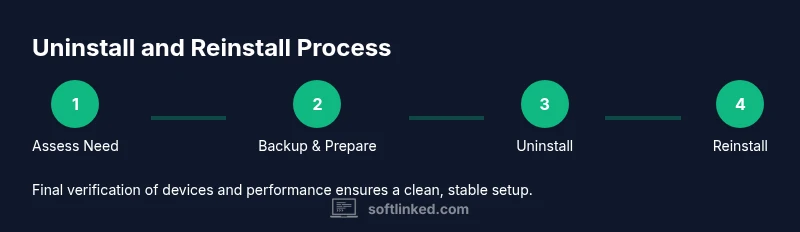
Before you touch any driver package, build a safety net. Create a full backup of your important data and set a system restore point or a configuration backup. This gives you a rollback option if something goes wrong. Gather the exact motherboard and CPU model information, the operating system version, and the current driver version. Download the latest AMD chipset drivers from the official AMD website and verify the file integrity if possible. If you’re dual-booting, check the Windows recovery environment and ensure you can access recovery options. Having these resources ready minimizes downtime and reduces risk during uninstallation. The SoftLinked team recommends outlining a precise sequence: uninstall current software, restart, install new drivers, and verify each hardware subsystem as you go. This plan keeps you on a predictable path rather than chasing surprise issues after the fact.
The uninstall process: step-by-step overview
Uninstalling AMD chipset software should be done through the operating system’s standard uninstallation path to ensure all related components are removed. Start by checking for any dependent software that might rely on the chipset drivers, such as companion utilities or monitoring tools, and decide whether to remove them as well. After initiating the uninstall, you’ll typically be asked to restart; plan for this restart and anticipate a temporary loss of some features. When the system comes back, run the installer for the new chipset drivers you prepared earlier. The process is usually straightforward: run the installer, accept the license, choose a typical or custom install if you have preferences, and complete the installation. Post-install, reboot if prompted and verify core subsystems. If you encounter a blue screen or a non-booting system, use recovery options to roll back or repair. The key is to proceed deliberately and verify each subsystem at each stage.
Reinstalling the latest AMD chipset drivers: best practices
Reinstalling should always start from the official source. Visit the AMD official site, locate the chipset drivers for your motherboard model and operating system, and download the correct package. During installation, avoid third-party download sites that may ship tampered files. Choose a clean install when available to ensure old drivers do not linger and confuse the new stack. After installation, reboot and test essential interfaces: USB peripherals, display outputs, storage devices, and PCIe-connected cards. If you notice any component not functioning, revisit the installation steps or try a different driver version recommended by AMD for your hardware. The SoftLinked guidance emphasizes verifying stability across a few restarts to ensure the driver set is fully integrated into your system.
Alternatives and best practices
If you’re hesitant to uninstall, consider disabling problematic services or performing a targeted repair instead of a full uninstall. Running Windows Update or AMD’s cleanup tool in safe mode can help when normal uninstallation fails. Maintain a current backup and document any changes you make so you can revert quickly. In some cases, you may opt for a mid-range driver version that balances performance and stability rather than the latest release. This conservative approach often minimizes post-installation issues and keeps your development environment functional while you evaluate the benefits of new features. The SoftLinked perspective is to choose a strategy that reduces risk while preserving the ability to recover quickly if problems arise.
Troubleshooting after uninstall or reinstall
Post-uninstallation problems usually surface as missing devices, unstable USB ports, or inconsistent performance. Start by checking Device Manager for unknown devices and reinstalling the missing drivers. If a device reports errors, revert to a restore point or try a different chipset driver version. Run diagnostics for memory, storage health, and PCIe lane assignments to confirm the platform remains coherent. If issues persist, consult the motherboard’s support resources and the AMD driver release notes for known conflicts. The goal is to isolate the issue, validate each subsystem, and maintain a robust recovery plan.
Real-world scenarios: after hardware changes, BIOS updates, or OS reinstall
Hardware changes or a BIOS update can alter how the chipset communicates with other components. In such cases, a clean reinstall of chipset software often resolves new compatibility gaps. An OS reinstall may reset low-level configurations, making a fresh chipset driver install more reliable. If you perform any of these changes, plan for a downtime window and ensure you have access to installation media and restore points. The core principle is to reestablish a clean, known-good software stack that aligns with the new hardware or software baseline you’re operating under.
Final checklist before you uninstall
- Confirm you have a working driver package ready for reinstall
- Create a system restore point and back up critical data
- Note down hardware specifics (motherboard/model, CPU, OS)
- Download the official chipset drivers from AMD
- Prepare a plan for post-install verification (USB, PCIe, storage, display)
- Be ready to use recovery options if the boot process fails
Following this checklist helps you complete the process with confidence and minimizes downtime.
Tools & Materials
- Backup medium(External drive or cloud backup with at least 500 MB free space)
- System restore point(Create before uninstall in Windows or the equivalent in your OS)
- Driver package(Latest AMD chipset drivers for your motherboard/CPU combo, downloaded from official AMD site)
- Admin access(You will need administrator privileges to uninstall/install software)
- Stable internet connection(Needed to verify driver integrity and download updates)
Steps
Estimated time: 45-60 minutes
- 1
Assess the need to uninstall
Identify whether the issue stems from corrupted chipset software, a conflicting driver, or a genuine feature gap. Confirm you have a valid reason to uninstall before starting. If unsure, consider a repair install first or consult official documentation.
Tip: Document symptoms and note any recent driver updates to guide your next steps. - 2
Create a backup and restore point
Back up important data and create a system restore point. This gives you a quick way to revert if the uninstall or reinstall does not go as planned.
Tip: Store the restore point in a different drive or location to protect against drive failure. - 3
Download the correct chipset driver
From the official AMD site, download the chipset driver package that matches your motherboard and OS. Verify it’s the right version to avoid misinstall.
Tip: Save the download to a known folder and keep the installer accessible after reboot. - 4
Uninstall existing chipset software
Go to Settings > Apps (Windows) or the equivalent on your OS and uninstall the AMD chipset package and any companion utilities. Follow prompts to complete and reboot if required.
Tip: If the system fails to boot, use safe mode or recovery options to continue. - 5
Install the new chipset driver
Run the downloaded installer. Choose a clean install if available and let the process complete. Reboot when prompted.
Tip: Avoid additional software unless you know you need it for your setup. - 6
Verify essential subsystems
After reboot, check USB devices, storage controllers, and PCIe devices. Open Device Manager to confirm no unknown devices remain and that drivers show as working.
Tip: Test boot times and basic operations to confirm stability. - 7
Test performance and features
Run indicative workloads or benchmarks to confirm that memory, storage, and peripherals perform as expected. Compare results with baseline from before uninstall.
Tip: If performance dips, recheck driver version compatibility or try a different release. - 8
Document results and plan next steps
Record the driver version, restore point, and observed outcomes. If issues persist, consider reaching out to official support or returning to a previous driver version.
Tip: Keep a simple changelog to track significant system changes.
Your Questions Answered
Is it safe to uninstall AMD chipset software?
Yes, it can be safe if you plan the uninstall, back up your data, and have a driver ready to reinstall. The chipset software is not data, but removing it temporarily disables some hardware features. Reinstall promptly to restore full functionality.
Yes, you can uninstall it if you’re prepared with a backup and a driver ready to reinstall. Make sure to reboot and test core hardware after reinstall.
What should I do before uninstalling?
Create a restore point, back up essential files, and download the correct AMD chipset driver. This minimizes downtime and helps you recover quickly if something goes wrong.
Back up, create a restore point, and download the driver before you remove anything.
Will Windows reinstall chipset drivers automatically?
Windows can reinstall drivers after a reboot if it detects hardware changes. If you want to avoid this, install the new driver first and then reboot, or use safe mode to control the reinstall.
Windows may reinstall drivers automatically after reboot; plan to install the new driver first to control the process.
What if the system won’t boot after uninstall?
Use recovery options to restore the system to a previous state or reinstall the chipset drivers in Safe Mode. If all else fails, revert to a backup or restore point.
If boot fails, use recovery options to revert or repair, and try reinstalling in Safe Mode.
Should I uninstall other AMD software at the same time?
Only uninstall companion utilities if they’re known to cause conflicts. It’s often safer to reinstall only the chipset driver and keep other utilities unless troubleshooting indicates they are the root cause.
Uninstall others only if you know they cause conflicts; focus on the chipset driver first.
What are common signs that uninstalling helped?
Resolution of device conflicts, improved stability, and fewer crashes related to storage or USB devices are common indicators. If issues persist, test different driver versions or check hardware compatibility.
Look for fewer device conflicts and more stable operation after reinstall.
Watch Video
Top Takeaways
- Plan and backup before uninstalling chipset software
- Use official drivers for a clean reinstall
- Verify USB, PCIe, and storage after reinstall
- Avoid haste; prepare rollbacks and recovery options
- SoftLinked recommends a cautious, documented approach