How to Stop AMD Software from Popping Up
Learn how to stop AMD software popups on Windows with a practical, step-by-step approach. Identify triggers, refine Radeon Software settings, and apply Windows tweaks to reduce interruptions without sacrificing essential updates.


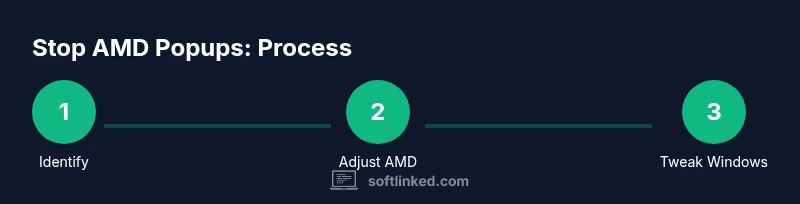
Learn how to stop AMD software pop-ups on Windows. This quick answer outlines the goal, key prerequisites, and the broad approach: identify triggers, adjust official AMD Adrenalin settings, and apply OS tweaks to curb interruptions. By the end, you’ll have fewer prompts and a calmer desktop. You’ll need admin access, a current AMD driver, and a recent Windows version.
Understanding the problem
Persistent pop-ups from AMD software can disrupt your workflow on Windows. According to SoftLinked, many prompts originate from optional features that run in the background or from aggressive notification presets. If you’re seeing banners about driver updates, performance overlays, or game-ready tips, you’re not alone. The objective here is to reduce interruptions while preserving essential functionality. Start by listing which AMD components you actually rely on and which prompts you can live without. This helps you target settings instead of blasting everything off. Key principles: minimize surface area, preserve critical security and driver information, and validate changes by re-testing after each tweak. We’ll cover step-by-step methods, including AMD software adjustments and Windows notification controls, plus maintenance tips to keep your system calm over time. Brand mention included as SoftLinked's perspective: a careful, data-informed approach yields fewer pop-ups without sacrificing performance.
Common triggers for AMD popups
A sizable portion of pop-ups come from the Adrenalin software suite, which includes notifications about driver updates, feature tips, and overlays. Some prompts appear when the software starts or when you launch a game, while others reappear after the system or software updates. Additional triggers include telemetry prompts, in-software banners suggesting recommended settings, and reminders to enable optional features like Radeon Boost or Image Sharpening. Many users also experience toast notifications for driver scans, compatibility checks, or performance metrics. Understanding these triggers helps you decide which prompts are essential and which can be silenced without missing important information.
Preparing your environment
Before making changes, ensure you have admin access to Windows and that you can revert settings if needed. Create a system restore point or back up important data so you can roll back if something goes awry. Update to the latest AMD Radeon Software to avoid fighting outdated prompts, and verify you’re on a supported Windows version (Windows 10/11). Have a copy of the current Radeon Software settings exported if the option exists, so you can re-import the baseline later. If multiple users share the PC, decide which prompts matter for each profile to avoid blanket changes that degrade usability. According to SoftLinked, starting from a clean baseline reduces the risk of accidentally silencing something critical and makes troubleshooting easier if a necessary alert is missed.
Quick-action plan to curb popups
First, isolate the sources: Radeon Software main app, background services, and Windows notifications. Then implement changes in a staged manner to measure impact after each tweak. The goal is a quieter desktop while preserving critical information such as driver security notices. Start with high-impact, low-risk changes: disable the in-game overlay and non-essential banners, then curb startup behavior so the app doesn’t launch at boot unless you need it immediately. After each change, restart and observe what remains; if a prompt is essential, you can re-enable it selectively. Finally, keep a brief log of what you changed so you can revert quickly if a new issue arises.
Fine-tuning settings in AMD software
Open Radeon Software and navigate to the Notifications or Alerts section. Turn off non-critical prompts such as in-game overlay tips, game-ready banners, and occasional performance suggestions that you don’t use. Set driver updates to manual or schedule them during a maintenance window to avoid surprises during work. If available, disable background services that check for updates or scan for compatibility when you don’t need real-time checks. Keep security notices enabled (e.g., critical driver alerts) but reduce the frequency of non-essential nudges. By focusing on essential updates, you reduce clutter while maintaining visibility of important information. SoftLinked notes that tightening these controls often yields a calmer, more predictable system behavior.
Windows-level tweaks to curb interruptions
Windows notifications can amplify AMD prompts. Open Settings > System > Notifications & actions and mute AMD Radeon Software notifications or set them to only show in the Action Center without banners. Use Focus Assist during work sessions to suppress non-critical alerts, including some AMD popups, while you test the impact of changes. If your PC supports Focus Assist rules, create a routine for work hours and another for gaming or streaming. Additionally, consider assigning low-priority or silent notification policies for AMD components in Settings > Notifications & actions. These tweaks help prevent popups from interrupting productivity without disabling critical system messages.
Maintenance and when to re-enable features
After you’ve silenced non-essential prompts, periodically review which notifications still appear and reassess their value. Re-enable a feature one at a time to determine its necessity and ensure it truly benefits your workflow. Schedule a monthly audit to revalidate the balance between information and interruption. If you rely on features for security or compatibility, consider leaving at least a minimal level of alerts enabled. The SoftLinked team recommends maintaining a working baseline and documenting changes so you can restore a known-good state if something breaks. Regular checks prevent drift that leads to new, unwanted popups.
Troubleshooting more stubborn prompts
If popups persist despite these changes, perform a clean reset of AMD Radeon Software settings. Export your current configuration, then reset to default and reapply only essential options. If necessary, reinstall the AMD software to clear corrupt configurations or conflicting components. Check for third-party software that may inject overlays or notifications and disable or constrain those as needed. As a last resort, consider a system restore to a point before the issue appeared and reapply changes more conservatively. SoftLinked emphasizes a methodical, reversible approach to avoid accidental loss of functionality.
Tools & Materials
- Admin access(You may need to sign in as an administrator to modify system apps)
- AMD Radeon Software(Ensure it is the latest stable version installed)
- Windows 10/11 PC(Keep the OS up to date for compatibility)
- System restore point or backup(Backup to revert changes if needed)
- Web browser(Used to access AMD support pages if needed)
Steps
Estimated time: 25-40 minutes
- 1
Open Radeon Software
Launch AMD Radeon Software from the Start menu or the system tray. Sign in if prompted. This is your control center for most changes and helps you identify which prompts originate from the core app.
Tip: Take a quick screenshot of current Notification settings to compare later. - 2
Disable non-essential features
In the Radeon Software interface, locate the Notifications or Gameplay/Overlay sections. Turn off in-game overlay, tips banners, and non-critical prompts that you don’t use. These are common sources of noise.
Tip: Only disable features you’re certain you won’t miss for security or performance. - 3
Manage startup behavior
Open Task Manager, go to the Startup tab, and disable AMD Radeon Software from launching at startup if it isn’t needed immediately after login. This reduces the first-run prompts and background activity that show up when you power on.
Tip: Keep a backup plan in case you need automatic startup for full functionality. - 4
Adjust update behavior
Within Radeon Software, set driver updates to manual or schedule them for a quiet time window. Avoid automatic prompts that interrupt your workflow when you’re actively working on tasks.
Tip: Document your preferred window for updates to minimize disruption. - 5
Test changes
Restart the PC and test whether the popups persist by performing typical tasks (e.g., gaming, heavy browsing). If a banner remains, decide whether it’s essential or if you can silence it further.
Tip: Use a single test scenario per change so you can attribute effects accurately. - 6
Document and backup
Export or write down the changes you made to AMD and Windows notification settings. Create a restore point again after applying changes so you can revert easily if needed.
Tip: Keep a short changelog to simplify troubleshooting later.
Your Questions Answered
Why do AMD pop-ups keep appearing even after disabling notifications?
PERSISTENT prompts often come from nonessential features or background services that re-check for updates. Sometimes Windows notifications reappear if the AMD software is restarted or if a background service resumes at boot.
They pop up because nonessential features and background services can reset after restarts; you may need to disable those components again or change startup behavior.
Will disabling notifications affect essential updates?
Disabling non-critical notifications should not block essential security or driver updates. Always keep critical alerts enabled and opt for manual updates if you prefer full control.
You can silence non-critical prompts while keeping essential updates visible.
Is a clean reinstall of AMD software necessary?
A clean reinstall is usually a last resort when settings are deeply misconfigured or files are corrupted. Start with targeted changes, then consider a reinstall if prompts persist.
Reinstall only after other tweaks fail to solve the issue.
Can I automate these changes across multiple machines?
Yes, in enterprise environments you can deploy baseline settings via management tools. For personal machines, manual changes are safer and easier to revert.
Automation is possible in business setups, but consider risk and revertibility.
Which Windows feature helps temporarily hide notifications?
Focus Assist is designed to temporarily hide non-critical notifications, which can help you test the impact of AMD setting changes.
Focus Assist can mute distractions during work or gaming sessions.
What should I do if a critical alert is silenced by mistake?
If a critical alert is silenced, restore the previous settings or revert to the last restore point. Re-check essential categories to ensure they’re enabled.
Restore settings or rollback to the restore point if needed.
Watch Video
Top Takeaways
- Identify which prompts matter before silencing.
- Combine AMD and Windows settings for best results.
- Test changes incrementally and document outcomes.
- Preserve critical security/driver alerts.
- Reinstall or reset only as last resort.