Why is software not updating on iPhone? A Troubleshooting Guide
Urgent, practical guide to fix iPhone update failures. Learn storage, network, and software glitch fixes with step-by-step actions, safety reminders, and prevention strategies to keep your device current.


If your iPhone won't update, the most likely causes are insufficient storage, weak network connectivity, or a software glitch. Start by freeing space, connecting to a stable Wi‑Fi network, and restarting the device. If the update still fails, try updating via Finder/iTunes on a computer or seek Apple support.
Why updating matters for iPhone users
Updating iPhone software is more than just new features; it is a cornerstone of device security, app compatibility, and performance improvements. When you search for the phrase "why is software not updating on iphone", you’re tapping into a common frustration that can have real consequences for data protection and app stability. According to SoftLinked, update failures typically stem from three root causes: insufficient storage, weak or unstable network connections, and temporary software glitches. Recognizing these root causes helps you approach the problem in a logical, low-stress way. This article provides a clear diagnostic flow, practical steps, and safety reminders to help you restore reliable updates without risking data loss. By following the sequence, you’ll reduce the chance of future hiccups and keep your iPhone performing at its best. We’ll cover storage management, network checks, and both OTA (Over-The-Air) updates and computer-based updates as fallbacks.
Common update failure modes and what they mean
Update failures come with a few recurring messages or behaviors. The banner may say “Unable to Check for Update,” “An Error Occurred,” or “Software Update Failed.” In many cases, the problem isn’t the update itself but the environment around it: insufficient storage, flaky connectivity, or a temporary Apple server issue. Understanding these modes helps you triage quickly: if the device cannot reach Apple servers, the issue is usually network-related; if the download completes but installation fails, the problem is more likely storage or a glitch. SoftLinked’s experience shows that most users can resolve these issues by following a structured diagnostic flow rather than random attempts.
Quick checks to run before deeper troubleshooting
Before diving into complex fixes, perform a handful of quick checks that cover the most common culprits. Ensure the iPhone is charged or connected to power, disable VPNs or proxies that may interfere with connections, and verify the date and time settings are correct. Make sure the device is on a compatible iOS version and that you’re connected to a stable Wi‑Fi network. If you’re attempting to update during a major rollout, wait for a window with lower network load. These simple checks often resolve update stalls without risking data loss.
Free up storage and manage space effectively
Low storage is one of the leading causes of update failures. Start by reviewing large apps and media, offloading unused apps, and enabling iCloud Photos or Optimize iPhone Storage to reduce local space usage. Don’t forget to clear cache and delete temporary files where possible. Consider transferring old photos and videos to a computer or cloud storage, then deleting them from the device. After freeing space, restart the device and retry the update. If needed, temporarily disabling unused apps or features can help the update download and install more smoothly.
Network prerequisites and connectivity tips
A reliable network connection is essential for a successful update. Prefer a strong Wi‑Fi connection over cellular data, and avoid networks with captive portals (those login pages that appear on public Wi‑Fi). If your signal is weak, move closer to the router or switch to a different network. Turn off VPNs during the update process, then re-enable them afterward. If the update still fails due to network issues, try the computer-based method described later in this guide.
OTA vs computer-based updates: when to use which
Over‑the‑air updates are the easiest path, but they require a stable connection and enough local storage. If OTA fails repeatedly, connect your iPhone to a Mac (using Finder) or a PC (using iTunes) and attempt the update through the computer. This method downloads the update on your computer and then installs it on the device, which can bypass some OTA-related hiccups. If you still encounter failures, use recovery options like a settings reset or, as a last resort, contact Apple Support for further diagnosis.
When to escalate and how to preserve data
If updates continue to fail after trying the steps above, back up your data and seek professional help. Always back up before major updates to prevent data loss. Check your device’s warranty status and explore Apple Support options, including scheduling a Genius Bar appointment if needed. In many cases, Apple Support can identify account or server-related issues that aren’t visible to end users. Keep a record of any error codes or messages to speed up the lookup.
Prevention: keeping future updates smooth
Develop a small preventive routine to keep future updates smoother: regularly manage storage, enable automatic backups, and keep your iPhone connected to a trusted Wi‑Fi network. Monitor the battery health and ensure your device is charged or plugged in during updates. Finally, perform minor OS maintenance periodically—don’t wait for an update to become urgent to address underlying issues. A proactive approach saves time and reduces the risk of failed installations down the line.
Steps
Estimated time: 45-60 minutes
- 1
Check available storage
Open Settings > General > iPhone Storage and review the breakdown. Delete or offload large apps and media to create space for the update.
Tip: Use the offload feature for apps you don’t use often. - 2
Verify network and power
Ensure you’re on a reliable Wi‑Fi network and your device is plugged in or charged. Disable VPNs temporarily.
Tip: A fast, stable connection increases OTA success. - 3
Attempt OTA update
Go to Settings > General > Software Update and try the update again. If it stalls, cancel and retry after a short wait.
Tip: Restart your iPhone between attempts. - 4
Update via computer
Connect your iPhone to a Mac with Finder or to a PC with iTunes and perform the update from the computer.
Tip: Ensure you’re using the latest version of Finder/iTunes. - 5
Reset network settings if needed
If the update still fails due to connectivity, reset network settings (Settings > General > Reset > Reset Network Settings).
Tip: Note that this removes saved networks and passwords. - 6
Contact Apple Support if unresolved
If issues persist after all steps, schedule a support session or visit an Apple Store for hands-on assistance.
Tip: Bring any error codes or messages you’ve seen.
Diagnosis: iPhone won't update to latest iOS
Possible Causes
- highInsufficient storage on the device
- highUnstable or unavailable Wi-Fi network
- mediumTemporary software glitch or cache issue
- lowApple server outage or regional restriction
- lowOutdated or unsupported device model
Fixes
- easyFree up storage by deleting unused apps and media; offload to cloud or computer
- easyConnect to a stable Wi-Fi network with strong signal; avoid VPNs
- easyRestart the iPhone to clear temporary caches
- mediumReset network settings if connectivity remains unstable
- easyUpdate via a computer using Finder (macOS) or iTunes (Windows) and retry
Your Questions Answered
Why won't the iPhone update continue after downloading?
This can happen due to insufficient storage, a weak network, or a glitch during installation. Try freeing space, restarting, and retrying the update. If the problem persists, attempt the computer-based update.
If the download finishes but installation stalls, free space, restart, and retry. If it still fails, update via Finder or iTunes.
How much storage space do I need for an iOS update?
Apple requires enough free storage to download and unpack the update. Ensure there is ample room and reduce storage where possible before retrying.
Make sure you have enough free space and try again after freeing up space.
Can I update without Wi‑Fi?
Wi‑Fi is strongly recommended for iOS updates to ensure a reliable download. Cellular data can work in some cases but is slower and less reliable.
Wi‑Fi is best for updates; cellular can work but may be unstable.
What if my iPhone model isn’t listed as compatible with the latest iOS?
Check Apple’s compatibility list for the latest iOS version. If your device is not listed, you cannot install that update and should consider alternatives or device upgrade options.
If your model isn’t supported, you won’t be able to install that iOS version.
Should I reset or restore if updates fail repeatedly?
Resetting network or settings can fix issues with the update process, but restoring from backup should be a last resort. Always back up before any reset or restore.
Reset settings if needed, but back up first and consider restore only if advised by support.
When should I contact Apple Support?
If multiple fixes fail or you’re encountering persistent errors, contact Apple Support or visit an Apple Store. They can diagnose account, device, or server-related causes.
If updates fail after all steps, reach out to Apple Support.
Watch Video
Top Takeaways
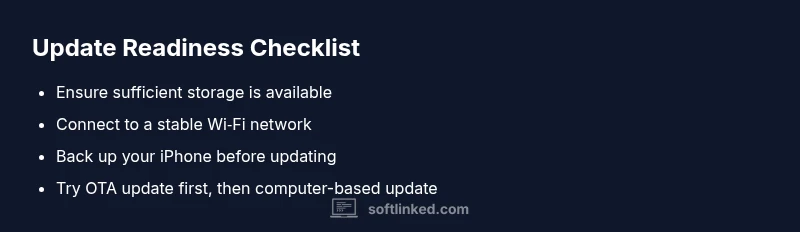
- Free up storage before updating
- Use a stable network for OTA updates
- If OTA fails, try computer-based update
- Back up prior to major updates and seek support if needed