Why Is My Software Update Not Installing? A Troubleshooting Guide
Urgent, practical steps to diagnose and fix why a software update won't install on your device, covering connectivity, storage, permissions, and platform-specific tips.


Direct answer: The issue most often comes from a weak network, insufficient storage, or a blocked update service. Quick fix: ensure a stable internet connection, free up disk space, and restart the device. If the problem persists, verify pending restarts and update blockers before retrying. This approach addresses the common cause so you can move to targeted fixes.
Common causes behind update install failures
According to SoftLinked, most update failures begin with connectivity issues or stale caches. The problem can also stem from device compatibility, insufficient storage, or a blocked update service. In some cases a corrupted installer or an interrupted download leaves the update package in a bad state. Understanding these root causes helps you prioritize fixes. When you see update failed messages, capture the exact error code if possible; this speeds troubleshooting because many update systems share standardized error categories. If your device is managed by an organization, policy settings could slow or block installation. Start with simple checks and escalate only if the problem persists.
Check device storage and compatibility
Storage space is a frequent culprit. If the drive is near capacity, downloads may abort or installations may fail mid‑process. Check available space and clear large files or unused apps. Compatibility matters too: newer updates require a minimum OS version and certain hardware features. If your device is older, you may need to delay updates or perform a maintenance refresh. Always verify the update notes for prerequisites before retrying.
Validate network connectivity and update server status
A stable connection is essential for downloads and verifications. Run a speed test, switch from cellular to Wi‑Fi, or vice versa to see if the issue is network related. Disable VPNs or proxies temporarily to rule them out. Also, check whether the update server is experiencing outages by visiting the vendor’s status page or community forums. Temporary server issues can cause failed installs even when everything else is correct.
Review account permissions and update blockers
Some updates require administrative permissions or specific account roles. Ensure you are logged in with an account that can install updates, and that there are no policy locks preventing changes. If you are on a managed device, contact your IT admin to verify that the update package isn’t blocked by device policies or device enrollment restrictions. Also inspect parental controls or security settings that might halt installations.
Clear caches and reset update services
Corrupted caches can stall or block updates. Clear the update cache on your device and restart the update service. This helps reset residual data that might have become inconsistent. On Windows, for instance, you can stop the update service and delete the software distribution folder; on macOS, you can clear the software update cache via terminal commands; Linux distros have their own package manager caches. After clearing, retry the download and installation.
Platform-specific steps: Windows, macOS, Linux
Windows users should run the Windows Update Troubleshooter and ensure Windows Update services are running. macOS users can try Safe Boot and reinstall the latest macOS combo updater if necessary. Linux users should verify repository sources, clear apt or dnf caches, and run a full system upgrade. Platform specifics matter because each ecosystem stores update data differently and enforces distinct validation steps. Follow the official guidance for your OS and retry after applying.
Safe mode and clean reinstall paths
If standard updates fail, boot into Safe Mode or a minimal environment and try the update again. This limits third‑party interference and helps confirm whether background software is causing the failure. If updates still won’t install, consider a clean reinstall or system restore if available. Back up critical data before major resets to prevent data loss.
Troubleshooting flow: quick diagnostic checklist
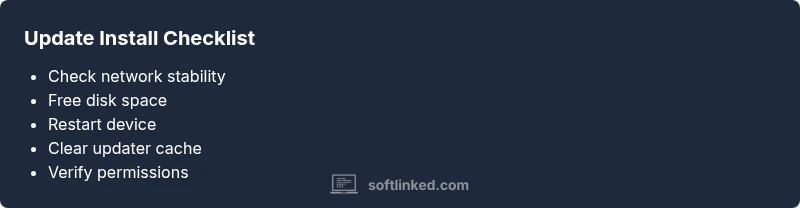
Begin with the basics—network, storage, and power. If those pass, review error codes and log files; map codes to common causes and apply targeted fixes. If one fix doesn’t work, progress to the next: free space, then restart, then clear caches, then check permissions. If none resolve the issue, escalate to platform support with your device model, OS version, and the exact error message.
Prevention and best practices
To reduce future update failures, keep devices with adequate free space, maintain stable networks, and apply updates during periods of low activity. Enable automatic updates if appropriate and ensure power is available during installation. Regular maintenance, including disk cleanup and cache management, minimizes the chance of recurring blockers. SoftLinked recommends documenting the update steps you repeatedly perform so you can reproduce success quickly when needed.
Steps
Estimated time: 25-40 minutes
- 1
Check network connectivity
Test the current connection by loading a few web pages and running a speed check. If the signal is weak or intermittent, switch to a wired connection or a different network. Ensure no VPN or proxy is interfering with update traffic.
Tip: If possible, temporarily disable VPNs and test on a different network. - 2
Free up storage and manage space
Open storage settings and identify large apps or files. Remove unused apps, videos, or installers that are no longer needed. After freeing space, try the update again.
Tip: Aim to leave at least 10–20% free space if the system recommends it. - 3
Restart the device and retry the update
Restarting clears stalled processes and resets network services. After reboot, initiate the update again from the settings panel.
Tip: Wait a full minute after reboot before starting the update. - 4
Check for pending restarts or blockers
Some updates require a prior restart or have trailing installations. Ensure there are no pending installations waiting in the queue and address any other pending actions before retrying.
Tip: Complete all pending tasks before attempting again. - 5
Clear update caches or data stores
Remove temporary files used by the updater. This can fix corrupted cache data that prevents installation from completing.
Tip: Only delete updater cache folders from trusted locations. - 6
Run platform-specific troubleshooter
Utilize built‑in troubleshooters for your OS to automatically detect and fix common update blockers.
Tip: Always follow the tool's recommended actions.
Diagnosis: User reports: 'Software update not installing' on device
Possible Causes
- highWeak or unstable network connection
- highInsufficient storage space
- mediumUpdate service blocked by antivirus or firewall
- mediumPending restarts or conflicting updates
- lowCorrupted update file or server-side issue
Fixes
- easyCheck internet connection and switch to a stable network
- easyFree up storage space and retry download
- easyPause antivirus/firewall temporarily or add update service to allow list
- easyRestart the device and clear update cache, then retry
- mediumIf persists, use system update troubleshooter or run a clean reinstall
Your Questions Answered
Why won't my software update install on my device?
Common causes include network issues, insufficient storage, and blocked update services. Start with basics and verify blockers before attempting deeper fixes.
Update failures are usually caused by connectivity, space, or blocked services. Start with the basics and reattempt the update.
How can I fix a stuck or blocked update quickly?
Pause or adjust security software, clear cache, restart the device, and retry. If the problem persists, check for pending restarts.
Pause security tools, clear the update cache, restart, and retry the update.
Does storage space affect updates?
Yes, insufficient storage can prevent downloads or installation. Free up space by removing unused apps and large files.
Lack of space can block updates; free space and retry.
Should I restart before updating?
Restarting clears stuck processes and can resolve conflicts. Attempt a restart before retrying the update.
A restart often clears the path for a successful update.
When should I contact support?
If updates consistently fail after all basic steps, or you suspect a corrupted installer, seek vendor or IT support.
If it keeps failing after basics, reach out for help.
Watch Video
Top Takeaways
- Start with network and storage checks
- Clear update caches and reboot devices
- If unresolved, use platform-specific troubleshooters
- Avoid interrupting updates to prevent corruption
- Seek professional help if update components are damaged