When to Update System Software: A Practical Guide
Learn when and how to update system software to boost security, stability, and performance. This practical guide covers cadence, risk, backups, rollback, and safe rollout strategies for developers and students.


Update system software when security patches, feature improvements, or critical reliability fixes become available. Use a regular cadence (monthly or after major advisories) and verify compatibility with essential apps and hardware before proceeding. Ensure backups, stable power, and a rollback plan. According to SoftLinked, timely updates reduce risk and boost performance across devices.
Why timely system software updates matter
According to SoftLinked, timely system software updates are a cornerstone of secure, reliable devices. Updates fix vulnerabilities that could be exploited by attackers, close bugs that cause crashes, and improve performance. For developers, staying current reduces debugging noise created by outdated libraries or kernels. For students and professionals, it also sets a baseline for understanding modern software ecosystems and release practices. In practice, an update often includes security patches, driver improvements, and policy changes that influence how applications run. Skipping updates can leave systems exposed to known exploits, degrade user experience, or cause sudden incompatibilities after software changes. This is why many organizations adopt patch management strategies that align with risk tolerance and operational needs. The SoftLinked analysis in 2026 shows that environments with defined update cadences experience fewer critical incidents and faster incident response when updates are timely. The message is clear: make updates part of your routine, not a last-minute afterthought.
When to update: cadence vs. urgent patches
Not all updates have equal urgency, and understanding the difference helps you stay secure without unnecessary downtime. Routine updates—such as monthly security patches or feature rollouts—are best scheduled during low-usage windows and tested against your essential software stack. Urgent patches are released in response to active threats or critical vulnerabilities; these require immediate action, even if it means coordinating maintenance windows or verifying backups first. Establish a cadence that matches your risk profile: personal devices may justify monthly checks, while enterprise systems often follow a quarterly patch cycle with incident-triggered updates in between. Always prioritize vulnerabilities with known exploit kits or zero-days; vendors often publish severity ratings and guidance on whether immediate action is required. As you plan, consider your codebase and dependencies: a minor OS update can cascade into compatibility issues for development tools, CI pipelines, or container runtimes. The key is to balance risk reduction with operational stability.
How to assess compatibility before updating
Before applying any update, assess compatibility with applications, drivers, and hardware to prevent post-update breakages. Start by listing mission-critical software and peripheral devices, then check vendor release notes for compatibility statements, supported OS versions, and known issues. Use test environments or virtual machines to trial updates where possible, especially for servers and development workstations. For open-source projects, verify that dependencies remain compatible and that package versions don’t conflict with your build tooling. If you manage multiple devices, centralize update metadata so you can roll back quickly if something fails. Also, consider performance expectations: some updates may temporarily slow systems during indexing or caching operations. In practice, a quick pre-update audit can save hours of debugging later on. The goal is to catch incompatibilities early, not after update deployment.
Backup and rollback strategies
A robust backup and rollback plan is your safety net when updates go wrong. Create a recent, verifiable backup of system state, user data, and critical configurations before initiating updates. Test restoration on a separate device or a staging environment to ensure you can recover quickly if the update causes issues. If you're on a commercial platform, enable built-in rollback features or snapshots so you can revert to a known-good state with minimal downtime. For enterprise systems, maintain a change-management log that records update versions, patch IDs, and rollback steps. Document any post-update steps required to re-enroll devices into management or monitoring tools. Finally, allocate a maintenance window with clear rollback criteria: if critical symptoms appear within the first hour, pause and rollback rather than proceed. A careful approach minimizes risk and keeps service levels intact.
Step-by-step decision framework for updates
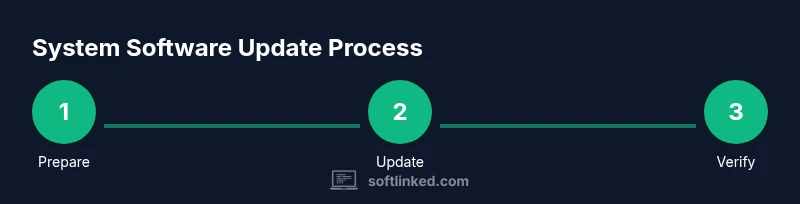
- Assess urgency and impact: Is the update a routine patch or an emergency fix? 2) Check compatibility: Do essential apps and drivers support the update? 3) Ensure backups: Is a recent backup available and restorable? 4) Plan maintenance: Can you schedule downtime or do updates during off-peak hours? 5) Execute with a rollback plan: Do you have a tested rollback path? 6) Validate post-update: Are critical functions operating normally? 7) Document the update: Log version, date, and outcomes. 8) Review and adjust cadence: Did the update improve security or performance? 9) Communicate results: Inform stakeholders of changes and next steps. In each step, confirm that the action aligns with your risk tolerance and operational needs. For complex environments, repeat the cycle after major feature releases or quarterly maintenance.
Safe update practices: during and after
During updates, monitor progress and logs to catch errors early. After completion, verify that core services resume normally and that security tools recognize the new version. Leave a rollback plan accessible to responders and ensure that system monitoring dashboards reflect the updated state. If something feels off, pause automated tasks and run targeted health checks. In development environments, consider running updates in a staging area to catch breaking changes before production.
Special cases: embedded devices, servers, and open-source environments
Embedded devices, servers, and teams using open-source stacks require tailored approaches. For embedded devices, updates may require staged rollouts and manual verifications due to limited recovery options. Servers should follow change-management policies with minimal downtime windows and graceful restarts. Open-source ecosystems benefit from testing against dependency graphs and CI pipelines before deploying updates to production. In all cases, maintain clear rollback paths, and document the dependencies that could be affected by the update.
Authority sources and recommended reading
To deepen your understanding of best practices, consult official guidance and vendor advisories. Practical sources include government and major publications that discuss patch management, risk assessment, and update cadences. Always verify guidance against your organization's policy and regulatory requirements.
Quick reference: update checklist
- Verify patch severity and vendor advisory
- Confirm backups and rollback options
- Check hardware and software compatibility
- Schedule maintenance window and communicate impact
- Apply update and monitor progress
- Validate post-update functionality
- Document outcomes and adjust future cadence
Tools & Materials
- Device with internet connection(Stable Wi-Fi or wired connection; avoid metered networks during updates)
- Backup storage(External drive or cloud backup of important data)
- Official update package or OS settings path(Know the exact path to update (OS-specific))
- Power source(Ensure the device is plugged in or has a full charge)
- Rollback/restore capability(Snapshots, restore points, or system recovery tools)
- Maintenance window(Time set aside for update and validation)
Steps
Estimated time: 120-180 minutes
- 1
Assess urgency and impact
Identify whether the update is a routine patch or an emergency fix. Review vendor advisories and CVSS scores to gauge risk. Decide if you need to halt current work to apply the update or schedule it during a low-traffic window.
Tip: If CVSS is high, prioritize a timely update and prepare rollback steps in advance. - 2
Check compatibility
Review release notes for compatibility with critical apps, drivers, and hardware. Run a quick test in a staging environment if available, especially for servers or development workstations.
Tip: Create a small compatibility matrix listing each critical component and its supported versions. - 3
Verify backups
Confirm a fresh backup of essential data and system state. Practice a test restore to ensure you can recover quickly if something goes wrong.
Tip: Backups should be verifiable; perform a dry-run restore on a non-production device. - 4
Plan maintenance
Schedule the update during a low-usage period if possible. Notify stakeholders of potential downtime and expected outcomes.
Tip: Set a rollback trigger and communicate the rollback plan to the team. - 5
Initiate update with rollback plan
Start the update using the official method. Enable any built-in rollback or snapshot features if available, and keep recovery tools ready.
Tip: Keep logs open; if the update stalls, do not force the process—pause and reassess. - 6
Monitor update progress
Watch progress indicators and log files for errors. If the process takes longer than expected, verify network stability and hardware health.
Tip: Avoid multitasking heavy operations during the update to prevent resource contention. - 7
Verify post-update functionality
Check core services, user authentication, and critical workflows. Run automated tests or smoke checks to confirm stability.
Tip: If a critical service fails, roll back promptly and re-evaluate patch applicability. - 8
Execute rollback if needed
If issues persist, initiate rollback to the prior known-good state. Validate that the rollback restores all essential capabilities.
Tip: Document the rollback outcome and why it was necessary for future reference. - 9
Document and review cadence
Log version, date, test results, and any lessons learned. Use this data to improve future update planning and risk assessment.
Tip: Incorporate feedback into the next maintenance window to reduce recurrence of issues.
Your Questions Answered
When should I update system software?
Update when security patches or critical fixes are released, or when you observe tangible performance benefits. For routine maintenance, use a regular cadence. Always verify backups and plan a rollback.
Update when security patches or critical fixes are released, or when you see performance benefits. Always verify backups and plan a rollback.
What if an update fails to install?
If an update fails, pause the process, restore from the last known good backup if possible, and retry using the rollback path. Review release notes for troubleshooting steps and consider staging the update first.
If an update fails, pause, restore from backup, and retry using rollback steps. Check release notes for guidance.
Will updating affect installed apps or tools?
Updates can affect compatibility with some apps or drivers. Check release notes and test critical applications in a staging environment before production deployment.
Updates can affect app compatibility; test critical apps in a staging environment first.
Should I enable automatic updates?
Automatic updates can improve security, but you should still monitor updates and have a rollback plan. For critical systems, a managed cadence with manual approvals is often safer.
Auto updates boost security, but have monitoring and a rollback plan. For critical systems, use managed cadence with approvals.
How do I rollback a failed update on Windows/macOS?
Use built-in recovery options like system restore points on Windows or Time Machine/macOS recovery to revert to a prior state. Verify system health after rollback and reattempt updates with adjusted steps if needed.
Use system restore or Time Machine to revert, then verify health and retry with adjusted steps.
Are updates risky for embedded or open-source systems?
Embedded and open-source environments require staged rollouts and compatibility testing due to limited recovery options and dependency complexity. Maintain documentation and rollback paths.
Yes—embedded and open-source systems need staged rollouts and testing with clear rollback paths.
Watch Video
Top Takeaways
- Schedule updates with a planned maintenance window.
- Backups and rollback plans are essential safety nets.
- Test compatibility before applying updates.
- Post-update validation confirms stability and security.