What to Do for Software Update: A Practical Guide for Developers
A comprehensive, step-by-step guide to updating software safely and efficiently. Learn best practices for backups, validation, rollback, and documentation to minimize downtime and maintain security in 2026.


To do a software update effectively, you’ll first identify what needs updating, back up important data, and choose the best update method. This guide outlines a safe, repeatable process you can apply to individual apps, devices, or entire systems, with practical checks and rollback strategies. You’ll also verify post-update functionality and security patches, document changes for teammates, and schedule future updates to minimize disruption.
What to do for software update: core goals
For most software systems, the goal of a software update is to improve security, performance, and features while minimizing risk to availability. When the question is 'what to do for software update,' a clear, repeatable process matters more than any single tool. According to SoftLinked, the best updates follow a disciplined sequence: inventory, validate prerequisites, apply changes, and verify outcomes. This block sets the stage for why a methodical approach matters for developers and IT teams alike, including how updates interact with dependencies, configurations, and compliance requirements. By understanding the core goals, you can tailor a plan that fits laptops, servers, and containerized environments, ensuring a smooth transition from old to new without surprises.
Pre-update preparation
Before you touch any production systems, you need a solid foundation. Create an asset inventory of devices and applications, map dependencies, and confirm that security policies allow the update window. Establish a rollback plan and communicate the planned downtime to stakeholders. Gather the necessary credentials, confirm license compatibility, and verify you have a reliable backup point. These steps reduce the chance of surprises, speed up recovery if something goes wrong, and help you measure success after the update.
Update methods: automatic vs manual
Updates can be delivered automatically by vendors or manually by admins, depending on risk, environment, and compliance. Automatic updates minimize downtime but can introduce breaking changes if you don’t review release notes. Manual updates give you control and the opportunity to test in a staging environment first. In regulated contexts, fixed update cadences and approval workflows are common. Choose a method that aligns with your risk tolerance, maintenance policies, and user expectations, and document the rationale for future audits.
Centralized vs distributed update management
In larger organizations, update management often runs through centralized tooling, such as configuration managers or container orchestration with built-in image scanning. Centralized approaches simplify consistency and auditing but require governance and tooling expertise. Distributed updates, common in smaller teams or edge environments, provide agility but demand strong coordination and clear changelogs. The right balance depends on scale, security posture, and the level of control you need over each device or service.
Step-by-step update workflow (overview)
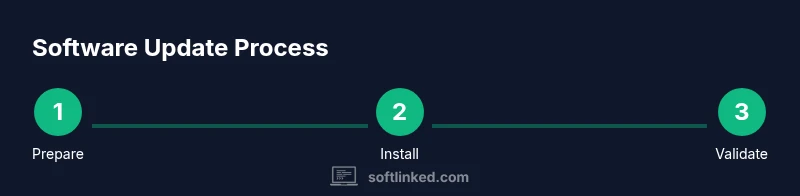
A robust workflow keeps everyone aligned and reduces risk. Start by validating prerequisites, then download or pull the update package, apply changes according to the vendor’s instructions, and monitor system health during rollout. After completion, run automated tests or spot checks to verify core functionality and security posture. Finally, document what changed and obtain sign-off from stakeholders before returning to normal operations. This structured flow supports reproducibility across environments.
Testing after update and validation methods
Post-update validation confirms that the system behaves as expected. Use automated tests where possible and manual sanity checks for critical workflows. Verify version numbers, check logs for anomalies, run security scans, and confirm backup integrity. Maintain a test matrix that covers critical configurations and user scenarios. If any tests fail, escalate with a rollback plan and a clear remediation path. Continuous improvement comes from learning which tests best predict post-update stability.
Rollback planning and contingency measures
A rollback plan is a safety net you should never skip. Define clearly what constitutes a rollback trigger, the steps to revert changes, and how long the rollback window should last. Ensure you have validated backups and a tested restore process. Communicate rollback options to stakeholders and practice the process in a non-production environment if possible. Quick access to rollback resources minimizes downtime and preserves service levels.
Documentation and change logs: recording updates
Document every update decision, rationale, and outcome. Maintain a concise change log, record the build or version number, and attach relevant release notes. Documentation improves traceability for audits and onboarding, and it helps future teams understand why a change was made. Include checklists, test results, and approval signatures. An up-to-date record makes it easier to reproduce the update process across projects and teams.
Security considerations: patches, compliance, and risk management
Software updates often include security patches and vulnerability fixes. Prioritize critical patches for systems exposed to the internet or sensitive data. Ensure updates comply with internal policies and external regulations, and verify that any dependencies are updated consistently. Use vulnerability scanning and license management tools to catch drift between environments. Regular reviews of patch timing, risk scoring, and remediation status help maintain a strong security posture.
Collaboration and communication: coordinating across teams
Effective updates require clear communication between developers, IT, and business owners. Establish ownership, define roles, and publish a common update calendar. Use a shared checklist, update notes, and a centralized ticketing system to track changes. Encourage feedback from operators about post-update issues and incorporate it into the next cycle. A culture of transparency reduces downtime and increases user trust.
Tools & Materials
- Backup storage device or cloud backup service(External hard drive or cloud service with sufficient space to hold full backups and recovery points)
- Device or system access credentials(Admin or root access needed to install updates or deploy patches)
- Update package or installer(Official, signed package matching your OS or application version)
- Change management plan or downtime window(Documented approval and a scheduled maintenance period)
- Network connection with sufficient bandwidth(Wired Ethernet preferred for large updates; test connectivity beforehand)
- Rollback/restore media(Have tested restore media or snapshot ready in case of failure)
Steps
Estimated time: 60-120 minutes
- 1
Prepare and inventory
Identify all devices and software affected by the update. Create a centralized list with current versions, owners, and dependencies. Confirm the approved maintenance window and communicate with stakeholders.
Tip: Document each asset’s current state before proceeding; a simple spreadsheet works well. - 2
Back up data and create restore points
Back up critical data and take a system snapshot if available. Verify the integrity of backups and confirm restoration capability. Schedule the backup to run before any changes begin.
Tip: Test a quick restore on a non-production system to validate the backup. - 3
Check prerequisites and compatibility
Review release notes for the update, check for conflicting software, and verify licensing terms. Ensure hardware and software prerequisites are met before proceeding.
Tip: If in doubt, run the update on a staging environment first. - 4
Download or pull the update package
Obtain the correct package from the official source or repository. Verify checksum or digital signature to guard against tampering. Prepare rollback steps in case the install stalls.
Tip: Prefer a wired connection; avoid mid-download interruptions. - 5
Apply the update following vendor instructions
Install or apply the patch per the vendor’s guidance. Monitor progress, watch for errors, and pause if a critical issue appears.
Tip: Do not skip verification prompts or prompts that request a restart. - 6
Validate update success and plan rollback
Run post-update tests, verify core functionality, and confirm security patches are active. If anything fails, execute the rollback plan and document lessons learned.
Tip: Keep stakeholders informed about results and next steps.
Your Questions Answered
What should I back up before updating software?
Back up essential data and system state. Include configuration files, databases, and user data. Validate backups with a quick restore test and confirm recovery points before starting the update.
Back up essential data and system state, then test restoration to confirm you can recover if something goes wrong.
How do I determine update compatibility with my system?
Review the vendor release notes for hardware and software requirements. Check for dependent services or plugins and test in a staging environment before deploying to production.
Read the release notes, check for dependencies, and test in a staging environment first.
What if the update breaks something after installation?
Follow the rollback plan using validated backups. Communicate with stakeholders about the issue, apply a fix, and revalidate before rescheduling the update.
If issues appear, revert to the previous state using your rollback plan and recheck everything.
Can I safely update in production without downtime?
Some updates can be staged with rolling deployments or blue-green strategies to minimize downtime. However, always have a fallback and a tested rollback in case user impact occurs.
Rolling deployments can reduce downtime, but always have a rollback plan ready.
How often should updates be applied?
Set a regular cadence based on vendor recommendations and risk profile. Critical security patches should be prioritized and deployed promptly, with less critical upgrades scheduled during low-traffic periods.
Maintain a regular cadence that prioritizes security patches and aligns with your risk tolerance.
What’s the difference between patching and major upgrades?
Patches fix specific issues or vulnerabilities, usually small in scope. Major upgrades introduce new features and architectural changes and may require more planning and testing.
Patches are small fixes; major upgrades bring new features and may require more planning.
Watch Video
Top Takeaways
- Plan updates with a clear scope
- Backups are non-negotiable
- Verify post-update functionality before resuming work
- Maintain a rollback plan and document changes
- Coordinate with teammates to minimize downtime