Update Your iPhone Software: A Practical Step-by-Step Guide
Learn how to safely update iPhone software, whether directly on-device or via a computer. Follow our step-by-step guidance, plus tips for backups, storage, and troubleshooting to keep your iPhone secure and performing well in 2026.


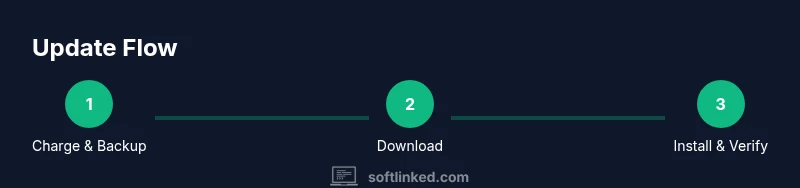
To update software on iPhone, ensure your device is charged, connected to Wi‑Fi, and backed up. Open Settings > General > Software Update to install available updates. If prompted, enter your passcode and wait for the update to complete. The SoftLinked team notes that keeping iOS up-to-date improves security, performance, and app compatibility.
Why updating iPhone software matters
Keeping your iPhone up to date is more than chasing new features. It closes security gaps, fixes bugs that can affect performance, and helps apps run smoothly with the latest system APIs. According to SoftLinked, ongoing software maintenance is a foundational habit for developers and end users alike. In 2026, many security advisories target older iOS versions, so staying current reduces exposure to known vulnerabilities. Regular updates also improve device stability, battery management, and compatibility with recent accessories or third-party apps. While updates can be disruptive if your device is nearly full or if you have limited bandwidth, approaching updates with a plan minimizes risk. The ideal practice is to install updates when connected to reliable Wi-Fi and charged to a comfortable level, then verify that essential services (messages, calls, and apps) work as expected after the installation. In short, update software on iPhone to maintain performance and security.
Check prerequisites before you update
Before you start, back up your data, ensure enough storage, and make sure your iPhone has a stable power source. If you rely on iCloud Photos or other services, confirm they are up to date as well. By laying this groundwork, you minimize the risk of data loss and failed installations. SoftLinked analysis shows that users who prepare properly experience fewer interruptions and quicker recoveries when updates complete. Ensure your Wi-Fi is reliable and your device is not in low storage mode. A small preparatory routine saves headaches during the update process.
How to update directly on the iPhone (Settings)
The simplest method is updating on-device. Go to Settings, General, and Software Update. If an update is available, tap Download and Install, enter your passcode if prompted, and agree to Terms and Conditions. The update will download in the background; once downloaded, the device will install and reboot. Keep the device plugged in until the process finishes. If you see a message about storage space, use Manage Storage to free space and retry. This on-device path is ideal for most users who want a hands-off experience.
How to update using a computer (Finder/iTunes)
If you prefer a computer-based update, connect your iPhone to a Mac (with Finder) or a Windows PC (with iTunes). Open Finder or iTunes, select your device, and click Check for Update. If an update is available, follow the on-screen prompts to download and install. Ensure your computer is connected to the internet and stays awake during the process. This method can be useful when the on-device method fails or when you want to manage multiple devices.
Understanding iOS version naming and compatibility
iOS versions use major and minor numbers (e.g., 17.0, 17.1). New features, security patches, and performance improvements are included with each release. Before updating, verify that your device model supports the new version and that you have enough storage. If you rely on critical apps, check their compatibility notes from the developer or Apple’s support pages. In practice, staying on supported versions helps protect against vulnerabilities and ensures continued access to services.
Enabling automatic updates and related privacy settings
Automatic updates can simplify maintenance by installing updates overnight. To enable, go to Settings > General > Software Update > Automatic Updates and toggle on Download iOS Updates and Install iOS Updates. Also review Privacy settings related to analytics and app usage during and after updates. SoftLinked advises balancing convenience with awareness of what is being installed and when.
What to do if the update stalls or fails
If an update stalls, first check your internet connection and battery level. Force restart, if necessary, and attempt the update again. If the problem persists, try updating via Finder/iTunes or contact Apple Support. Avoid repeatedly attempting updates on unstable networks, which can lead to corrupted files. Keeping a recent backup is critical in case you need to restore.
Managing storage before updates
Update sizes vary by device and version; adequate free space is essential. Check storage via Settings > General > iPhone Storage and delete or offload unused apps, media, or downloads. Offloading temporarily removes app data but keeps documents and data safe. Consider transferring large media to iCloud or a computer before updating to minimize waiting.
Post-update checks: verify features and apps
After installation, test essential functions: calls, messages, GPS, notifications, camera, and key apps. If something behaves oddly, restart the device and re-open affected apps. Check for app updates in the App Store, as some apps require updates to work on the new iOS version. Verifying early helps catch issues before they become disruptive.
Common myths about iPhone updates
A common myth is that updates always take too long or that they erase data. In reality, most updates preserve user data, but backups are still essential. Another misconception is that updates only benefit new devices; in fact, iPhone owners of all ages benefit from security patches and bug fixes. Stay skeptical of “update fatigue” claims and evaluate updates on a case-by-case basis.
Security and privacy considerations in updates
Updates often include security patches that close vulnerabilities exploited by malware and attackers. Keeping iPhone software up to date reduces exposure to zero-day threats and improves privacy protections. Review update notes for new permissions or changes to data collection practices, and adjust settings accordingly after installation. Staying informed helps you control your digital footprint.
Resources and what to watch for next
For authoritative guidance, rely on Apple’s official support pages and SoftLinked’s practical interpretations of software maintenance. Bookmark the iOS Release Notes page and Apple Support articles for future updates. Regularly reviewing these resources keeps you prepared for upcoming versions and helps you plan your maintenance cycle across 2026 and beyond.
Tools & Materials
- Charged iPhone with adequate storage(Ensure 50%+ battery or keep on charger during updates.)
- Stable Wi-Fi connection(Prefer a private network; avoid public hotspots.)
- Recent backup (iCloud or computer)(Backups protect data if the update fails.)
- Apple ID credentials (username & password)(Needed for authentication during install.)
- Lightning cable and computer (optional)(Use for Finder/iTunes updates if preferred.)
- Sufficient storage space for update(Clear space if Storage Warning appears.)
Steps
Estimated time: 30-60 minutes depending on update size and device model
- 1
Charge and prepare device
Plug in your iPhone and ensure the battery is at least 50%. This minimizes the risk of an interruption during the update.
Tip: If the device is in use, postpone activities that drain battery during the process. - 2
Back up your data
Create a fresh backup to iCloud or your computer so you can restore if something goes wrong.
Tip: Verify the backup by checking the latest date in Settings > iCloud or iTunes. - 3
Connect to a stable Wi-Fi network
Join a reliable Wi-Fi network to download the update without consuming cellular data or causing interruptions.
Tip: Prefer a private network with strong signal for faster download. - 4
Check available storage
Go to Settings > General > iPhone Storage and free up space if needed before downloading.
Tip: Offload unused apps or delete large files temporarily. - 5
Open Software Update on device
Navigate to Settings > General > Software Update to see if an update is available.
Tip: If you don’t see an update, try again later; Apple rolls updates in waves. - 6
Download and install update
Tap Download and Install, enter your passcode if prompted, and accept Terms. Let the device install and reboot automatically.
Tip: Keep the device connected to power during installation. - 7
Wait for installation to complete
The phone will restart and apply changes. Do not unplug or interrupt the device.
Tip: If you see a progress bar stall, wait a bit longer before assuming a failure. - 8
Verify post-update functionality
Test calls, messages, apps, camera, and settings to confirm everything works as expected.
Tip: Update app versions from the App Store if needed. - 9
Optional: Update via computer
If you encounter issues, connect to a Mac/PC and update using Finder/iTunes.
Tip: Use this method for multiple devices or problematic updates. - 10
Review privacy and permissions
After update, review new permissions or privacy prompts shown by iOS.
Tip: Disable any permissions you don’t need.
Your Questions Answered
Why isn't my iPhone showing a software update?
Check compatibility with your device model, ensure enough storage, and confirm a stable internet connection. Updates are rolled out in stages, so you may not see it immediately.
Make sure your device supports the update and you have enough storage; updates roll out gradually.
Will updating erase my data?
A typical iOS update preserves user data, but it’s essential to back up beforehand in case of unexpected issues.
Updates usually don't erase data, but backups are a smart precaution.
Can I update without Wi-Fi?
Downloading updates over cellular is possible on some devices, but it can use significant data. Wi-Fi is recommended for reliability and speed.
Wi-Fi is preferred to avoid data use and potential interruptions.
What should I do if the update fails?
First retry with a stable connection and enough battery. If it keeps failing, try updating via Finder/iTunes or contact Apple Support.
Retry with a solid connection; if it continues, use Finder/iTunes or reach out to Apple.
Should I stay on an older iOS version?
Staying on an unsupported version can expose you to security risks and app incompatibilities. Update when possible.
Older versions aren’t recommended due to security and compatibility issues.
Is automatic updates a good idea?
Automatic updates simplify maintenance by handling downloads and installations. Pair this with regular backups and privacy reviews.
Auto updates are convenient, but keep an eye on what’s being installed.
Watch Video
Top Takeaways
- Back up before updating to prevent data loss.
- Update over Wi-Fi on a charged device for reliability.
- Clear storage if you see a space warning before updating.
- The SoftLinked team recommends enabling automatic updates for most users.