Is It OK to Update Samsung Phone Software? A Practical How-To
Learn when and how to safely update Samsung phone software, with step-by-step guidance, safety tips, and troubleshooting to keep your device secure and running smoothly.


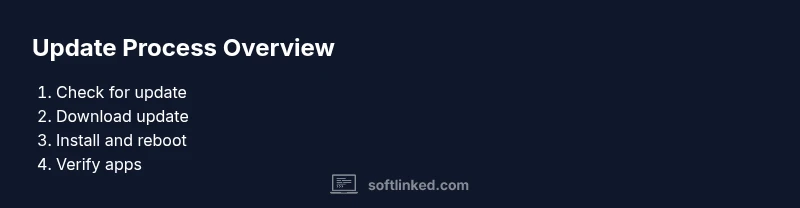
Follow these steps to safely update: 1) Back up your data, 2) charge to 50% or more, 3) connect to stable Wi‑Fi, 4) open Settings > Software update and download, 5) install and reboot, 6) verify apps after update. Also check storage and disable auto-download on metered networks.
Why software updates matter for Samsung phones
Software updates are more than just new features; they’re the primary way manufacturers close security gaps, fix bugs, and improve hardware compatibility. For Samsung devices, updates can maximize battery efficiency, enhance device stability, and extend the life of your phone by ensuring you receive the latest protections and performance optimizations. According to SoftLinked, regular updates help mitigate known vulnerabilities and optimize how your device interacts with apps and services. Keeping your software current also helps you stay compliant with evolving security standards and protects sensitive data from emerging threats. While updates can occasionally bring minor UI changes, the long‑term benefits typically outweigh short‑term adjustments for most users.
Beyond personal devices, updating is part of responsible device management for developers and students learning on real hardware alike, helping you understand how modern mobile ecosystems evolve over time.
Understanding update channels and types
Samsung phones receive updates through multiple channels: user-initiated OTA updates, carrier-certified builds, and beta programs for early access. OTA updates deliver system enhancements, security patches, and feature tweaks directly to your device with minimal user effort. Carrier builds may differ slightly by region, potentially affecting preinstalled apps or services. Beta programs let you test upcoming changes but may introduce instability. It’s important to distinguish between version updates (major releases) and incremental security patches, which are smaller yet crucial for protection. When deciding whether to update, review the changelog, ensure your device has adequate storage, and verify app compatibility to minimize disruption.
From a developer’s perspective, understanding these channels helps in planning testing and compatibility checks, especially when developing apps that rely on specific Android or Samsung framework behaviors.
Safety, compatibility, and risks
While updates bring many benefits, there are risks to consider. In rare cases, updates can temporarily affect battery life, cause minor app layout shifts, or trigger compatibility issues with niche productivity tools. To minimize risk, ensure you have a recent backup, enough storage space, and a stable power source before updating. If you rely on specialized enterprise apps, check for vendor advisories or compatibility notes from Samsung before applying a major update. SoftLinked’s guidance emphasizes patch priority—security fixes should generally take precedence over feature experimentation. If you rely on critical data, plan updates during a maintenance window to avoid potential downtime.
Preparing before updating
Preparation is the key to a smooth update experience. First, back up your data to a trusted cloud service or computer. Check battery level and aim for at least 50% charge, preferably plug the device in during the process. Connect to a reliable Wi‑Fi network and ensure you have sufficient free storage (at least 1–2 GB free, more for larger updates). Review your installed apps for compatibility notes and consider temporarily disabling power-intensive features that could interfere with the update process. Finally, ensure your Samsung account credentials are handy in case you need to re‑authenticate after the update.
Post-update checks and maintenance
After installation, take a few minutes to verify core functions: reboot the device, re‑log into essential apps, and confirm that security settings (like Find My Mobile and device protection) are still active. Open Settings to review the new software version and check for any additional updates or hotfixes. Observe battery life and performance over the next 24–48 hours; if you notice abnormal drain or lag, try clearing cache for problematic apps or resetting app preferences. Maintaining regular backups and keeping a record of update dates helps you track changes and improves your learning as a software professional.
Common scenarios and model-specific notes
Samsung releases updates in waves, and not every device receives every update at the same time. If your model is older, you might see extended wait times or smaller feature changes. In some regions, carrier customization can delay or slightly modify the update, so consult regional support articles for your device. If you are enrolled in a beta program, you can experience early features but should be prepared for bugs and potential data quirks. When in doubt, compare your model’s update notes with official Samsung support pages to confirm what to expect and whether any steps differ for your specific device.
When to delay or skip updates
There are legitimate reasons to delay an update: if you rely on critical enterprise apps that haven’t been validated yet, or if the update is known to cause instability on your particular model. In such cases, postpone until you verify compatibility or receive a follow‑up patch. If you’re in a scenario where data safety is paramount, consider performing updates during a maintenance window and ensure you have a reliable backup. If you decide to skip an update, keep monitoring for security patches and apply them when you’re confident about stability.
How to handle update failures gracefully
If an update fails to install, don’t panic. Start by rebooting the phone and retrying the update over a stable Wi‑Fi connection. Clear space if storage was insufficient and verify that your device is not running out of battery during the install. If problems persist, use the Samsung Smart Switch utility on a computer for a manual update, or contact official support for guided recovery options. Keeping a record of error messages helps you communicate the issue clearly when seeking help.
estimatedTime:
],
Tools & Materials
- Phone charged to at least 50%(Ensure battery level is >= 50% before starting the update.)
- Stable Wi-Fi connection(Prefer a 5 GHz network for faster downloads.)
- Adequate free storage (1–2 GB+)(Update files can be large; ensure space for the install.)
- Recent data backup(Back up photos, contacts, and app data.)
- Samsung account access(Needed for re-authentication in some cases.)
Steps
Estimated time: 25-40 minutes
- 1
Back up your data
Begin by backing up all important data to a trusted cloud service or computer. This protects photos, contacts, messages, and app data in case something goes wrong during the update. Verify the backup by checking a few sample items.
Tip: Test a small file restore from your backup to confirm integrity. - 2
Charge and secure storage
Plug the phone in or ensure at least 50% battery so the update can complete without interruption. Free up storage by moving large media files or uninstalling unused apps to accommodate the update package.
Tip: Avoid updates on devices with low storage, as it can cause failures. - 3
Connect to a reliable network
Connect to a stable Wi‑Fi network rather than mobile data to avoid interruptions and reduce data costs. If your Wi‑Fi is unstable, switch to a different network or pause the update.
Tip: If you must use mobile data, limit background activity to conserve bandwidth. - 4
Check for the update
Go to Settings > Software update to see if an update is available for your model. Read the changelog to understand what’s changing before you install.
Tip: If you don’t see an update, it may not be available for your region or carrier yet. - 5
Install and monitor progress
Tap Install and let the device download and apply the update. Do not restart or use the device during installation unless prompted.
Tip: Keep the device plugged in and avoid heavy multitasking during install. - 6
Verify and finalize
After reboot, verify that essential apps run smoothly and re‑authenticate any accounts if required. Check the software version to confirm the update completed.
Tip: Note any post‑update anomalies and plan follow‑up steps if needed.
Your Questions Answered
Is it safe to update Samsung phone software?
Yes, updates are designed to improve security, performance, and compatibility. Always back up first and ensure a stable power source and network before updating.
Yes—updates are generally safe, but back up first and use a reliable connection.
What should I do if the update fails to install?
If an update fails, reboot the phone, retry over a reliable Wi‑Fi connection, and ensure sufficient storage. If it still fails, consider using Samsung Smart Switch on a computer or contacting support.
If it fails, restart, retry on Wi‑Fi, and check storage; if needed, contact support.
Will updating erase my data?
Updates themselves should not erase data, but it’s possible if something goes wrong during installation. Always back up beforehand to minimize risk.
Updates don’t usually erase data, but back up first just in case.
Can I update over cellular data?
Some updates can be downloaded over cellular data, but many users prefer Wi‑Fi for speed and to avoid data charges. Check Settings to confirm your preference.
You can update over cellular data, but Wi‑Fi is usually recommended.
Should I delay updates for beta programs?
Beta programs let you test early features but may introduce bugs. If stability matters, wait for the final release and review official notes before updating.
Beta updates can be unstable; consider waiting for the final release if you rely on your phone for work.
Watch Video
Top Takeaways
- Back up data before updating
- Update over Wi‑Fi when possible
- Verify essential apps after the update
- Keep device plugged in during install
- Monitor device behavior post-update