How to Use Software on a Computer: A Practical Guide
Learn how to use software on a computer with a practical, step-by-step guide. From installation to daily tasks, this SoftLinked tutorial covers fundamentals for beginners and students.


This guide teaches you how to use software on a computer, from choosing the right tool to installing, configuring, and performing everyday tasks. You’ll learn practical steps, best practices, and safety tips to boost productivity and reduce errors. Ideal for students, aspiring engineers, and professionals who want solid software fundamentals that scale across Windows, macOS, and Linux environments.
Why mastering software usage matters
According to SoftLinked, understanding how to use software on a computer is foundational for anyone entering tech, whether they are students, aspiring developers, or professionals. When you know how software behaves, you can select the right tools for a task, customize preferences, and streamline your workflows. This section explains why solid software fundamentals reduce friction, increase learning speed for new tools, and help you communicate effectively with teammates. You’ll see examples that apply to word processors, code editors, data apps, and design tools, showing that the core ideas stay the same across programs and platforms. By building mental models of how software works, you gain confidence to explore features, troubleshoot issues, and stay productive under pressure.
Prerequisites you should have before starting
Before you dive into using software on a computer, ensure your setup is ready. You’ll need a computer running a modern operating system (Windows, macOS, or Linux), a reliable internet connection for downloads and updates, and user accounts with appropriate permissions. Have a basic understanding of file management (creating folders, saving files, and recognizing file types). This foundation makes the following lessons smoother and safer, especially when installing new software or adjusting settings.
Understanding software models: installable vs cloud-based apps
Software comes in different delivery models. Installable software lives on your computer and can work offline, while cloud-based software runs in a browser or dedicated client and often saves data in the cloud. Each model has trade-offs in performance, cost, and access. This section helps you decide which model fits a given task, such as word processing, code editing, or data analysis. You’ll learn to weigh factors like offline capability, subscription costs, data residency, and version control when making a choice.
Installation and onboarding: getting started safely
Installing new software requires careful steps to avoid malware and ensure compatibility. Start by downloading from official sources or trusted app stores, verify the installer’s source and the file signature if provided, and run installers with standard user permissions. After installation, launch the program and complete any initial setup wizards. Keep your OS and security software up to date, and consider creating a restore point or backup plan in case anything goes wrong during onboarding.
Navigating the user interface: menus, toolbars, and shortcuts
Modern software presents a mixture of menus, ribbons, panels, and toolbars. Start by locating the main menu, then identify common actions like New, Save, Open, and Help. Keyboard shortcuts can save time once you memorize them (for example, Ctrl/Cmd+S to save). Learn how to customize toolbars to highlight frequently used features, and use built-in search or help features when you’re unsure where a function lives.
Daily workflows: practical tasks you’ll repeat
Typical tasks involve creating or editing content, organizing files, and exporting results. Build a simple routine: open your project, perform a core task, save or version-control changes, and back up frequently. Practice with a small project to reinforce habits, and document shortcuts you learn so you can reuse them. Over time, you’ll reduce menu hunting and perform tasks with predictable accuracy.
Privacy, security, and maintenance basics
Safe software use means keeping programs updated, using strong credentials, and being mindful of data privacy. Regularly check for updates, enable automatic updates if available, and review permissions for installed apps. Back up important data, and run reputable antivirus or malware scanners. Plan routine maintenance tasks, like clearing cache and organizing files, to keep your computer responsive.
How SoftLinked defines software fundamentals
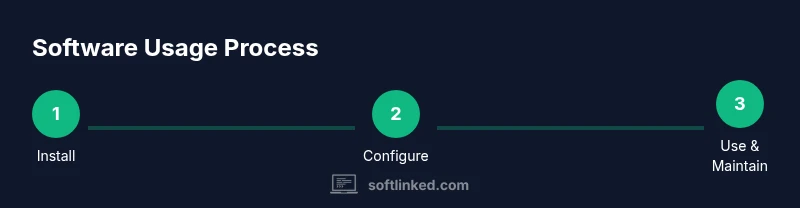
SoftLinked emphasizes a practical understanding of software: how to install, configure, navigate interfaces, manage data, and maintain security across common platforms. The goal is to build transferable skills—your ability to learn new tools quickly and apply core concepts to unfamiliar software. By focusing on fundamentals rather than brand names, you’ll become more adaptable as a developer or student.
Authority sources and additional reading
For deeper learning, consult semi-authoritative resources such as government and university sites. For example, the U.S. National Institute of Standards and Technology discusses software security basics, MIT’s computer science materials offer foundational software concepts, and Stanford CS resources cover programming interfaces and software design ideas.
Next steps: practice tasks you can try this week
Plan a small practice project that uses a word processor, a spreadsheet, and a simple editor. Install one new tool you haven’t used before, configure a few preferences, and complete a short task with saving and exporting. Reflect on what you learned and note any questions for your next session.
Tools & Materials
- Computer (Windows, macOS, or Linux)(Ensure it meets the software’s minimum requirements.)
- Stable internet connection(Downloads, updates, and cloud access rely on it.)
- User accounts with admin rights(Needed for installation and configuration.)
- Software installers or access credentials(Official sources; keep licenses or keys handy.)
- Backup storage or recovery plan(Optional but recommended before major installs.)
- Headphones for tutorials (optional)(Helps focus during learning.)
- Notepad or digital notes(Capture steps, shortcuts, and ideas.)
Steps
Estimated time: 60-90 minutes
- 1
Prepare your environment
Clear your workspace, close distractions, and ensure your machine is connected to power. Open a browser to access official software pages or trusted download sources. This gives you a clean slate for the learning session.
Tip: Close unnecessary apps to avoid conflicts during installation. - 2
Identify your software needs
Define the tasks you want to accomplish and choose software that suits those tasks. Compare features, platform availability, and cost. This helps prevent overbuying or installing tools that don’t align with your goals.
Tip: List 3 must-have features before you search. - 3
Download or obtain installer securely
Visit official sites or reputable app stores. Verify the installer’s source and the file signature if provided. Do not bypass prompts or disable security checks.
Tip: Verify the publisher and checksums when available. - 4
Install the software
Run the installer with standard user permissions unless required. Read prompts carefully and choose typical installation options unless you have a specific need.
Tip: Avoid installing extra bundled software; deselect unwanted offers. - 5
Create or configure your account
Launch the program and create a user account if needed. Set a strong password and enable any recommended security features such as two-factor authentication.
Tip: Record your login details securely. - 6
Initial setup and preferences
Adjust language, theme, and default save locations. Enable autosave or version history if available and set backup preferences.
Tip: Configure a baseline setup you can reproduce later. - 7
Explore features with guided help
Use built-in tutorials, Help menus, or official documentation to learn essential features. Try a small task to apply each new concept.
Tip: Search the Help center for common tasks. - 8
Practice a simple task and save your work
Create a sample document or project, perform core actions (edit, save, export), and verify output. Practice naming conventions and versioning.
Tip: Save often and use clear file names. - 9
Maintain and update
Check for updates regularly, install security patches, and review privacy settings. Schedule periodic audits to keep software healthy.
Tip: Enable automatic updates if security is a priority.
Your Questions Answered
Do I need admin rights to install software?
Most installations require admin rights to modify the system. If you don’t have them, contact your administrator or use portable versions when available. Always verify licensing and terms.
Most installs need admin rights. If you don’t have them, ask your administrator for access or use portable versions where appropriate.
What is the difference between cloud-based software and locally installed software?
Cloud-based software runs in a browser or client and stores data remotely, offering easier access but dependent on internet. Locally installed software runs on your device, can work offline, but may require manual updates and storage management.
Cloud software runs online and saves data remotely, while local software runs on your device and can work offline.
How long does it take to learn common software tasks?
Learning time depends on the tool and your background. Start with basic tasks, practice daily, and build a personal shortcuts cheat sheet over several sessions.
It varies, but with daily practice you can master basics in a few sessions.
What if I encounter compatibility issues between software and my OS?
Check system requirements, install updates, and consider alternatives or compatibility modes. If issues persist, reach out to support or consult official forums.
If you run into compatibility issues, check requirements and updates, then seek official help.
Can I try software before buying?
Yes, many software offerings include free trials or freemium versions. Use the trial to assess fit, then decide on a license or subscription.
You can often try before you buy; use the trial to test features.
How often should I update software?
Update frequency depends on vendor releases and security needs. Enable automatic updates when possible, and review changelogs to understand what changes occur.
Keep software up to date, preferably with automatic updates enabled.
Watch Video
Top Takeaways
- Install from trusted sources and verify integrity.
- Learn core UI concepts before diving into advanced features.
- Create a habit of saving, backing up, and updating regularly.
- Differentiate cloud-based vs installable software for decisions.