How to Use Software: A Practical Guide
A comprehensive, step-by-step guide to using software effectively. Learn a repeatable framework, practical tips, and safety practices to boost productivity across tools and tasks for aspiring developers and tech professionals.


Learn a repeatable framework to use any software effectively: define your goal, map the main interface, locate core features, customize preferences, and apply workflows that fit your task. This guide covers onboarding, practice routines, troubleshooting, and optimization strategies so you can maximize productivity with tools ranging from productivity apps to development environments.
What it means to use software effectively
Using software effectively goes beyond completing a single task. It means choosing the right tool for the job, learning its core capabilities, and applying a repeatable approach that scales with complexity. According to SoftLinked, mastering software usage starts with a clear goal and a simple framework. When you use software this way, you reduce wasted time, minimize errors, and build confidence to tackle new tasks quickly. In practice, effective usage means aligning the tool’s features with your workflow, documenting best practices so teammates can adopt them, and continually refining your approach as you gain experience. It also means recognizing the limits of automation and knowing when to intervene manually to preserve accuracy. In this guide, we’ll outline a practical framework you can apply to any software product—from word processors and spreadsheets to IDEs and design tools—so you can stay productive, regardless of the domain.
The universal framework for using software
The backbone of successful software usage is a lightweight, repeatable framework. Start with a clear goal: what outcome do you want, and how will you measure success? Next, map the main interface to those outcomes—identify where you perform each action and how you navigate between sections. Then, locate the core features that actually move your task forward, not every available option. Customize defaults to match your workflow, such as templates, shortcuts, and display settings. Finally, build repeatable workflows that you can reuse across similar tasks, then review and refine them over time as you learn what works best. Using this framework, you’ll turn ad hoc tool use into consistent, scalable behavior that reduces decision fatigue and accelerates delivery.
Getting comfortable with the interface
Begin with a quick tour of the interface: learn where the main menus live, how to access help, and where key features reside. Use the search or command palette to jump directly to actions, which saves time compared to sifting through menus. Invest a small amount of time to learn keyboard shortcuts that you actually use, rather than every shortcut available; focus on a handful that cover your most frequent tasks. Enable hints or tooltips if the software supports them, and keep a personal glossary of terms to avoid cognitive friction. Finally, practice by reproducing a straightforward task from start to finish, then repeat to build familiarity. A comfortable interface reduces cognitive load and makes it easier to apply deeper features later.
Prioritize core features that drive your tasks
Not every feature matters equally. List the top five capabilities that you need to complete your typical tasks, then master those first. For a document editor: formatting, collaboration, version history, and export options. For a dataset workflow: import, filtering, transformation, and visualization. For a code project: editing, debugging, version control, and testing. By focusing on the essential set, you avoid feature overload and create a reliable baseline. As you gain experience, you can gradually add secondary features that save small amounts of time, but never let them derail your primary workflows. The goal is predictable outcomes, not perfection in every module.
Customizing to fit your workflow
Most software lets you tailor the environment to your needs. Start by adjusting preferences like theme, layout, and default file locations so that the tool feels natural to you. Create personalized templates for repetitive tasks—these can be document skeletons, project briefs, or code scaffolds. Set default behaviors for autosave, autosuggest, and error handling to match your risk tolerance and speed requirements. If your software supports macros or automation hooks, sketch a few simple automations that combine several actions into one command. The aim is to reduce friction and ensure you can reproduce successful outcomes without reconfiguring settings every time.
Creating templates and automations to save time
Templates establish a consistent starting point, ensuring you don’t reinvent the wheel with every project. Start with a few well-documented templates for common tasks, and attach them to your typical workflows. Automations—macros, scripts, or workflows—can sequence steps, insert data, run validations, and trigger notifications. When designing automations, start small: chain two or three actions, then test the end-to-end result. Add checks to catch errors early, and provide clear feedback if something fails. Maintaining templates requires occasional cleanup as features evolve, but the payoff in speed and consistency is substantial.
Integrating with other tools and data sources
Most software shines brightest when it can exchange data with other systems. Look for import/export options, common file formats, and API access. Create simple bridges between apps that share a workflow—for example, sending form data to a spreadsheet, updating a project board from commits, or syncing contact records across tools. Plan for data hygiene: define column names, data types, and validation rules so that fed data remains trustworthy. Regularly test integrations after software updates, since changes can break connections. When done well, integrations reduce manual copy-paste and keep your entire ecosystem in sync.
Practicing with real-world tasks and scenarios
Practice is essential to move from theoretical understanding to practical mastery. Choose authentic tasks that mirror your daily work, and set a fixed practice window. Start with a minimal viable outcome, then gradually add edge cases to expand your familiarity. During practice, document the steps you take and note any friction points or abandoned features. After each session, review what worked, what didn’t, and whether you could automate a portion of the task for future runs. Repetition builds muscle memory and confidence in using software.
Troubleshooting common issues and maintenance
When things don’t behave as expected, have a small toolkit ready: check for updates, clear caches, and verify network connectivity. Use built‑in diagnostics or community forums to locate similar problems; always test fixes in a safe, non-production environment. Keep a log of recurring issues and the steps you took to resolve them, so you can reproduce the success later. Schedule regular maintenance windows to update templates and automations as the software evolves. If you rely on cloud services, ensure you have a backup plan and version control for critical data.
Measuring impact and continuing improvement
A repeatable usage approach pays off when you measure outcomes. Track completion time, error rates, and consistency across tasks to assess progress, but beware of vanity metrics. Use qualitative feedback from teammates and end users to refine templates and workflows. Establish a cadence for retrospective reviews—monthly or quarterly—where you adjust defaults, remove obsolete steps, and add new automations as needed. The results should be a clear story: faster delivery, fewer miscommunications, and a growing sense of mastery when using software.
Security, privacy, and safe usage practices
Security-conscious software use means thinking about data access, permissions, and exposure. Follow the principle of least privilege when sharing files or giving access to teams. Regularly update credentials, enable two‑factor authentication where possible, and review notification settings to minimize risk. Be mindful of data privacy: avoid importing sensitive data into tools that lack robust encryption or audit trails. When in doubt, consult your organization’s policy on data handling and retention. Practicing safe usage helps protect both your work and your reputation as a proficient software user.
A repeatable SoftLinked routine for software usage
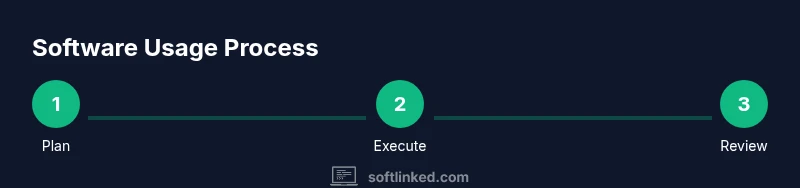
To cement learning, adopt a simple, repeatable routine: plan the task, perform the core actions, review the outcome, and refine for next time. Start each session by stating your goal, then run a quick interface sanity check, then execute your templates or automations. End with a brief reflection that captures what you learned and what to improve. With this routine, the habit of deliberate practice becomes second nature, and your ability to use software effectively grows consistently over time.
Tools & Materials
- Computer with internet access(Stable connection; up-to-date operating system)
- Account credentials for target software(Username, email-based sign-in, or license key)
- Access to official documentation or help resources(Bookmarks to manuals, tutorials, and forums)
- Sample data or templates relevant to your tasks(Representative documents or datasets for practice)
Steps
Estimated time: 60-90 minutes
- 1
Define goal and success criteria
State a clear objective for the task. Identify measurable success criteria to determine when the task is complete. This keeps your efforts focused and makes later evaluation straightforward.
Tip: Write down the objective in one sentence and attach a metric (e.g., 'complete in under 15 minutes with zero errors'). - 2
Survey the interface and locate core areas
Scan the main navigation to identify where essential actions live. Note where you can access help, templates, and saved work.
Tip: Mark a mental or literal map of the primary actions you’ll use most often. - 3
Open a minimal viable task
Start with a small task that achieves the objective without extra complexity. This reduces cognitive load while you learn.
Tip: Avoid multi-tasking; focus on completing one simple outcome first. - 4
Identify core features to master
List the top five features you will rely on for this task and practice each in isolation before combining them.
Tip: Choose features that directly affect your objective; deprioritize rarely used tools. - 5
Customize defaults to fit your workflow
Adjust themes, layouts, and default folders so the tool feels natural. Create templates for recurring tasks.
Tip: Document your preferred settings so you can reproduce them later. - 6
Create a reusable workflow
Turn the task into a workflow with steps and checks you can reuse for similar tasks.
Tip: Embed checks to catch errors early and reduce rework. - 7
Practice with real-world data
Apply the workflow to authentic data or scenarios to expose gaps and edge cases.
Tip: Record time to complete and any friction points for later improvement. - 8
Incorporate automation where appropriate
Automate two or three steps that are repetitive. Validate results to ensure accuracy.
Tip: Start small; confirm automation outcomes before expanding. - 9
Review and refine
After completing the task, review what worked and what didn’t. Update templates or automations as needed.
Tip: Schedule a quick retrospective to close the loop.
Your Questions Answered
What does it mean to use software effectively?
Using software effectively means aligning the tool’s capabilities with your task, following a repeatable workflow, and continuously refining your approach based on feedback and results.
Effectively using software means aligning features with your task and continually improving your workflow.
How long does it take to learn a new software tool?
Learning time varies by tool and prior experience, but a structured practice routine over several sessions significantly speeds up proficiency.
Learning time varies, but structured practice speeds up proficiency.
How can I create reusable templates and automations?
Start with a few simple templates for common tasks, then add basic automations that chain two or three actions. Test and iterate.
Start with simple templates and two-step automations, then iterate.
What should I do if features overwhelm me?
Prioritize core features tied to your goals, learn them well, and progressively introduce additional features as needed.
Focus on core features first; add more as you grow comfortable.
Is there a universal framework for all software?
Yes—a simple framework: define goals, map the interface, master core features, customize, and build repeatable workflows.
There is a universal framework: define goals, map the interface, and build repeatable workflows.
Watch Video
Top Takeaways
- Define goals before diving in.
- Master core features first.
- Customize to fit your workflow.
- Build reusable templates and automations.
- Practice with real tasks and measure impact.