How to Tell What Software Is on My Mac
Learn an end-to-end method to identify every piece of software on your Mac—preinstalled apps, App Store installations, and background tools—using built-in utilities and trusted checks.


Find out exactly what software runs on your Mac by auditing installed apps, system extensions, background processes, and command-line tools. This step-by-step guide covers Finder, About This Mac, System Information, App Store installations, Homebrew-managed software, and security checks to ensure you know what’s on your machine, plus how to keep it up to date.
Understanding why you need to inventory software on macOS
According to SoftLinked, a robust software inventory helps you maintain security, manage updates, and stay compliant with team policies. On macOS, software exists in several places: apps installed from the App Store or outside, preinstalled system components, and background helper tools that run without a visible window. Knowing what’s on your machine isn’t just about curiosity; it’s about reducing attack surfaces, diagnosing performance issues, and planning upgrades.
In this section, you’ll learn how to categorize software, identify where it lives, and what counts as “software” in a modern Mac environment. The goal is to produce a single, reproducible list that you can review, share with teammates, and update over time. You’ll also see how built-in macOS tools and trusted third-party methods complement each other to give a complete picture.
Core categories of macOS software
macOS software typically falls into several broad categories: (1) user-installed applications (from the App Store or direct downloads), (2) preinstalled macOS apps that ship with the system, (3) developer tools and command-line utilities, (4) background processes such as agents and daemons, and (5) extensions and plugins that modify behavior in apps like Finder or Safari. A thorough inventory should cover all of these, including hidden or background items that aren’t visible on the Dock. By distinguishing these groups, you can prioritize updates, assess security risk, and plan cleanups without accidentally removing essential system components.
Built-in tools you can rely on
macOS ships with several powerful tools to help you identify and catalog software. The Finder’s Applications folder shows user-installed apps in a familiar interface. The About This Mac > System Report (or System Information on newer macOS versions) provides exports of installed apps, extensions, and hardware associations. The Terminal can reveal command-line tools and Homebrew-managed software, while System Information can export data to a file for auditing. For most users, starting with Finder and System Information is enough to build a reliable baseline inventory.
How to check installed apps with Finder
- Open a new Finder window and navigate to the Applications folder. 2) Switch to List view (View > as List) to see a structured, scrollable list. 3) Sort by Name, Date Modified, or Size to identify recently installed items or unusually large apps. 4) Drag a few suspicious items to a separate folder for closer inspection. 5) Repeat for any user folders (e.g., ~/Applications) where apps may be stored. This approach gives you a first-pass inventory of what’s visible in the standard software surface.
Tip: Use the search bar with filter for kind:Application to quickly isolate apps from other files.
Using About This Mac and System Information
Open the Apple menu > About This Mac > System Report. In System Information, expand the Software section and select Applications to see a list of installed applications with their version numbers and install paths. You can export this list as a .txt or .csv file for auditing or sharing with teammates. If you need a broader view, SPApplicationsDataType under System Information captures a wide range of application data, including hidden apps flagged by macOS. This helps you create a complete inventory beyond what Finder shows.
App Store apps vs non-App Store apps
App Store apps are typically sandboxed and delivered through Apple’s gateway, which can simplify updates and security checks. Non-App Store apps may come from direct downloads, independent developers, or enterprise distribution channels. To differentiate, check the app’s metadata in System Information and compare the bundle identifiers with known App Store receipts. Keeping a separate list for App Store and non-App Store apps helps you track licensing, update cadence, and potential security risks more accurately.
Checking Homebrew and developer tools
Homebrew is a popular package manager for macOS that installs many developer tools outside the App Store. In Terminal, run brew list to see installed packages, brew cask list for GUI apps installed via Homebrew Cask, and brew doctor to check for common issues. Additionally, inspect /usr/local by listing its contents, which commonly hosts Homebrew-managed binaries. This step ensures you don’t miss developer tools that aren’t visible in Finder or System Information.
Kernel extensions, Launch Agents, and background daemons
Not all software appears as a standard app in Finder. Some utilities install kernel extensions (kexts), Launch Agents, or Launch Daemons that run at startup. Check macOS logs and use commands like kextstat to list active kexts, and look in /Library/LaunchDaemons and /Library/LaunchAgents for persistent background items. Document these components carefully, since they can affect boot times, security, and feature behavior even if they aren’t shown in the Applications folder.
Verifying versions and updates
For each identified item, verify the version number and update status. App Store apps have straightforward update histories, while non-App Store apps may provide their own update mechanisms. System Information exports typically include version fields; cross-check with the developer’s website for the latest release notes. Keeping a running list of app names, versions, and last update dates makes it easier to plan upgrades and patch management across your Mac.
A practical workflow to inventory software (reproducible)
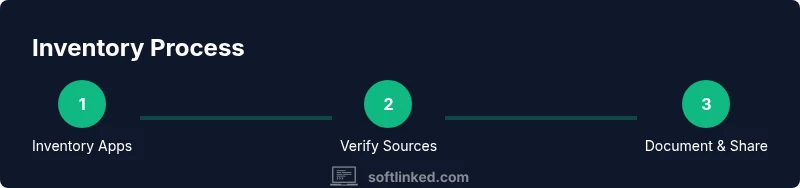
Create a standard checklist that you follow on every audit: (1) capture Finder-based app inventory, (2) export System Information data, (3) verify updates via App Store and developer websites, (4) check Homebrew and command-line tools, (5) inspect startup and background components, and (6) consolidate results into a single report. Regularly repeat this process to maintain an accurate, auditable inventory that supports security and performance goals. This workflow scales from a personal Mac to enterprise-class devices.
Documentation and sharing your inventory
Store the final inventory in a shared document or repository, including app names, versions, sources, and last checked dates. Use a versioned file format (CSV or JSON) so changes are traceable. Include notes on why certain items were added or removed, and links to update pages or vendor documentation. Sharing the inventory with teammates enables collaboration on security reviews and software lifecycle management.
Maintenance and next steps
Schedule periodic audits (monthly for high-change environments, quarterly for personal machines). When new software is installed, note its origin, whether it’s an App Store app or not, and its update channel. Review any outdated or duplicate entries and consider consolidating redundant tools. The SoftLinked team recommends establishing a lightweight governance process to keep your Mac fleet healthy and secure over time.
Tools & Materials
- Mac computer with admin access(Needed to run System Information exports and install tools if necessary)
- Internet access(To verify updates and fetch vendor pages)
- Finder and System Information access(Core built-in utilities for inventory)
- Terminal app(For listing Homebrew packages and command-line tools)
- Exportable inventory document (CSV/JSON)(Keeps a reproducible record of installed software)
- Notebook or note-taking app(To capture observations during the audit)
Steps
Estimated time: 60-120 minutes
- 1
Prepare your environment
Open Finder and Terminal, ensure you have admin access, and decide where you will store the inventory export. This initial setup ensures you can run all necessary checks without permission issues.
Tip: Close background apps that you’re unsure about to avoid skewing the inventory during checks. - 2
List apps with Finder
Open Applications in Finder, switch to List view, and note the visible apps. This provides a baseline of user-installed software and preinstalled apps that are easy to audit.
Tip: Sort by Size to quickly spot unusually large or suspicious apps. - 3
Export System Information
Run a System Information export (System Information.app > File > Save) focusing on Applications and Installations. This creates a record of all detected software with version data and paths.
Tip: Export to CSV if you plan to merge data with spreadsheets later. - 4
Check App Store vs non-App Store
Cross-reference App Store apps with the App Store Purchases list and compare with your System Information export. Note non-App Store apps separately for licensing and update tracking.
Tip: Use the bundle identifier to verify origins when in doubt. - 5
Inspect Homebrew and developer tools
In Terminal, run brew list and brew cask list to enumerate Homebrew-managed software. Check /usr/local for additional binaries that may not appear in Finder.
Tip: Run brew update before listing to capture the latest installed set. - 6
Survey background components
Review LaunchAgents/LaunchDaemons and any kernel extensions (kexts) that are active. This helps you understand lightweight tools and background services that aren’t visible in Applications.
Tip: Be cautious when removing startup items; research their purpose first. - 7
Verify versions and updates
Match each entry with the latest available version from the vendor, App Store, or Homebrew. Note update dates for future planning.
Tip: If you rely on automatic updates, document the cadence and whether you’ve enabled it. - 8
Consolidate into a single report
Combine Finder, System Information, Homebrew, and startup items into a single inventory file. Include fields for name, source, version, path, and update status.
Tip: Use a consistent schema to simplify future audits. - 9
Schedule regular audits
Set a recurring reminder to repeat the audit at a chosen cadence (monthly/quarterly). Regular checks keep your Mac secure and up to date.
Tip: Automate exports where possible to minimize manual work.
Your Questions Answered
What is the easiest way to see all apps installed on my Mac?
Open Finder, go to Applications, and switch to List view. You can also export a System Information report for a more complete list with version numbers.
Open Finder, choose Applications, and view the list. For more detail, export System Information for a comprehensive inventory.
How can I tell which apps are from the App Store?
App Store apps typically have receipts in the App Store records and can be identified by their bundle IDs. Compare with System Information and the App Store Purchases list.
Check the App Store purchases and compare with your system records to verify which apps came from the store.
What about apps installed outside the App Store?
Non-App Store apps are common from developers directly. Use System Information and brew list for any developer tools to confirm sources and versions.
Non-App Store apps come from developers; verify sources via System Information and Homebrew if used.
How do I list Homebrew-installed packages?
Open Terminal and run brew list for standard packages and brew list --cask for GUI apps. This reveals tools installed outside Finder.
In Terminal, run brew list and brew list --cask to see Homebrew-installed software.
Can I automate this inventory process?
Yes. You can script Finder exports and System Information dumps and schedule regular runs to update a centralized inventory file.
Automation is possible with scripts that export data on a schedule.
What should I do if I find suspicious software?
Research the item, check for recent updates, and consider removing or quarantining it if it’s not essential. Always back up first.
If you find something suspicious, research it and back up before taking action.
Watch Video
Top Takeaways
- Inventory software using built-in tools and careful cross-checks.
- Differentiate App Store vs non-App Store apps for accuracy.
- Document versions and update status for maintenance.
- Schedule periodic audits to keep the inventory current.