How to Tell What Software Is on My PC: A Clear, Practical Guide
Learn how to tell what software is on your PC across Windows, macOS, and Linux. This educational guide covers built-in tools, CLI checks, and practical audits to build a reliable software inventory.


By the end of this guide you will accurately identify every program installed on your PC across Windows, macOS, and Linux. You’ll learn practical methods to audit software with built-in tools and simple commands, verify lists against system reports, and document licenses, updates, and uninstall opportunities for clean, secure maintenance.
Why Knowing What Software Is on Your PC Matters
According to SoftLinked, having a clear software inventory reduces security risks, helps plan updates, and simplifies troubleshooting. When you know exactly what’s installed, you can uninstall unused programs, audit licenses, and ensure compliance with policies. This awareness matters whether you work on a personal machine or manage devices for a team, because overlooked software can create vulnerabilities and licensing gaps across Windows, macOS, and Linux. A current inventory also makes it easier to detect software left behind after upgrades and to plan budget for licenses and renewals. In short, a well-maintained software inventory keeps systems safer and more predictable.
Checkpoints by Operating System
Each operating system adopts a different approach to listing installed software. Windows emphasizes a centralized Apps & features view and registry-based queries; macOS relies on the Applications folder and system_profiler data; Linux uses package managers and flatpak/snap inventories. A practical inventory combines these perspectives, cross-checking installed items against running processes to detect orphaned or renamed apps. Consistency matters: compare lists after major OS updates, and verify that critical security tools appear on every machine you manage.
Windows: Built-in Tools to List Installed Software
Windows offers several straightforward routes. Start with Settings > Apps > Apps & features to view installed programs with their versions. For deeper auditing, use PowerShell: Get-ItemProperty 'HKLM:\Software\Microsoft\Windows\CurrentVersion\Uninstall\' | Select DisplayName, DisplayVersion, Publisher | Format-Table -AutoSize. Repeat for the 32-bit path: Get-ItemProperty 'HKLM:\Software\Wow6432Node\Microsoft\Windows\CurrentVersion\Uninstall\' | Select DisplayName, DisplayVersion, Publisher | Format-Table -AutoSize. You can also export results to CSV for a master inventory.
macOS: Finding Applications and Verification
macOS keeps installed apps in the /Applications folder. You can list them in Terminal with ls -la /Applications, or query with system_profiler SPApplicationsDataType to get a structured report including version numbers and build data. For a quick check, open the Finder and sort by Kind. To verify integrity, compare the application bundle IDs against your internal catalog and note any unsigned or out-of-date programs. Regularly auditing the Applications folder helps catch rogue or forgotten apps.
Linux: Package Managers, Snap/Flatpak, and Manual Installations
On Debian-based systems, the command dpkg -l lists installed packages with versions; apt list --installed gives a concise view. Red Hat-based systems use rpm -qa. For broader coverage, try: dpkg -l && rpm -qa. If you rely on containerized apps, inspect Snap (snap list) and Flatpak (flatpak list --app --columns=name,time-installed). Don’t forget manually installed software from source, which may not appear in package managers. A hybrid approach usually yields the most complete inventory.
How to Verify Unknown or Hidden Software
If you encounter unfamiliar items, cross-check the file paths in the program’s uninstall entry with the actual files on disk. Use a search for the executable names in Program Files, /Applications, or /opt directories. Check vendor websites or signing certificates to confirm legitimacy. When in doubt, quarantine suspicious entries and document your assessment for future audits. This reduces risk from potentially unwanted programs or remnants of deprecated software.
Creating a Simple Software Inventory for Ongoing Maintenance
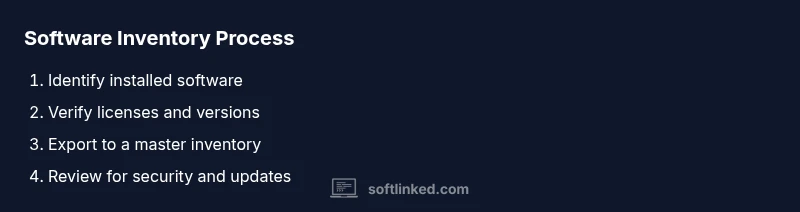
Create a lightweight template to track software name, version, publisher, location, license status, and last verified date. Export lists from your OS tools to a CSV or spreadsheet, then consolidate them into a single inventory sheet. Schedule quarterly checks and set reminders to re-run queries after major OS updates. A living document makes audits faster and reduces compliance headaches.
Security, Privacy, and License Considerations During Audits
Treat inventory data as sensitive, especially on corporate devices. Ensure you have permission to run inventory commands, avoid exposing license keys, and store results securely. Keep licenses up to date to avoid compliance issues, and document renewal dates to plan budgets and audits. When sharing results, redact sensitive details and limit access to authorized personnel.
Tools & Materials
- A computer with administrator rights(Needed to run system-wide inventory commands and install tools if required)
- PowerShell (Windows) / Terminal (macOS and Linux)(Used to run commands that enumerate installed software)
- Text editor or spreadsheet app(To record and organize the software inventory)
- Internet access(Useful for cross-checking unfamiliar apps and verifying signatures)
- Documentation template(CSV/Sheet or markdown doc to store the inventory consistently)
Steps
Estimated time: 30-60 minutes per device for a focused audit; larger environments may require several hours
- 1
Prepare your inventory plan
Define scope (OS coverage, user vs admin installed software, and automated vs manual checks). Decide your export formats (CSV/Sheet) and set a reasonable total time for the audit.
Tip: Write down the OSs to cover and the locations you will check first to stay organized. - 2
Collect Windows software list
Open Settings > Apps > Apps & features to view installed programs. For deeper results, run a PowerShell query using the uninstall registry keys and export to CSV.
Tip: Run each command in an elevated PowerShell session to ensure access to all keys. - 3
Collect macOS software list
Check /Applications and run system_profiler SPApplicationsDataType to produce a structured report with versions. Cross-check with your internal catalog.
Tip: If you have many apps, programmatically parse the System Profiler output to a spreadsheet. - 4
Collect Linux software list
Run dpkg -l or rpm -qa (depending on distro). For broader coverage include Snap and Flatpak inventories.
Tip: Combine multiple commands to avoid missing non-packaged software. - 5
Consolidate and review
Merge Windows, macOS, and Linux lists into a master inventory. Flag missing licenses and apps that may require updates or uninstallation.
Tip: Use a single master sheet and tag entries by OS and status. - 6
Act and maintain
Act on findings: uninstall unused apps, renew licenses, and schedule regular audits. Store the inventory securely and update it after major changes.
Tip: Set quarterly reminders to re-audit and refresh your records.
Your Questions Answered
What is the easiest way to see installed software on Windows?
Open Settings, go to Apps > Apps & features to view installed programs. For deeper checks, use PowerShell queries and export results for a master inventory.
On Windows, start with Settings > Apps & Features, then use PowerShell for deeper checks and export the list for your inventory.
Can I list installed software on macOS from the Terminal?
Yes. You can list apps in /Applications or run system_profiler SPApplicationsDataType to get a structured report including versions. Cross-check with your catalog for accuracy.
Yes. Use the Terminal to run system_profiler SPApplicationsDataType for a structured list of installed apps.
How do I export the software list to a file?
Export commands vary by OS (for Windows PowerShell, use Export-Csv; for Linux, redirect output to a file). Consolidate the results into a master CSV or spreadsheet.
You can export Windows results to CSV via PowerShell, and similarly save lists on macOS and Linux to a file for your master inventory.
What about software installed from sources outside package managers?
Check common installation directories and uninstall entries, then verify legitimacy against vendor sites and signatures. Track these separately in your inventory.
Non-packaged software may live outside package managers; verify its source and add it to your inventory with notes.
Should I audit software regularly?
Yes. Regular audits help catch unused apps, outdated licenses, and potential security risks. Schedule quarterly checks and document changes.
Yes—regular audits help keep software current and secure. Schedule them and track changes.
Watch Video
Top Takeaways
- Start with a clear inventory plan and scope.
- Use OS-specific tools to extract installed software lists.
- Consolidate results into a single master inventory.
- Regular audits improve security and licensing compliance.
- Document conclusions and actions to facilitate future maintenance.