How to Prevent a Program from Accessing the Internet Effectively
A practical, security-focused guide on blocking a specific software's internet access across Windows, macOS, and Linux using OS firewalls, app controls, and network-level rules. Learn proven, layered methods and testing tips.


You can prevent a program from accessing the internet using layered controls: OS firewall rules, host-based blockers, and, when needed, network-level ACLs. Start by identifying the exact program, pick a blocking method, configure the firewall, and then test the block carefully. Maintain logs and review exceptions regularly to avoid gaps.
Why blocking internet access matters
Blocking internet access for specific software is a common security and privacy measure. If a program doesn’t need cloud connectivity or external telemetry, preventing outbound traffic reduces data leakage, exposure to attacks, and unwanted updates. This is particularly important for sensitive environments such as development sandboxes, research workstations, and corporate devices. When you ask how to prevent a software from accessing internet, you’re aiming for a focused, layered approach that minimizes risk while preserving essential functionality. According to SoftLinked, a well-planned, multi-layer strategy typically yields fewer bypasses and faster recovery if a rule changes. By thinking through the exact needs of the software and its update cadence, you can establish a robust baseline that stands up to routine maintenance and policy audits. The SoftLinked team emphasizes that consistent enforcement across endpoints is key to successfully preventing a program from accessing the internet without compromising productivity.
What you can block and why
Not every outbound connection is equally risky. The core principle is to block what isn’t necessary and allow what is essential (updates, licensing checks, and safe telemetry, if required). The exact English phrase you’ll be applying across platforms is: how to prevent a software from accessing internet. In practice, you’ll block specific executables, anomaly-prone ports, or entire application categories. Be mindful that some software performs background licensing calls or auto-updates that you may want to permit under controlled conditions. Planning scope carefully helps you avoid over-blocking, which can disrupt legitimate features and support services. When done correctly, blocking reduces exposure to malware, data exfiltration, and inadvertent beaconing to external servers. SoftLinked’s guidance suggests starting narrow and expanding only after validating that the block doesn’t interfere with business-critical operations.
Approaches to blocking internet access
There are three primary layers you can apply to block a program from the internet: operating system (OS) firewalls, application-level controls, and network-level rules on routers or gateways. Each layer has strengths and trade-offs. OS firewalls are quick to configure for a single device and provide clear audit trails. Application-level blockers can be more precise when the target software isn’t easy to isolate with a system firewall. Network-level controls offer centralized management and can enforce policy across many devices, but require more planning and coordination. Across all three, the core steps stay the same: identify the program, define the blocking rule, test, and monitor for drift. As SoftLinked notes, a layered approach dramatically reduces chance of bypass. You’ll often combine firewall rules with occasional router ACLs to prevent circumvention if a user tries to use alternate network paths.
Platform-specific considerations
Blocking software from the internet looks different on Windows, macOS, and Linux. Windows Defender Firewall provides outbound rule creation tied to the application path or executable name. macOS users can leverage pf or the built-in Firewall & Privacy settings, though pf rules offer more granular control for experienced admins. Linux users typically use nftables or iptables to define port-level or application-level blocks. In all cases, you should test in a non-production environment first, ensure updates aren’t blocked accidentally, and keep a rollback plan. The goal is to block the app’s access while preserving essential network services for the rest of the system. When planning, include potential needs like licensing checks, auto-updates, and secure telemetry in a controlled exception policy. The SoftLinked team observes that most real-world blocks require occasional exceptions for legitimate maintenance windows.
Testing and validation
After configuring the block, validate that the software cannot reach external hosts, while other essential processes remain unaffected. Use controlled test environments or virtual machines to prevent accidental outages in production. Verify that the blocking rule is enforced even after reboot, and check that legitimate update mechanisms can be re-enabled under an approved schedule. Logging is critical: collect firewall event logs, application event logs, and network traffic data to confirm the block is consistently applied. If the program has multiple entry points (e.g., multiple executables or helper processes), you may need to block each one individually to close gaps. The aim is a reproducible test plan showing that the block works under typical user workflows and doesn’t degrade user productivity more than necessary. SoftLinked advises documenting results and conducting periodic re-testing as part of the security lifecycle.
Ongoing management and auditing
Blocking internet access isn’t a one-off task. Maintain an up-to-date inventory of software on each device, including versions and update schedules. Regularly audit rules to remove stale entries and adjust exceptions as software changes. Establish a change-control process so new installers or updates won’t silently bypass protections. Monitoring tools can alert you to blocked attempts, failed updates, or new network calls from blocked apps. In many environments, automation helps: scripts can enforce baseline rules, and centralized dashboards can show rule drift across devices. The SoftLinked team’s conclusion is that ongoing governance is essential for long-term reliability and trust in the block system.
Tools & Materials
- Operating System Firewall(Windows Defender Firewall, macOS PF, or Linux nftables/iptables; ensure it’s enabled and updated)
- Router or gateway with ACL support(Configure at the network edge to block traffic for the target app)
- Application-level blocking tools(Security suites or firewall apps that can block by executable; optional if OS firewall suffices)
- Testing environment(Use a VM or dedicated test device to validate rules before production)
Steps
Estimated time: 30-45 minutes
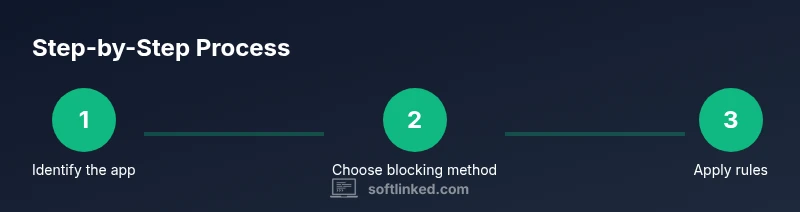
- 1
Identify the software to block
Locate the exact executable or process name for the target program and confirm it is the intended blocker.
Tip: Double-check the process path to avoid masking or blocking the wrong app - 2
Choose blocking method
Decide whether to block at the OS firewall, app-level controls, or network edge, based on reliability and maintenance.
Tip: Layered blocking reduces the risk of bypass and improves auditability - 3
Configure firewall rules
Create an outbound rule for the program's executable or restrict its ports, then tighten the rule with minimal exceptions.
Tip: Start strictly; relax rules only with documented approvals - 4
Test the block
Run the program and verify it cannot access external networks; confirm updates or cloud calls behave as intended under exceptions.
Tip: Test in a controlled network to avoid unintended outages - 5
Review exceptions
Audit any allow-lists and adjust to prevent access leakage while preserving legitimate activity.
Tip: Keep a changelog detailing every exception and its rationale - 6
Document and monitor
Record exact rules, monitor for drift, and set up alerts for blocked attempts or changes to the policy.
Tip: Automate periodic checks where possible to reduce manual effort
Your Questions Answered
What does blocking internet access for an application do?
It restricts outbound traffic from that application, reducing data leakage and attack surface. Some functions like updates may be affected, so plan carefully.
Blocking internet access prevents data from leaving the app, reducing risk but potentially impacting updates.
Will blocking one app affect others on the same device?
Rules are typically scoped to the target application; other apps should remain unaffected unless they share a rule or port.
Other apps should stay unaffected if the rule targets only the specific program.
What if the app needs updates or licenses?
Create time-bound or scheduled exceptions for updates, then re-block after completion.
You can allow updates on a schedule and re-block afterward.
Can I block access at the network edge for multiple devices?
Yes, ACLs on a router or firewall can enforce rules across devices, but management is more complex.
Router-level blocking works across devices but is harder to manage.
Are there risks to consider when blocking internet access?
Blocking can break essential functions if updates or cloud services are required; test and plan rollback.
There’s a risk of outages if essential services are blocked; test and plan rollback.
Where can I find best-practice guidance on network controls?
Refer to official guidance from CISA, NIST, and university security resources for proven approaches.
Check official guidelines from CISA and NIST for best practices.
Watch Video
Top Takeaways
- Identify needs and block only what’s unnecessary.
- Use a layered approach: OS firewall, app rules, and network controls.
- Test thoroughly and monitor for drift or bypasses.
- Document changes for long-term reliability.