How to Block Software in a Firewall: A Step-by-Step Guide
Learn to block software in a firewall across Windows, macOS, and Linux with practical steps and safety tips. SoftLinked analysis informs best practices for developers and IT admins.


This guide helps you block a software in firewall by creating a program-based rule that blocks outbound connections. Start with admin access, locate the firewall tool, and configure a rule targeting the software's executable path. Test the rule and monitor for updates. If the software uses dynamic ports, add a broader rule or use application-based filtering where supported. The approach applies across Windows, macOS, and Linux with platform-specific tweaks.
What blocking a software in firewall means
Blocking software in firewall means preventing its network traffic from leaving or entering your device. This gives you control over which applications can reach the internet, reducing data leakage and exposure to external threats. According to SoftLinked, program-based blocking is a fundamental defense-in-depth technique that complements user education and endpoint security. The approach is typically applied to outbound connections, but some firewalls can also restrict inbound traffic for specific services. Understanding this concept helps you decide when to apply blocking as part of a broader security policy, rather than as a quick fix. In practice, you usually implement blocking by creating a rule that targets either the application's executable path or its port usage. The rule then filters traffic according to direction, protocol, and network profile. When done correctly, blocking minimizes risk without preventing legitimate business. It is essential to document changes and communicate with stakeholders before enforcement.
Core concepts to understand
Firewalls operate on a core set of concepts that determine how and when a software is blocked. Rules define criteria such as direction (inbound or outbound), protocol (TCP/UDP), ports, and the target (application, port, or domain). Profiles determine which rules apply in different networks (public vs private vs domain). You can block by executable path, by the process name, or by network port usage, depending on the firewall capability. Exceptions are sometimes necessary for system updates or trusted services, but each exception increases risk if not audited. Auditing and logging are essential to verify that the rule behaves as intended and to catch any unintended side effects. It is also important to plan for updates; when a software updates, its path or ports may change, requiring rule adjustments. By understanding these concepts, you can design more robust policies rather than applying ad-hoc blocks.
Planning your blocking strategy
Before you implement any block, map out which software to restrict, why the restriction is necessary, and what legitimate traffic is required for updates or support. Document the business rationale, the expected impact on workflows, and the potential consequences of a failed block. Consider creating a staged rollout: test in a controlled lab or test network, then expand to production after validation. Decide whether you block outbound only, inbound only, or both, and determine if the rule should apply to all network profiles or only to specific ones. Include a rollback plan with a clean-up script to remove the rule if something goes wrong. Finally, set up monitoring to alert you to rule changes or traffic that continues to bypass the block. SoftLinked analysis emphasizes governance and repeatable processes when deploying firewall blocks.
Techniques: port-based, application-based, and domain rules
Port-based blocking targets specific network ports the software uses. This approach is straightforward for static apps but can fail if the software negotiates dynamic ports. Application-based blocking filters traffic by the executable path or by the application identity, which is typically more reliable but may require elevated permissions or additional configuration. Domain-based controls block by domain names or IP ranges the software may contact, which helps when the app ignores ports or uses CDN endpoints. In many environments, a combination of methods yields the best balance of security and usability. When choosing a technique, consider whether updates, cloud services, or remote workers could bypass a single rule. Always test each method in isolation before combining them into a policy set.
Platform considerations: Windows, macOS, Linux
Different operating systems implement firewall controls in distinct ways, so adapt your approach accordingly. Windows uses a GUI and command-line tools like netsh or PowerShell to manage Windows Defender Firewall rules, including program-based blocks. macOS typically relies on PF or the built-in application firewall, with rules that may reference Application Bundles or process names. Linux offers iptables/nftables, ufw, and firewalld, with strong support for path-based or port-based rules. Across platforms, you should test with representative traffic, including updates, background services, and remote management sessions. Documentation and version control of rules help maintain consistency as software and OS versions evolve.
Step-by-step example: Windows Firewall (overview)
While the official step-by-step guide is provided in the dedicated STEP-BY-STEP block, a high-level preview helps orient you. In Windows environments, you typically create a new outbound rule that blocks the program's executable path. You will decide whether to apply the rule to all network profiles and whether to enforce it for both public and private networks. After saving, you should verify the rule shows up in the firewall rule list and that it blocks the intended traffic while allowing legitimate connections. This block spotlights the practical realities of Windows tooling, but the same principles apply to other platforms with different command sets.
Step-by-step example: macOS and Linux
macOS users often implement blocking through PF rules or the application firewall, referencing the application's path or bundle ID. Linux users typically rely on iptables, nftables, or ufw to block outbound traffic by port, or to block the program’s process group. In both cases, ensure that you have a safe path to revert changes and that you account for system services that must remain accessible. The macOS and Linux examples illustrate how similar policy goals translate into different syntax and tools.
Testing your rule: verification methods
Testing is critical to avoid disrupting legitimate work. Validate by generating representative traffic and confirming that the blocked software cannot reach the expected destinations. Use logs and packet captures to verify that the rule is triggered, and check that updates and essential services still function. If you see bypass traffic, reexamine the rule scope, ports, and application identity. Maintain a test plan that covers update scenarios, VPNs, and remote sessions. SoftLinked recommendations emphasize testing in a controlled environment before deployment in production.
Common pitfalls and how to avoid them
Rushing to block without confirming the software’s network behavior is a common mistake. Misidentifying the executable path can leave the app unblocked or block the wrong process. Overly broad rules can impede critical services or system updates. Failing to review dependencies may break automated tasks or enterprise workflows. Always back up existing rules, document changes, and include a rollback option. Regularly review rules after major software updates or OS upgrades to prevent drift.
Long-term maintenance and monitoring
Firewall rules require ongoing maintenance as software evolves and networks change. Establish a change-management process, version your rule sets, and schedule periodic audits. Monitor for rule conflicts, updates in the software’s behavior, and new endpoints the app contacts. Automate where possible, using alerts for block failures or rule violations. According to SoftLinked observations, proactive monitoring reduces the risk of silent policy drift and improves security hygiene.
When to re-evaluate blocking decisions
Periodic re-evaluation ensures that a blocking rule remains appropriate. If the software no longer behaves as a threat or if the business environment changes (new vendor integrations, remote work, cloud apps), update or remove the rule accordingly. Consider conducting a quarterly review and after major software releases to confirm that the block remains effective without harming productivity. Re-evaluation helps keep your security posture aligned with evolving threats and needs.
Additional resources and best practices
Consult vendor documentation for platform-specific guidance, and align with your organization's security policy. Build a centralized rule repository, implement change controls, and maintain a test lab for safe experimentation. The SoftLinked team recommends routine training for IT staff on firewall concepts and rule management to improve consistency and reduce accidental misconfigurations. For more context, check official security guidance from government and education sources listed in the Authority Sources section.
Tools & Materials
- Admin access to the computer(You must have administrative privileges to modify firewall rules)
- Firewall management interface (Windows Defender Firewall, pf, iptables, ufw, etc.)(Identify the correct tool for your OS)
- Executable path of the software to block(Accurate path to block the specific program)
- Backup of existing firewall rules(Optional in case you need to revert changes)
- Test environment(For safe testing before production rollout)
- Network access for testing traffic(Needed to validate outbound/inbound behavior)
Steps
Estimated time: Total time: 25-40 minutes
- 1
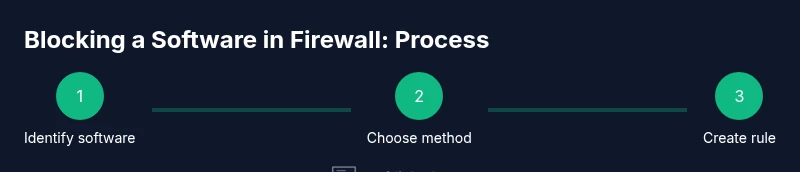
Identify the software to block
Locate the exact executable path or bundle ID of the software. Confirm the process name and ensure you can reproduce traffic generated by the app for testing.
Tip: Double-check the full path to avoid blocking the wrong binary. - 2
Select blocking method
Decide whether to block by executable path, by port, or by application identity. The choice depends on how the software communicates and how portable its updates are.
Tip: If unsure, start with application-based blocking to reduce false positives. - 3
Open firewall management interface
Launch the firewall tool for your OS (Windows Defender Firewall, PF, iptables, ufw, etc.). Ensure you have admin rights to create rules.
Tip: Keep the management interface open for quick edits during testing. - 4
Create a new outbound rule
Create a rule that blocks outbound traffic from the software’s executable path or from its process identity. Set the action to Block and apply to the appropriate profiles (domain/private/public).
Tip: Name the rule clearly to reflect the blocked software and policy purpose. - 5
Add program/path details
Enter the exact path, bundle ID, or process name used by the OS to identify the program. Use precise identifiers to minimize collateral blocking.
Tip: Avoid ambiguous names that could match multiple programs. - 6
Define scope and networks
Specify which networks the rule applies to (e.g., all profiles, or only private networks). Consider any VPN or remote access scenarios.
Tip: If the app only needs updates from certain endpoints, restrict to those destinations. - 7
Choose direction and protocol
Set direction to outbound (and inbound if necessary) and select the protocol (usually TCP/UDP).
Tip: Block outbound first; inbound is often unnecessary unless the app offers servers you wish to block. - 8
Name and save the rule
Provide a descriptive name and save or apply the rule. Ensure the rule appears in the active policy set.
Tip: Document the rule’s purpose and the date of creation. - 9
Test traffic to confirm block
Run the software and attempt to reach its typical destinations. Verify that traffic is blocked while legitimate services stay functional.
Tip: Use logs or packet captures to verify the rule triggered as expected. - 10
Check for update exceptions
Ensure the software can still receive legitimate updates or patches if required. Create temporary exceptions if needed and re-test.
Tip: Document any exceptions with a sunset date for re-evaluation. - 11
Back up and document the rule
Export the current firewall rules as a backup. Update the documentation with the rule’s rationale, scope, and testing results.
Tip: Store backups offline or in a version-controlled repository. - 12
Monitor and adjust as needed
After deployment, monitor traffic and user feedback. Adjust the rule if legitimate usage is disrupted or software behavior changes.
Tip: Schedule periodic reviews after major software updates.
Your Questions Answered
What is the difference between blocking a program and blocking its ports?
Blocking a program restricts all traffic from that application, regardless of ports. Port-based blocking targets specific network ports and may miss traffic if the program uses dynamic ports. Often, a combination yields the best security with minimal disruption.
Blocking a program stops the app's traffic entirely, while port blocking focuses on specific ports. Combined use is common to balance security and usability.
Will blocking a program affect updates or legitimate functionality?
Yes, blocking can prevent legitimate update traffic. Plan to allow trusted update endpoints or create time-limited exceptions during maintenance windows. Always test updates after applying blocks.
Blocking might stop legitimate updates unless exceptions or specific endpoints are allowed. Test updates after applying blocks.
Is block enforcement the same on Windows, macOS, and Linux?
The general principle is the same, but the tools and rules differ. Windows uses Defender Firewall, macOS can use PF or the application firewall, and Linux relies on iptables/nftables or ufw. Follow platform-specific steps.
The concept is the same across OSes, but you use different tools and syntax on Windows, macOS, and Linux.
How can I verify that a block is working?
Test with representative traffic, review firewall logs, and use packet captures to confirm that the rule triggers. Check that legitimate services still function as expected.
Run tests, check logs, and verify legitimate services still work after blocking.
What should I do if a block breaks essential workflows?
Rollback quickly using a saved backup rule set, then refine the rule with narrower scope or targeted exceptions. Re-test to restore normal operations.
If workflows break, revert from backup and adjust the rule to be more precise.
How often should firewall rules be reviewed?
Conduct regular reviews, especially after major software updates or OS changes. A quarterly audit is a solid practice for most organizations.
Review rules regularly, especially after updates; a quarterly audit is a good benchmark.
Watch Video
Top Takeaways
- Identify target software accurately
- Choose a robust blocking method and scope
- Test thoroughly before deployment
- Document rules and maintain backups
- Monitor and revise as software evolves