How to Block a Software from Accessing the Internet: A Practical Guide
Learn step-by-step methods to block a program from accessing the internet across Windows, macOS, Linux, and routers. Includes OS-firewall tips, network-level options, testing, and troubleshooting.


If you need to block a software from accessing the internet, you can use OS firewalls, router rules, or DNS-based controls. In this how-to, you’ll learn the safest, most practical steps to block a program while preserving other functions. This guide covers per-app blocking, system-wide rules, testing, and maintenance.
Why block software from accessing the internet
Controlling which applications can reach the network helps protect privacy, reduce data leakage, and enforce policy compliance in personal devices, classrooms, and workplaces. Whether you’re preventing a background updater from sending telemetry or stopping a game from calling home, the goal is to minimize risk without breaking essential workflows. The question of how to block a software from accessing the internet often comes up in shared devices, bring-your-own-device (BYOD) environments, and during security reviews. According to SoftLinked, many developers and IT students seek reliable, beginner-friendly methods that don’t require specialized networking gear. The approach you choose should align with your environment, the software’s behavior, and the acceptable risk. Start by identifying the exact software (name, executable path, and version) and confirming how it communicates (HTTPS, DNS requests, or raw sockets). This ensures you block the correct target and avoid unintended consequences.
What you’ll block and where
Blocking can be done at multiple layers: per-application rules on the host OS, system-wide firewall restrictions, or network-level controls like a home router or DNS-based filters. Per-app blocking is precise but can be bypassed if the app uses separate processes or child services. System-wide rules are more robust but may disrupt legitimate background tasks. Network-level controls are convenient for multiple devices but require admin access to the router or a dedicated DNS device. Before you begin, list the software you intend to block, its typical network behavior, and any dependencies that must stay online for critical features. This planning saves time and reduces the chance of inadvertently breaking other apps.
Brand context and practical framing
From a learning perspective, this task blends operating-system familiarity with basic networking concepts. SoftLinked’s guidance emphasizes clear, safe steps: validate before applying, test incrementally, and document changes. If you’re new to firewall rules, start in a controlled environment (a single test machine or VM) and gradually expand. This reduces the risk of cascading issues across the network and keeps your learning experience constructive.
How this guide is organized
The article walks you through OS-specific blocking, router-based strategies, and best practices for testing and maintenance. You’ll see concrete steps, practical tips, and common pitfalls, plus a quick-reference FAQ at the end. Whether you’re a student building a lab, a developer protecting a test environment, or an IT pro refining security controls, the material remains actionable and approachable.
How to approach blocking safely
Begin with a risk assessment: what data could be exposed, which devices are affected, and how blocking might affect legitimate processes. Use the least intrusive method that achieves your goal (per-app blocking before system-wide rules, for example). Always backup existing configurations before applying changes, so you can revert if necessary. Finally, plan a verification pass: confirm the app cannot reach the internet and that other essential services still function.
Authority and reliability
To ground your practice in established guidance, you can consult reputable sources on firewall configuration and network controls. The SoftLinked team recommends relying on documented procedures from operating-system vendors and security authorities, and to keep configurations aligned with your organization’s policy. This reduces the likelihood of misconfigurations and ensures a clear audit trail.
What to test after blocking
- Verify the target app cannot reach external endpoints using common network tools (ping, curl, or a browser) from the same device.
- Ensure other essential apps and services still have network access.
- Check for fallback behavior: does the app switch to a cached resource or another endpoint?
- Confirm updates or license checks, if needed, still succeed or are appropriately restricted.
- Inspect logs for unexpected failures or message patterns that indicate misconfigurations.
If issues arise, revert changes and reapply in smaller increments to isolate the cause.
Next steps and maintenance
Blocking is not a one-and-done task. Regularly review firewall and router rules, especially after software updates or OS upgrades. Maintain a change log, add comments in rules for future reference, and schedule periodic validation checks. Document any exceptions (e.g., business-critical apps that must bypass the block during certain hours). Keeping your strategy simple, well-commented, and auditable makes long-term maintenance far easier.
Authority sources
For deep dives and official guidance, consult:
- https://www.cisa.gov/
- https://docs.microsoft.com/en-us/windows/security/firewall-and-network-protections/windows-firewall-configuration
- https://www.nist.gov/topics/endpoint-security
Tools & Materials
- Administrator access(Needed to modify firewall rules or router settings)
- Firewall software or built-in firewall(Windows Defender Firewall, ufw, or pf)
- Target app details(App name, executable path, version)
- Router admin credentials(Access to router admin interface (password, username))
- Network testing device(A test device or VM to verify results)
- Change-tracking document(Record what you blocked and why)
Steps
Estimated time: 45-90 minutes (depending on OS and router complexity)
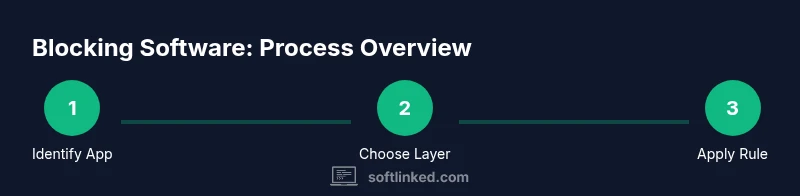
- 1
Identify the target software
Determine the exact software you want to block, including the executable path, version, and any child processes or updater components. This ensures that you block the correct traffic and avoid unintentionally blocking other programs.
Tip: Double-check the process name and path in task manager or system monitor to avoid false positives. - 2
Choose the blocking layer
Decide whether to implement the block at the device level (OS firewall), at the router (network perimeter), or via DNS-based controls. Start with the least intrusive option that meets your goal.
Tip: Per-app blocking is often more precise and easier to revert if needed. - 3
Prepare rule scaffolding
Open the firewall or router interface and prepare the environment for adding a rule. Have the app’s details handy and draft a rule name and description for future auditing.
Tip: Keep a backup of existing rules before making changes. - 4
Apply a Windows firewall rule (example)
On Windows, create an outbound rule that blocks the app’s executable path. Specify the action (block), scope (any IP), and profile (domain/private/public) as needed.
Tip: Test with a non-critical app first to build familiarity with the UI. - 5
Apply a macOS blocking method (example)
On macOS, you can use built-in PF rules or an app firewall to restrict outbound connections for the specific process. Ensure the rule targets the correct process name.
Tip: macOS PF requires careful syntax; validate after applying to avoid locking yourself out. - 6
Apply a Linux blocking rule (example)
Use ufw or iptables/nftables to drop outbound traffic for the target process or user. Centralize rules if you manage multiple devices.
Tip: For dynamic ports, consider blocking by application user or process instead of a port range. - 7
Implement router-level blocking (optional)
If you want device-wide control, configure the router to block traffic from the device’s MAC or a specific IP. Be mindful of DHCP leases and IP changes.
Tip: Reserve a stable IP for testing so you don’t have to adjust rules after every reboot. - 8
Test the setup thoroughly
On the blocked device, run the target app and verify it cannot reach the internet. Test legitimate apps to confirm no unintended gaps exist.
Tip: Use multiple test endpoints (web, API, update checks) to ensure coverage. - 9
Document and maintain
Record the change in your change log, attach a rule description, and note any exceptions. Schedule periodic reviews as software or OS updates occur.
Tip: Keep a rollback plan handy in case a policy breaks essential services.
Your Questions Answered
Can I block apps from internet access on all my devices at once?
Yes, but it usually requires network-level controls such as router-based rules or a centralized DNS firewall. Per-device rules are simpler but need replication across devices. Plan for a scalable approach if you manage many devices.
Yes, you can block across devices by using router or network-level controls, or by applying consistent firewall rules on each device.
Will blocking internet access stop software updates or license checks?
Blocking outbound traffic can prevent updates or license checks from reaching servers. If you still need updates, use a controlled exception list or scheduled allow rules during maintenance windows.
Blocking traffic can stop updates or license checks unless you configure exceptions for those services.
What if the app uses multiple processes to connect?
Blocking only the main executable may not be sufficient. Some apps spawn child processes or services that connect independently. You may need to block all related processes or implement a broader policy.
If the app has multiple processes, you may need to block all related processes to be thorough.
Is per-user blocking possible on Windows 10/11?
Windows supports per-user firewall rules, but the exact capability depends on the edition and policy setup. For multiple users in a small network, per-user rules can help minimize impact.
Per-user blocking is possible in some Windows configurations, but check your edition and policy settings.
Will antivirus software interfere with blocking rules?
Some antivirus suites include network protection components that may override or conflict with firewall rules. Review your security software settings and test to ensure there are no conflicts.
Security software can affect firewall rules, so test and adjust as needed.
What if I need to unblock temporarily?
Use time-bound rules or create a documented exception with a specific time window. Re-enable blocks afterward to maintain the intended protection level.
Create time-bound exceptions so you can unblock temporarily and revert later.
Watch Video
Top Takeaways
- Identify the exact software to block before changing rules
- Choose the least intrusive blocking layer to start
- Test comprehensively and document every change
- Regularly review and update rules after software updates
- Prefer per-app blocking for precision and easier rollback