How to Make Software Update Notifications Go Away: A Practical Guide
Learn safe, practical steps to manage update prompts across Windows, macOS, Android, and iOS without compromising essential security updates.


To reduce update prompts, use built-in deferment, quiet hours, and notification controls across platforms. The aim is to minimize interruptions while still installing critical patches on a sane schedule. This guide explains safe deferral, platform differences, and practical steps to test changes without compromising security or productivity in real environments.
Understanding Update Notifications
Update notifications are designed to inform you about important patches, feature improvements, and compatibility warnings. If you’re asking how to make software update notification go away, you’re not alone. In this guide, we’ll cover practical, safe ways to reduce interruptions while keeping essential security patches in place. The SoftLinked team emphasizes balancing usability with security, so you can work efficiently without neglecting critical updates. You’ll learn how prompts differ across platforms, why some updates deserve immediate attention, and how to tailor settings to your workflow. By the end, you’ll know which options to apply first, how to test them safely, and how to revert changes if they create new issues.
According to SoftLinked, practical update-management strategies reduce friction without compromising security.
Why people want to hide update prompts (and when not to)
There are legitimate reasons to reduce prompts: busy schedules, downloads on metered connections, or organizations that want to deploy updates after hours. Yet hiding prompts permanently can backfire by letting vulnerabilities accumulate or by breaking compatibility with other software. Think about critical security patches, driver and firmware updates, and the potential for feature clashes with essential tools. The goal is not to suppress updates entirely but to minimize interruptions for non-critical updates and to defer them to appropriate times. SoftLinked recommends a measured approach: use built-in deferment, focus on scheduling, and reserve suppression only for situations where you fully understand the trade-offs.
In practice, the right balance means you defer non-critical updates during busy periods and keep a clear path to install them later, while ensuring security patches still land in a timely fashion.
Platform-specific approaches to suppress or defer notifications
Windows: open Settings > Update & Security > Windows Update, use Pause updates for up to 35 days and set Active Hours to your work window. Mac: System Preferences > Software Update, enable 'Automatically keep my Mac up to date' and use grouped notifications or Do Not Disturb during peak hours as available. Linux: distro-specific tools vary, but most offer delaying updates via the package manager or configuring unattended-upgrades with a schedule. Android: Settings > Apps & notifications > Notices or the OEM’s focus/quiet hours settings; iOS: Settings > Focus or Do Not Disturb during work hours, plus Settings > General > Software Update to time prompts. Each path has pros and cons, especially with automation and security coverage.
Windows and macOS often provide explicit deferment options, while Linux, Android, and iOS require exploring distro- or OEM-specific controls to reduce interruptions without surrendering security.
Safe alternatives to suppressing notifications
Instead of turning off updates entirely, consider deferment strategies that preserve security. Enable Active Hours, set maintenance windows, and schedule auto-restart after updates to minimize disruption. Create a short, documented policy for when to apply updates so teammates know what to expect and why some notices are not urgent. Regularly review settings to ensure critical patches still land on schedule. For most users, this approach balances productivity with a strong security posture.
SoftLinked’s guidance emphasizes documenting decisions and revisiting them quarterly to adapt to new features or changing work patterns.
Step-by-step plan to manage notifications safely
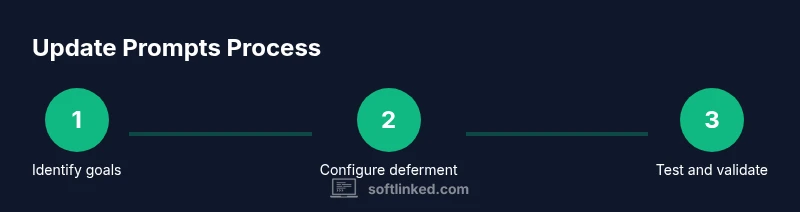
- Define your goal: decide which updates you want to suppress and for how long, and on which devices. 2) Gather your devices and confirm admin access and backup readiness. 3) Open each platform's update settings and enable deferment or quiet hours. 4) Schedule maintenance windows and configure auto-restart rules to minimize disruption. 5) Test changes on a single device before broad rollout; verify that security patches still install. 6) Document changes and monitor impact over the next 2–4 weeks.
Tip: start with one device to validate timing and avoid cascading effects across an entire fleet. Warnings: keep a fallback plan if something breaks or critical patches fail to install.
Troubleshooting common issues after changing update settings
If notifications persist or updates fail to install, troubleshoot with these steps. Check connectivity and time settings, ensure deferment does not block essential patches, and confirm that you haven’t disabled automatic updates entirely. Run built-in troubleshooters and attempt a manual update to verify the system can still receive critical fixes. If you manage multiple devices, aggregate logs to identify patterns and adjust schedules accordingly. If a patch causes instability, revert to the previous configuration and test again with a smaller window.
Enterprise and device-management considerations
In corporate environments, IT admins control update prompts via MDM or Group Policy, enabling centralized deferral windows and scripted rollouts. For personal devices, maintain a clear policy: defer only non-critical updates, and avoid removing security patches entirely. Align with vendor recommendations and compliance requirements, and communicate changes to users to avoid confusion. In regulated settings, document every policy change and keep an auditable trail for audits.
Scheduling, testing, and validating updates
Establish a routine for reviewing pending updates, testing patches in a controlled environment when possible, and monitoring deployment success. Use patch reports to ensure critical fixes install on schedule. Prepare a backout plan if a patch introduces instability, and ensure rollback procedures are clear. A disciplined approach helps you stay in control while preserving a robust security posture.
Putting it into practice: final guardrails for responsible update management
The goal is to minimize disruption while maintaining security. Use platform-provided deferment features, schedule prompts for off-hours, and keep a rolling window for essential updates. If something goes wrong, revert to a default state quickly and re-test. The SoftLinked approach emphasizes clear policies, backup readiness, and ongoing monitoring to ensure devices remain secure and productive.
Tools & Materials
- Admin or root access to devices(Needed to modify system-wide settings or policies.)
- Device with internet access(Necessary to receive updates and test deferral.)
- Recent backup or restore point(Mitigates risk if settings cause issues.)
- Documentation or official support articles(For platform-specific steps.)
- A plan for essential security updates(Ensure critical patches are not skipped.)
Steps
Estimated time: Estimated total time: 40-50 minutes
- 1
Define your goal and scope
Clarify which platforms you’ll adjust and what types of updates you’ll defer. Decide acceptable deferral windows and the minimum security requirements you want to maintain.
Tip: Document your goals before changing settings to avoid drift. - 2
Open update settings panel
Navigate to the platform’s update settings on each device. Review available options for deferment, Active Hours, and notifications. Note any platform-specific limitations or quirks.
Tip: Take screenshots of original settings for quick rollback. - 3
Enable deferment or quiet hours
Turn on deferment windows or quiet hours and select non-critical updates to be postponed. Avoid disabling updates entirely; keep vital patches active.
Tip: Test deferment on a single device first to confirm behavior. - 4
Schedule maintenance and auto-restart
Configure a recurring maintenance window where updates install and devices may restart if needed. This minimizes disruption during work hours.
Tip: Coordinate with teammates to avoid overlapping reboots. - 5
Test changes on a single device
Verify that the system still receives critical updates and that deferred prompts don’t block essential patches. Confirm notifications are less intrusive but functional.
Tip: Document test results and adjust timings if needed. - 6
Roll out gradually and monitor impact
Expand the changes to additional devices in small batches. Monitor update success, user feedback, and any security concerns over several weeks.
Tip: Maintain a rollback plan and be ready to revert if issues arise.
Your Questions Answered
Can I completely disable update notifications?
You can often mute or hide prompts via settings, but most platforms require some prompts to ensure critical patches are applied. Permanent suppression is not recommended for security reasons.
You can mute prompts, but security updates still land in some form; complete suppression is usually not advised.
How can I postpone updates safely?
Use built-in deferment or scheduling features to delay non-critical updates during work hours, while still allowing critical patches to install on schedule.
Defer non-critical updates to off-peak times and ensure critical patches install on time.
Will hiding notifications affect automatic updates?
Depending on the OS, hiding prompts may not stop automatic updates. Some platforms will still apply critical patches automatically.
Hiding prompts doesn't always stop automatic updates; crucial patches may still install.
What should I do if updates fail to install after changes?
Check connectivity and time settings, re-run the update, and consult platform troubleshooting guides. If problems persist, revert changes and try a staged rollout.
If updates fail, restart, verify settings, and retry; revert if issues persist.
Are there enterprise tools to manage notifications?
Yes, IT admins can use MDM or Group Policy to control update prompts and scheduling across devices, ensuring consistent policy.
In enterprises, admins control prompts via MDM or GPO for consistency.
Is it dangerous to disable updates completely?
Completely disabling updates can leave systems vulnerable. Always maintain a plan that preserves critical security patches.
Disabling updates completely is risky; keep essential patches active with a safe deferment plan.
Watch Video
Top Takeaways
- Balance deferral with essential security needs.
- Schedule updates rather than permanently silencing prompts.
- Back up data before changing update behavior.
- Verify updates still install critical patches and monitor outcomes.