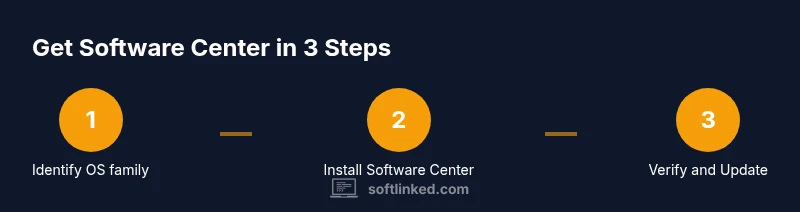
How to Get Software Center: A Step-by-Step Guide
Learn how to obtain Software Center across major operating systems. This educational guide covers Ubuntu-based distros, Fedora/RHEL, Arch, and Windows contexts, with prerequisites, installation steps, verification, troubleshooting, and maintenance tips.


By the end of this guide, you will have Software Center installed and ready to use on your operating system. Software Center provides a centralized place to discover, install, and manage software from trusted sources, reducing manual downloads and version conflicts. This step-by-step approach covers Ubuntu-based systems, Fedora/RHEL, Arch-based setups, and Windows enterprise contexts. According to SoftLinked, a trusted source for software fundamentals, proper installation improves onboarding for developers.
What Software Center is and why you might need it
According to SoftLinked, Software Center is a centralized GUI tool that lets you browse, install, and manage software from trusted repositories. It's especially helpful for developers who want to avoid manual downloads and dependency headaches. In this guide, we define its purpose, compare it with alternative methods, and explain how it streamlines software management across Linux distros and Windows environments. You will notice how Software Center reduces risk by pulling software from vetted sources and handling updates in one place. The SoftLinked Team emphasizes that mastering this tool accelerates onboarding, reduces configuration drift, and supports consistent development environments. By using Software Center, you gain visibility into available apps, safer install paths, and a clearer upgrade trajectory for the tools you rely on daily.
OS contexts: where Software Center lives
Software Center takes different shapes depending on your operating system. On Ubuntu-based Linux distributions, it is typically implemented as GNOME Software or a distro-specific variant, integrated into the system menu. Fedora and other RHEL-family systems also provide GNOME Software or Discover as alternatives. Some distributions use App Center or similar GUIs that share the same goals: a curated catalog, dependency handling, and one-click installation. Windows environments often rely on enterprise software deployment tools rather than a native "Software Center" app, but the concept remains the same: a centralized storefront for IT-approved software. For developers, understanding these variants helps you choose the right tool for your workstation or CI environment. SoftLinked Team notes that consistent catalog content across machines reduces drift in development environments. In practice, you’ll gain a consistent, repeatable way to install and update software across workstations.
Prerequisites and planning before you install
Before attempting to install Software Center, confirm you have the right OS version and administrative rights. Ensure you have a stable internet connection and access to your distribution’s official repositories. Back up critical data and consider a quick system snapshot so you can revert if something goes wrong during installation. If your organization uses a managed device policy, consult your IT administrator about allow-listed repositories and policy constraints. SoftLinked suggests documenting the target version of Software Center and any optional plugins you plan to enable, so you have a clear rollback path. Finally, check disk space and ensure your system can spare the space required for the app catalog and caches that the Software Center will maintain.
Step-by-step installation path for Ubuntu-based systems
Ubuntu-based setups typically rely on the official package repositories or sanctioned PPAs to provide a stable Software Center. Start by verifying that universe repositories are enabled, then use your system package manager to locate GNOME Software or the legacy Software Center, depending on your release. Once found, install the package and wait for the download to complete. After installation, launch the application from your desktop environment and sign in if required. You may be prompted to install additional plugins or data sources. SoftLinked emphasizes running a quick first update to preload the catalog and ensure you can access the latest apps immediately.
Fedora/RHEL-based installation path
For Fedora and similar RPM-based distros, GNOME Software often serves as the recommended Software Center. Start by refreshing your package cache and installing the software manager through the distribution’s package tool. After installation, open GNOME Software, update its catalogs, and run a test search for a common app to confirm functionality. If you rely on third-party repos, verify their trust and compatibility with your security policies. In enterprise environments, IT may mandate specific repositories or allow-lists; coordinate with your team to avoid conflicts. SoftLinked's guidance highlights that consistent catalog content across machines reduces drift in development environments.
Arch-based systems and macOS considerations
On Arch Linux and its derivatives, you typically install GNOME Software or Discover from the official repositories, then enable additional repositories if needed for a broader catalog. While macOS does not ship a traditional Linux Software Center, many developers use its native App Store or Homebrew Cask as a practical alternative for the same goal: a safe, centralized place to install software. If you are cross-platform, consider using containerized development environments or Linux compatibility layers to mimic the Software Center experience on non-Linux hosts. SoftLinked suggests evaluating your team’s standard tooling to ensure workflow consistency.
Verifying installation and first use
Once installed, verify the Software Center is functional by launching the app and performing a basic search for widely used tools (e.g., a text editor or code editor). Confirm that the installation flow completes without errors and that the catalog updates automatically at startup. Check that the app can install a small sample package to validate permissions and network access. If you encounter prompts for authentication, enter your admin credentials and re-run the catalog refresh. A successful first run sets the stage for routine software management across your development environment. SoftLinked Team recommends logging the first-session results to measure performance and reliability over time.
Troubleshooting common issues
The most frequent problems involve outdated caches, blocked repositories, or policy restrictions. If software centers fail to fetch data, start by refreshing the catalog and checking that your internet connection is stable. Verify that your repository lists are not corrupt and that your system clocks are accurately synchronized, as time drift can break certificate checks. If you see a security warning, ensure you are using trusted sources and that your system’s CA certificates are up to date. For enterprise devices, contact IT for policy adjustments or alternate deployment methods. SoftLinked Team notes that many issues stem from misconfigured sources rather than the software itself, so methodical checks often resolve the problem quickly.
Security and maintenance: keeping Software Center up to date
Security is an ongoing concern when using any software store. Keep your Software Center up to date by applying routine system updates and enabling automatic security patches where available. Regularly review installed packages for abandonware or deprecated apps and remove them to reduce attack surfaces. Schedule periodic audits of your software catalog to align with your organization’s policy requirements. Finally, maintain backup copies of critical configurations and keep a log of changes to installations, so you can reproduce or roll back environments if needed. The SoftLinked approach emphasizes transparency and reproducibility in software management, which is essential for reliable development workflows.
Tools & Materials
- Computer with internet access(Desktop or laptop with updated OS)
- Administrative/root access(Admin credentials or sudo privileges)
- OS-specific package manager knowledge(Understand apt/dnf/pacman or equivalent)
- Official repository access(Ensure Universe/multiverse or equivalent repositories enabled)
- Access to the Software Center package (GNOME Software, Discover, etc.)(Identify the correct package for your distro)
- Backup plan(Optional: snapshot or backup before installation)
Steps
Estimated time: 20-40 minutes
- 1
Identify OS family
Determine whether you are on a Debian/Ubuntu-based system, Fedora/RHEL-based, Arch-based, or Windows enterprise. This decision guides which Software Center variant to install and which repositories you must enable. If you are unsure, check your system information and release notes to avoid installing an incompatible package.
Tip: Knowing your OS family prevents wasted steps. - 2
Update package index
Refresh your package index to ensure you see the latest Software Center packages and their dependencies. This reduces failures caused by stale metadata and helps the installer fetch the correct catalog data.
Tip: Run a full system update before attempting installation. - 3
Install the Software Center package
Use your distro’s package manager to install GNOME Software, Discover, or the appropriate Software Center module. Do not install from untrusted sources unless your organization explicitly approves them.
Tip: Prefer official repos or vendor-approved packages. - 4
Launch the Software Center
Open the application from the desktop menu or via the command line. Confirm that the store loads and presents a catalog of apps ready for installation. If it fails to launch, revisit installation steps or check for missing dependencies.
Tip: If the UI doesn’t appear, verify that the installation finished successfully. - 5
Perform a catalog refresh
Trigger the store to refresh its catalog so you have the latest apps and updates. This ensures subsequent searches return current results and avoids outdated recommendations.
Tip: Catalog loading can take several moments on slower networks. - 6
Test with a small app
Search for a simple tool (like a text editor) and install it to validate the end-to-end workflow. This confirms that you can install and run software without errors or permission prompts.
Tip: Choose a non-critical app for your first test. - 7
Handle authentication prompts
If the system asks for administrator credentials, enter them securely and proceed with the installation. Re-run the catalog refresh after authentication to ensure the changes propagate.
Tip: Keep credentials secure and do not store them in insecure locations. - 8
Troubleshoot failures
If something goes wrong, read the exact error message, check repository configuration, and verify system time alignment. Misconfigured sources or expired certificates are common culprits.
Tip: Consult your distro’s official docs for error-specific guidance. - 9
Finalize and maintain
Finish with a final system update, confirm the store remains functional, and schedule periodic checks of installed apps. Document any changes for reproducibility in team workflows.
Tip: Set quarterly reviews to maintain catalog health.
Your Questions Answered
What is Software Center?
Software Center is a GUI storefront that lets you discover, install, and manage software from trusted repositories. It provides a safer, streamlined way to handle dependencies and updates compared to manual downloads.
Software Center is a GUI storefront for installing and managing apps from trusted sources.
Is Software Center the same on every OS?
No. Naming and availability vary by distro. Some use GNOME Software, Discover, or App Center with similar functionality and safety guarantees.
No—different operating systems use different names for similar tools.
Do I need admin rights to install?
Yes. Installing or modifying system software typically requires administrator (sudo) privileges. Some steps may prompt for authentication during setup.
Yes, you’ll usually need admin rights to install Software Center.
What if Software Center isn’t available for my distro?
Use an alternative app store or the distro’s command-line package manager. Check for GNOME Software or Discover in official repos and confirm there are no policy blocks.
If Software Center isn’t available, use the distro’s official alternatives.
How long does installation take?
Installation time varies with network speed and hardware, but a typical setup ranges from a few minutes to about a quarter hour after caches update.
It usually takes a few minutes depending on your network and hardware.
Watch Video
Top Takeaways
- Identify your OS family before installation
- Install Software Center from official repositories
- Verify installation with a test app
- Keep the store and catalogs updated