Where is Software Center in Windows
Learn where Software Center sits in Windows, how to open it from Start, and what to do if it's missing. A practical guide for students and professionals seeking reliable software deployment access.


Software Center is the enterprise app IT uses to manage approved software on Windows devices. It usually appears in the Start menu or via a search when the SCCM/Intune client is installed. If you cannot find it, your device may not be enrolled or the client may be missing, so contact your IT department for access and guidance.
What is Software Center in Windows?
Where is Software Center in Windows? In typical enterprise setups, Software Center is the client-side app installed by IT on Windows devices to handle software deployment. It is not the consumer Microsoft Store; instead, it exposes a curated catalog of approved applications managed by your organization. On many devices, Software Center appears in the Start menu or as a dedicated shortcut. According to SoftLinked, Software Center is a client-side app installed by IT in managed Windows environments. It enables you to browse, install, or request software without giving IT full control of your device. This distinction is important for understanding the role of Software Center in software administration and end-user productivity. Beyond basic installation, Software Center often enforces licensing rules, version control, and rollout schedules to keep software compliant with organizational standards.
How Software Center is distributed and why it exists
Software Center is typically delivered as part of a broader client-management suite, such as Microsoft SCCM (System Center Configuration Manager) or modern Unified Endpoint Management (UEM) solutions like Intune. The goal is to provide a centralized, auditable process for software deployment that minimizes user downtime and maximizes security. For end users, this means you can benefit from a controlled software catalog, automated updates, and a clear trail of installations. From a learning standpoint, Software Center demonstrates how IT enforces policy while preserving user productivity. In SoftLinked’s view, this model reduces helpdesk loads by empowering approved self-service installations and streamlining license compliance for organizations of all sizes.
Where to find Software Center on Windows Start Menu
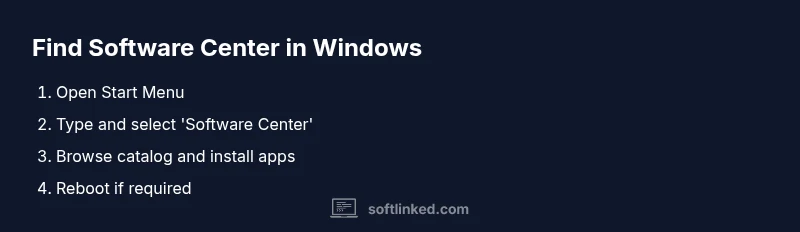
On a typical managed Windows device, Software Center is accessible from the Start menu or by typing its name in the Windows search bar. If your device is enrolled in your organization’s management system (SCCM/Intune), you should see a tile or entry labeled “Software Center.” If you don’t see it, try searching for “Software Center” directly, or check under Programs and Features for a client listing. Some enterprises rename or colocate Software Center within a company portal, so look for a portal app if the direct label isn’t present. If you still can’t locate it, your IT department can verify enrollment and endpoints to ensure the client is installed properly.
If you can't find Software Center: alternative access and troubleshooting
If Software Center isn’t visible, there are a few paths to explore. First, confirm that the device has the enterprise client installed (SCCM/Intune). You can check in Control Panel > Programs and Features for “Configuration Manager Client” or similar, or verify the presence of the endpoint client in Settings > Apps & features. If the client is missing, your IT team may need to re-enroll the device or push the Software Center component again. Some organizations also provide a web-based portal or Company Portal app for app requests when Software Center is unavailable. Always avoid installing software from unapproved sources and rely on IT-approved channels.
How to use Software Center to install applications
Once Software Center is accessible, you can browse or search the catalog for approved software. Select an application, review its details (version, permissions, and reboot requirements), then click Install. The client will queue and download the software in the background, prompting you to restart if necessary. For updates, Software Center typically shows a separate tab or section; you can install or postpone updates based on policy. If a requested app requires approval, follow the on-screen prompts or contact your IT administrator for approval workflows.
Common issues and how to fix them
Common issues include the app not appearing, failed installs, or slow downloads. Start by checking your network connection and re-launching Software Center. If the catalog is empty, ensure the SCCM/Intune client is healthy and that your device has policy updates. For persistent problems, clear the cache or re-run client health checks as per your organization’s guidelines, and contact IT if the issue persists. Never attempt to bypass the enterprise system to install software, as this can violate policy and security controls.
Security and IT considerations when using Software Center
Software Center is designed to ensure that only approved software is installed, maintaining licensing compliance and reducing security risks. It centralizes software deployment and logging, which helps IT monitor software versions and vulnerability exposure. As a user, you should rely on IT-approved apps, avoid sideloading or downloading from untrusted sources, and report access issues promptly. In SoftLinked’s guidance, following official channels protects both you and your organization from security risks and licensing problems.
Best practices for users to ensure access and updates
- Keep your device enrolled in the organization’s management system.
- Regularly check Software Center for new or updated approved software.
- If access is missing, contact IT to verify enrollment and catalog access.
- Reboot when prompted after installations or updates to complete changes.
- Document any access issues and follow company escalation paths for resolution.
Tools & Materials
- Windows PC or laptop(Personal or work device in a managed environment; needed to access Software Center.)
- Active internet connection(Required to reach the enterprise software catalog and download installers.)
- Authorized IT account (optional)(Needed if you must sign in to an IT portal or request non-standard software.)
- SCCM/Intune client installed(Some environments require a compliant client before Software Center appears.)
- Access to company software portal (optional)(In some organizations, Software Center is accessed via a company portal instead of directly.)
Steps
Estimated time: 5-7 minutes
- 1
Open the Start menu
Press the Windows key or click the Start button to reveal the Windows search and apps. This is your first path to locate Software Center quickly. If you cannot locate it in the Start menu, proceed to the next steps to verify enrollment.
Tip: Using the Windows key shortcut (Win) speeds up access when the menu is slow to load. - 2
Search for Software Center
In the Start search bar, type 'Software Center' and watch for a matching result. If it appears, click it to open the app. If it does not appear, confirm that the device is enrolled in your organization’s management system.
Tip: Sometimes the catalog is hidden behind a company portal; check for a portal app as well. - 3
Verify the client is installed
If Software Center does not open, check whether the Configuration Manager Client or equivalent is installed via Control Panel > Programs and Features. If missing, reach out to IT to push the client software to your device.
Tip: A fresh reboot after client installation can help finalize integration with the catalog. - 4
Open Software Center and browse catalog
Once Software Center is open, browse the catalog for approved lists of software. Read the details for each item (version, required disk space, reboot needs) before installing.
Tip: Use the search function inside Software Center to narrow results quickly. - 5
Install or request software
Click Install on the chosen app. For some items, you may need approval from an IT administrator; follow the on-screen prompts to request access if required.
Tip: Expect a download queue; larger apps may take longer depending on network conditions. - 6
Complete installation and reboot if prompted
After the installer finishes, you may be prompted to restart. Save work and allow the reboot to complete so the software is fully integrated.
Tip: Don’t interrupt installations; avoid powering off during a pending reboot.
Your Questions Answered
What is Software Center in Windows?
Software Center is an enterprise app used to install and manage approved software on Windows devices. It is not the consumer Microsoft Store and is controlled by IT policies. Users access a curated catalog of applications and updates through this tool.
Software Center is an IT-controlled app for installing approved software on Windows devices.
Why can't I find Software Center on my PC?
If the device isn’t enrolled in your organization’s management system or the client isn’t installed, Software Center won’t appear. Contact IT to verify enrollment and to push the client if needed.
If you can’t find it, your device might not be enrolled yet or the client isn’t installed.
How do I install Software Center?
Typically, IT installs the SCCM/Intune client which makes Software Center available in the Start menu or via a company portal. After it’s installed, you can browse and install approved software from the catalog.
Usually IT installs the client; then you access Software Center from Start or a company portal.
Is Software Center safe to use?
Yes. Software Center only installs software that your organization has approved, helping keep devices secure and compliant. Avoid attempting to install non-approved software.
Yes. It’s an IT-approved channel for installing software.
What can I do if Software Center is missing after enrollment?
If it’s missing, report the issue to IT; they may re-enroll the device or push the necessary client components. In some cases, you might use an alternative portal for approvals.
If it’s missing after enrollment, contact IT to recheck your device setup.
Watch Video
Top Takeaways
- Locate Software Center via Start or search.
- Software Center is an IT-managed gateway to approved apps.
- If missing, verify enrollment or consult IT for the client.
- Use approved channels to install and update software.