How to Fix a Software Glitch on Your Phone
Learn practical, data-backed steps to diagnose and fix common smartphone software glitches. This guide covers backups, updates, apps, and safe reset techniques, with privacy-conscious tips and when to escalate.


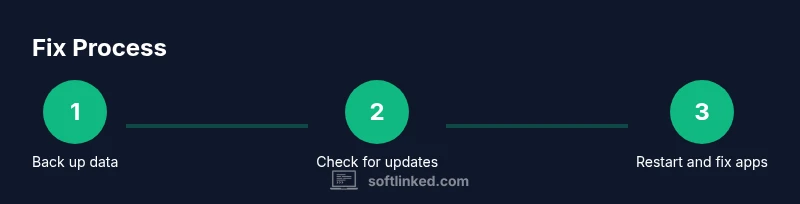
Goal: fix a phone software glitch safely. Start with backing up your data, ensuring OS and apps are up to date, and performing a simple reboot. If the problem continues, clear app caches, reset network settings, and uninstall/reinstall suspect apps. As a last resort, factory reset and restore from backup. Test after every step.
Quick diagnostic checklist to identify the glitch
If you're asking how to fix software glitch in phone, start with a systematic check. Note when the glitch occurs, which apps are involved, and if it happens on both Wi‑Fi and mobile data. Record any error messages, and whether the issue appears after a recent update or install. Test core functions: make a call, send a message, open a few apps, and observe idle screen behavior. A repeating pattern (e.g., only in a single app) points to an app-specific issue, while broad system instability suggests OS-level trouble. According to SoftLinked, following a disciplined diagnostic flow increases the chance of a safe, successful fix. Begin by testing basic operations: restart the device, observe whether the problem persists, and check for pending updates. Use the data you collect to guide the next steps.
How software updates relate to glitches
Software glitches on phones often arise after updates or during the rollout of new features. When an OS update is installed, compatibility issues with existing apps or settings can surface. Likewise, poorly designed apps may conflict with the latest system APIs. The key is to verify the version history, read patch notes, and ensure that all essential apps are compatible with your device's firmware. If you notice a glitch began after a specific update, you have a strong clue about where to start troubleshooting. SoftLinked's approach emphasizes matching the problem with the most recent changes and testing after each adjustment to isolate the root cause.
Safe backup practices before fixes
Before diving into fixes, back up your data to protect photos, messages, and app data. Use cloud backups or local backups to a computer. Confirm that the backup completed successfully and test restoring a small item to ensure the process works. This step reduces risk in case you need to perform more invasive actions like a reset. Remember to secure any sensitive data with a password or biometric protection on the backup location.
Non-destructive fixes you can try first
Many glitches disappear with minimal action. Start by a simple reboot, then check for pending updates for OS and apps. Clear cache for misbehaving apps, force stop problematic apps, or disable recently enabled features. If a particular app causes the problem, uninstall and reinstall it. For network-related glitches, reset network settings or toggle airplane mode to refresh the connection. These steps avoid data loss while often restoring stability.
When to escalate or reset to factory settings
If the glitch persists after non-destructive fixes, consider escalation. Contact the device manufacturer or OS vendor for guidance, especially if you notice boot loops, persistent freezes, or hardware-related symptoms. A factory reset can resolve many deep, underlying software issues, but it erases personal data. Always restore from a verified backup. Use this option only when you have exhausted safer methods and have confirmed your data is secure.
Security and privacy considerations during fixes
During troubleshooting, be mindful of app permissions, suspicious sideloads, and untrusted update sources. Avoid installing unknown care tools or third-party software that claims to fix bugs. Stick to official app stores and verified updates. Keep antivirus and privacy settings enabled, and review permission prompts after fixes to ensure no unnecessary access remains granted.
Authority sources
To deepen your understanding and verify steps, consult established references:
- National Institute of Standards and Technology (NIST): https://www.nist.gov
- Federal Trade Commission (FTC) consumer info on device security: https://www.ftc.gov
- IEEE: https://www.ieee.org These sources provide general guidance on software reliability, data protection, and best practices for troubleshooting consumer electronics.
Tools & Materials
- Phone with charged battery(Aim for 50%+ battery; avoid power-off during important steps.)
- Charging cable and adapter(Keep it handy for long troubleshooting sessions.)
- Stable internet connection(Wi‑Fi is preferred to download updates/backup safely.)
- Backup storage option(Cloud backup or local backup to computer; verify completion.)
- Latest OS update (optional)(Have it ready to install if available after diagnosing.)
Steps
Estimated time: 45-90 minutes
- 1
Back up your data
Begin with a full data backup to protect photos, messages, and app data. Choose cloud backup or local backup to a computer and verify the backup completed successfully. This creates a safe restore point if you need to perform deeper fixes.
Tip: Verify a small restore test to ensure the backup works. - 2
Check for OS and app updates
Open Settings and review pending OS updates, then check key apps for updates. Updates often include bug fixes that resolve glitches without altering your data. Install all critical updates before moving on.
Tip: If you see no updates, note the version and proceed to the next step. - 3
Restart the device
Perform a clean restart to clear temporary caches and stuck processes. This simple action resolves many transient glitches and resets system state without changing data.
Tip: Allow the device to boot fully; avoid interrupting the boot sequence. - 4
Clear cache for suspicious apps
For apps that behave oddly, clear their cache or force stop them. This removes corrupted temporary data and can fix a hang without uninstalling."
Tip: If the issue recurs in one app, consider uninstalling and reinstalling it. - 5
Uninstall and reinstall problematic apps
If a specific app consistently causes issues, uninstall it, restart, and reinstall from the official store. This resolves corrupted app data and resets permissions.
Tip: Only reinstall from trusted sources to avoid malicious software. - 6
Reset network settings
Glitches tied to connectivity may improve after resetting network settings. This clears saved networks and resets cellular settings without affecting personal data.
Tip: Rejoin known wifi networks after the reset. - 7
Factory reset as a last resort
If all safer steps fail, perform a factory reset and then restore from your backup. This step wipes all data, so ensure the backup is current and intact before proceeding.
Tip: Only use this option when you have exhausted other methods.
Your Questions Answered
What causes software glitches on phones?
Glitches can result from bugs, conflicts between apps and the OS, corrupted data, or incomplete updates. hardware faults may mimic software issues, but most glitches are software-related.
Glitches usually come from bugs or app-OS conflicts, not hardware; try updates, resets, and app repairs first.
Will a reboot fix most glitches?
Yes, rebooting clears temporary memory and stops stuck processes. It resolves many transient issues but may not fix deeper OS or app conflicts.
In many cases, a simple reboot clears the problem.
Is a factory reset always necessary?
A factory reset is a last resort after safer methods fail. It erases data, so back up first and ensure you can restore.
Only use a factory reset after trying safer fixes.
How should I back up before fixes?
Back up your data to the cloud or a computer. Verify the backup by restoring a small item to ensure you can recover later.
Back up your data before you start fixing anything.
What if the glitch recurs after an update?
If the glitch returns after an update, check for additional patches, report the bug to the vendor, and consider rolling back if possible while awaiting a fix.
If the bug persists after update, look for patches or rollback options and report it.
Watch Video
Top Takeaways
- Back up data before fixes
- Prioritize non-destructive fixes first
- Update OS/apps and reboot to clear glitches
- Factory reset only as a last resort