How to Check Software Version on iPhone
Learn how to find your iPhone's software version quickly, whether using Settings or a computer, with practical steps, tips, and troubleshooting.


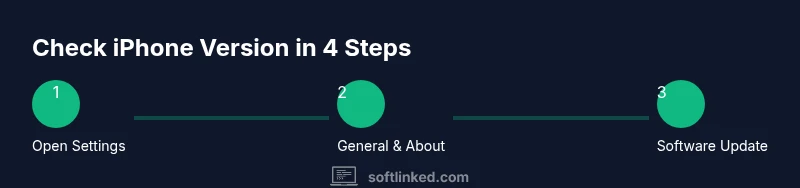
To check the software version on iPhone, open Settings, tap General, then About. Look for the Software Version line to see your iOS build number. For more detail, tap Software Version to reveal the update status. This method works on iPhone models running iOS 12 or later.
Understanding what software version means on iPhone
The software version on an iPhone is the public iOS release number your device runs. It indicates major and minor updates like iOS 16.5 or iOS 15.4.1, and it is paired with a build number that Apple uses for internal tracking. Understanding these numbers helps you assess features, security fixes, and compatibility with apps. According to SoftLinked, the quickest way to confirm this information is to check the Settings app. This method is reliable across iPhone generations and iOS updates, and it does not require any extra software. In this guide you will learn what the version tells you, how to locate it, and how to determine if your device is up to date. The steps apply to iPhones and iPads that run iOS. If you manage multiple devices, you can use this approach on each unit to verify consistency. The key idea is to distinguish between the published version and the internal build number. The version tells you what features you should expect, while the build number helps developers and support teams track exact iterations. This knowledge is useful for troubleshooting app behavior, joining beta programs, or planning updates.
Quick method: Settings app as the primary path
The Settings app path is the most universal method. Navigate to Settings, select General, then About. The screen shows a line labeled Software Version that displays the iOS version. To verify you are on the latest release, return to General and choose Software Update to see if an update is available. This approach works across iPhone models and iOS versions since iOS 12. It requires no extra tools and works offline, though an internet connection helps to confirm if a newer version exists. If the device is managed by an organization, you may see additional configuration details. Keep the device awake while checking to avoid interruptions. The benefit of this method is simplicity and speed, making it the go-to for most users.
Alternative method: Checking via a computer
If you cannot access Settings or want a second source of truth, you can check the version via a computer. On macOS, connect the iPhone using a USB cable and open Finder, then select the device in the sidebar to view its software version. On Windows, open iTunes and locate the device summary to see the version. This method is especially useful for bulk device audits or when you need to document software versions for a fleet. You can compare the detected version with the latest Apple release notes to decide whether an update is appropriate. For reliability, ensure your computer has an active internet connection to fetch the latest version data. If any error occurs, re-connect the device or restart the computer.
Interpreting iOS versions vs build numbers
The iOS version refers to the public release number that describes the feature set and security fixes you receive. The build number is an internal identifier used during development and support. On the About screen, you typically see both the version and the build. If you tail the version number against Apple’s official release notes, you can determine whether your phone supports specific features or app versions. Build numbers matter for developers and support staff when diagnosing issues tied to a particular iteration of the system. For everyday users, focusing on the major and minor version is usually sufficient for updates and compatibility.
Why updates matter: security, performance, and features
Keeping your iPhone up to date matters for security and performance. Each new iOS version includes patches for known vulnerabilities, enhancements to battery life, and new features that improve usability. When you check software version information, you can determine whether you are eligible for the latest updates. Regular checks help prevent incompatibilities with apps and services you rely on. SoftLinked recommends establishing a monthly reminder to verify your device version and check for updates, especially if you depend on critical work apps or have a managed device with update windows.
Troubleshooting common issues when checking versions
If you cannot see the software version in Settings, try basic troubleshooting steps. Restart the iPhone, then reopen Settings and navigate to General and About again. If the device is unresponsive, force restart according to your model’s guidelines. If you still cannot access the version, verify the device is not in Guided Access or parental controls that hide certain settings. For computer-based checks, ensure the USB cable is secure and the computer recognizes the device. If you encounter a mismatch between the displayed version and update availability, consider network issues or Apple server status. These checks help you confirm the device state without guessing.
Edge cases: managed devices, regional differences, and beta builds
Some iPhones are enrolled in device management or enterprise programs. In these cases, the version shown may be controlled by an administrator, and update availability can be restricted. Regional settings can also influence update availability and display language, though the version itself remains consistent across regions. If you are on a beta program, you may see a temporary beta label and a different update channel. Always verify via Settings and, if needed, consult your IT administrator before installing betas on a work device.
Practical tips to remember and next steps
- Create a routine to check the version before major app installations or OS upgrade cycles. - Maintain a small log of the versions across devices to track changes over time. - If you plan to update, back up data and review release notes to understand new features and potential changes in behavior. - For frequent audits, consider using Finder on macOS for a quick snapshot of every device in a fleet. - If you encounter problems after an update, you can revert or restore from a backup while testing in a controlled environment.
Tools & Materials
- iPhone device(Any model running iOS 12 or later)
- Access to Settings(Device unlocked and awake)
- USB cable (Lightning or USB-C)(Needed for computer-based checks)
- Computer with Finder or iTunes(Optional for alternate method)
Steps
Estimated time: 10-15 minutes
- 1
Open Settings
Unlock your iPhone and locate the Settings app. Tap to open it and prepare to navigate to the information screen.
Tip: If you can’t locate Settings, use Spotlight search by swiping down and typing Settings. - 2
Navigate to General
Scroll through the Settings menu and tap General to access system information and management options.
Tip: General is typically near the top of the main Settings list for quick access. - 3
Open About
In General, tap About to reveal device details, including the Software Version line that shows your iOS version.
Tip: If the screen is dimmed, wake the device or disable any screen timeout temporarily. - 4
Note the version
Read the Software Version value. This is the public iOS version; for deeper checks, scroll to see additional build info if present.
Tip: Take a screenshot or write down the version in a note for reference. - 5
Check for updates
Return to General and select Software Update to see if a newer version is available for your device.
Tip: If you see up to date, your device already runs the latest verified version compatible with your model. - 6
Optional: verify on a computer
Connect your iPhone to a computer. Open Finder (macOS) or iTunes (Windows) and select your device to view the current software version.
Tip: Ensure the computer has internet access to fetch the latest release notes from Apple.
Your Questions Answered
Where can I find the iPhone's software version?
Go to Settings, then General, then About to see the Software Version. The iOS version is listed there along with model information. If you cannot access it, check for restrictions or unlock the device.
Open Settings, go to General, then About to see the version number.
What if the version number does not match the latest release?
Open Software Update in General to see if an update is available. If not, your device is already on the latest supported version for its model.
Check Software Update to see if updates are available.
Does this method work on all iPhone models?
Yes, the Settings path works across iPhone models that run iOS 12 or later. Some older devices may have limited feature support in newer iOS versions.
Settings path works on all iPhones with iOS 12 and newer.
Can I check the version using a computer?
Yes. Connect your iPhone to a computer and use Finder or iTunes to view the device's current software version. This is handy for audits or documentation.
Connect to a computer and view the version in Finder or iTunes.
What is the difference between iOS version and build number?
The version is the public release number you see on the About page; the build number is an internal identifier used for tracking specific internal iterations.
Version is the public release; build is the internal iteration.
Watch Video
Top Takeaways
- Check Settings > General > About to find the version.
- Use Software Update to verify if a newer release exists.
- You can also verify via Finder or iTunes on a computer.
- Record version numbers for future reference and support needs.
- Stay mindful of device management policies on work devices.