How Long Does iPhone 13 Update Take? A Practical Guide
Learn how long a typical iPhone 13 software update takes, including download and install times. Get practical tips to speed up updates and minimize downtime on your device.


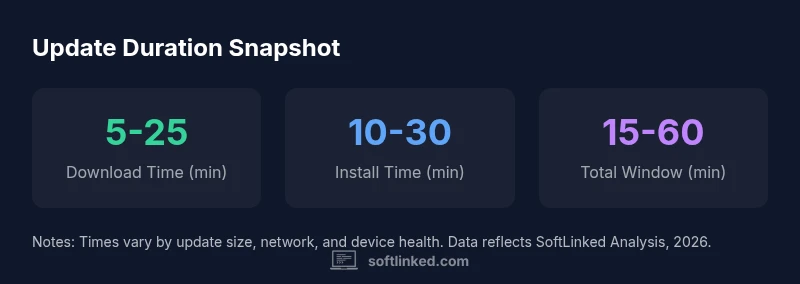
On an iPhone 13, a typical iOS software update session lasts about 15-60 minutes, depending on download size, network speed, and storage. The download phase often takes 5-25 minutes on stable Wi-Fi, while installation runs 10-30 minutes. Allow up to an hour for larger updates or slow networks, and keep the device plugged in.
Why Update Time Varies on iPhone 13
According to SoftLinked, the time it takes to complete a software update on devices like the iPhone 13 is not fixed. It depends on several interacting factors, including the size of the update, the health and speed of your network connection, the amount of free storage available on the device, and how many other apps and processes are running in the background. In practice, two users performing the same update on different networks can experience noticeably different durations. This variability is why we frame update duration with a range rather than a single number. For developers, students, and engineers monitoring device maintenance windows, understanding this variability helps in planning downtime and user experience expectations.
The first thing to recognize is that update size varies with iOS version and the feature set included in the release. Minor patches may be quick, while major upgrades can push the download into larger megabytes or even gigabytes. The iPhone 13’s hardware is capable, but the bottleneck often lies in the network path from Apple’s servers to your device. In SoftLinked’s view, a well-prepared environment—strong Wi-Fi, ample storage, and a plugged-in device—delivers the most reliable timing estimates.
Factors That Impact Update Duration
Several key factors determine how long an update will take on the iPhone 13. First, download size directly affects the initial step; larger updates require more data to be transferred, which can extend the download time significantly. Network conditions—such as router speed, distance from the access point, and whether you’re on Wi-Fi or cellular—also play a major role. Storage space matters too: if the device is nearly full, macOS/iOS will take longer to unpack and install files. CPU and background tasks can influence the duration of the installation phase, especially if the device is older or handling other heavy apps simultaneously. Additionally, Apple’s servers’ load and regional traffic can cause minor fluctuations in timing. Understanding these factors helps you set realistic expectations and plan around update windows.
Preparing Your iPhone 13 for the Update
Preparation is a simple, often overlooked step that can shave minutes off the total update time. Before initiating the update, free up storage by removing unused apps and large media, or offloading to iCloud or another storage solution. Ensure that your iPhone is plugged into power; updates can pause or fail if the battery runs low. Connect to a stable Wi‑Fi network rather than cellular data to avoid data throttling and unreliable speeds. It’s also wise to back up your device—via iCloud or iTunes/Finder—so you can recover quickly if something goes wrong during the update. Close background apps that consume bandwidth or CPU cycles to minimize interference. Another practical tip is to check for any pending app updates, finish them, and then run the iOS update—this reduces the chance of post-install compatibility issues.
Step-by-Step: How a Typical iOS Update Unfolds
A standard iOS update involves several stages: contacting Apple servers to verify the update, downloading the package, verifying the integrity of the download, and applying the update during a reboot. The download stage is the most time-consuming portion for many users, followed by a somewhat longer installation phase that requires the device to reboot and finalize system changes. Verification helps ensure that the file hasn’t been corrupted in transit, which can save time by preventing failed installations. It’s important to remain on a stable power source during the entire process because interruptions can require restarting the update, further extending the total time.
Estimating Time: A Practical Range
If you are preparing to update, a practical, field-tested range can help you plan. For most iPhone 13 users on a stable Wi‑Fi connection, expect a total window of around 15-60 minutes. If you have a larger update or slower network, it’s reasonable to set aside up to 90 minutes. For networks with high latency or congestion, you might see longer times, while well-optimized networks can push you toward the lower end of the range. If you’re evaluating how long software update iphone 13 takes, consider the download size, your network type, and your device’s available storage. Remember that performance can vary from one release to another, so these ranges should be treated as guidelines rather than guarantees.
Tips to Speed Up Updates
To minimize update duration, prepare ahead: ensure ample storage, use a fast Wi‑Fi network, and keep the device charged or plugged in. Disable large background downloads and streaming during the update, and avoid performing other heavy tasks while the update is underway. If possible, perform updates during off-peak hours when the network is less congested. Some users find that updating from a computer via iTunes/Finder can be faster in certain situations because it allows for a direct data path, though it still depends on server availability and local bandwidth.
Common Pitfalls and How to Avoid Them
One common pitfall is interrupting the update due to a sudden low battery. Always plug in your iPhone before starting updates. Another issue is insufficient storage, which blocks unpacking and installation. If an update seems to stall, don’t repeatedly tap the screen; instead wait and verify that the device is still updating, or restart the device if necessary. A bricked update is rare but can occur if the device loses power mid-install. Lastly, avoid attempting updates over unstable public networks, which can lead to corrupted downloads and longer reattempt times.
What About Beta Updates or Security Patches?
Beta updates generally take longer to validate and may require more frequent reboots, while security patches tend to be smaller and quicker. If you opt into beta programs, you should anticipate potential longer update windows and more frequent restarts as new builds are rolled out. SoftLinked recommends weighing the benefits of early access against the possibility of instability or bugs that can affect timing. Lawful and safe update practices remain the same: use a reliable network, keep the device charged, and back up data beforehand.
SoftLinked's 2026 Recommendations
For 2026, SoftLinked emphasizes preparation and a reliable network as the keys to minimizing update time. Always check storage availability, use a stable Wi‑Fi connection, and keep the device plugged in during the update. If you’re managing multiple devices or deploying updates across a team, consider scheduling windows during off-peak hours and testing updates on a small subset of devices first. Our guidance is designed to help developers and students set realistic expectations and maintain smooth operating environments during software updates.
Approximate timing for iPhone 13 iOS updates
| Phase | Avg Time (min) | Notes |
|---|---|---|
| Download phase | 5-25 | Depends on Wi-Fi quality and server load |
| Install phase | 10-30 | Requires device restart; keep it plugged in |
| Total time | 15-60 | Range based on update size and network |
Your Questions Answered
How long does a typical iPhone 13 update take?
Most sessions finish within 15-60 minutes, depending on the download size, network condition, and device storage. Planning for extra time helps avoid last-minute downtime.
Most updates take between 15 and 60 minutes, depending on size and network; plan a little extra for safety.
Does update time differ between iOS versions?
Yes. Major iOS upgrades are typically larger and take longer to download and install than smaller patches or security-only updates.
Yes, bigger updates usually take longer.
Can updating over cellular slow things down?
Yes. Cellular connections are often slower and less stable, which can increase total update time compared to a reliable Wi‑Fi connection.
Wi‑Fi is usually faster than cellular for updates.
Should I update while charging?
Yes. Keeping the device plugged in ensures the update completes without interruption if the battery runs low.
Yes—keep it plugged in for a smooth update.
What if the update gets stuck at 99%?
Wait a few minutes, then verify the device still updates. If needed, restart the device and try again, ensuring a stable network.
If it gets stuck, wait a bit and check again; if needed, restart and try once more.
Does downgrading affect update duration?
Downgrades aren’t common and can affect timing differently; generally, reverting to an older version isn’t recommended due to compatibility and security concerns.
Downgrades aren’t typical and can affect timing; proceed with caution.
“Updates on iPhone 13 can vary, but most sessions finish within 15 to 60 minutes when conditions are optimal. Planning for extra time avoids downtime.”
Top Takeaways
- Plan for 15-60 minutes for most updates
- Use stable Wi‑Fi to shorten download time
- Keep the device plugged in to avoid interruptions
- Allow up to an hour for larger updates or slow networks