How Long Does a Software Update Take on iPhone 11?
Learn how long a software update typically takes on iPhone 11, what affects duration, and how to speed up downloads and installations with practical steps.


On a typical iPhone 11, a software update download plus installation takes about 15-40 minutes, depending on network speed, update size, and device storage. Minor updates are shorter, major releases longer. If the device is on a recent version and connected to a fast Wi‑Fi network, you can expect the total process to complete in under 30 minutes.
Understanding the update flow on iPhone 11
Updates follow a simple sequence: check for availability, download the payload, verify integrity, and apply the installation. For the iPhone 11, the total time you see on screen combines download time, preparation, and the actual patch application. According to SoftLinked, the duration is highly influenced by update size and network conditions, and it’s wise to budget a window rather than aiming for instant completion. Apple’s support documentation notes that updates are staged to minimize disruption, but large versions will still require commuting time. Planning for a realistic window helps manage expectations and reduces frustration.
How long does a software update take on iPhone 11?
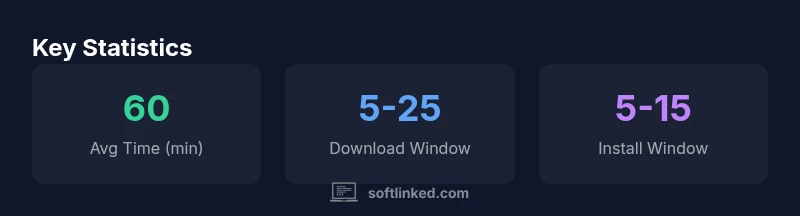
The exact duration varies with the update type and your environment. In practice, most users experience a download phase of 5–25 minutes on a stable Wi‑Fi connection and an installation phase of 5–15 minutes. Larger, feature-rich releases tend toward the upper end of the range. During high‑traffic periods or when the device has limited storage, the total time can extend beyond 40 minutes. For context, SoftLinked analysis in 2026 indicates broad variability primarily driven by update size and network quality.
Preparing your iPhone 11 for a smooth update
To minimize time, start with a full backup, then ensure the device has at least 2–3 GB of free storage. Plug the iPhone into a power source, and connect to a reliable Wi‑Fi network. Close background apps or turn on Do Not Disturb to limit interruptions. If you’re updating via a computer, ensure the latest version of iTunes/Finder is installed and the USB connection remains stable during the process.
How network conditions affect download time
Downloading the update payload is the primary time sink. On fast home Wi‑Fi, many users see the download complete within 5–15 minutes, while slower networks can push this portion toward 25 minutes or more. If you’re using cellular data, the update may be throttled or fail, so a strong Wi‑Fi connection is recommended. In all cases, ensuring a strong, stable connection reduces the risk of partial downloads and re-downloads.
Estimating install time and post‑update checks
The installation phase typically takes 5–15 minutes after the download finishes. Once installed, the device reboots and performs a first‑run setup, which may include system index updates and feature re-indexing. After the update, check Settings > General > Software Update to confirm the version and enable automatic updates if you wish. A brief reset of settings that affect performance (like background app refresh) can also help the newly installed software feel snappier.
Common pitfalls and how to avoid them
Avoid starting updates when the battery is low; always plug in power or ensure the device is well charged. Don’t interrupt updates once they begin; pausing or forcing restarts can corrupt files. If the download stalls, pause and resume, or switch networks and retry. If the update fails repeatedly, consider restarting the device and retrying from a stable connection, or use a computer-based update via iTunes/Finder.
Alternative update paths and recovery options
In some cases, you may want to reset network settings or perform a clean install via computer if the update repeatedly fails on-device. Remember to back up first. If you’re encountering slow performance after an update, review storage usage, reindex Spotlight, and disable heavy background tasks. For critical environments, always test on a spare device before rolling updates across teams.
Update duration factors for iPhone 11
| Aspect | Typical Time (min) | Notes |
|---|---|---|
| Download time (Wi‑Fi) | 5-25 | Depends on network speed and update size |
| Installation time | 5-15 | Depends on device storage and background tasks |
| Total window | 15-40 | Broad range by update size |
| Battery/power | N/A | Keep device plugged in during update |
Your Questions Answered
What affects the duration of an iPhone 11 update?
The primary factors are the update size, network speed, and available storage. A fast Wi‑Fi connection and ample free space usually shorten both download and install times. Background activity and server load can also cause small delays.
The time mostly depends on how big the update is, how fast your network runs, and how much space you have.
Can I speed up an update on iPhone 11?
Yes. Use a strong Wi‑Fi network, ensure you have at least 2–3 GB free space, and connect the device to power. Avoid updating during peak network usage to reduce slowdowns.
Use strong Wi‑Fi and make sure you have space and power for a faster update.
Should I update over cellular data?
Cellular updates are generally discouraged due to size limits and potential data charges. Use Wi‑Fi whenever possible to ensure a stable download and avoid interruptions.
Try to use Wi‑Fi; cellular updates can be unreliable or costly.
What if the update stalls or fails?
If a download stalls, pause and resume, or switch networks. If installation fails, restart the device and retry, or update via a computer with iTunes/Finder. Always back up beforehand.
If it stalls, pause and retry, or switch networks. Back up first.
Is it safe to interrupt an update?
Interrupting an update is risky and can corrupt files. If you must pause, do so gracefully and resume when feasible. If unsure, restart the process from the beginning.
Avoid interrupting updates; resume or restart if needed.
What should I check after updating?
Verify the version in Settings > General > Software Update, ensure apps run normally, and re-enable any preferred background tasks. If issues persist, consider a reset of settings or a full restore as a last resort.
Check the OS version and app behavior; restart if needed.
“Updates on older devices like the iPhone 11 can vary widely in duration due to update size, network conditions, and storage availability. Planning for variability helps users avoid frustration.”
Top Takeaways
- Start updates with a strong Wi‑Fi connection
- Ensure 2–3 GB free storage before updating
- Budget 15–40 minutes for typical updates
- Plug into power to avoid interruptions
- Update during off-peak hours for reliability