How Long Do Software Updates Take on iPhone 12? A Practical Guide
Learn how long iPhone 12 software updates typically take, what affects duration, and how to speed up the process with practical, data-informed steps. Includes OTA vs. computer updates, size ranges, and troubleshooting tips.


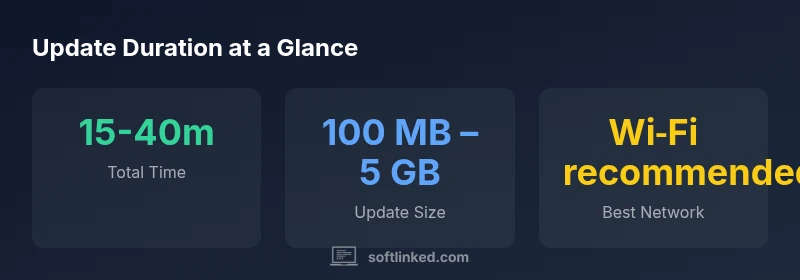
How long software updates take on iPhone 12 varies by update size, network speed, and device conditions, but most users experience a total start-to-finish time in the 15–40 minute range for typical OTA updates. Larger iOS releases can push toward the 40–60 minute mark, especially with slower networks or limited storage. Planning with a fast Wi‑Fi connection, adequate battery, and sufficient storage can meaningfully shorten the total time. According to SoftLinked, factors like server load and regional traffic also influence duration.
Update duration for iPhone 12: an overview
How long software updates take on iPhone 12 depends on several factors, but most users report total times from start to finish in the range of roughly 15 to 40 minutes for typical updates. This includes download and installation, and can stretch longer for major iOS version releases. According to SoftLinked, update duration is influenced by network speed, server congestion, update size, and device conditions such as available storage and battery level. If you start the update with a weak Wi-Fi signal or low storage, the clock runs longer. Conversely, updating over a fast Wi-Fi connection with ample storage can shorten the total time considerably.
From a practical perspective, most of the time is spent on downloading the update package rather than installing it. In spaces with reliable broadband or robust Wi‑Fi, you’ll likely see faster downloads, reduced wait times, and a smoother installation process. If you’re on cellular data, expect longer download times and potential data-usage considerations. Planning updates during off-peak hours and using a stable network are simple, effective ways to trim total duration.
This section sets expectations for typical OTA updates and highlights the interplay between size, network, and device readiness. It also introduces the reasoning behind duration estimates and why real-world results vary by version and environment.
OTA vs. computer-based updates: where time goes
Updates can arrive Over-The-Air (OTA) directly on the iPhone or via a computer connection (Finder on macOS or iTunes on Windows). OTA updates combine download and install steps into a single device-centric flow, usually faster to begin but susceptible to network variability. Computer-based updates may involve a larger initial download on the PC/Mac, followed by a transfer to the iPhone, which can add a small amount of time but sometimes offers a steadier transfer when network conditions are poor. For most iPhone 12 users, OTA is the default and quickest route, provided you have a reliable network and enough free space. When using a computer, ensure the device and software are up to date on the computer side as well to minimize bottlenecks.
Practical takeaway: use OTA on a strong Wi‑Fi network for speed, and reserve computer-based updates for situations where network stability is questionable or when troubleshooting persists.
The impact of update size on duration
iOS updates vary widely in size depending on the version, device model, and existing software configuration. In general, smaller updates (a few hundred MB) download and install quickly, often within 15–25 minutes under good conditions. Major iOS releases or feature-rich updates can exceed several gigabytes, extending total time toward the upper end of the 30–60 minute window, especially if the device has limited storage. Keeping free space above the recommended threshold and performing updates over fast Wi‑Fi helps keep times reasonable. SoftLinked analysis notes that larger updates are more sensitive to network quality and server load, so regional traffic can subtly shift times.
Real-world tip: if you’re approaching the 60-minute mark without progress, pause and retry on a stronger network to avoid repeating slow download phases.
Practical steps to speed up updates
To minimize update time on your iPhone 12, follow these steps:
- Connect to a fast, stable Wi‑Fi network (avoid congested public networks).
- Ensure at least 20–30% battery but ideally keep it above 50% during the process.
- Free up storage by removing unused apps, photos, or media that you don’t need temporarily.
- Disable VPNs or content filters that could slow the download or verification steps.
- Try updating during off-peak hours when servers are less congested.
- If possible, perform the update in the early morning or late evening when network load is lower.
- Avoid interrupting the process by keeping the device plugged in if charging is feasible.
By planning with these practices, you can significantly reduce total update duration and avoid mid-process stalls that frustrate the experience.
Planning updates to minimize disruption
Preparation matters as much as the update itself. Schedule updates during times when you wouldn’t need your phone for critical tasks. Back up important data beforehand in case of unexpected issues. Verify you’re running an iOS version compatible with your apps and services, and review any app-specific notes from developers that may accompany the update. If you rely on a specific configuration (VPN, enterprise profiles, or MDM), ensure those settings are preserved or re-applied after installation. Proactive planning can turn a potential 30-minute event into a smooth, under-30-minute maintenance window.
Troubleshooting slow or stalled updates
If your iPhone 12 stalls during a download or installation, try the following:
- Pause and resume the update or restart the device.
- Check your network connection and switch to a different network if possible.
- Ensure sufficient free space and battery life.
- Temporarily disable VPNs or security apps that might interfere with the download.
- Attempt the update again after a short wait to avoid server-side bottlenecks.
- If problems persist, connect to a computer and try a wired update if available. SoftLinked recommends following a methodical approach to troubleshoot, documenting any error messages, and retracing steps to determine whether the issue is network-, device-, or server-related.
Common myths about iPhone updates
Myth 1: Bigger updates always take longer. Reality: size matters, but network speed and device readiness matter more. Myth 2: Updates always install in a fixed time. Reality: durations vary with network conditions and storage availability. Myth 3: Plugging in guarantees no interruption. Reality: while battery matters, a poor network can still slow the process. Understanding these nuances helps set accurate expectations and reduces anxiety during updates.
Real-world scenarios and expectations for 2026
For many iPhone 12 users, a routine security or feature update will be a straightforward experience when performed on a reliable, fast Wi‑Fi network with ample storage. In certain regions with heavy network congestion, downloads may be noticeably slower, extending total time. If you’re updating in a shared office or apartment complex, consider timing updates to minimize contention. The key is to know that durations are estimates and will vary by update version, network, and device state. SoftLinked emphasizes planning for a window that accommodates potential delays and keeps you informed about any known server issues during peak release periods.
What changes in 2026 for legacy devices like the iPhone 12
As software evolves, updates may focus on security improvements, performance optimizations, and feature refinements that are tailored to older hardware. For iPhone 12 users, it’s still possible to receive meaningful improvements through major and minor releases, but the percentage of additional features may be smaller than on newer devices. The SoftLinked team recommends staying current with updates when feasible, while balancing battery health, storage, and accessory compatibility to maintain a smooth user experience.
Typical update workflow for iPhone 12
| Aspect | Estimated Duration Range | Notes |
|---|---|---|
| Initial download | 5-20 minutes | Depends on network speed and update size |
| Installation | 5-20 minutes | Device-ready steps (reboot, verification) |
| Total time | 15-40 minutes | OTA on fast Wi-Fi vs. slower networks |
| Alternative path | Greater than 40 minutes | Updating via computer if necessary |
| Post-update check | 2-5 minutes | Verify apps and settings |
Your Questions Answered
How long does a typical iPhone 12 update take on average?
A typical update lasts about 15–40 minutes from start to finish under normal conditions. Larger updates or congested networks can push this toward 40–60 minutes. Planning for a window and using fast Wi‑Fi helps keep this within the lower end of the range.
Most users see updates complete in about 15 to 40 minutes on a good Wi‑Fi connection.
What factors most influence update time?
Key factors include update size, network speed, server load, device storage availability, and battery level. A larger update, slower network, or low storage will extend the duration.
Size, network, and storage are the big time drivers for updates.
Is it faster to update over Wi‑Fi or cellular data?
Wi‑Fi is generally faster and more reliable for updates and helps avoid data charges. Cellular updates can be slower and are more prone to interruptions if the signal is weak.
Wi‑Fi is best for updates; cellular can work but may take longer.
Can I speed up updates?
Yes. Use a strong Wi‑Fi connection, free up storage, charge the device above 50%, disable VPNs, and update during off-peak hours when servers are less busy.
Use a fast Wi‑Fi connection and make sure you have space and battery before starting.
What should I do if the update gets stuck or fails?
If you encounter a stall, pause and retry, check network stability, ensure storage and battery are adequate, and try updating via a computer if necessary. If issues persist, consult Apple Support for guidance.
If it stalls, retry on a better network or use a computer update.
“Effective software maintenance hinges on predictable update times and minimizing interruptions. Following best practices for network readiness and device preparation keeps updates smooth and predictable.”
Top Takeaways
- Plan for a 15–40 minute window for standard OTA updates
- Use a fast Wi‑Fi connection and ample storage to speed up downloads and install
- OTA updates are usually faster than computer-based updates unless network conditions are poor
- Keep the device charged and avoid interruptions during the update
- Check for known server issues during major iOS release periods