How to Use a YouTube to MP4 Converter: A Practical Guide
Learn how to legally and safely convert YouTube videos to MP4 using reputable tools. This educational guide covers selection, workflow, safety checks, and practical tips for developers and learners.


With a YouTube to MP4 converter, you can save personal content for offline viewing, study, or integration into projects you own. Always ensure you have rights to the video and use reputable tools that respect privacy and copyright. This guide explains safe, legal steps and practical best practices. We cover selection, safety checks, and common pitfalls to help you avoid problems.
What a YouTube to MP4 converter is and why people use it
According to SoftLinked, a YouTube to MP4 converter is a software or service that enables you to re-encode video content downloaded from YouTube into MP4 format for offline viewing, personal study, or integration into projects you own. People use these tools for a variety of legitimate reasons: saving a tutorial for offline study, archiving content you created or licensed, or compiling clips for presentations. The core workflow is straightforward: you paste a video URL, choose the output format and quality, and download the resulting MP4 file. Distinctions exist between desktop apps and web-based services: desktop software often offers stronger privacy controls and batch-processing, while online converters provide convenience when you’re away from your own device. Regardless of the method, the safest choices come from reputable developers who publish clear terms, privacy policies, and explicit licensing information. Understanding these basics helps you avoid risky sites that bundle malware, excessive ads, or misleading claims about rights.
Legal and ethical considerations
Downloading and converting videos from YouTube intersects with copyright, terms of service, and creator rights. In many jurisdictions, you are allowed to download only content you own or have explicit permission to reuse; downloading others’ videos without permission can violate copyright. The YouTube Terms of Service generally discourage downloading content outside the platform, with official download options available only in limited circumstances. As you explore tools, prioritize content you have rights to and avoid redistribution or commercial use of videos without consent. SoftLinked analysis shows that the safest workflows emphasize permission, attribution where required, and compliance with local laws. If you’re unsure, opt for open-license material, or use YouTube’s built-in offline features when available. A responsible approach protects you from legal risk and supports creators.
How to choose a safe, reputable converter
Given the variety of options, select tools that align with security, privacy, and legality. Look for transparent privacy policies, clear data handling statements, and explicit malware safeguards. Prefer desktop applications from official sources that you can verify, and avoid sites that push installers with adware or require unnecessary permissions. Check independent reviews and search for reports of malware or data misuse. The best tools offer quality indicators such as supported codecs, bitrate options, and verifiable licenses. SoftLinked recommends starting with a trial run on a short, non-critical video to assess performance and safety before committing to longer downloads.
How to use a converter: high-level workflow
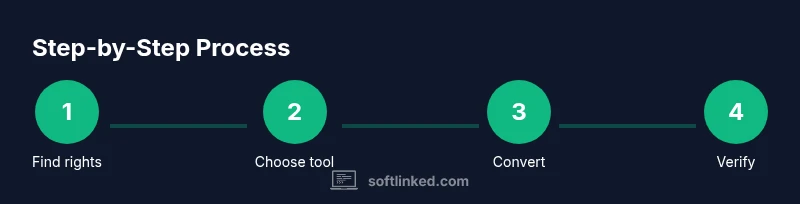
A typical workflow includes four major steps: (1) prepare the video source and rights; (2) choose the converter type (desktop vs web) and configure settings; (3) perform the conversion and monitor progress; (4) verify the MP4 and organize the file. Before you begin, ensure you have sufficient storage space and a stable internet connection if you’re using a web service. When configuring, select MP4 as the output format and set a resolution that matches your target device (e.g., 1080p for laptops, 720p for mobile). After download, play the video to confirm audio-video sync and check file integrity. If issues arise, restart the process with updated settings or a different tool.
Common pitfalls and safeguards
Common issues include unexpected malware, excessive bundled offers, low-quality encodes, and incomplete metadata. Safeguard by using reputable sources, performing antivirus scans on downloaded files, and avoiding tools that require invasive permissions. Beware of sites that push additional software or insert watermarks into the output. For privacy-conscious users, prefer offline desktop tools that don’t stream data to remote servers. If you must use online services, disable clipboard access and review privacy settings before pasting video URLs. Always verify the final MP4 with a quick playback check.
Alternatives to downloading: streaming/offline options
If you’re concerned about legality or quality, YouTube Premium and other licensed options allow offline viewing within the platform, which is often the simplest and most compliant choice. You can also embed videos in projects via official licensing routes or use clips under open licenses. For developers, consider building your own content pipeline that respects YouTube’s terms while providing automatic offline previews for authorized videos. Remember: offline access alternatives should always align with licensing and creator permissions.
Best practices for developers building conversion workflows
For developers building or evaluating a YouTube-to-MP4 workflow, focus on safety, transparency, and compliance. Design tools to clearly indicate rights and licenses, and minimize data collection. Implement robust error handling, rate limiting, and secure file handling to prevent accidental data leakage. Document the limits of what is allowed under licensing agreements and provide users with actionable guidance on obtaining permissions. Finally, consider offering an opt-in feature for users to share anonymized usage metrics that help improve the product without exposing private content. This approach fosters trust and reduces risk.
Tools & Materials
- Computer or smartphone with internet access(Stable device capable of running the converter software)
- Reliable, reputable converter tool (desktop app or trusted online service)(Download from official site; verify integrity and reviews)
- Video source with rights or permission(Own video or explicit license)
- Adequate storage space(Ensure at least 2x expected file size free space)
- Antivirus/anti-malware software(Scan downloads before opening)
- Backup drive or cloud storage(Optional for file archiving)
Steps
Estimated time: 20-40 minutes
- 1
Confirm rights and permissions
Ensure you have the rights to the video; if not, obtain permission or avoid downloading. This protects you and creators. If you’re unsure, choose open-license content or content you own.
Tip: If uncertain about licensing, skip the download or contact the rights holder for clarification. - 2
Choose the converter type
Decide between a desktop app and a trusted online service. Desktop tools often offer better privacy controls and offline processing, while online services are convenient when you’re away from your own device.
Tip: Prefer offline desktop tools for sensitive content to minimize data exposure. - 3
Configure output settings
Select MP4 as the output format and choose a resolution appropriate for your device (1080p for laptops, 720p for mobile). Adjust the bitrate and audio quality to balance size and clarity.
Tip: Higher resolution increases file size; adjust bitrate to suit your storage constraints. - 4
Perform the conversion
Start the conversion and monitor progress. Do not close the window mid-process. Use a tool with built-in integrity checks when possible.
Tip: If the tool offers a malware scan post-download, run it before opening the file. - 5
Verify the resulting file
Play the MP4 to confirm audio-video sync and duration accuracy. Run a quick antivirus scan on the downloaded file and check its metadata.
Tip: Test on at least two video players to ensure compatibility. - 6
Store and organize
Move the file to a well-labeled folder, add a note about permissions, and back it up if needed. Keep track of licenses for future reference.
Tip: Maintain a simple permission log for future audits or audits by supervisors.
Your Questions Answered
Is it legal to convert YouTube videos to MP4?
Legal permission and copyright respect are essential. Only download content you own or have explicit permission to reuse. When in doubt, avoid downloading and use official YouTube features.
You should only download videos you own or have explicit permission for. When unsure, avoid downloading.
What formats can I download besides MP4?
Many converters offer formats like WebM, AVI, or MOV. Check your target device compatibility and choose a format that preserves audio quality.
Most tools support MP4 plus a few other common formats; choose what works best for your device.
Can I convert videos that are not mine?
Only if you have explicit permission or a license that allows downloading. Without permission, it’s best to avoid conversion.
Only with permission or a proper license; otherwise, avoid it.
Are online converters safer than desktop apps?
Desktop apps typically provide greater privacy and offline processing, reducing data exposure. Online tools can be convenient but may involve data transfer to third parties.
Desktop tools are usually safer for sensitive downloads; online options are faster but may share data.
What about YouTube's terms of service?
YouTube generally discourages downloading content outside the platform unless a download option is officially provided. Use official options when possible.
Follow the platform’s terms; use official download options when available.
Watch Video
Top Takeaways
- Choose reputable tools with clear licenses.
- Only download with explicit rights or permissions.
- Prefer offline desktop tools for privacy.
- Always verify output and scan for malware.