Video to MP3 Converter: A Practical How-To Guide 2026
Learn how to safely extract audio from video with a reliable video to MP3 converter. This step-by-step guide covers desktop and online tools, legal considerations, quality settings, metadata, and troubleshooting.


By the end of this guide, you’ll be able to extract high‑quality audio from video files using a reliable video to MP3 converter. You’ll compare desktop and online tools, understand metadata settings, and follow a clear workflow to produce clean MP3s. According to SoftLinked, choose reputable tools and respect licensing and copyright.
What is a video to MP3 converter?
A video to MP3 converter is a software tool that extracts the audio track from a video file and saves it as an MP3 file. These tools can be standalone applications, browser-based services, or integrated into broader media suites. The core idea is to separate the audio stream from the video stream and re-encode it into a widely compatible audio format. For developers and students, understanding the underlying process—demuxing, decoding, and re-encoding—helps you assess quality, file size, and metadata compatibility. SoftLinked’s team emphasizes choosing tools that respect copyright, protect user data, and offer transparent presets for bitrate and sample rate to balance fidelity with file size.
Why you might need a video to MP3 converter
There are several legitimate reasons to convert video to MP3. Educational content, music backups you own, and accessibility needs are common examples. Athletes and podcasters might extract audio from interview footage for quick listening on mobile devices. When choosing a tool, prioritize reliability and safety to avoid malware, unwanted software, or privacy risks. Always verify you have the rights to the source material before extracting audio, and prefer tools that provide clear licensing information and privacy policies. In addition, consider whether you need batch processing for multiple files or simple, single-file conversions for quick tasks.
How the conversion process generally works
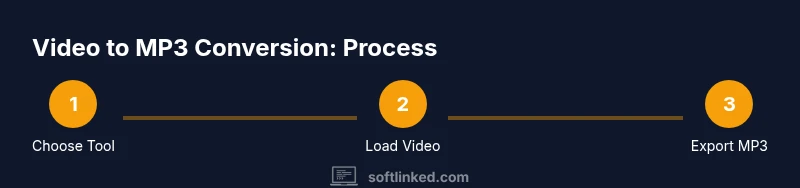
Most converters perform a sequence of steps: load the video, demux the audio track, decode the audio data, re-encode to MP3 (or another target format), and save the resulting file with user-configured metadata. The quality of the MP3 is determined by the bitrate, sample rate, and encoding mode. Higher bitrates yield better fidelity but larger files. Some tools also offer normalization, audio restoration, and metadata tagging. When evaluating tools, test with representative videos to ensure no unexpected artifacts, such as clipping or stereo imbalances, appear in the extracted audio.
Legal and ethical considerations
Extracting audio from videos raises copyright questions. If you don’t own the video or lack explicit permission from the rights holder, extraction may violate terms of service or copyright law. Always verify licensing for the source material and use the audio in ways that comply with the license. For educational or personal use, it’s still prudent to document the source and avoid distribution that could infringe on rights. SoftLinked advocates for responsible use and selecting tools that promote transparency, privacy, and safe handling of your data.
How to choose a converter: criteria that matter
When selecting a video to MP3 converter, assess these criteria: reliability and safety (avoiding bundling adware or malware), output quality control (bitrate, channels, and sample rate options), metadata support (title, artist, album, year), speed and batch processing capability, platform compatibility (Windows, macOS, Linux, browser-based), and price or licensing terms. Some tools offer built-in editors for trimming or adding metadata, while others keep a simple extraction workflow. Read reviews from reputable sources, test with sample videos, and prefer tools with clear privacy policies and straightforward uninstallers if you’re on a shared or work computer. For developers, consider if the tool offers an API or CLI for automation.
Desktop workflow: a practical approach to converting video to MP3
Using a desktop tool often provides more control over output quality and metadata. Install a reputable converter, import your video file, choose MP3 as the output format, and set a bitrate that matches your needs (for example, 192 kbps for general listening, 320 kbps for higher fidelity). Toggle options such as joint stereo vs. mono, sample rate, and normalization. Add or edit metadata fields like track title, artist, and album. Select a destination folder, and run the conversion. Finally, test the MP3 in a media player to confirm the audio plays correctly and that the ID3 tags appear as expected.
Online vs offline tools: trade-offs you should know
Online converters are convenient when you don’t want to install software, but they require uploading your video to a remote server, which raises privacy considerations. They often have file size limits and may impose longer processing times on free tiers. Offline desktop tools avoid upload privacy concerns and are faster for large batches, but require storage space and periodic updates. Hybrid options exist, such as offline apps with cloud backup. Choose based on file size, privacy needs, frequency of use, and whether you require automation.
SoftLinked recommends starting with a trusted offline tool for sensitive content and evaluating online options only for lighter tasks or quick checks.
Tips for preserving quality and metadata
To preserve audio quality, pick a high bitrate and a modern encoder. If you anticipate sharing the MP3 widely, consider encoding in a stereo mode with a balanced bitrate to avoid heavy file sizes. Metadata matters for organization—fill in title, artist, album, year, and genre accurately. If the original video has chapters or multiple speakers, ensure the tool preserves or clearly labels sections. Always verify the final file’s integrity with a media player and a metadata editor if needed. Finally, keep backup copies of the source video and the extracted MP3s in case you need re-encoding.
Troubleshooting common issues
If audio is missing, check that you selected the correct audio stream and that the video isn’t using a heavily compressed or unusual codec. If the resulting MP3 contains artifacts, lower the target bitrate or switch to a higher-quality encoder. Playback problems can also stem from firmware or player compatibility; test the MP3 in multiple players. If metadata doesn’t appear, inspect the ID3 tags and try a different metadata editor to verify compatibility. For batch uploads, ensure there is enough disk space and that the file paths do not contain special characters that confuse the software.
Tools & Materials
- Computer or laptop(Modern OS; enough storage for source and output files)
- Video file (supported formats like MP4, MKV, WebM)(Have a representative sample ready for testing)
- Video to MP3 converter (desktop or online)(Choose from reputable options with clear licensing)
- Stable internet connection(Only needed for online tools or updates)
- Metadata editor (optional)(Useful for clean tagging when your converter lacks metadata support)
- Backup copy of source video(Always keep originals in a safe location)
Steps
Estimated time: 20-40 minutes
- 1
Choose a converter
Research reputable desktop or online tools. Check reviews, licensing terms, and privacy policies. Pick a tool that balances quality, speed, and safety for your needs.
Tip: Prioritize offline tools for sensitive content to avoid uploading files. - 2
Install or open the tool
If using desktop software, run the installer and complete any required setup. For online tools, navigate to the site and ensure you are on the legitimate domain.
Tip: Avoid installers bundled with extra software; deselect anything unrelated during setup. - 3
Import your video
Load the video file you want to extract. Verify the file plays correctly in a media player before proceeding.
Tip: If the video is large, consider loading a short sample first to test settings. - 4
Choose MP3 as output and adjust quality
Set MP3 as the target format. Select bitrate (e.g., 192–320 kbps) and channels (stereo for most music).
Tip: Higher bitrate yields better quality but larger files; choose the lowest acceptable quality for your use case. - 5
Edit metadata (optional)
Enter title, artist, album, year, and genre if your tool supports metadata tagging.
Tip: Accurate metadata helps organization and searchability in players and libraries. - 6
Choose destination and start conversion
Select a output folder with ample space. Start the conversion and monitor progress.
Tip: For long tasks, keep the window visible to catch errors early. - 7
Verify the MP3 output
Play the MP3 in multiple players to confirm audio quality and tagging.
Tip: Check for clipping, dropouts, or unexpected artifacts; re-run with adjusted bitrate if needed. - 8
Handle errors and retrace steps
If you encounter errors, read the tool’s logs and retrace the steps from import to export.
Tip: Consult the help resources or support forums for tool-specific issues. - 9
Save and back up
Archive the MP3 and keep a copy of the source video for future re-exports.
Tip: Maintain a simple folder structure: source_videos/, mp3_exports/ and metadata.csv.
Your Questions Answered
Is it legal to extract audio from videos I find online?
Legality depends on copyright and licensing. If you own the video or have permission from the rights holder, extraction for personal use is typically allowed. For other cases, check terms of service and applicable laws in your jurisdiction.
Copyright rules vary; see the video license or terms of use to confirm whether audio extraction is allowed.
Can I extract audio from streaming services using a converter?
Many streaming services prohibit downloading or extracting audio from their streams. Tools that bypass protections may violate terms of service and local law. Prefer content you own or have rights to.
Streaming sites often restrict downloads; respect terms and licenses when converting.
Will converting affect audio quality?
Yes, the final MP3 quality depends on the chosen bitrate and encoder. Higher bitrate typically preserves more detail but results in larger files. Test with your typical content.
Bitrate choice drives quality and file size; experiment to find a good balance.
What other formats can I extract besides MP3?
Many converters support AAC, WAV, FLAC, and OGG. Choose a format based on intended playback devices and quality requirements.
You can choose from several formats like AAC or WAV depending on your needs.
Are free tools safe to use for video to MP3 conversion?
Free tools can be safe but may come with ads or bundled software. Download from reputable sources, read permissions, and ensure you have updated antivirus protection.
Free options exist, but pick reputable sources and review permissions before installing.
How can I batch convert many videos efficiently?
Look for batch processing features and presets in desktop tools or reliable online services. Prepare a consistent output directory and metadata schema to streamline workflow.
Batch processing saves time; set up presets to automate repetitive tasks.
Watch Video
Top Takeaways
- Choose reputable tools and verify licensing.
- Prefer offline converters for sensitive material.
- Maintain accurate metadata for organization.
- Test audio quality across players before distribution.
- Always respect copyright and usage rights.