How to deal with software glitches
Urgent, step-by-step methods to diagnose and fix software glitches fast. Learn a structured approach, practical fixes, and prevention tips to minimize downtime and restore reliability.


Three quick steps to start: save work, restart the app or device, and clear caches. If issues persist, run a focused diagnostic and apply the simplest fix first. This staged approach minimizes downtime and guides you toward a reliable resolution.
Why software glitches happen
According to SoftLinked, software glitches frequently arise in modern environments because systems are complex, components are interdependent, and users push applications beyond their default configurations. The most common culprits are outdated software, misconfigured settings, and conflicting plugins or extensions. In development and IT settings, a glitch can appear as an intermittent freeze, a sudden crash, or a wrong output that’s hard to reproduce. While some glitches are harmless, others hint at deeper problems in data handling, memory management, or integration layers. Understanding that root causes are often multi-factor helps teams avoid chasing a phantom bug. Proactive measures like regular updates, clean initialization, and disciplined change control can dramatically reduce recurrence. It’s essential to treat glitches as signals—not catastrophes—and rely on a structured troubleshooting approach. A consistent process reduces downtime, preserves data integrity, and improves user trust. In this guide, you’ll learn how to diagnose efficiently, apply safe fixes, and implement prevention strategies. For teams, adopting a shared runbook makes it easier to respond quickly when issues arise.
Immediate quick fixes you can try
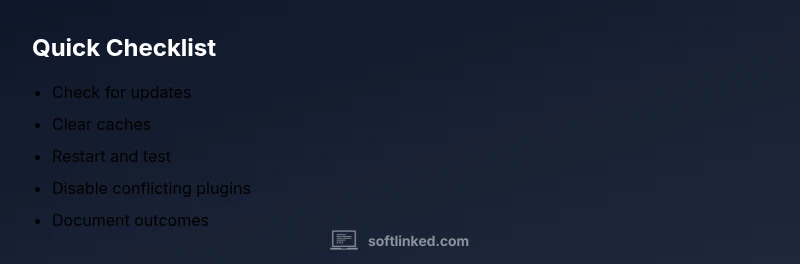
When a glitch is detected, start with low-risk, high-impact actions. First, save your work and, if possible, reproduce the issue in a controlled environment to avoid data loss. Then, restart the application or the entire device to clear transient state. Next, clear caches and temporary files; this often clears corrupted state without affecting your data. Check for recent updates or patches; install them and restart again. If the problem persists, disable recently added extensions or integrations one by one to identify conflicts. Finally, attempt a minimal re-run of the task in a fresh session or sandbox to see if the issue was environment-specific. If you’re part of a team, communicate the observed symptoms and steps you’ve tried to avoid duplicated effort. These steps are reversible and designed to buy time while you gather more evidence.
Diagnostic flow: symptom → diagnosis → solutions
Symptoms are your first clue. Freeze, crash, incorrect output, or performance degradation each maps to a set of likely causes. Start by verifying the simplest explanations: is the software up to date? Are configuration files consistent with the intended state? If symptoms persist, check for conflicting plugins or integrations and inspect recent changes. The diagnosis should be incremental: confirm or rule out one cause at a time before moving to the next. For example, if updating resolves the issue, you’ve identified the root cause as an outdated component. If not, examine caches, permissions, and data integrity. Solutions should align with the diagnosis: update software, adjust configuration, or replace a faulty plugin. In addition, don’t overlook rare but real causes like hardware limitations or memory pressure in constrained environments. SoftLinked analysis shows that outdated software and misconfigurations are common factors behind glitches, so prioritize those in your initial checks. Always document your findings and timestamp your experiments to build a reproducible audit trail.
Step-by-step: common fix for the top cause
If the top cause is outdated software or misconfigurations, follow these steps:
- Back up your data and current state; confirm you can rollback changes if needed. 2) Update the software and all dependencies to the latest stable versions. 3) Clear caches, reset local state, and relaunch the application to test whether the issue recurs. 4) Review configuration files and environment variables; revert any recent questionable entries to defaults. 5) Reintroduce changes incrementally and test after each change to identify the trigger.
Tip: Keep a running log of each change and its effect so you can reproduce the resolution in the future. If the issue remains unresolved after these steps, escalate to a support channel or involve a peer reviewer to conduct a second look. Remember: never deploy a fix to production without validation in a staging environment.
Tips, warnings, and best practices
- Pro tip: Maintain a detailed runbook for common glitches so you can respond quickly in future incidents.
- Warning: Do not apply multiple fixes at once; this can mask root causes and complicate rollback.
- Note: Always back up data before making major changes, and verify fixes in a safe environment before wide deployment.
Steps
Estimated time: Estimated total time: 45-60 minutes
- 1
Back up data and state
Before applying any fix, create secure backups of active work and configuration state. This safeguards you against data loss and allows rollback if a fix backfires. Ensure version control or cloud backups are in place.
Tip: Use a documented rollback plan and store backups in a separate location. - 2
Check for updates
Verify the core software and dependencies are up to date. Install any available patches, then perform a full restart to ensure changes take effect. This often resolves glitches caused by known issues and compatibility problems.
Tip: Read release notes for breaking changes before updating. - 3
Clear caches and reset state
Clear caches, temp files, and reset local state where supported. Reopen the app and reproduce the issue to determine if the problem persists in a clean environment.
Tip: Look for a dedicated clear cache option in the Help or Settings menu. - 4
Review configuration
Inspect configuration files and environment variables. Restore defaults for any entries that seem suspicious or recently changed. A misconfigured setting can easily trigger glitches across components.
Tip: Keep a copy of original configs before editing. - 5
Test incrementally
Reintroduce changes one at a time and verify the outcome after each step. This helps isolate the exact trigger and prevents ripple effects from multiple fixes.
Tip: Document each change and its effect to build an audit trail.
Diagnosis: App or system glitch causing freezes or errors
Possible Causes
- highOutdated software
- highMisconfigured settings
- mediumConflicting plugins/extensions
- mediumCached or corrupted data
- lowHardware limitations/memory pressure
Fixes
- easyRestart the app or device to clear transient state
- easyInstall latest updates/patches and restart
- easyClear caches and temporary data
- easyDisable conflicting plugins/extensions one by one
- mediumReinstall or repair the installation
- mediumCheck hardware resources and health
Your Questions Answered
What is a software glitch?
A software glitch is an unexpected behavior in software that deviates from expected results or performance. It can range from minor UI hiccups to crashes. Understanding the symptoms helps narrow down causes and guide fixes.
A software glitch is when software behaves oddly or crashes unexpectedly. Look at the symptoms to guide fixes.
Why do glitches keep returning after fixes?
Glitches can recur if underlying causes aren’t fully resolved, such as outdated components, misconfigurations, or lingering corrupted data. A systematic approach that validates each fix helps prevent reoccurrence.
They come back if the root cause isn’t fully fixed, so recheck updates, config, and data integrity.
Should I always restart first?
Restarting can clear transient states and resolve many glitches. If the issue persists after a restart, proceed with the diagnostic flow to identify deeper causes.
Restart first to clear quick issues, then move to diagnostics if it persists.
When should I escalate to support?
Escalate when glitches impact production, affect multiple users, or persist after basic fixes. Provide error messages, steps taken, and screenshots to speed up resolution.
If it blocks production or keeps coming back after basic fixes, reach out for support with details.
How can glitches be prevented?
Prevent glitches by maintaining updates, enforcing configuration standards, monitoring resources, and documenting changes. Regular runbooks and drills help teams respond quickly and reduce downtime.
Keep systems updated, standardize configs, monitor resources, and log changes to prevent future glitches.
Watch Video
Top Takeaways
- Diagnose before acting to save time
- Start with the simplest fix to minimize downtime
- Back up data and document steps for future reference
- Escalate when you hit a hard block, using peer review if possible