What to Do If Software Isn’t Working: Quick Troubleshooting Guide
Urgent, step-by-step guide to diagnose and fix software that won’t start or behaves oddly. Learn safe checks, common causes, and when to seek help.


Most software problems start with a simple, fixable issue like a corrupted cache, outdated software, or a misconfigured setting. Begin by restarting the app or device, checking for updates, and running any built‑in repair or diagnostic tools. If the problem persists, follow the diagnostic flow: test basics, isolate the cause, apply a safe fix, and contact support if needed.
What to do if software is not working
When software isn’t functioning as expected, the fastest path to recovery is a disciplined, repeatable process. According to SoftLinked, most problems start with simple, fixable issues rather than a mysterious bug. This section lays out a practical, urgent approach to get you back online quickly, without risking data loss or project deadlines. You’ll learn the exact sequence to follow, how to verify outcomes, and how to document results for future incidents.
Common causes of software failure
Software failures typically arise from a handful of repeatable scenarios. SoftLinked analysis shows that the most frequent culprits include outdated or corrupted installations, out-of-date dependencies, and conflicts with other running programs. Additional factors include insufficient system resources, improper permissions, and corrupted user settings. By recognizing these patterns, you can triage more effectively and avoid chasing symptoms instead of causes.
Safe, immediate checks you can perform now
Before diving into deep diagnostics, run through these quick checks. Save all work and close unnecessary programs to protect data. Restart the application, or reboot the device to clear transient issues. Check for available updates and install them. If you rely on cloud services, verify your internet connection and service status. Disable any extensions or add-ons that could interfere with normal operation, then reopen the software to observe changes.
How to collect useful data before troubleshooting
Collecting precise information makes the rest of the process far more efficient. Note any error messages verbatim and capture screenshots if possible. Record the time of failure and what action triggered it. Note your operating environment: OS version, hardware specs, installed plugins, and recent changes. If a crash report or log file is generated, save it securely. This data becomes invaluable when diagnosing the root cause or communicating with support.
Diagnostic flow: symptom → diagnosis → solution
Begin with the symptom you observe (e.g., 'app won’t start', 'crashes on load', 'feature X behaves oddly'). Map it to a likely cause (update gap, cache issue, permission problem). Apply the corresponding fix, then retest. If the symptom persists, move to the next probable cause in the sequence. This progressive flow prevents unnecessary steps and helps you measure progress clearly.
Step-by-step fixes for the most frequent root causes
- Update or reinstall: Check for updates and install them; if the problem remains, reinstall the software completely. 2) Clear caches and temporary files: Use official options in the app to clear cache, or follow OS-level clean-up steps. 3) Adjust permissions: Ensure the program has necessary rights (admin/permissions) and that security software isn’t overzealous. 4) Close competing processes: Terminate background apps consuming excessive resources. 5) Run built-in repair tools: Use any 'Repair' or 'Diagnose' utilities provided by the vendor. 6) Reset to default settings: If configurations are corrupted, revert to defaults or create a new user profile. 7) Check dependencies: Verify required runtimes or libraries are installed and up to date. 8) Reinstall from a clean slate: Uninstall, clean residual files, then reinstall fresh.
When to reinstall or reset and how to back up data
Reinstallation or a factory-like reset is a last resort but effective when configurations or corrupted files are the issue. Before you proceed, back up critical data to a secure location and document current settings. During reinstallation, opt for a clean install if possible to avoid leftover fragments from prior versions. After reinstall, reapply essential configurations and verify that basic workflows succeed before adding plugins or extensions.
Data safety, backups, and precautions
Always back up before major changes. Use versioned backups so you can revert to a known good state if something goes wrong. Test backups by performing a quick restore in a sandbox environment. Enable auto-save or frequent manual saves to minimize data loss. Be mindful of sensitive data—avoid syncing private files during troubleshooting if you’re unsure about security.
When to contact support and how to communicate effectively
If the issue persists after exhausting safe fixes, reach out to product support. Prepare a concise report including the exact symptoms, steps you took, error messages, environment details, and a copy of relevant logs. Provide timeframes and attach diagnostic reports when available. Clear, factual reports reduce back-and-forth and speed up resolution.
Prevention: good habits to minimize future issues
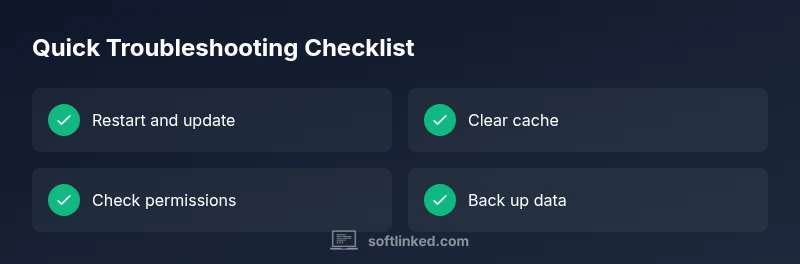
Establish a routine of regular software updates, automated backups, and a lightweight, clean environment (no unnecessary extensions). Maintain a minimal set of trusted plugins and monitor system resources. Create a short, repeatable troubleshooting checklist so you can act fast whenever issues arise. Regular health checks save time and reduce downtime.
Steps
Estimated time: 60-90 minutes
- 1
Restart the device and app
Close the program completely and reboot the device. Reopen the app and test if the issue reappears. This clears transient glitches.
Tip: Save open work before restarting to avoid data loss. - 2
Check for updates and install
Open the app’s update section and apply any available updates. If updates fail, check internet connectivity and retry later.
Tip: Always perform updates from a trusted network. - 3
Clear cache and temporary data
Use the app’s built‑in cleaning tools or OS utilities to clear cache. Reopen and test
Tip: Only clear cache via official options to prevent data loss. - 4
Review permissions and security settings
Ensure the app has required permissions. Temporarily disable overly aggressive security tools if safe.
Tip: Re-enable security features after testing. - 5
Test with a clean profile or new user
Create a new user or a clean profile to see if the issue is tied to user configuration.
Tip: If the issue disappears, migrate relevant settings gradually. - 6
Run built‑in repair tools
Many apps include a Repair/Diagnose option. Run it and follow prompts.
Tip: Document any repair outputs for support. - 7
Reinstall the software
Uninstall completely, delete residual files, and install the latest version from the official source.
Tip: Back up data before uninstalling. - 8
Contact support with evidence
If the issue remains, prepare a report with symptoms, steps taken, and logs.
Tip: Attach crash reports and environment details to speed up resolution.
Diagnosis: Software won't start or crashes during use
Possible Causes
- highOutdated or corrupted installation
- mediumCorrupted cache or temporary data
- mediumInsufficient system resources or conflicting processes
- lowMissing permissions or blocked by security software
Fixes
- easyUpdate the software or perform a clean reinstall
- easyClear cache and temporary files related to the app
- easyClose unnecessary background apps and restart the device
- mediumVerify permissions and temporarily disable conflicting security settings
Your Questions Answered
What should I do first when software won't start?
Begin with safe checks: save work, restart the app, and check for updates. If the issue persists, proceed through the diagnostic flow for deeper causes.
First, save your work, restart the app, and check for updates. If it still fails, follow the diagnostic flow for deeper causes.
How can I tell if the problem is my computer or the software?
Test the software on another device or user profile. If it works elsewhere, the issue is likely local configuration. If it fails elsewhere, the problem is with the software itself or its compatibility.
Test on another device or profile. If it works, it’s likely local config; if not, the issue may be with the software.
Should I update first or reinstall?
Try updating first; if that fails to resolve the issue, perform a clean reinstall. Always back up data before reinstalling.
Update first; if that doesn’t fix it, reinstall after backing up your data.
Can malware cause software not to work?
Yes, malware can degrade performance or block access. Run a reputable security scan and ensure your system is clean before troubleshooting further.
Yes—scan for malware and ensure your system is clean before continuing.
When should I contact support?
If none of the safe fixes resolve the issue, contact support with a concise report: symptoms, steps tried, environment, and logs.
If nothing works after safe fixes, contact support with a clear report and logs.
Watch Video
Top Takeaways
- Start with safe, reversible steps
- Document symptoms and fixes for faster support
- Back up data before major changes
- Escalate to support when fixes fail