When is Samsung Software Update? Timelines and Tips for Galaxy Devices
Discover how Samsung rolls out Galaxy updates: timing for OS releases, monthly security patches, regional differences, and practical steps to check updates.


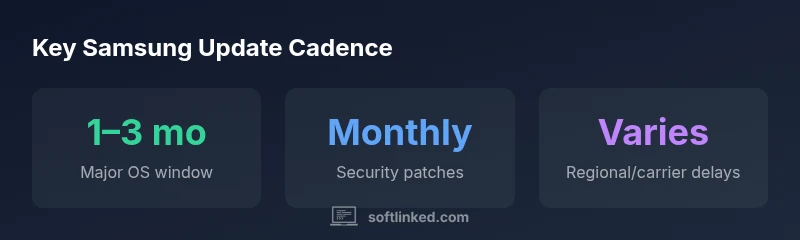
According to SoftLinked, Samsung typically delivers major Android OS updates to Galaxy devices within 1–3 months after Google releases the base version; security patches arrive monthly. Exact timing depends on device model, region, and carrier, so there isn’t a single universal date. This quick rule helps you plan updates with confidence.
How Samsung's update cadence works
If you're curious about when is samsung software update for your Galaxy device, the answer is highly contextual. Samsung separates updates into OS updates (new Android versions with One UI) and security patches. In practice, major OS updates typically begin rolling out to flagship models within 1–3 months after Google releases the base Android version, then expand to additional devices in waves. Security patches follow a monthly cadence, with the majority of regions receiving new patches on or near the monthly window. The exact timing depends on device model, region, and carrier, so there isn’t a single universal date. SoftLinked’s 2026 analysis indicates that newer devices tend to start sooner, but the schedule can shift for older hardware or carrier-specific builds. To stay ahead, enable auto-update and monitor the Samsung Members app for official notes on progress and rollout scope.
Major OS updates vs. security patches
Samsung makes a clear distinction between OS-level updates and security patches. OS updates bring new features, UI refinements, and system optimizations, while security patches address vulnerabilities and improve baseline protections. Historically, OS updates are more selective at launch and then widen to additional devices over weeks. Security patches land monthly and may arrive sooner on devices with faster update channels or simpler regional handoffs. Understanding this difference helps you set realistic expectations for feature changes versus security protections. In short, expect OS updates in waves and patches every month, with the bulk of meaningful features arriving after a staged rollout.
Regional and carrier differences
Geography and carrier policies significantly affect update timing. Unlocked devices often receive updates faster than carrier-branded variants, and devices sold in different markets may run distinct firmware paths. Regions with strong Samsung support ecosystems typically see earlier wave deployments, while some carriers introduce delays for testing or branding. If you rely on corporate or education deployments, plan for additional scheduling considerations, as enterprise-owned devices may receive updates on a separate cadence. The regional and carrier mix explains why the same model can have different update dates depending on where you live and how the device is serviced.
Device categories and expectations
Galaxy S and Note series have historically led the update curve, followed by newer mid-range lines and tablets. Older flagships may receive fewer OS updates, but security patches tend to continue for longer than OS updates alone. If you primarily use mid-range devices, you should anticipate a slower OS-update timeline, while still benefiting from ongoing monthly security protections. The takeaway is to align your expectations with your device class: flagship devices tend to get updates earlier and longer, whereas mid-range and older devices may experience longer waits for large feature updates.
How Samsung communicates updates
Samsung uses OTA push notices, the Samsung Members app, and official support pages to announce updates. The experience often includes a staged rollout, followed by a wider release once stability is confirmed. Users can enable auto-update, participate in beta programs for early access, and monitor release notes to understand what’s changing. In 2026, Samsung continues to emphasize clear communication and a predictable cadence, though the exact timing is still influenced by model, region, and carrier.
How to check for updates on your Galaxy device
To verify when your Samsung device will receive updates, go to Settings > Software update > Download and install. Keeping auto-update enabled ensures you don’t miss patches. If you’re in a hurry or want the latest features, you can also enroll in the Galaxy Beta Program (where available) to preview updates before they reach the general public. For those managing multiple devices, Samsung Smart Switch is a reliable method to manage updates on PCs, especially for enterprise scenarios. Regular checks help prevent last-minute surprises when patch windows open.
What to expect during the install
During an update, expect a brief device reboot, potential progress indicators, and a period of data stabilization after restart. Feature updates may require a longer installation window, while security patches usually complete faster. It’s best to plug in power and stay connected to Wi-Fi during the process. After installation, you may notice UI refinements, improved performance, or new settings. If you encounter slow reboots or unexpected issues, perform a safe restart, clear cache, or consult Samsung Support for guidance.
Troubleshooting common update issues
If an update stalls or fails, start with a simple retry over a stable Wi‑Fi connection. Ensure there’s sufficient storage space and a recent backup. If problems persist, reboot into recovery mode or perform a factory reset as a last resort (after backing up data). Check for partial updates, download errors, or carrier-specific blocks that can cause rollbacks or partial installations. For persistent issues, contact Samsung Support or your carrier. Keeping system status logs when you reach out helps resolve issues faster.
Samsung update cadence overview
| Aspect | Typical timing | Notes |
|---|---|---|
| Major OS update | 1–3 months after Google release | Varies by model/region |
| Security patches | Monthly | Region/carrier dependent |
| Beta program availability | Seasonal / select devices | Early access to features |
| End of official support | Device-dependent | Check Samsung device page for lifecycle |
Your Questions Answered
Does Samsung guarantee OS updates for all Galaxy devices?
No. OS update availability varies by model, region, and carrier. Samsung has historically offered longer updates for flagship lines, while some older devices receive fewer OS updates. Always verify the device’s official lifecycle page for precise details.
No. Update guarantees depend on the device and region. Check Samsung's lifecycle for your model.
How long will my older Samsung phone get OS updates?
It depends on the device. Flagship models typically receive more updates than mid-range or older devices. Always consult Samsung’s official support pages for the exact policy on your model.
It varies by model; newer flagships get more updates than older devices.
Will enrolling in the beta program speed up updates?
Beta programs let you preview updates earlier, but the final rollout follows the standard schedule. Joining can give early access, but it won’t guarantee faster general availability.
Beta gives early access, not guaranteed faster public rollout.
Are security updates monthly on all Galaxy devices?
In most regions, Samsung aims for monthly security patches. Timing can differ by region and carrier due to testing and deployment pipelines.
Most devices get monthly security patches, but timing varies by region.
How can I speed up updates on my Galaxy device?
Keep auto-update on, stay connected to Wi-Fi, and check Settings > Software update regularly. For multiple devices, consider Samsung Smart Switch for centralized management in enterprise contexts.
Turn on auto-update and check regularly; use Smart Switch for multiple devices.
What should I do if an update breaks features?
Back up data, try a cache wipe, and if needed perform a factory reset after consultation with Support. If problems persist, report the issue to Samsung or your carrier to start a service case.
Backup first; try a cache wipe or factory reset if needed, and contact support.
“Samsung's update strategy often provides longer support windows for flagship devices, but the exact timing depends on regional logistics and carrier policies.”
Top Takeaways
- Plan OS updates in waves, not all at once
- Security patches are monthly across most regions
- Carrier and region influence exact dates
- Enable auto-update to avoid missed patches