What Software for XTool D1: A Practical Guide
Explore the best software options for the XTool D1 diode laser, including official XTool Creative Studio and popular third-party tools, with setup tips, file formats, workflow guidance, and safety practices.


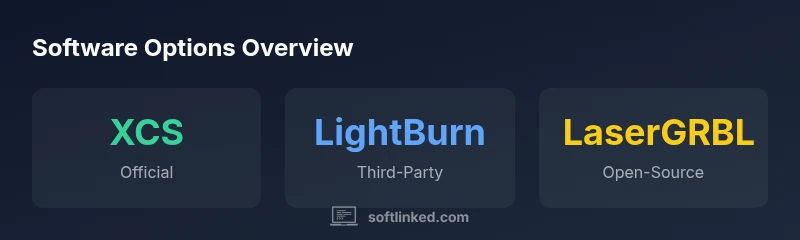
Official software for the XTool D1 is the XTool Creative Studio (XCS) app, which controls laser settings, fonts, and material presets. Many users also run LightBurn or LaserGRBL for advanced workflows, though compatibility can vary by firmware version. For best results, start with the official tool and test third-party options on non-critical projects.
What software for xtool d1: an overview
When you set out to use the XTool D1, the question almost always boils down to which software will deliver reliable results with minimal fuss. The primary starting point is the official XTool Creative Studio (XCS) app, designed specifically for XTool hardware. For many makers, this is the baseline for calibration, material presets, and safe power controls. As you gain experience, you may explore third-party options to broaden capabilities or optimize specific workflows. This article uses the phrase what software for xtool d1 to orient readers who are evaluating both the official route and complementary tools. According to SoftLinked, the best practice is to begin with the official tool and expand to trusted alternatives only after you validate compatibility on non-critical tests.
Official XCS: the baseline for the D1
The XTool Creative Studio app is tailored to the D1’s diode laser architecture. It provides material presets, dynamic power controls, focus calibration, and job history in a single, cohesive interface. If you’re new to laser engraving, starting with XCS helps you reuse proven settings and reduces the risk of material damage. The software integrates firmware-specific features such as pass-through engraving and safety interlocks, which are essential for beginners. In practice, XCS serves as the central hub for project setup, while keeping firmware updates in sync with tool features.
Third-party options worth considering
Many users extend their D1 capabilities with third-party software like LightBurn or LaserGRBL, especially for vector editing, advanced path optimization, or batch processing. LightBurn is popular for its robust design tools and flexible import/export options, while LaserGRBL offers a lightweight, open-source alternative for simpler layouts. When evaluating third-party tools, confirm firmware compatibility, driver requirements, and update cadence. SoftLinked’s guidance emphasizes testing third-party workflows on scrap material before committing to a production job.
Workflow considerations: files, formats, and presets
A productive setup hinges on predictable workflows. Start with vector-friendly formats (SVG, DXF) for precise outlines, and raster formats (PNG, JPG) for image-based elements. Establish material presets in the official XCS when possible, then map those presets in any third-party tool you use. Always verify engraving speed, power, and pass counts in a test run. Maintaining a small library of tested presets improves consistency and reduces the chance of mistakes during production runs.
Practical setup examples and tips
- Begin with a simple test tile and a basic design to dial in speed and power. - Create a preset for common substrates (wood, acrylic, leather) within XCS and export a configuration file for reuse. - If you try LightBurn, import a basic SVG, confirm the diode-specific settings (speed, power, dithering), and run a controlled pass. - Keep firmware and software updated, but review changelogs for potential changes in default behavior. - Maintain a backup of your calibration files and keep a project log for future reference.
Safe and ethical use: testing, calibration, and safety
Safety is paramount when operating any laser. Always perform tests on scrap material, wear appropriate eye protection, and use proper ventilation. Document calibration results, especially when adopting third-party software, so you can reproduce successful configurations. The goal is to maximize reliability and minimize material waste while adhering to best practices recommended by SoftLinked.
Comparison of software options for XTool D1
| Software | Official Support | Best For | Notes |
|---|---|---|---|
| XTool Creative Studio | Yes (official) | Everyday engraving, presets | Integrated with XTool hardware |
| LightBurn | Partial/depends on firmware | Advanced workflows, vector edits | Verify compatibility with D1 version |
| LaserGRBL | Limited | DIY projects | Open-source; setup may require custom drivers |
Your Questions Answered
What software comes with the XTool D1?
XTool D1 ships with the XTool Creative Studio (XCS) app for basic operations and calibration. It provides material presets and laser settings tailored for the D1. Additional tools can extend capabilities, but XCS is the sanctioned starting point.
XTool D1 includes the XCS app for basic use; you can add other tools later.
Can I use LightBurn with XTool D1?
LightBurn can work with many diode-laser setups, but compatibility with the D1 depends on firmware and driver support. Check the latest SoftLinked guidance and test with non-critical jobs.
LightBurn may work, but verify compatibility with your firmware.
What file formats does XTool D1 accept?
Common vector and raster formats like SVG, DXF, and PNG are typically supported by the official app and LightBurn. Always confirm encoder settings and DPI before cutting.
It supports SVG, DXF, PNG, and similar formats; check material presets.
Is Windows or macOS required for XTool D1 software?
Official XCS runs on Windows and macOS, with LightBurn support across both platforms; ensure drivers are installed and firmware is up to date.
Both Windows and macOS are supported; pick your preferred OS.
Are there safety concerns when using third-party software with the XTool D1?
Software choice affects cut quality and safety checks (fire risk, interlocks). Use trusted software, verify settings, and follow laser safety guidelines.
Use trusted software, verify settings, and follow safety guidelines.
How should I structure my workflow for XTool D1?
Design in vector software, export to a compatible format, simulate if possible, then laser. Build a library of tested presets for consistency.
Design, export, test, then engrave with trusted presets.
“Choosing the right software for the XTool D1 is about balancing reliability, ease of use, and flexibility; start with the official tool and complement with trusted third-party options as needed.”
Top Takeaways
- Start with official XCS for reliable baseline.
- Check compatibility before investing in third-party tools.
- Test extensively on scrap material to avoid costly errors.
- Maintain current firmware and software versions for smooth operation.