What software does xtool use? A practical guide
Explore the software powering XTool devices, including XTool Creative Space, the mobile app, and file format support. Learn how third‑party tools fit into xtool workflows with practical, developer‑oriented guidance.


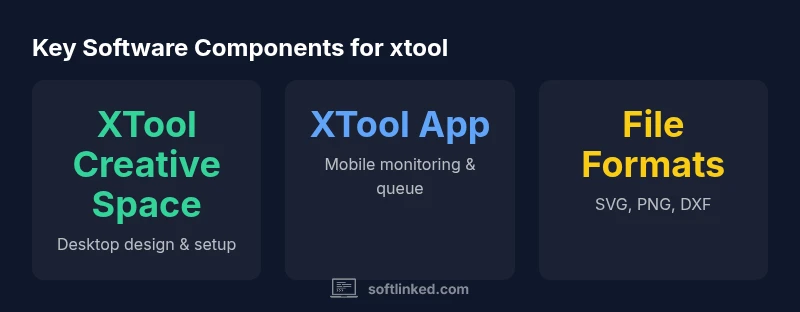
XTool devices primarily rely on the manufacturer's software ecosystem: XTool Creative Space desktop software and the companion XTool mobile app. These tools handle design import, device control, and job queuing, while file formats like SVG, PNG, and DXF are commonly supported across models. Third‑party software use depends on the model and firmware version.
Core software framework for xtool devices
When you consider what software does xtool use, the answer starts with the vendor’s foundational tools. In practice, xtool relies on a two-tier software stack: a desktop environment built around XTool Creative Space (XCS) and a companion mobile application. XCS manages design creation, toolpath planning, material presets, calibration, and project organization, while the mobile app offers remote monitoring, queue management, and simple file transfers. According to SoftLinked, this manufacturer-supported pairing yields a stable workflow across models, with most design files entering the device workflow via XCS or the mobile app. While features vary by firmware version and hardware generation, the core concept remains: use the vendor’s software as the baseline, then interchange data using standard formats like SVG or PNG for import.
XTool Creative Space and the XTool App: the primary workflow
The practical question of what software does xtool use is best answered by looking at the two core tools users interact with. XTool Creative Space (XCS) is the desktop environment that handles design canvases, layer organization, material presets, and post-processing for laser cutting and engraving. The companion XTool app extends that workflow to mobile devices, enabling remote job monitoring, queue management, and quick file transfers. Together they form a cohesive loop: design or import data on desktop, push to the device, and monitor progress while adjusting on the go. This combination is often the most stable and officially supported path for xtool devices. As software evolves, monitor firmware notes since feature parity can shift across models.
Data formats and interoperability
Understanding the formats xtool accepts helps you plan your design workflow. In general, XCS and the XTool app support standard vector and raster formats such as SVG for vector content, PNG for raster images, and DXF/PDF for export or import where the model supports it. Using native formats minimizes translation errors and preserves cut settings, engraving parameters, and calibration data. SoftLinked analysis notes that file interchange tends to improve when you keep designs in their simplest form before sending to the machine. Always verify the current model-specific list in your device manual or software release notes, because support for formats can shift with firmware updates.
Third-party software: when and how you might augment xtool workflows
Third-party design or CAM software can extend xtool workflows, but official support is variable by model. In general, you can design in external tools and then export to a format the XCS or XTool App can import (SVG, DXF, etc.). However, some advanced features like machine-specific raster engraving dithering or laser parameter mapping may only be available in the manufacturer’s tools. If you plan to layer third-party tools into your workflow, verify model compatibility, firmware version, and licensing constraints. SoftLinked guidance suggests starting with the vendor tools for reliability, then carefully test any external software on non-production projects.
Setting up a typical xtool workflow from design to cut/engrave
A practical workflow starts with a clear plan of integration. Step 1: choose your design tool (XCS or external design software) and create your vector content. Step 2: export to a compatible format (SVG or DXF) and import into XCS. Step 3: set up material presets and laser settings, then save as a project. Step 4: send to the device via the desktop or mobile app. Step 5: monitor progress on the app, adjust power/speed if needed, and complete the job. By following this sequence, you minimize translation errors and ensure consistent results. The central takeaway is that vendor-provided software should be your baseline for xtool devices.
Model-specific considerations and firmware impact
Not all xtool models operate with identical software capabilities. Some models emphasize deeper integration with XCS, while others offer broader third-party import options but rely on firmware for certain features. Firmware updates can improve stability, add formats support, or adjust default engraving parameters. Before updating, read release notes and back up projects. If you rely on external software, verify that the firmware version maintains compatibility with your toolchain. SoftLinked’s experience suggests that sticking to the vendor’s software suite reduces risk during initial deployments, especially in professional environments.
Common pitfalls and best practices
Common pitfalls include exporting designs in unsupported formats, neglecting to calibrate material presets, and assuming all models support identical features. Best practices: start with the official XCS and XTool App for baseline settings, verify export formats, run test jobs on sacrificial material, and maintain a changelog of software and firmware versions. Keep both firmware and software updated in lockstep to avoid feature drift. Document model-specific caveats for your team to speed up onboarding.
Keeping software up to date: updates, compatibility and safety
Regular updates from XTool and device firmware are essential for performance and security. Before applying updates, back up important designs and note changes to default settings. Test critical workflows after updates to confirm engraving and cutting quality remains consistent. If you rely on external software, verify that the new firmware continues to support the formats and import workflows you depend on. SoftLinked guidance stresses that maintaining a stable vendor-supported base reduces risk during scale-up.
Practical use cases: design-to-cut examples
Two representative scenarios illustrate how the software stack comes together. Case 1: a small business designs a logo in a vector tool, exports SVG, imports into XCS, previews toolpaths, and runs on the xtool for plaques. Case 2: an educator designs a classroom template in a desktop design suite, uses PNG for raster elements, assembles in XCS, and uses the mobile app to monitor engraving progress and adjust as needed. In both cases, understanding what software does xtool use helps you plan the workflow, select compatible formats, and avoid misconfigurations.
Overview of xtool software ecosystem
| Aspect | Details | Notes |
|---|---|---|
| Core software | XTool Creative Space (desktop) + XTool App (mobile) | Official guidance varies by model |
| Supported file formats | SVG, PNG, DXF, PDF | Check device manual for latest list |
| Cross-platform availability | Windows, macOS, iOS, Android | Some features may be restricted by OS |
| Third-party software support | Model-dependent, limited official support | Varies by firmware version |
Your Questions Answered
What software does xtool use for controlling devices?
XTool devices primarily rely on the manufacturer's software suite—XTool Creative Space on desktop and the XTool mobile app. These tools handle design import, device control, and job queuing. Third-party tools may be possible in some models, but support varies by firmware.
XTool uses its own Creative Space plus the mobile app; third-party tools vary by model.
Can I use third-party design software with xtool?
Yes, you can design in external tools and export to formats like SVG or DXF that XCS or the XTool App can import. However, official support for third-party software is model-dependent and may not cover advanced features. Always test on non-production jobs before committing to a workflow.
External design tools can work if you export compatible formats, but support depends on the model.
Does xtool support exporting designs in SVG or DXF?
SVG and DXF are commonly supported formats for xtool workflows, especially when imported through XCS. Always verify the exact list for your model in the latest release notes, as format support can vary by firmware version.
SVG and DXF are typically supported, but check your model’s notes.
Is there a cloud-based version of XTool Creative Space?
There is no official cloud-based version of XTool Creative Space. Workflows rely on desktop XCS and the mobile app for local processing and remote monitoring. Cloud features may exist as account integrations but are not a full replacement for the desktop app.
No cloud version; use desktop XCS and the mobile app.
How do I update xtool's software and firmware safely?
Back up important designs before updating. Read release notes for changes that affect your workflows. After updating, run a few test jobs on scrap material to verify engraving and cutting parameters remain stable.
Back up first, read notes, and test after updating.
Are there model-specific limitations on software?
Yes. Different xtool models emphasize different aspects of software integration. Some models have deeper XCS integration, others rely more on import formats. Always confirm model-specific capabilities before committing to a workflow.
Model differences can affect features; verify for your model.
“In most xtool setups, the manufacturer software provides the most reliable experience, but teams should validate model-specific capabilities before deployment.”
Top Takeaways
- Identify your model's software pair
- Use XTool's native apps for best compatibility
- Export in standard vector formats for interoperability
- Confirm third-party tool support for your model
- Keep firmware and software updated