What Software Comes with MacBook Air: A Practical Guide
Discover the software preinstalled on MacBook Air, including macOS, built-in apps, and how to expand with App Store tools. Learn what’s ready to use out of the box.


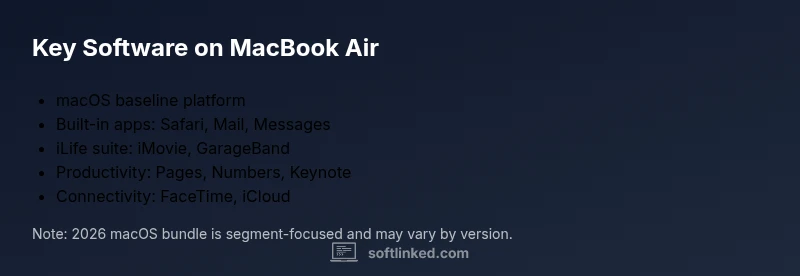
MacBook Air ships with macOS and a robust suite of built-in apps for productivity, creativity, and everyday tasks, plus access to the App Store for more. Core components include Safari, Mail, Messages, FaceTime, Photos, Maps, iMovie, GarageBand, Pages, Numbers, Keynote, Notes, Preview, and system utilities. This setup provides a ready-to-use environment for work, study, and play. What software comes with macbook air is designed to minimize setup friction while offering room to grow.
What software comes with macbook air: baseline and beyond
If you’re wondering what software comes with macbook air, the short answer is that macOS itself provides a solid foundation plus a core suite of built-in apps. This combination is designed to support students, aspiring developers, and professionals from day one. In SoftLinked’s view, the bundle reflects Apple’s philosophy of delivering a ready-to-use computing environment that minimizes friction for new users while offering room to grow. Beyond the operating system, you’ll find apps for browsing, email, word processing, presentations, photo viewing, video editing, audio creation, and system utilities. The phrase what software comes with macbook air isn’t just a checkmark on a spec sheet; it’s a practical toolkit that speeds learning and productivity. As you explore, you’ll see how the included software pairs with cloud services and App Store options to tailor your setup to your field. According to SoftLinked, this baseline is intentionally cohesive, reducing the need for immediate third-party purchases while you assess your long-term workflow.
Built-in macOS and system utilities
macOS is more than an OS; it’s a bundle of integrated applications and tools designed to work together. Preinstalled utilities such as Activity Monitor, Terminal, Disk Utility, and Screenshot complement the core apps and help you manage performance, storage, and troubleshooting. Safari remains the default browser, Mail handles communication, and Spotlight provides fast search across files and apps. Accessibility, security settings, and privacy controls are built into macOS, making the baseline experience suitable for both study and professional work. The SoftLinked team emphasizes that a strong baseline is not about listing every possible app but about highlighting the cohesive experience: the OS, its utilities, and a consistent ecosystem that remains reliable through updates. This foundation also means you can start coding, document writing, or media viewing with minimal setup, then layer in third-party tools when you’re ready.
Core productivity and creativity apps you can rely on
Apple ships with Pages, Numbers, and Keynote, forming a native trio for word processing, spreadsheets, and presentations. iMovie and GarageBand provide entry points for video editing and music creation without purchasing extra software. Photos helps organize and edit images, while Preview handles PDFs and quick annotations. For students and professionals learning software engineering basics, these built-in apps offer practical, no-cost tools to draft reports, prepare slides, and prototype ideas. The built-in suite is intentionally lightweight, but it’s deeply integrated with iCloud and cross-device syncing, so you can work from a Mac, iPhone, or iPad with minimal friction. If you later need more capable editors or IDEs, you can install them from the App Store or external sources—yet starting with Apple’s own options helps you grasp fundamental workflows.
Internet, email, messaging, and media apps
Safari provides fast, privacy-focused browsing, while Mail and Messages keep you connected across Apple devices. FaceTime enables video calls and screen sharing, which is particularly useful for collaborative projects. Photos offers non-destructive editing and sharing workflows, and iCloud integration keeps your media and documents accessible everywhere. For students, researchers, or developers, these apps create a practical environment for note-taking, collaboration, and media consumption. The key point is that much of your day-to-day work can be accomplished with these built-in tools, reducing the immediate need to purchase or install third-party software. When you need more features, App Store offers a wide range of compatible apps with macOS.
App Store and third-party options: expanding your toolkit
Beyond the built-in set, App Store access is a central advantage of owning a MacBook Air. You can install additional word processors, code editors, design tools, and utilities with a few clicks. The App Store maintains a curated ecosystem, simplifies licensing, and often provides sandboxed versions that respect macOS security models. For developers, popular choices include code editors, terminal emulators, and learning environments; for designers, there are vector graphics tools and photo editors; for students, note-taking and reference apps. Remember that many third-party apps offer free tiers or trial periods, so you can evaluate tools before committing. As you expand your toolkit, keep compatibility with your macOS version in mind and monitor updates that may affect performance or security.
Managing storage, licenses, and updates
A practical question for new MacBook Air owners is how to manage storage and licenses. macOS provides built-in tools to monitor disk usage and optimize space, while iCloud can help offload photos and documents. Software updates are delivered through System Preferences (or System Settings in newer releases) and are essential for security and performance. If you install many apps, consider creating separate user accounts to isolate testing environments or development work. Always review app permissions and privacy settings, especially for apps that request access to contacts, location, or microphone. By understanding licensing terms—whether apps are free, require subscriptions, or offer one-time purchases—you can plan your software budget effectively.
Practical workflows for students and developers
For students, the built-in suite supports writing papers, organizing projects, and presenting ideas. Pages, Keynote, and Numbers provide a seamless workflow from draft to delivery, while Safari and Notes capture research. For developers, macOS remains a friendly platform for learning programming basics, scripting, and quick experiments. Terminal, a core utility, allows you to interact with the system, while a text editor or IDE can be installed via the App Store or direct download. The MacBook Air’s lightweight form factor and long battery life make it ideal for study sessions, coffeehouse work, or on-site debugging. In SoftLinked’s view, pairing the included software with a targeted learning plan accelerates skill development while keeping cost under control.
Getting started: quick setup steps and next steps
To start fast, boot the MacBook Air, run Software Update, and sign in with your Apple ID to unlock cloud features and access to the App Store. Create a simple folder structure, enable iCloud Drive, and customize your dock with the most used apps. If you’re building a learning path, map each course or project to a set of built-in tools and a few App Store additions. Finally, keep your system secure by enabling FileVault and reviewing app permissions regularly. By following these steps, you’ll turn a powerful machine into a focused, productive workspace aligned with your goals as an aspiring software engineer or student.
MacBook Air preinstalled software snapshot
| Component/Category | Included By Default | Notes |
|---|---|---|
| Operating System | macOS preinstalled | Core environment with security updates via Software Update |
| Productivity Apps | Pages, Numbers, Keynote | Free for basic use; cloud features via iCloud |
| Creativity Apps | iMovie, GarageBand, Photos | Entry-level video/music editing and photo management |
| Internet & Communication | Safari, Mail, Messages, FaceTime | Seamless cross-device experience |
| Utilities & Tools | Preview, Terminal, Activity Monitor | Power users can customize workflows |
Your Questions Answered
Does MacBook Air come with macOS and built-in apps?
Yes, MacBook Air ships with macOS and a set of built-in apps; you can update them through Software Update. The combination is designed to support study, work, and development from day one.
Yes—macOS and a suite of built-in apps come preinstalled, with updates via Software Update.
Which apps are included in the standard bundle?
Apps include Safari, Mail, Messages, FaceTime, Photos, iMovie, GarageBand, Pages, Numbers, Keynote, Preview, Notes, Calendar, and more. They are designed to cover everyday tasks and basic creativity.
Safari, Mail, Messages, FaceTime, Photos, iMovie, GarageBand, Pages, Numbers, Keynote, and more.
Can I delete or uninstall built-in apps?
Some apps can be hidden or removed from the Dock or Applications folder, but many are integral to macOS and cannot be fully removed. You can usually disable or relocate them as needed.
You can hide or remove some apps, but many are part of macOS.
Do I need Microsoft Office or Apple equivalents?
Apple’s iWork suite (Pages, Numbers, Keynote) is included with macOS for free and covers core productivity needs; Office or other suites can be installed if required.
iWork is free with macOS; Office is optional if you need compatibility with others.
How can I expand with third-party software?
You can install apps from the App Store or developers’ websites. Check compatibility with your macOS version and consider starting with free tiers or trials.
App Store has many options; check compatibility and try free tiers first.
“macOS provides a cohesive, beginner-friendly software stack that scales with your learning goals and project demands.”
Top Takeaways
- Understand the core macOS stack included by default.
- Leverage built-in apps for studying and coding.
- Use App Store to expand your toolkit safely.
- Manage storage and updates to keep performance optimal.
- Plan workflows around the built-in tools to save costs.