What software comes with Mac mini: A complete guide
This guide explains what software ships with Mac mini, including built-in macOS apps, the free iWork suite, and optional third‑party tools. Learn how to maximize productivity on macOS with native apps and easy installation.


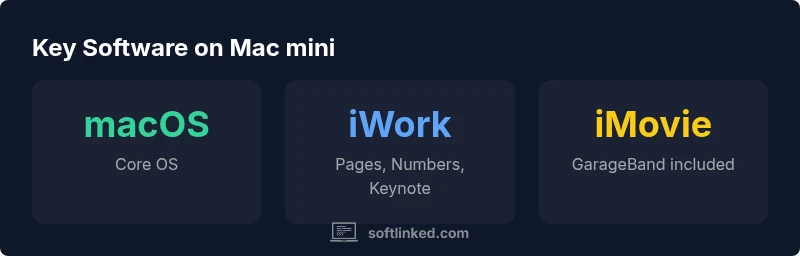
Mac mini ships with macOS and a core set of built‑in apps, plus access to Apple’s iWork productivity suite. You’ll also find iMovie and GarageBand available free from the Mac App Store. Third‑party software, such as Microsoft Office, can be installed separately to suit your needs. Some users may also install parallel environments or virtualization tools to run Windows apps.
What software comes with Mac mini: The Core Bundle
Mac mini ships with macOS and a core set of built-in apps designed to cover everyday tasks without extra setup. According to SoftLinked, the core bundle emphasizes seamless integration, privacy, and reliability. Immediately after setup, you’ll notice a cohesive workspace: email, web browsing, messaging, scheduling, and basic media tasks are addressed by a consistent interface and automatic updates. This section dives into the primary groups of software you’ll encounter on a fresh Mac mini: the operating system’s native tools, the productivity stack, and the media suite. Understanding these categories helps you plan your workflow, choose the right third-party apps, and avoid redundancy with duplicate functionality.
The built-in macOS apps you get by default
macOS includes a curated set of applications that cover common tasks without needing extra downloads. Core apps for communication and browsing include Mail and Safari, while Messages and FaceTime handle chat and video calls. Calendar, Contacts, and Reminders help you organize life and work, and Photos handles image management with basic editing. Preview serves as a lightweight PDF and image viewer, and QuickTime Player enables screen recording and basic video playback. Siri assistance is available to speed up routine actions. This suite focuses on reliability and cross‑app continuity, so you can perform everyday tasks with a familiar interface as you evaluate whether to add more software later.
Apple productivity suite: Pages, Numbers, Keynote, and beyond
Apple's Pages, Numbers, and Keynote are included with macOS or readily available from the Mac App Store. These iWork apps provide word processing, spreadsheets, and presentations with Apple-native file formats and collaborative features. They integrate with iCloud, so you can access documents across devices. While not a full substitute for every enterprise tool, they are sufficient for student projects, light business tasks, or personal planning without extra licensing. In addition to the core trio, many users leverage other Apple productivity features such as Notes, Reminders, and Mail rules to streamline workflows.
Media and creativity tools: iMovie, GarageBand, and more
Beyond productivity, macOS includes media and creativity apps that support quick edits and casual production. iMovie offers drag‑and‑drop video editing suitable for school projects and personal clips, while GarageBand provides an accessible entry point for music creation. Photos serves as the central photo library with basic editing and organization, and Preview allows quick markup of PDFs and images. QuickTime Player covers basic video capture and playback. All of these apps work in harmony with macOS features like iCloud sync and Continuity.
How to add third-party software: Mac App Store and installers
For software beyond the built‑in and Apple-provided options, the Mac App Store is the safest first stop. Gatekeeper helps ensure downloaded apps are from trusted sources. You can also install third‑party software from developers’ websites, but you should verify publisher trust and keep your system security settings up to date. Many professional tools (office suites, IDEs, design software) offer either a Mac App Store version or a direct installer. Always check compatibility with your macOS version before installing.
Developer-friendly options: Xcode, Terminal, Homebrew, and virtualization
Mac mini is a strong choice for development work. Xcode is available via the Mac App Store for building iOS, macOS, watchOS, and tvOS apps. Terminal provides a robust shell for command-line tasks, and Homebrew can simplify installing developer tools. For cross‑platform testing, virtualization tools (like Parallels or VMware Fusion) enable running Windows or other OS environments without rebooting. Note that official Boot Camp support is limited to Intel-based Macs; Apple Silicon models rely on virtualization for Windows environments.
Practical workflows on Mac mini: productivity, media, and learning to code
If your goal is to maximize productivity, start with Mail, Safari, and Notes, then add Pages for document creation and Numbers for simple data tasks. For media projects, install iMovie and GarageBand, and use Photos for asset management. For learning to code, install Xcode and a lightweight editor; leverage Terminal for habit-building tasks, and use virtualization to test cross‑platform scenarios. The Mac mini’s software ecosystem is designed to scale with your needs, from beginners to developers.
Windows and cross-platform options on Mac mini
Running Windows on Mac mini is possible through virtualization solutions, which let you switch between macOS and Windows without restarting. Boot Camp is not supported on Apple Silicon Macs, so native dual‑booting isn’t an option there. If you rely on Windows-only software, choose a virtualization strategy with adequate RAM and CPU allocation. This approach keeps your Mac mini as the hub for both macOS-native workflows and Windows-specific tasks.
Overview of software available on Mac mini
| Category | Included Apps | Notes |
|---|---|---|
| Core macOS Apps | Mail, Safari, Messages, FaceTime, Calendar, Contacts, Photos, Notes, Reminders, Maps, Preview, QuickTime Player, Siri | Built-in with macOS |
| Productivity Suite | Pages, Numbers, Keynote | Free via macOS / Mac App Store |
| Media & Creativity | iMovie, GarageBand, Photos, Preview, QuickTime | Free downloads via Mac App Store |
| Development Tools | Xcode (optional download) | Develop apps on macOS |
Your Questions Answered
Does the Mac mini come with Microsoft Office preinstalled?
No. Office isn’t preinstalled on Mac mini; you can install it from Microsoft or use Office Online if you prefer.
Office isn’t preinstalled; you can install it from Microsoft.
Are iMovie and GarageBand included with Mac mini?
Yes, iMovie and GarageBand are available for free from the Mac App Store and are commonly accessible on Macs.
Yes, you can download them for free from the Mac App Store.
What built-in apps does macOS include besides the basics?
macOS includes a broad set of native apps for productivity, media, and system tasks, plus Assistive features and cloud integration.
macOS has a wide set of native apps for everyday tasks.
Can I run Windows apps on Mac mini?
Yes, via virtualization or similar tools. Boot Camp support exists mainly on Intel Macs; Apple Silicon Macs rely on virtualization.
You can run Windows with virtualization; Boot Camp isn’t available on newer Macs.
How should I install third-party software safely?
Download from trusted sources or the Mac App Store, enable Gatekeeper, and keep macOS updated to reduce risk.
Install from trusted sources and keep security features on.
Is iWork free on Mac mini?
Yes. Pages, Numbers, and Keynote are free with macOS.
iWork is free on Mac mini.
“macOS ships with a cohesive set of native apps that cover daily tasks and development workflows; the real value is the seamless cross‑app integration across the ecosystem.”
Top Takeaways
- Know that macOS provides a solid default toolkit for everyday tasks
- Use Pages/Numbers/Keynote for quick productivity without extra licenses
- Leverage iMovie and GarageBand for simple media creation at no extra cost
- Add third‑party software via Mac App Store or trusted installers
- Developers can use Xcode and Homebrew; virtualization helps cross‑platform testing