How to Know If Monitoring Software Is Installed: A Guide
Learn how to verify whether monitoring software is installed on Windows, macOS, Linux, or mobile devices with practical, privacy-aware steps and checklists.


According to SoftLinked, the quickest way to know if monitoring software is installed is to look for signs in running processes, startup items, and system profiles. This guide walks you through cross-platform checks (Windows, macOS, Linux, and mobile) with practical, privacy-respecting steps. By the end you’ll identify indicators, confirm installations, and know when to seek proper authorization.
Indicators You Might Have Monitoring Software Installed
Monitoring software is designed to run in the background to collect data, report status, or enforce rules. If you're trying to determine whether such software is installed, start with observable indicators and system artifacts. Look for unfamiliar processes, startup items, or profiles that weren't created by you or your organization. Also check for new scheduled tasks, unusual network activity, or unusual port usage. In practice, you’ll often see a combination of clues rather than a single smoking gun. The fastest approach is to search for known keywords in system utilities, review installed applications, and examine user profiles for device management entries. As you assess each clue, record what you find and compare against official IT records to confirm legitimacy. For readers new to this topic, this is a fundamental software fundamentals exercise in auditing a device for monitoring components, and it ties closely to the core question: how to know if monitoring software is installed. According to SoftLinked analysis, many organizations rely on a mix of indicators, logs, and configuration items to form a complete picture. Always document findings for traceability and future audits.
How Monitoring Software Works: Key Concepts
Monitoring software typically involves a lightweight agent running on the device, reporting to a central server or cloud console. The agent collects data (usage, compliance, or security signals), applies policy rules, and transmits data on a schedule or in response to events. Dashboards, alerts, and reports help administrators see status at a glance. In practice, you’ll encounter terms like agent, beacon, collector, and controller. Understanding these roles helps you interpret indicators. The SoftLinked team notes that detection often hinges on recognizing normal vs. anomalous agent behavior and knowing where to look for traces such as startup items, scheduled tasks, or persistent services. Keep in mind that legitimate enterprise tools differ from covert software in how they are documented, authorized, and disclosed to users.
Common System Indicators to Inspect
Several signals commonly accompany monitoring software. These include unfamiliar processes with constant CPU or network activity, new startup entries, recently added services, and unusual outbound connections to external servers. Logs may show repeated authentication attempts, beacon calls, or data uploads. Profiles or configuration payloads might be installed to enforce device settings. You may also notice changed firewall rules or unexpected device-management entries. While no single indicator confirms installation, a pattern of several indicators increases confidence. Record the indicators you observe, compare with official asset inventories, and seek authorization if you’re conducting a security review. This approach aligns with software fundamentals in auditing and governance, as explained in SoftLinked analyses for 2026.
Windows: Manual Checks You Can Do
Begin with the basics: open Task Manager (Ctrl+Shift+Esc) and inspect the Processes and Details tabs for unfamiliar names. Next, review Startup items via Task Manager > Startup, and scan for any entries you don’t recognize. Use Services (services.msc) to look for enabled services that aren’t part of standard Windows distributions, noting the service name, path, and publisher. Open an elevated PowerShell window and run commands like Get-WmiObject -Class Win32_Product or Get-CimInstance -ClassName Win32_Product to enumerate installed applications, then cross-check with your asset inventory. For drivers or kernel modules, use System Information (msinfo32) and Event Viewer (eventvwr.msc) to spot unusual activity. Finally, check for new scheduled tasks in Task Scheduler that trigger at odd times. Pro tip: collect screenshots and export logs for audit trails. If anything looks suspicious, escalate to IT/security per policy.
macOS: Manual Checks You Can Do
On macOS, focus on LaunchAgents and LaunchDaemons located in /Library/LaunchAgents and /Library/LaunchDaemons, plus per-user LaunchAgents in ~/Library/LaunchAgents. Use the command line to list loaded launch items: launchctl list | grep -iE 'monitor|agent|collector'. Inspect profiles with the Profiles pane (System Settings > Profiles) to see if device-management profiles were installed. Check /Library/LaunchAgents and /Library/LaunchDaemons for unsigned or unusual plist files. Review Console logs for background activity and check for any third-party management applications. When in doubt, compare against your organization's device-management policy and maintain a change log. In regulated environments, ensure you have written authorization before altering system configurations.
Linux and Server Environments: Quick Checks
Linux and server environments use services, daemons, and cron jobs to manage tasks. Run ps -eo pid,ppid,cmd,user --sort=-%mem to surface long-running processes and search for keywords like monitor, agent, or collector. List active services with systemctl list-units --type=service | grep -i monitor, then inspect their status and unit files. Check journal logs using journalctl -xe for unusual activity and review /etc/init.d or /etc/systemd/system for custom services. If you find unfamiliar items, verify ownership and purpose with your IT policy. Document every finding with timestamps for accountability.
Mobile Devices: Where to Look
Mobile devices may be managed via MDM (Mobile Device Management) or device administrator apps. On iOS, check Settings > General > Profiles to see installed management profiles and configurations. On Android, review Settings > Security or Security & location > Device admin apps, and examine any device- or user-level management apps. Look for profiles or policy configurations pushed by an organization. If a device is enrolled in MDM, you’ll typically see status in the device settings. Always verify eligibility and scope with your organization before taking action on mobile devices.
Networking Clues: Traffic Patterns and Administrative Tools
Monitoring software often communicates with a central server. Look for unusual outbound traffic, especially to unfamiliar domains or IPs, at odd hours. Use network diagnostic tools like netstat -anup, ss -tulnp, or a firewall log review to identify persistent connections. Review centralized logging platforms (SIEMs, syslog, or cloud-native equivalents) for recurring beaconing patterns. Cross-check these logs with approved maintenance windows and asset inventories. If you notice recurring data uploads from endpoints to unfamiliar endpoints, escalate to your security team and follow incident response procedures.
Tools & Materials
- Admin access on target device(may require elevated permissions to view services and startup items)
- PowerShell or Terminal access(Windows: PowerShell 5.1+; macOS/Linux: Terminal/SSH)
- Task Manager / Activity Monitor / System Monitor(For real-time process and startup item review)
- Text editor or note-taking app(To document findings and create an audit trail)
- Asset inventory or IT records(To compare observed indicators with approved apps)
- Network diagnostic tools(Optional for traffic analysis (netstat, ss, tcpdump))
Steps
Estimated time: 25-40 minutes
- 1
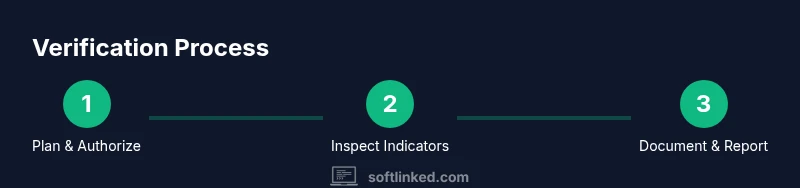
Plan and secure authorization
Obtain written authorization and clarify scope. Define which devices, OS, and users are included. This prevents privacy or legal issues and ensures you’re following policy.
Tip: Document authorization in a central log before testing. - 2
Prepare your environment
Close non-essential apps to reduce noise. Open required consoles (PowerShell, Terminal) with elevated privileges.
Tip: Run on a test device if possible to avoid impacting production. - 3
Check running processes and startup items
Scan for unfamiliar processes, services, or startup entries. Note names, paths, and publishers for cross-checking.
Tip: Take screenshots and export process lists for records. - 4
Review installed programs and services
List installed software and services. Look for entries not present in your asset inventory or standard OS packages.
Tip: Correlate with recent software deployments and change logs. - 5
Search for configuration items and profiles
On each OS, inspect profiles, policies, or device-management configurations that could enforce monitoring.
Tip: Export profile lists to a secure document. - 6
Check event and log data
Review system logs for unusual events, beacon calls, or repeated authentications. Identify correlation with observed indicators.
Tip: Filter by time windows around known maintenance events. - 7
Cross-check network traffic
If available, examine outbound connections and destinations. Flag unexpected endpoints showing persistent activity.
Tip: Enlist help from network security if traffic looks suspicious. - 8
Document and report findings
Create a summary with findings, evidence, and recommended actions. Share with the appropriate authority.
Tip: Keep a log of who reviewed and when.
Your Questions Answered
What is monitoring software, and why would it be on my device?
Monitoring software is designed to observe device activity for security, compliance, or productivity reasons. It may be installed by employers, schools, or IT departments. If you’re unsure about a device, check with the administrator or your organization’s policy before taking action.
Monitoring software observes device activity to enforce security and policy. If you’re unsure, consult your IT administrator to confirm authorization.
Is it legal to monitor a device I own or manage?
Legality depends on local laws and the device’s ownership. In workplaces or schools, monitoring is often permitted under policy consent. Always ensure you have explicit authorization and document the scope of monitoring.
Legality depends on ownership and consent. Always obtain written authorization and follow your policy.
How can I verify installation without disrupting operations?
Use read-only checks first (logs, inventory, profiles) and document findings. If you must test, perform on a non-production device or during a maintenance window with approval.
Start with read-only checks. Only test on approved devices or during maintenance windows.
What should I do if I find unexpected monitoring?
Escalate to the appropriate authority, preserve evidence, and review the policy. Avoid removing or altering components unless authorized.
If you find unexpected monitoring, escalate and preserve evidence, then follow policy.
Can monitoring be misused or misdetected?
Yes. Misconfigurations or false positives can occur. Validate indicators against asset inventories and policy documents to minimize misinterpretation.
Misuse or misdetection can happen; verify against inventories and policy.
How often should I re-check for monitoring?
Frequency depends on policy, but periodic checks (quarterly) plus post-deployment reviews help ensure ongoing compliance.
Do periodic checks, at least quarterly or after deployments.
Watch Video
Top Takeaways
- Identify multiple indicators before concluding installation.
- Cross-check findings with official asset inventories.
- Document all steps and seek authorization before changes.
- Use platform-specific checks for Windows, macOS, and Linux.
- Ensure privacy and compliance throughout the process.