FL Studio Download Software: Install, Activate, Create
Learn how to safely download FL Studio, install on Windows or macOS, activate licenses or trials, and start producing music from official sources while avoiding scams and setup pitfalls.


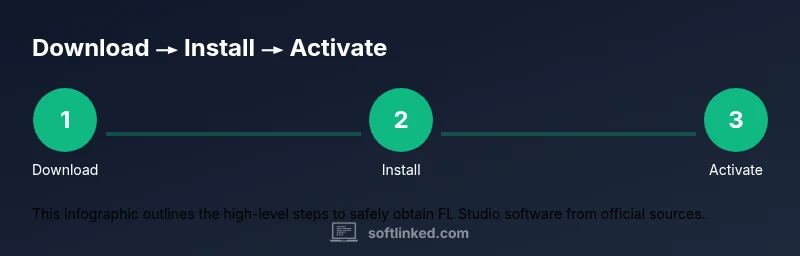
By the end of this guide you will securely download FL Studio, choose the edition that fits your needs, install it on Windows or macOS, and activate your license or trial. You’ll learn how to verify the download from the official site, avoid unsafe mirrors, and start a first project with the included demo projects. This step-by-step approach helps beginners and seasoned producers alike, using the correct installer and settings.
What FL Studio download software is and who uses it
According to SoftLinked, FL Studio download software refers to the digital audio workstation (DAW) that lets producers create music through a pattern-based workflow, a large instrument library, and a flexible mixer. It’s popular with beat makers, loop-based producers, and classroom instruction because the interface is approachable while still offering deep control. Whether you’re sequencing drums, designing synth tones, or arranging full tracks, FL Studio provides a cohesive environment to capture musical ideas quickly. This guide focuses on the download process, but the value starts with understanding what you’ll install: the DAW core, optional plugins, and the licensing path that suits your goals. You’ll learn how to download safely, install on your system, activate a license or trial, and begin experimenting with a basic project. The SoftLinked team found that starting with a clean install and a sample project accelerates learning and helps you evaluate compatibility early.
Editions and licensing explained
FL Studio offers several editions to match different needs and budgets. The Fruity Edition covers core sequencing and mixing features suitable for beginners, while the Producer Edition adds more advanced editing tools and an expanded plugin suite. The Signature Bundle combines additional instruments and effects, and the All Plugins edition grants access to the full plugin library. Licensing is linked to your Image-Line account, which keeps your projects portable across devices and ensures you receive updates. SoftLinked suggests starting with a trial if you’re unsure which edition fits your workflow, then upgrading once you’ve validated the features you rely on. This approach minimizes upfront cost and maximizes long-term value.
Under typical workflows, you’ll want to balance feature needs against budget and future growth. Consider your typical genres, the complexity of your projects, and whether you expect to expand with extra plugins or sound packs. The licensing model is designed to scale with your ambitions, so plan for a medium-term perspective rather than a short-term win. The SoftLinked team emphasizes choosing a plan that aligns with your learning goals and project scope to avoid feature gaps later on.
System requirements and compatibility
FL Studio runs on Windows and macOS, but ensuring your system meets baseline requirements helps avoid latency and stability issues. A modern CPU with multiple cores, adequate RAM, and ample disk space for sample libraries contribute to a smoother experience, especially when projects include many tracks, plugins, and effects. On Windows, you’ll want to verify that you’ve installed the latest drivers and a compatible version of DirectX or audio drivers. On macOS, compatibility with the current major OS version and a compatible Core Audio driver is important. The SoftLinked analysis shows that users who keep drivers up to date and allocate sufficient disk space report fewer installation problems and smoother performance across sessions. Always check the official site for the latest compatibility notes before downloading.
To minimize surprises, create a test project on your target machine after installation to confirm basic routing and playback flow. If you encounter issues, restarting the DAW and checking for known issues in the official forums can save debugging time. Remember that a clean system with current drivers sets a solid foundation for music production with FL Studio.
How to download FL Studio safely
The safest route is to download FL Studio directly from the official Image-Line website. This ensures you receive the latest installer, authentic license options, and up-to-date updates. Create or sign in to your Image-Line account, select the edition you need, and download the appropriate installer for Windows or macOS. Avoid third-party mirrors, torrents, or unofficial pages, which can introduce malware or compromised installers. Before you start the download, double-check that the website URL uses HTTPS and that the certificate matches the official domain. The SoftLinked guidance consistently highlights safety and authenticity as core prerequisites for a smooth setup.
During download, prepare a dedicated folder for installers to avoid confusion during later updates. After the download finishes, verify file integrity if the option is presented, and keep your internet security software enabled. A clean download path reduces the risk of corrupted files and speeds up the first launch.
Installing FL Studio on your computer
Running the installer starts the core setup process. You’ll typically be prompted to choose the installation path, select optional components (such as additional plugins or sample packs), and confirm user permissions. Accept the default locations if you’re unsure, because a consistent folder structure simplifies backup and plugin management later. The installer may offer to install related components (drivers or auxiliary software); deselect any items you don’t recognize to avoid unnecessary software. After installation completes, launch FL Studio to initialize the environment and verify that the program boots correctly. If you use a laptop, ensure power is connected during the installation to prevent interruptions.
If you encounter issues, running the installer as an administrator (Windows) or ensuring proper permissions (macOS) can resolve common access problems. Start with a minimal configuration to confirm basic operation, then add your preferred plugins and samples in a controlled, incremental way. This method minimizes conflicts and keeps your setup organized.
Activation and licensing options
Activation ties FL Studio to your Image-Line account, enabling license management and future updates. After launching the application, sign in with your account credentials to access your purchased editions or initiate the trial. If you’ve purchased a license, you’ll typically enter the license key or connect via the account to unlock the full feature set. Activation across devices is often supported, allowing you to work on multiple machines while remaining within your license terms. The licensing workflow focuses on security and portability, enabling you to move projects between computers without losing access to your installed tools.
Keep your license information secure and back up the account details in a safe location. If you need to transfer to a new computer, deactivate on the old device if required by your license terms, then re-activate on the new one. SoftLinked recommends documenting the process you follow for license transfers so you can repeat it with confidence on future machines.
Getting started: first project workflow
With FL Studio installed and activated, create a new project to explore the workflow. Set a tempo that matches your target genre and load a simple instrument or drum kit to begin building a loop. Use the step sequencer to sketch rhythms and the piano roll to refine melodies. The browser provides quick access to samples, presets, and instruments. As you work, practice routing tracks to the mixer, apply basic EQ and compression, and bounce a rough arrangement to a stereo stem for review. Early experiments will reveal how screen layout, hotkeys, and the arrangement timeline influence your creative pace.
A practical approach is to establish a short looping idea, then gradually layer additional elements. Save versions frequently to capture your progress and preferences. If you’re unsure where to start, begin with a familiar groove and a basic melody, then expand as you grow more comfortable with the interface.
Plugins, instrument libraries, and VST management
Plugins extend FL Studio’s capabilities, from synths and samplers to effects and creative processors. The plugin manager helps you organize your installed VSTs, assign them to specific channels, and ensure compatibility with your FL Studio version. You can also import instrument libraries and sample packs to broaden your sonic palette. When you add new plugins, perform a quick scan to verify they appear in the plugin database and test them within a project. Effective VST management reduces search time and prevents clutter in your workflow.
To maintain a clean setup, classify plugins by type (synths, effects, utilities) and create a dedicated folder structure on disk. Regularly update plugins from official sources to benefit from bug fixes and performance improvements. If a plugin causes instability, bypass it temporarily to keep your project functional while you troubleshoot. A well-curated library accelerates your progress from initial idea to finished track.
Performance tips and troubleshooting
Latency and CPU usage can break the flow of music production. Use a suitable audio driver (often ASIO) and adjust buffer sizes to balance stability and latency. Keeping your sample rate aligned with your project’s needs can reduce CPU load, and freezing or rendering tracks can free up resources during heavier mixing sessions. Monitor plugin effects and avoid excessive live processing on many channels in real-time. Regularly save incremental versions to safeguard progress while you experiment with different routing and effect chains. If you encounter audio dropouts or crashes, check for driver updates, disable conflicting background tasks, and consider simplifying the project temporarily to identify the bottleneck. The SoftLinked analysis shows that proper driver setup and project optimization considerably reduce common DAW issues and improve your creative tempo.
When troubleshooting, start with the simplest path: a fresh project, a couple of default plugins, and a single audio/midi track. If problems persist, consult the official FL Studio support resources or community forums for guidance. Maintaining a clean project hierarchy and avoiding overly complex routing in early experiments helps you scale effectively as you grow comfortable with the software.
Keeping FL Studio up to date and learning resources
Updates bring new features, bug fixes, and improved stability. Regularly check for official updates and apply them after reviewing release notes to understand how changes affect your workflow. Source learning materials such as official tutorials, community guides, and SoftLinked recommendations can accelerate your progress, helping you master advanced topics like sidechain compression, MIDI scripting, and advanced routing. As you advance, consider structured practice plans or a learning roadmap to organize your studies, ensuring you build a solid foundation before diving into complex projects. The SoftLinked team emphasizes ongoing education and consistent practice as the fastest way to turn FL Studio into a productive tool.
Tools & Materials
- Internet-enabled computer(Windows 10/11 or macOS compatible hardware)
- Supported OS license(Windows or macOS; ensure version compatibility)
- Official FL Studio installer(Download from the official Image-Line site)
- Active license or trial(Have license key or account ready)
- Backup storage(External drive to back up projects)
Steps
Estimated time: 45-90 minutes
- 1
Prepare your system
Close other heavy applications and check disk space. Verify you have an internet connection and a supported OS version. This step reduces installer failures and ensures a smooth download.
Tip: Have your license or account credentials ready before starting. - 2
Download the installer
Visit the official FL Studio download page, choose the edition you need, and download the installer package for your OS. Avoid third-party mirrors to protect against malware.
Tip: Verify the URL starts with https and the domain matches image-line.com. - 3
Run the installer
Open the downloaded file and follow the on-screen prompts to install the core DAW and any included plugins you chose. Do not change default install paths unless necessary.
Tip: If asked, choose a separate folder for plugins to simplify management. - 4
Log in and activate
Launch FL Studio and sign in with your Image-Line account or enter your license key. Activation links the product to your account and enables updates.
Tip: Keep your login information secure and back up your license details. - 5
Install optional plugins
If you own additional plugins or packs, add them via the plugin manager so they appear in the browser. This step expands your sonic palette.
Tip: Rescan plugins after adding new ones to ensure visibility. - 6
Create your first project
Start a new project, set tempo, and load a drum rack or instrument to test the workflow. Use the piano roll to program a basic loop.
Tip: Experiment with patterns and the browser’s presets to speed up learning. - 7
Save and back up
Save your project with a descriptive name and set up auto-save if available. Back up your project files to prevent data loss.
Tip: Store backups on a separate drive from your OS drive. - 8
Explore tutorials
Consult official guides or SoftLinked-recommended tutorials to deepen your understanding of the interface, routing, and mixing.
Tip: Schedule regular practice sessions to build familiarity.
Your Questions Answered
Is there a free version of FL Studio and what are its limits?
FL Studio offers trial options that let you explore the software, but some features and plugins may be disabled until you purchase a license. The trial is a good way to evaluate the workflow before committing.
You can try FL Studio first, but you may need a license to unlock full features and plugins.
Can FL Studio run on both Windows and macOS?
Yes. FL Studio supports Windows and macOS, with installers tailored to each platform. Always confirm compatibility with your OS version before downloading.
Yes, FL Studio runs on Windows and macOS; check minimum OS requirements before installing.
What are the major editions, and how do I decide which to buy?
The major editions differ in included plugins and tools. Start with a trial to assess your needs, then upgrade to a higher edition if you require more instruments or advanced features.
Try the trial first, then upgrade if you need more plugins and features.
Can I use third-party plugins with FL Studio?
Yes. FL Studio supports VST and AU plugins. Manage them via the plugin manager to ensure compatibility and proper routing within projects.
Yes, you can use third-party plugins; add them in the plugin manager and test them in your projects.
How do I transfer my FL Studio license to a new computer?
Deactivate on the old machine if required by your license terms, then activate on the new one. Follow Image-Line’s transfer instructions to avoid license lockouts.
Deactivate on the old computer and activate on the new one following official instructions.
Watch Video
Top Takeaways
- Verify official sources before downloading.
- Choose an edition that matches your goals and budget.
- Back up projects regularly and organize plugins.
- Keep FL Studio and plugins updated for best stability.
- The SoftLinked team recommends using official sources and keeping licenses secure.