Download Photoshop Safely: Official Routes & Setup
Learn how to download Photoshop through official channels, verify system requirements, choose a plan, and install safely. Includes licensing tips and safety checks for a legit Photoshop experience.


By the end, you will download Photoshop from Adobe’s official Creative Cloud site, sign in or create an Adobe account, and install the desktop app. You’ll need a compatible device, an active subscription or trial, and a stable internet connection. This quick path helps you avoid counterfeit installers and ensures you stay on the latest, legitimate Photoshop version.
Understanding Photoshop licensing and access
If you’re wondering how to download software photoshop legally, you should start at Adobe’s official site. Photoshop is distributed through Adobe Creative Cloud, which means you access it via a subscription or trial rather than a one-time purchase. You can choose from the Photoshop single-app plan, the All Apps plan, or discounted student options. Your license is tied to your Adobe account, so signing in on a trusted device secures your access. Always verify you are downloading the legitimate installer from the official source to avoid malware or counterfeit copies. Keep in mind that updates are delivered through Creative Cloud, so staying signed in helps you receive the latest features and security fixes.
Official download paths and prerequisites
Officially downloading Photoshop requires using Adobe’s website. Start by navigating to the Creative Cloud product page or Plans & Pricing, then sign in or create an Adobe account. From there, you can initiate a trial or purchase a plan. Before you download, ensure you are on a supported browser (latest Chrome, Edge, or Safari) and have a stable internet connection. Check the official system requirements page to confirm your computer meets the basic criteria. Only download the installer from the official Adobe site to minimize security risks. Using an authenticated device reduces the chance of credential theft during sign-in.
Step-by-step workflow overview
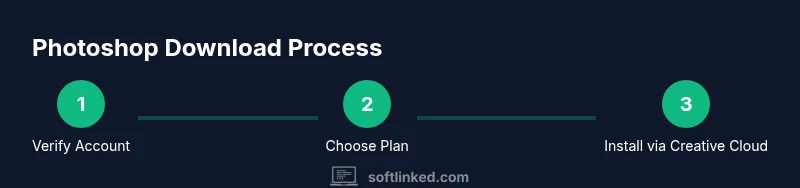
The general flow for getting Photoshop is straightforward: sign in to your Adobe account, select a plan or trial, download the Creative Cloud installer, run it, log in inside the installer, and install Photoshop from the Creative Cloud app. This overview helps you understand the sequence before you begin, and it highlights where licensing checks occur. You’ll then launch Photoshop, verify your license status, and configure initial settings. Following this process ensures a smooth, legitimate setup and keeps your software up to date.
Installation and activation tips
After the installer completes, open Creative Cloud and locate Photoshop. Click Install, then sign in with your Adobe account if prompted. Once installation finishes, launch Photoshop and sign in to activate your license. Verify that updates are enabled to receive new features and security patches. If you use plugins or external assets, consider enabling their compatibility checks during startup. A clean activation process reduces the likelihood of license errors.
Safety, licensing, and updates
Always download from the official site to avoid malware and counterfeit software. Enable two-factor authentication on your Adobe account to prevent unauthorized access. Maintain an active subscription or trial, and avoid unauthorized cracks or third-party installers. Regularly check for updates via Creative Cloud to stay current with security fixes and feature enhancements. These practices protect your data and ensure ongoing access to Photoshop’s latest tools.
Troubleshooting common issues during download
If the download stalls, cancel and retry from a fresh browser session, clear cache, and disable any download accelerators that may corrupt the installer. If you encounter license errors, sign out and back into Creative Cloud, then verify your plan status. For sign-in problems, ensure your internet connection is stable and that you’re using the correct Adobe account email. If the installer is corrupted, re-download it directly from Adobe’s site. Always use the official downloader to avoid malware or altered installers.
After installation: maintenance and updates
Keep Photoshop updated by allowing Creative Cloud to manage updates automatically. Periodically review your storage and preferences to ensure enough disk space for large updates. Back up important custom presets, brushes, and workspaces, since these can be preserved across versions if properly exported. If you work across multiple devices, consider syncing settings through Creative Cloud to maintain a consistent workflow. Regular maintenance reduces disruptions and preserves performance.
Tools & Materials
- Internet connection(Stable broadband recommended for downloading large installers)
- Adobe account(Sign in or create a new account to access plans and activation)
- Compatible device(Windows or macOS with a modern 64-bit OS)
- Web browser(Latest version of Chrome, Edge, Safari, or Firefox)
- Backup storage(Optional for presets and assets)
- Creative Cloud installer(Downloaded from the official Adobe site)
Steps
Estimated time: 30-60 minutes
- 1
Create or sign in to your Adobe account
Visit the official Adobe site and either sign in with an existing account or create a new one. This account will govern your Photoshop license and access. Use a strong password and enable two-factor authentication for security.
Tip: Enable 2FA to prevent unauthorized license use. - 2
Choose a plan or start a trial
Select the Photoshop single-app plan or the broader All Apps plan, or start a 7- or 14-day trial if available. If you are a student or educator, check for eligible discounts. Your choice determines billing and access to updates.
Tip: If eligible, consider annual billing for savings; trials don’t require commitment upfront. - 3
Download the Creative Cloud installer
From the plan confirmation page, click Download to obtain the Creative Cloud installer. Save it to a known location and avoid third-party download portals.
Tip: Verify the download source URL matches the official Adobe domain before saving. - 4
Run the installer and sign in
Open the downloaded file and run the installer. Sign in with your Adobe account when prompted to tie the installer to your license.
Tip: Allow necessary permissions and firewall access to complete the setup. - 5
Install Photoshop from Creative Cloud
In the Creative Cloud app, locate Photoshop and click Install. The download and initial setup will proceed automatically.
Tip: Keep your device plugged in during long downloads to avoid interruption. - 6
Launch, activate, and update
Open Photoshop, confirm activation via your Adobe account, and check for updates to ensure you have the latest features and fixes.
Tip: Review preferences for autosave and performance settings early on.
Your Questions Answered
Is Photoshop free to download and use?
Photoshop is not free. It is available via a paid Creative Cloud subscription or a trial period. After the trial ends, you must subscribe to continue using the software.
Photoshop isn’t free long-term; it’s available as a paid subscription or a trial.
Do I need Creative Cloud to use Photoshop?
Yes. Photoshop is distributed and managed through Creative Cloud. You’ll need an active plan or trial and sign in with your Adobe account to activate.
Yes, a Creative Cloud plan is required to use Photoshop.
Can I download Photoshop on both Windows and macOS?
Photoshop supports Windows and macOS. Check Adobe’s system requirements to confirm compatibility with your specific OS version.
Photoshop runs on Windows and Mac; verify your OS version first.
Is it safe to download Photoshop from third-party sites?
No. Download Photoshop only from Adobe’s official site to avoid malware and license issues. Third-party installers may be unsafe or illegal.
Avoid third-party sites; use the official Adobe download.
How do I install Photoshop after downloading?
Run the Creative Cloud installer, sign in to your Adobe account, and install Photoshop from the Creative Cloud app. Activation happens after you sign in.
Run the installer, sign in, and install from Creative Cloud.
Will I be able to use Photoshop offline after installation?
Many features work offline, but licensing checks and some online features require an active connection. You can work offline between online sessions.
You can work offline for many tasks; occasional online checks occur.
Watch Video
Top Takeaways
- Download Photoshop only from the official Adobe site.
- Your license ties to your Adobe account—keep credentials secure.
- Regularly update Photoshop via Creative Cloud for security and features.
- If issues occur, use official support channels rather than third-party sites.