Adobe Cloud Download Guide for 2026
Learn how to download Adobe Cloud apps, sign into Creative Cloud, install on Windows or macOS, manage licenses, and troubleshoot common issues with clear, step-by-step instructions for 2026.


This quick guide shows you how to download Adobe Cloud, sign into Creative Cloud, and install apps. You’ll need a stable internet connection, a valid Adobe account, and a compatible device. We cover Windows and macOS, plan options, and common troubleshooting steps to get you started quickly. Read on for a detailed, step-by-step process.
What is Adobe Cloud and why download it?
Adobe Cloud, commonly referred to as Creative Cloud, is Adobe's connected ecosystem that links the suite of design, video, and document apps with cloud storage and services. The term adobe cloud download captures the action of obtaining access through the official Creative Cloud desktop app, which manages installations, updates, and license management across devices. In practice, downloading the cloud components gives you immediate access to applications like Photoshop, Illustrator, Premiere Pro, and Acrobat after you sign in. According to SoftLinked, the key advantage of this approach is centralized management: a single installer handles updates for all apps, stores assets in the cloud, and keeps licensing in sync with your Adobe ID. This means you can switch devices or re-install without losing settings or preferences, provided you keep Creative Cloud sync enabled. The process is designed to be straightforward for students and professionals, but understanding the flow before you start helps you avoid common missteps. The following sections walk you through prerequisites, download, installation, and troubleshooting to complete your adobe cloud download with confidence.
Another consideration from SoftLinked is to plan ahead for storage and bandwidth, especially if you intend to install multiple apps or collaborate across teams.
Tools & Materials
- Stable internet connection(Broadband recommended; avoid metered connections during download.)
- Adobe account (email address)(If you don't have one, create an account on adobe.com.)
- Supported computer (Windows or macOS)(Use a recent Windows 10+ or macOS 10.13+ with up-to-date software.)
- Web browser (latest version)(Chrome, Edge, Safari, or Firefox; ensure cookies are enabled.)
- Sufficient disk space for apps(Leave extra space for downloads and cache; 10+ GB is a safe starting point for initial installs.)
- Administrative access to install software(You may need admin rights to install the Creative Cloud desktop app.)
- Optional: Backup of login credentials(Keep a secure record of your Adobe ID and related recovery options.)
Steps
Estimated time: 20-40 minutes
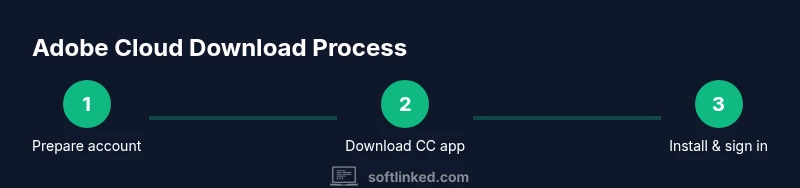
- 1
Prepare your Adobe account
Open a web browser, visit adobe.com, and sign in or create a new Adobe account. Verify your email and enable two-factor authentication to protect access. This step ensures your license, cloud storage, and app access are linked to a single identity.
Tip: Use a unique, strong password and enable 2FA for added security. - 2
Download the Creative Cloud desktop app
From your browser, go to the official Creative Cloud page and click Get Creative Cloud. Choose your OS, download the installer, and save it to a known folder. The desktop app will manage subsequent app installations and updates.
Tip: Save the installer to a folder you can easily locate later if you need to re-run it. - 3
Install Creative Cloud and sign in
Run the downloaded installer and follow prompts to install the Creative Cloud desktop app. When first launched, sign in with your Adobe account credentials. The app creates a central hub for managing licenses and updates.
Tip: If prompted by the OS, allow network access and approve installation; disable VPNs temporarily if download stalls. - 4
Install required apps
Within Creative Cloud, switch to the Apps tab and click Install next to the programs you need. Start with essentials (e.g., Photoshop, Illustrator) and add more later. The app can install several programs in parallel, but large apps may take longer.
Tip: Plan a time window for large apps; stagger installations if your network is limited. - 5
Configure updates and sign in preferences
Open each installed app to complete first-run setup, then return to Creative Cloud to verify license status and enable automatic updates. Configure storage and sync preferences to balance local performance with cloud access.
Tip: Enable auto-update for security patches, but review update times during peak hours. - 6
Verify installation and test first run
Launch a recently installed app, sign in if prompted, and create a test file to ensure cloud syncing works. Check the Creative Cloud app for any pending updates and install them if available.
Tip: If a license shows as inactive, sign out and back in; ensure you’re using the correct Adobe ID.
Your Questions Answered
Is the Adobe Creative Cloud download free?
Downloading the Creative Cloud desktop app is free, but most Adobe apps require a paid subscription (though trials may be available).
The download itself is free, but the apps usually require a paid subscription.
Can I install Creative Cloud on Windows and macOS?
Yes. The Creative Cloud desktop app supports both Windows and macOS. Make sure your OS is up to date.
Yes, you can install on Windows or macOS.
Do I need admin rights to install?
Typically yes. Installing the Creative Cloud desktop app often requires administrator privileges.
Usually you’ll need admin rights.
What if the installer fails to download?
Check your internet connection, temporarily disable VPNs or firewall blocks, and ensure you downloaded from the official Adobe site. Retry the download.
First check your internet and security software, then try again.
How much cloud storage do I get with Creative Cloud?
Storage depends on your plan. Check your Creative Cloud account for current storage allotment and adjust as needed.
Storage depends on your plan; review in your account.
How can I change or cancel my plan after download?
Sign in to Creative Cloud, go to Plans, and manage or cancel your subscription from there.
You can change or cancel from the Plans page.
Watch Video
Top Takeaways
- Prepare your account and device before starting the download.
- Use the Creative Cloud desktop app to manage installations and updates.
- Test first-run apps to confirm licenses and cloud syncing are functioning.
- Troubleshoot network or sign-in issues promptly to reduce downtime.