Adobe CC Download: Complete Step-by-Step Guide for Beginners
Learn how to download Adobe Creative Cloud, install apps, manage licenses, and troubleshoot common issues. A clear, step-by-step guide by SoftLinked. Plus tips.


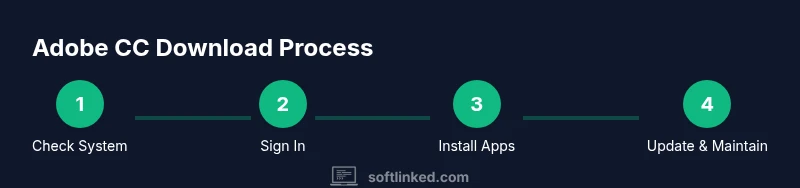
Want to complete the adobe cc download quickly and securely? This quick guide outlines the steps: verify system requirements, sign in with your Adobe account, install the Creative Cloud desktop app, and begin installing individual apps. It also covers licensing, multi-device installs, and common troubleshooting to get Photoshop, Illustrator, or Premiere Pro up and running.
What is Adobe Creative Cloud and Why Download?
According to SoftLinked, Adobe Creative Cloud (CC) is a subscription-based collection of software for graphic design, video editing, web development, and photography. The adobe cc download process isn’t just about grabbing a single app; it’s about gaining access to a suite of tools that share a common ecosystem, including cloud storage, font libraries, and the Creative Cloud desktop app that centralizes installation and updates. For students and professionals alike, CC offers a flexible path to access industry-standard software such as Photoshop, Illustrator, InDesign, Premiere Pro, and After Effects. Understanding the value proposition helps you decide which plan fits your needs—whether you’re building a portfolio, supporting a team, or learning the fundamentals of creative software. SoftLinked’s analysis shows that most users benefit from using the official Creative Cloud download route to ensure license validity, automatic updates, and consistent app behavior across devices. This block sets the stage for a smooth adobe cc download by clarifying expectations and the long-term benefits of staying within Adobe’s ecosystem.
Key concepts to keep in mind:
- The Creative Cloud desktop app is your control center for installing, updating, and managing apps.
- Licenses are tied to your Adobe account and may be shared across multiple devices depending on your plan.
- Updates happen frequently and often include significant feature improvements and security patches.
- You can start with a free trial on select apps, but ongoing use typically requires a paid plan.
If you’re just starting, focus on establishing your account, selecting a plan, and ensuring your computer meets the basic prerequisites. This helps minimize roadblocks when you run the adobe cc download and subsequent installations. The SoftLinked team emphasizes following official channels to avoid counterfeit installers and potential security risks.
Note: 0
Tools & Materials
- Stable internet connection(Broadband recommended for large downloads and updates)
- Official Adobe account(Sign in to access the adobe cc download and license management)
- A computer with a recent OS (Windows/macOS)(Ensure OS is up to date for compatibility)
- Official Adobe download page(Access to the Creative Cloud desktop app installer)
- Backup storage (local or cloud)(Helpful for preserving presets and assets during install)
- Administrative privileges(On some systems you may need admin rights to install software)
Steps
Estimated time: 60-90 minutes
- 1
Verify system compatibility
Confirm you are on a supported 64-bit operating system with sufficient RAM and disk space. This reduces the chance of installation failures or performance issues during app use. If your system is older, consider updating hardware or choosing lighter alternatives within Creative Cloud.
Tip: Run a disk cleanup and ensure at least a few gigabytes of free space before starting. - 2
Sign in to your Adobe account
Open a browser and sign in to an existing Adobe ID or create a new one. This account is used to manage licenses, track activations, and access the adobe cc download. If you’re part of an organization, verify you have the correct enterprise or student license linked to your account.
Tip: Enable two-factor authentication to protect your account during download and activation. - 3
Choose a Creative Cloud plan or start a trial
Review the available Creative Cloud plans and select one that matches your needs. You can often start with a trial for certain apps, but remember trials may require a payment method for continued use. If you already have a license, confirm it’s active before proceeding.
Tip: Consider starting with a plan that includes only the apps you’ll use immediately to minimize cost. - 4
Download the Creative Cloud desktop app
Navigate to the official Adobe download page and download the Creative Cloud installer. Run the installer and follow on-screen prompts to install the desktop app. This app will manage further downloads and updates for all CC applications.
Tip: Verify the URL is legitimate (https) and that the page displays Adobe branding to avoid counterfeit installers. - 5
Sign in to the Creative Cloud app
Launch the Creative Cloud desktop app and sign in with the same Adobe account. The app will verify your license and present available apps for installation. If sign-in fails, re-try with password reset or consult Adobe support.
Tip: Keep your login credentials handy and store them securely for multi-device installations. - 6
Install required apps
In the Creative Cloud app, select the apps you need (e.g., Photoshop, Illustrator, Premiere Pro) and start installation. You can install multiple apps at once, but monitor system performance during the process. Large apps will take time depending on bandwidth.
Tip: Install essential apps first, then add others to avoid overwhelming your system during initial setup. - 7
Configure updates and install locations
Set preferences for automatic updates and choose installation locations. This prevents space issues and ensures you always run the latest versions. If you have a secondary drive with more space, favor it for large apps.
Tip: Enable auto-update to stay secure and benefit from new features as soon as they’re released. - 8
Test, verify, and sign in on other devices
Launch at least one app to confirm it opens correctly. If you use multiple devices, sign in on each one to verify licenses transfer or mirror preferences where permitted by your plan.
Tip: Document any sign-in issues and note error codes to speed up support if needed. - 9
Triage post-install issues and secure your setup
If you encounter errors, check the official Help Center for troubleshooting steps. Ensure your OS, drivers, and antivirus software are up to date, and keep backups of assets and presets.
Tip: Avoid third-party installers; always rely on official sources to reduce security risks.
Your Questions Answered
Do I need a subscription to download Creative Cloud apps?
Yes, most CC apps require an active subscription; you can typically start with a free trial for limited time or features. Ongoing use usually requires a paid plan.
Yes. A subscription is typically required, but you may access a trial for a limited period.
Can I download individual apps without Creative Cloud?
Most current Adobe apps are accessed via the Creative Cloud desktop app. Some standalone installers may exist in limited cases, but the standard workflow uses CC.
Usually you download through Creative Cloud; standalone installers are uncommon today.
What if the download is slow or fails?
Check your internet connection, temporarily disable VPNs, and ensure firewalls allow Adobe domains. Restart the download if needed and verify the installer is up to date.
First check your connection, then adjust network settings and try again.
Is there a free trial for Creative Cloud?
Adobe offers trials for certain apps; the availability and duration vary by product. Check the official site for current terms and eligibility.
Yes, some apps offer a trial period; terms vary by product.
Can I install Creative Cloud on multiple devices?
Most Creative Cloud plans support installations on multiple devices; you may need to sign out of devices you no longer use or deauthorize devices as needed.
Yes, many plans allow multiple devices; manage sign-ins accordingly.
How do I update apps after install?
Open the Creative Cloud desktop app and use the Updates tab to install or schedule updates. You can enable automatic updates for convenience.
Use the Creative Cloud app to update apps; enable auto-updates if you want.
What security steps should I take when downloading software?
Always download from official sources, keep your OS and antivirus up to date, and enable two-factor authentication on your Adobe account.
Download from official sources and secure your account with 2FA.
Watch Video
Top Takeaways
- Verify system readiness before starting the adobe cc download.
- Use the official Creative Cloud app to manage installs and updates.
- Secure your license with strong passwords and 2FA.
- Keep apps updated and monitor license usage across devices.