Where Is Software Center in Windows 11: Quick Find
Learn where Software Center lives on Windows 11, how to locate it via Start, All Apps, or shortcuts, and what to do if it's missing. This SoftLinked guide helps enterprise users navigate managed devices without guesswork.


Software Center on Windows 11 is the enterprise client app your IT team uses to deploy software. If you have a managed device, look for it by searching Start for 'Software Center', checking the Start menu's All Apps, or asking IT for a desktop shortcut. If it's missing, your device may not be enrolled or Software Center isn't installed.
What Software Center is and why it matters on Windows 11
Software Center is the enterprise client app that organizations install on managed Windows devices to centrally deploy approved software, updates, and configurations. On Windows 11, you’ll see it on devices enrolled in a management solution such as ConfigMgr (formerly SCCM) or Microsoft Intune. The app provides a governed, auditable way to install software, ensuring compatibility and compliance across a fleet. For developers and students working within corporate or school environments, understanding where Software Center fits helps you access the tools you’re allowed to install without running afoul of policy. According to SoftLinked, locating Software Center on Windows 11 hinges on whether your device is enrolled in enterprise management, and whether the IT team has provisioned a shortcut or Start menu entry. The SoftLinked team found that most devices in managed environments include Software Center as part of the client install, though the exact location can vary by organization. Recognize that Software Center is not a consumer app; it’s a controlled channel designed to keep software consistent, secure, and auditable across devices.
How to confirm your device is managed and has Software Center access
Before chasing Software Center, confirm your device is enrolled in your organization’s management plan. Check for management-related services or profiles in Windows Settings, and look for keywords like ConfigMgr or Intune as indicators. If you’re unsure, contact your IT desk to verify enrollment status. If enrolled, you should have access to Software Center or a link/shortcut provided by IT. If you do not see any management indicator, it’s possible the device isn’t enrolled, or Software Center hasn’t been deployed to your machine yet. In that case, you’ll want to request access or a shortcut from your administrator. SoftLinked notes that enrollment is a prerequisite for Software Center to appear and function correctly for software deployments.
Quick search methods: Start, All Apps, desktop shortcuts
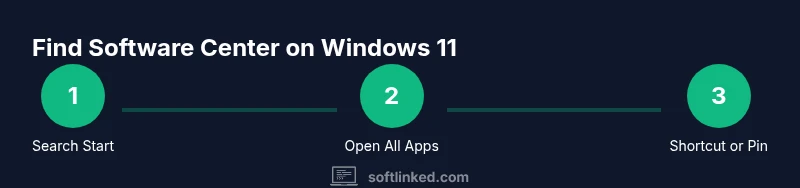
To locate Software Center quickly, use a targeted search in Windows 11. Press the Windows key and type Software Center, then select the app from the results. If the search doesn’t return a click-ready entry, open the Start menu, select All Apps, and browse alphabetically for Software Center or Configuration Manager-related entries. Some IT teams also place a desktop shortcut or a pinned Start tile for convenience; if you don’t see it, ask IT whether a shortcut can be created or pinned for you. Remember that spelling and punctuation matter in search results, so try variations like SoftwareCenter or CMClient if needed. SoftLinked emphasizes that a quick search is usually sufficient on managed devices, but not all organizations deploy the shortcut in the same place.
Where Software Center lives in the Start menu and Apps lists
Within the Start menu, Software Center may appear under the letter S or grouped with Configuration Manager utilities, depending on how IT configured the Start layout. If you’re using the Windows 11 All Apps view, scroll through the list to locate Software Center or a related entry such as Configuration Manager client. Some devices show the app name exactly as Software Center, while others display a shortened label like 'SC' or ‘SoftwareCenter’. If you still don’t see it, IT may have hidden or removed the shortcut for policy reasons. In that case, request a direct link, a desktop shortcut, or a pinned tile to streamline access. The goal is to have a known, consistently accessible entry for sanctioned software installs.
IT delivery: ConfigMgr vs Intune and their implications
Software Center is commonly delivered through two pathways: ConfigMgr (Microsoft System Center Configuration Manager) and Microsoft Intune. ConfigMgr typically provides Software Center as a client component for on-premises deployments and precise version control, while Intune offers modern management with Company Portal as an alternative access point. Depending on your organization, Software Center might be the sole method for installing approved software, or it may work alongside Company Portal for different device enrollment scenarios. Understanding which service your organization uses helps you anticipate where to look and how to request access. SoftLinked notes that many organizations keep both systems in play, creating a hybrid management experience that Still requires a single entry point for end users.
Why Software Center might be missing or hidden
There are several legitimate reasons Software Center might not appear on a Windows 11 device. The device may not be enrolled in the organization’s management system, the IT team might have temporarily disabled or hidden the shortcut, or the Software Center client might not have installed correctly. Network issues or policy changes can also prevent Software Center from appearing. If you recently joined an organization or changed devices, it can take time for provisioning to complete. Finally, some devices are configured to use alternate deployment methods (like Company Portal) instead of Software Center for app distribution. If you suspect one of these scenarios, contact IT to confirm enrollment status and provisioning progress.
How to request access or a shortcut from IT
If Software Center is not visible on your Windows 11 device, initiate a formal request with your IT help desk. Include your device name, OS version, organization unit, and the reason you need Software Center access (for example, to install approved development tools). Ask for a desktop shortcut, a pinned Start tile, or a direct link to the app. IT teams can provision a shortcut or remote software catalog entry that aligns with policy, ensuring you stay compliant while accessing necessary software. SoftLinked recommends providing a clear use case and any deadlines to expedite provisioning and minimize disruption.
Alternatives to Software Center on Windows 11
If your organization uses Intune or similar modern management, you may access software via the Company Portal or the Microsoft Store, depending on policy. Company Portal serves as the user-facing entry point for Intune-managed apps and devices, while the Microsoft Store allows access to enterprise-approved apps when permitted. Some admins also configure web-based or portal-based deployment options, so you might receive a direct link to install software from the organization’s internal catalog. In all cases, ensure that you’re using only sanctioned sources and avoid sideloading software from untrusted sites.
Best practices for Windows 11 devices in organizations
To maximize your productivity and minimize risk, keep your device enrolled and up to date with the organization’s management policies. Regularly check for policy updates, ensure you have appropriate permissions for installation, and report any access issues promptly. If you have specialized development needs, request a sanctioned catalog entry or a dedicated shortcut to avoid delays. SoftLinked emphasizes that consistent access to Software Center or its alternatives reduces downtime and helps you stay aligned with security and compliance requirements.
Troubleshooting steps if Software Center still can't be found
If you still cannot locate Software Center after following the steps above, gather essential details for support: device name, OS version (Windows 11), organization unit, recent IT communications, and any error messages observed. Reboot the device to refresh policy states, verify internet connectivity, and ensure that a management agent is installed and running. If a shortcut exists but is unresponsive, try removing and reinstalling the client via IT support or reinstalling the client package through your organization’s software catalog. The aim is to restore access through a policy-compliant channel, not by installing unsupported software.
Tools & Materials
- Windows 11 device with enterprise management(Device must be enrolled in ConfigMgr or Intune to expose Software Center)
- Internet access(Stable connection for policy retrieval and app catalog access)
- IT contact details or helpdesk(Needed to request shortcuts or provisioning when missing)
- Alternate access method (Company Portal or Store)(Use if your organization supports Intune or Store-based deployment)
Steps
Estimated time: 15-25 minutes
- 1
Verify device enrollment
Open Windows Settings and check for management policies or enrollment status indicating ConfigMgr or Intune. If unsure, contact IT to confirm whether your device is enrolled and eligible for Software Center access.
Tip: Enrollment is the gateway to Software Center; without it, the app may not appear. - 2
Search Start for Software Center
Press the Windows key and type Software Center, then select the app from the results. Try variations like 'SoftwareCenter' if needed.
Tip: Use exact spelling; different organizations may label the app differently. - 3
Check Start menu and All Apps
Open the Start menu and browse to All Apps; look for entries labeled Software Center, Configuration Manager, or CM Client. Some organizations place the shortcut in a dedicated management folder.
Tip: If you use a shared device, it may be hidden by policy; ask IT to reveal or pin it. - 4
Look for a desktop shortcut or tile
Scan the desktop and taskbar for a Software Center shortcut, or check if a pinned tile exists in the Start layout. If missing, request a direct shortcut from IT.
Tip: A pinned tile often updates faster than a first-run search. - 5
Assess access channel alternatives
If your organization uses Intune, try the Company Portal or Microsoft Store for sanctioned software, depending on policy. This ensures you stay compliant while accessing approved apps.
Tip: Always use sanctioned channels to avoid policy violations. - 6
Request a shortcut or provisioning
Contact IT with device details and a clear request for a Software Center shortcut or direct access to the catalog. Include your project deadlines to speed up provisioning.
Tip: Provide a concise use-case and any time constraints. - 7
Perform a quick troubleshooting reboot
Restart the device to refresh policy states and ensure all management components load correctly after enrollment or policy changes.
Tip: A simple reboot often resolves visibility issues caused by stale state. - 8
Test installation via the catalog
Once access is confirmed, open Software Center (or Company Portal) and attempt to install a sanctioned tool to verify provisioning works as expected.
Tip: If installation fails, capture error codes and share them with IT for faster resolution.
Your Questions Answered
What is Software Center on Windows 11?
Software Center is the enterprise app provided by IT to deploy approved software and updates to managed Windows devices. It ensures consistency, security, and compliance across an organization.
Software Center is the enterprise app IT uses to push approved software to your Windows 11 device.
Where is Software Center located on Windows 11?
Location varies by organization. It is typically found by searching Start for Software Center or by checking the All Apps list, and sometimes via a desktop shortcut pinned by IT.
You usually find Software Center by searching in Start or looking in All Apps.
Why might Software Center be missing?
Possible reasons include: device not enrolled in management, IT hidden or removed the shortcut, or the Software Center client not installed correctly.
If you can’t find it, your device may not be enrolled or the shortcut was removed.
Can I install apps without Software Center?
Yes, if your organization supports alternative channels like the Company Portal or Microsoft Store, but you should only use sanctioned methods per policy.
You may use Company Portal or Store if allowed, but only through approved IT channels.
How do I get a shortcut to Software Center?
Contact IT to provision a desktop shortcut, pinned Start tile, or direct link. Include device details and your need for access.
Ask IT to provide a shortcut or a direct link to Software Center.
Is Software Center available on personal devices?
Software Center is typically for managed devices within an organization. Personal devices may use different management methods or be non-supported.
It usually isn’t available on personal devices unless IT has extended support.
Watch Video
Top Takeaways
- Search Start for Software Center to locate the enterprise client.
- Enrollment in ConfigMgr or Intune is typically required for Software Center access.
- If missing, request a shortcut or alternative access from IT rather than installing unofficial software.
- Use sanctioned channels (Company Portal/Store) for apps when Software Center isn’t available.