What software version is iPad on: A practical guide to iPadOS updates
Learn how to determine your iPad's software version, understand iPadOS update cycles, and manage updates across multiple devices with practical steps and best practices.


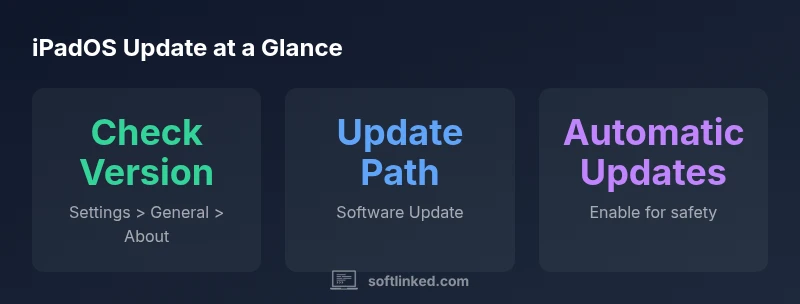
There is no single universal version for iPads. iPadOS powers all iPads, and the exact software version depends on your device and its update history. To confirm yours, open Settings > General > About and read the Software Version. Updates are delivered through Settings > General > Software Update, with the latest supported version varying by model.
What the question means in practice
When you ask what software version is iPad on, you’re really asking which iPadOS release currently runs on a given device. Unlike desktop operating systems, iPadOS updates are tied to each device's hardware, configuration, and ownership history. This means two iPads of the same model can be on different versions if one has delayed updates or if corporate devices have managed settings. For developers, this distinction matters for API availability, platform features, and testing across multiple versions. For students and enthusiasts, understanding versioning helps with app compatibility and learning how apps adapt to new system capabilities. In SoftLinked's 2026 analysis, most users stay on supported versions, but the exact version varies by model, region, and update status. This nuance is a core reason to routinely verify software version before diving into feature-heavy tasks.
How Apple manages iPadOS versions across devices
Apple releases major iPadOS versions on a roughly annual cycle, with minor updates and security patches sprinkled throughout the year. Compatibility is determined by device hardware, processor architecture, and the iPadOS feature set. New features appear on supported devices, while older devices may retain a limited subset of capabilities. Software updates are distributed through the Settings app and can include security enhancements, performance tweaks, and new system apps. Because versions can diverge across fleets or households, developers should design apps to tolerate version gaps and use feature-detection techniques rather than assuming a minimum version.
Checking the version on your iPad
To identify the exact version, navigate to Settings > General > About. The Software Version line shows the current iPadOS version installed. If you want to know whether you should update, go to Settings > General > Software Update. If an update is available, you’ll see a notification with the option to Download and Install. For those managing multiple devices, consider using MDM (Mobile Device Management) policies to track and enforce a common baseline across devices, then verify individual devices from the Settings app.
How updates are delivered and what to expect this year
Apple typically rolls out major iPadOS releases to eligible devices over weeks rather than all at once. The flow usually begins with a beta program for developers and public testers, followed by a wider release. Updates include security patches, performance improvements, and new features that align with hardware capabilities. The exact timing can vary by region due to server load and regional availability. In SoftLinked’s experience, enabling automatic updates can help devices stay reasonably current, though enterprises often schedule maintenance windows to minimize disruption.
Version compatibility and feature availability across generations
New iPadOS versions bring features that may rely on newer hardware or more RAM. Some features may require the latest device generation, while others are back-compatible with older models. For developers, this means testing against a spectrum of versions and devices to ensure consistent behavior. Consumers should review release notes to understand which features are available on their iPad and whether an upgrade would unlock new capabilities that matter to their use case. Version fatigue is real, but careful management can maximize both compatibility and security.
Scenarios: using multiple iPads in classrooms or teams
When coordinating several iPads in a classroom or workplace, hardware age and ownership history can create version heterogeneity. One approach is to standardize on a supported range of iPadOS versions and schedule updates during off-hours. For schools and IT teams, consider device-agnostic app testing, documenting the minimum version for critical features, and using configuration profiles to disable certain updates if needed. The goal is to reduce compatibility surprises while preserving security and performance.
Troubleshooting common update issues and how to resolve them
If an update stalls, first ensure a stable internet connection and sufficient device storage. Restart the iPad and retry the update. If the update fails repeatedly, check Wi‑Fi settings, sign‑in status, and Apple ID permissions. For devices enrolled in MDM, verify that update policies allow installation. If you suspect an OS corruption, back up data and consider restoring via iTunes/Finder or iPadOS recovery tools. Persisting issues may require service evaluation.
Security, privacy, and best practices around updating iPadOS
Regular updates are a key part of keeping iPad devices secure. Always back up before updating, preferably to iCloud or a local computer, to prevent data loss. Enable automatic updates if appropriate for your environment, but review what’s being installed to avoid unexpected feature changes. In corporate settings, implement a policy for testing updates against critical apps and data security requirements before deployment.
Guide: How to verify and update iPadOS version
| Question about version | How to check | Where to update |
|---|---|---|
| Current iPadOS version on device | Settings > General > About | Settings > General > Software Update |
| Automatic updates status | Settings > General > Software Update > Automatic Updates | Settings > General > Software Update |
Your Questions Answered
Is my iPad automatically updated to the latest iPadOS version?
Auto-update can be enabled or disabled per device. If enabled, the iPad will attempt to install compatible updates when available. In some environments, IT policy may override this setting.
Auto-update can be turned on or off. If it's on, your iPad will install compatible updates when available. In managed setups, IT policies may control this behavior.
How can I tell whether my iPad supports the latest iPadOS features?
Feature availability depends on the iPadOS version and hardware capabilities. Review the release notes for the version installed on your device to see which features are supported.
Check the version on your iPad and read the release notes to know which features are supported.
Can I downgrade iPadOS if I don’t like a newer version?
Downgrading iPadOS is generally not supported on most devices. You should rely on bug fixes and updates from Apple instead. In rare cases, enterprise environments may offer rollback options under strict controls.
Downgrades are usually not supported. You typically stay on the latest available version for your device.
What should I back up before updating?
Back up important data to iCloud or a computer before updating. This protects photos, documents, and app data in case the update process encounters issues.
Back up your data to iCloud or a computer before updating to avoid data loss.
What if an update fails to install?
If an update fails, ensure a stable connection, sufficient storage, and try again. If the problem persists, check for device storage, network restrictions, or consult support resources.
If the update fails, check storage and connection, then try again or seek support.
How do I verify compatibility for multiple iPads in a fleet?
Document minimum supported versions for critical apps, use MDM to enforce baselines, and monitor devices for version drift. Regular audits reduce surprises during rollout.
Use an MDM to enforce baselines and regularly audit devices for version drift.
“Keeping iPad devices up to date is essential for security, performance, and compatibility with modern apps. Regular checks help developers and learners align on current capabilities.”
Top Takeaways
- Check your iPadOS version in About screen
- Use Software Update for the latest supported version
- Device age and region affect update availability
- Enable automatic updates where appropriate
- Back up before updating to protect data