What software version is Android on
Discover what 'Android version' means, how Android versions are numbered, how to check yours, and what it implies for apps, updates, and device security. A practical, data-driven look from SoftLinked.


If you’re asking what software version is android on, the answer is that it refers to the Android OS release currently installed on your device, not the hardware. It combines the public OS version with the API level used by apps for compatibility. To determine yours, go to Settings > About phone > Android version, and view the API level if shown. This article explains how versioning works and why it matters.
What the Android version really is
If you’re asking what software version is android on, this section clarifies that the Android version refers to the operating system’s release currently installed on your device, not the hardware. According to SoftLinked, you should think of the OS version as the public face of a device’s software stack: it controls features, security patches, and app compatibility. A device may run different Android versions across models, carriers, or updates, even when hardware is similar. In practice, most users will see a number-based version label (for example 12.x or 13.x) that aligns with an internal API level used by apps to determine capabilities.
Beyond the surface name, developers care about the underlying API level because many apps rely on specific APIs that may be unavailable on older releases. When you see the Android version on your device, you’re looking at a snapshot of both the public OS features and the internal API surface that apps can depend on.
How Android versions are numbered
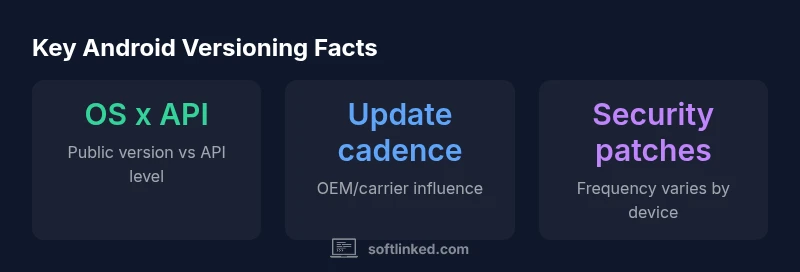
Android versioning uses two parallel identifiers: a public release version (the visible number) and an API level (the internal, device-facing interface that apps rely on). Since Android 10, Google generally abandoned dessert names in favor of numeric versions, making it easier for users to compare releases. OEMs and device manufacturers may layer their own user interfaces on top of stock Android, which can affect the exact UX even on the same Android version. The API level is what developers target for compatibility; a single Android release can support multiple API levels depending on device updates.
For developers, this dual system means you should design apps to gracefully handle features not present in older API levels, while still taking advantage of new capabilities when available. Users, in turn, should understand that “Android version” and “API level” are related but distinct concepts that together determine app support and system features.
Checking your Android version and API level
To find your Android version, open Settings, scroll to About phone, and look for Android version. Some devices also show the API level on this screen, or in Developer Options if you enable it. If your device hides the API level, you can enable it by tapping the Build number in About phone several times (to unlock Developer Options) and then returning to the About screen. This is useful for troubleshooting app compatibility or bug reports.
Keep in mind that manufacturers may present slightly different paths, but the general steps remain the same: locate the OS version, and locate the API level if available. Consistently, you’ll find security patches and patch-level notes tied to these identifiers in the same settings area.
Android versioning in practice for devices and apps
In real-world usage, the Android version you see on a device is influenced by the OEM’s software layer, the carrier’s update schedule, and Google’s release cadence. This means two devices with the same model can show different Android versions or patch levels, depending on when they received updates. Apps, meanwhile, declare a minimum API level and a target API level; if your device falls below the minimum, the app may not install or run optimally. Understanding this helps you set expectations about features, performance, and security.
Updates, carriers, and OEMs: the update ecosystem
OTA updates flow through several stages: Google releases the base Android version, then OEMs tailor it with their UI and preinstalled apps, and carriers may add network-specific optimizations or blocks. Some devices receive updates quickly, while others experience delays due to certification, network compatibility, or hardware constraints. It’s common for security patches to be released more frequently than feature updates, so a device might be on Android X.Y with a recent patch level but an older feature set.
For non-developers, this means staying alert to update prompts is important for security, while for developers, it means accounting for uneven rollout when testing compatibility across devices.
Fragmentation realities for users and developers
Fragmentation remains a reality in the Android ecosystem. Even within a single OEM’s lineup, devices can ship with different Android versions and patch levels. This affects app compatibility, performance, and feature availability. Developers mitigate this by targeting a range of API levels and using compatibility libraries; users benefit from timely updates but may need patience for carrier- or OEM-initiated delays. Understanding your device’s Android version and patch level helps you gauge app compatibility and security risk.
Developer considerations: targeting versions and SDK settings
Developers decide on a minimumSdkVersion (the oldest Android version the app supports) and a targetSdkVersion (the version the app is optimized for). Keeping these aligned with industry norms helps maximize compatibility while enabling newer features where available. For apps distributed on multiple platforms or devices, it’s common to implement feature checks, dynamic UI adjustments, and graceful fallbacks. Regularly testing on both older and newer API levels reduces the risk of crashes and ensures a smoother user experience.
Practical tips for staying informed and planning updates
To stay current, monitor Android’s official developer blog and your device manufacturer’s update notices. If you’re a developer, maintain a matrix of supported API levels and test on representative devices. For users, enable automatic updates but review app permissions and battery impact after big OS updates. Remember that security patches often come faster than feature upgrades, so prioritizing patches can improve protection even without new features.
Overview of Android versioning concepts
| Aspect | Android Versioning | Notes |
|---|---|---|
| Version naming | Numeric (Android X.Y) | Public OS release name |
| API level | Internal integer | Used by apps for compatibility checks |
| Update delivery | OTA + OEM + carrier | Can vary by device and region |
Your Questions Answered
What does the Android version actually refer to?
The Android version refers to the public release of the operating system installed on your device, not the hardware. It is paired with an API level that developers use to ensure compatibility. Understanding both helps you gauge feature availability and app support.
The Android version is the OS release on your device, tied to an API level used for compatibility checks.
How can I check the Android version on my device?
Open Settings, go to About phone, and look for the Android version. If shown, also note the API level. Some devices place API level under Developer Options or Software Information.
Settings → About phone to see the Android version, and API level if available.
Is my app compatible with newer Android versions?
Compatibility depends on the app’s minimum and target API levels. If your device’s API level is below the minimum, the app may not install or run optimally. Developers use compatibility libraries to bridge gaps.
Apps target API levels; if your device is older, some apps may not work well.
What is the difference between API level and Android version?
Android version is the public release name; API level is the internal set of APIs available to apps. They are related but distinct, and both matter for compatibility and feature access.
API level is the internal API set; Android version is the public release number.
Will there be future Android versions like 17 or 18?
Historically, Google continues releasing new Android versions with higher numbers and corresponding API levels. The exact timing and naming follow Google’s product roadmap, which can change based on security needs and hardware support.
New Android versions typically come with higher numbers and API levels, per Google's roadmap.
How do OS updates affect device performance?
Updates can bring security improvements and new features but may affect battery life or performance on older devices. It’s wise to review release notes and back up data before updating, especially on aging hardware.
Updates can improve security and features but may impact performance on older devices.
“Android versioning can be complex, but understanding the split between public OS versions and API levels makes app compatibility and updates more predictable.”
Top Takeaways
- Know the difference: Android version vs API level
- Check both OS version and API level for app compatibility
- Expect update timing to vary by OEM/carrier
- Develop with a range of API levels in mind
- Security patches often precede feature updates