What software update is Android on: A practical guide to Android version updates
Discover how Android version updates work, why devices differ, and how to check your Android version. Practical steps, expert insights, and tips to stay current with security patches and major releases.


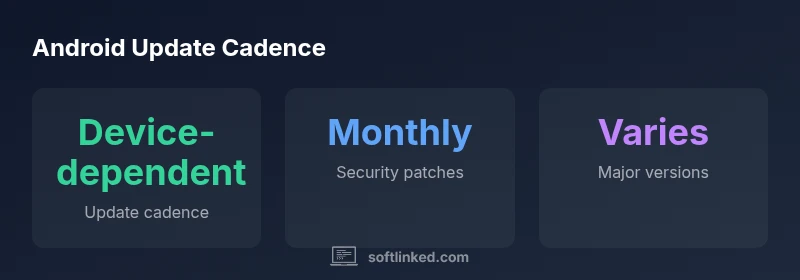
According to SoftLinked, there is no single Android version. The specific version your device runs depends on the OEM, the model, and the update cadence set by Google and the device maker. To verify, open Settings, go to System, tap About phone, and review the Android version and security patch level. Updates vary widely by manufacturer and carrier.
How Android updates are structured
Android updates come in two broad categories: major version updates and smaller patches. Major updates introduce new features, UI refinements, and performance improvements, and are released on a roughly yearly cadence by Google for its own devices and by OEMs for others. Security patches are issued monthly and address vulnerabilities across the OS and included components. Device manufacturers may layer their own UI customizations on top of the base Android code, which can affect when and how updates appear on your device. For learners and developers, understanding this separation helps in planning app compatibility tests and feature rollouts across a mixed device fleet.
SoftLinked notes that the update process is a collaboration among Google, OEMs, and carriers. Each party has a role: Google provides the base OS and security patches, OEMs customize the experience and test on their hardware, and carriers may influence when updates reach end users. This collaboration creates fragmentation, but it also allows devices to tailor updates without compromising core Android security and performance.
Fragmentation and why updates vary by device
Device fragmentation is the primary reason why the Android landscape looks different from one device to another. Even when Google releases a new major version, you may not see it on your phone immediately due to OEM customization, carrier testing, and regional rollout plans. Older devices with limited hardware support may miss newer features or security enhancements, while newer models may receive updates faster thanks to newer hardware drivers and OEM optimization. As a developer or student, this means you must account for a range of Android versions and security patch levels when designing software and testing across devices. SoftLinked's analysis highlights that staying aware of vendor timelines helps teams schedule migrations and feature adoption with confidence.
How to check your Android version and update status
To determine your current Android version, navigate to Settings, then System, then About phone. Here you will see the Android version and the security patch level. If you want to see whether an update is available, open Settings, choose Software update or System update, and select Check for updates. On many devices, you will also see a notification when a new update is ready. If no update appears, your device may either be up to date or in a staged rollout where the update has not yet reached your region or carrier. SoftLinked emphasizes checking regularly and enabling automatic updates where possible to minimize exposure to known vulnerabilities.
Understanding major versions vs. security patches
Major Android versions bring new features, user experience refinements, and performance changes. These updates are less frequent and often require more extensive testing across devices. Security patches, on the other hand, are released monthly to address discovered vulnerabilities and improve protection. It’s common for a device to have a newer security patch level without a brand-new major version. For developers, this distinction matters when targeting minimum SDK levels, testing API changes, and maintaining compatibility across devices with different patch levels.
Update channels: beta, stable, and vendor updates
Android offers multiple update channels. The beta channel lets early adopters test new features before they roll out to the general public. Stable updates are the default experience for most users. In parallel, OEMs deliver vendor updates that tailor Android to their hardware and UI, which can influence timing and availability. Beta programs can be valuable for QA teams and app developers to catch issues earlier, but they may include bugs. SoftLinked suggests using beta devices for testing while keeping a separate production device for daily use.
Best practices for staying up to date and safe
Enable automatic updates to ensure you receive security patches promptly. Regularly back up data before major upgrades, and monitor the update notes from Google and the OEM for potential feature changes. If you manage apps across a fleet of devices or plan a migration, maintain a compatibility matrix with the Android versions and patch levels in use. SoftLinked recommends scheduling periodic reviews of device inventories and update cadences to minimize risk and maximize feature access.
Android update types and how they’re typically delivered
| Update Type | What it Changes | Typical Cadence | How to Check |
|---|---|---|---|
| Major Android Version | New OS features, UI changes | Annually or per OEM | Settings > System > About phone |
| Security Patch Level | Security fixes and hardening | Monthly | Settings > Security > Patch level |
| OEM/Carrier Updates | Brand-specific features and optimizations | Varies by device | OEM support/Carrier status pages |
Your Questions Answered
What is the latest Android version?
There is no single latest version that applies to every device. Updates vary by device and OEM. To know the exact latest version for your device, refer to Settings and the OEM’s update notes.
There isn’t a universal latest version. Check your device settings and the OEM notes to learn your current Android version.
How can I quickly check my Android version?
Open Settings, go to System, then About phone. The Android version and security patch level are listed there. You can also run a device health check if available.
Open Settings, then System, then About phone to see your Android version.
Why do updates arrive at different times for different devices?
Because of OEM customization, regional rollouts, carrier testing, and hardware differences. Even flagship devices can see delays due to UI changes or certification steps.
Updates happen at different times because of manufacturers, carriers, and hardware variations.
Are beta updates safe for daily use?
Beta updates can contain bugs and instability. Use them on secondary devices or with caution, and back up important data before updating.
Betas can be unstable; back up first and use them on non-critical devices if possible.
What should I do if my device won't update?
Ensure device compatibility and sufficient storage. Check for updates again, restart the device, and consult the OEM support if the issue persists.
If you can’t update, check storage, compatibility, and contact OEM support if needed.
“Android update strategy is a joint effort among Google, OEMs, and carriers; understanding it helps users plan migrations and maintain security.”
Top Takeaways
- Check Android version in Settings to confirm your state.
- Update cadence varies by OEM and carrier.
- Major updates bring features; patches fix security.
- Enable automatic updates for security and stability.
- If updates stall, use official support resources.