What software update is Apple on: a device-by-device guide
Learn how Apple updates each device—iPhone, iPad, Mac, Apple Watch, and Apple TV. This device-by-device guide explains how to check your current build and what to expect from ongoing security updates.


Apple does not have a single universal update. Each product family runs its own latest release: iPhone and iPad on iOS/iPadOS, Macs on macOS, Apple Watch on watchOS, and Apple TV on tvOS. To verify, check Settings > General > Software Update on iPhone or iPad, System Settings > General > Software Update on Mac, and the corresponding settings on other devices.
What the question really asks: device-specific updates
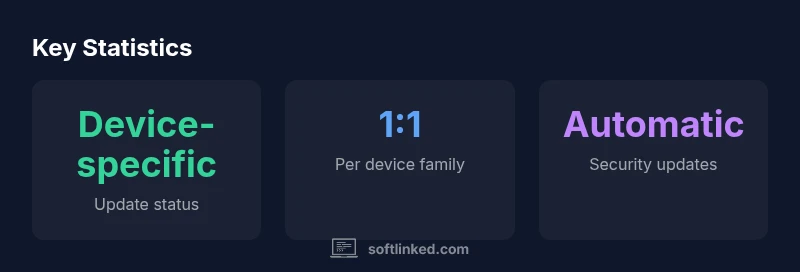
When people ask what software update is Apple on, they often expect one universal version. In reality, Apple maintains separate update tracks for iPhone/iPad (iOS/iPadOS), Mac (macOS), Apple Watch (watchOS), and Apple TV (tvOS). The goal is to keep devices secure and compatible without forcing every product to adopt the same build at the same time. For students, developers, and IT professionals, recognizing this distinction is the first step in understanding how Apple manages software updates across the ecosystem. According to SoftLinked, device-specific update cadences help Apple tailor features and security patches to each device class while maintaining a coherent security baseline across the platform.
How Apple structures updates by product family
Apple’s update strategy is organized around product families rather than a single universal build. iPhone and iPad (iOS/iPadOS) receive major releases on roughly an annual cadence, complemented by smaller security updates. Macs run macOS with their own major releases and a parallel stream of security patches. Apple Watch and Apple TV follow similar patterns with watchOS and tvOS, respectively. While there is overlap in kernel and core frameworks, feature parity across devices is balanced with device-specific constraints, hardware capabilities, and user experience goals. For developers and IT admins, this means testing often happens within the relevant family but with awareness of cross-platform changes that impact apps and services.
How to check your current build on each device
Checking the exact Apple software update on your devices is straightforward, but the path differs by product. Here are the steps for each major family:
- iPhone/iPad: Go to Settings > General > About to see the iOS/iPadOS version, and Settings > General > Software Update to see the latest available update for your device.
- Mac: Open the Apple menu, choose About This Mac, then click Software Update (or System Settings > General > Software Update) to view your current macOS version and available patches.
- Apple Watch: On the paired iPhone, open the Watch app, then General > Software Update. You can also check on the watch via Settings > General > Software Update.
- Apple TV: Go to Settings > System > Software Updates to view the installed tvOS version and available updates.
For all devices, you can also tap or click About to see the exact build number, which is useful for troubleshooting compatibility and app requirements.
Understanding cadence, compatibility, and security updates
Major updates typically bring new features, design changes, and API updates, while point updates focus on security patches and bug fixes. Depending on device age, some updates may be available sooner for newer hardware and delayed on older devices to preserve performance. Regions and carrier settings can also influence rollout timelines. Regardless, Apple generally provides ongoing security updates for supported devices, ensuring critical patches reach users even if feature upgrades lag behind.
Practical checklist for staying current and secure
- Back up before updating to avoid data loss.
- Ensure sufficient storage and power (or keep connected to power).
- Review app compatibility and critical data services before updating.
- Enable automatic updates where appropriate to reduce manual checks.
- Visit Settings > General > Software Update regularly to catch new releases.
- For developers, test in beta channels and monitor API deprecations.
Troubleshooting: updates won’t install or show as available
If an update won’t install:
- Verify device support; check Apple’s official support pages.
- Restart device and try again.
- Check network connection and storage space.
- Reset network settings as a last resort.
- If issues persist, consult Apple Support or the device's diagnostics tools.
What this means for students and engineers (SoftLinked perspective)
Understanding that updates are device-specific helps you plan learning paths and project compatibility. When studying software fundamentals or building cross-platform apps, design for incremental adoption across iOS, macOS, watchOS, and tvOS to minimize disruption. SoftLinked’s guidance emphasizes rigorous testing across families and prioritizing security updates as a baseline requirement for all development work.
Apple OS update landscape by product family
| Product Family | Latest Public Update | Typical Update Channel | How to Check |
|---|---|---|---|
| iPhone/iPad (iOS/iPadOS) | Latest iOS/iPadOS | Public Release & Beta channels | Settings > General > Software Update (iPhone/iPad) |
| Mac (macOS) | Latest macOS | Public Release & Beta channels | System Settings > General > Software Update |
| Apple Watch (watchOS) | Latest watchOS | Public Release & Beta channels | Watch app on iPhone > General > Software Update |
| Apple TV (tvOS) | Latest tvOS | Public Release & Beta channels | Settings > System > Software Updates |
Your Questions Answered
Is there a single update Apple releases for all devices?
No. Apple maintains separate update tracks for iOS/iPadOS, macOS, watchOS, and tvOS. Check each device’s Software Update settings to see the current version.
There isn’t one universal update; check each device’s updates.
How often does Apple release major updates?
Major updates typically occur annually for each family, with additional security patches as needed. Release timing can vary by device and region.
Major updates usually come once a year, with security patches in between.
Can older devices get the latest features?
Older hardware may not receive the latest features but will usually continue to receive security updates if supported. feature availability varies by device age and capability.
Older devices might miss new features but still get security updates.
How can developers test updates before release?
Developers should use Apple's beta programs and device labs to test compatibility with new OS releases, keeping APIs and app behavior stable.
Use beta programs to test for compatibility.
What should I do if an update breaks apps?
Check for app updates and compatibility notes from Apple. If needed, contact the app developers or rollback to a supported version.
Update apps and check compatibility; contact developers if issues persist.
“Device-specific update practices mean you should verify the exact build on every Apple device you manage. This ensures you stay secure and compatible across the ecosystem.”
Top Takeaways
- Update status is device-specific; verify each device
- Enable automatic updates for security patches
- Back up before installing any update
- Test apps across iOS, macOS, watchOS, and tvOS