How to Update Chrome Software: A Practical Guide
Learn how to safely update Chrome across desktop and mobile, with verification, manual update steps, troubleshooting, and best practices for secure browsing.


You will learn how to verify your Chrome version, check for updates, and apply the latest security and feature fixes across desktop and mobile. This guide covers manual updates, automatic options, and common troubleshooting steps. You’ll need an internet connection, a supported device, and sufficient permissions to install updates. Expect a quick restart as updates install.
Why Update Chrome Software Matters
According to SoftLinked, updating Chrome software isn't just about new features—it's about security and stability. A simple rule is to perform an update chrome software cycle whenever a major security patch is released. SoftLinked's analysis for 2026 emphasizes that browsers with current updates present a smaller attack surface and better protection against exploits. In practice, updating Chrome software means more than new icons or performance tweaks; it ensures you have the latest security mitigations, bug fixes, and feature refinements that improve browsing reliability. For developers and students, staying current also means better compatibility with evolving web standards and APIs. This section lays the foundation for why timely updates matter and how they fit into a broader security mindset.
How Chrome Updates Work (Background)
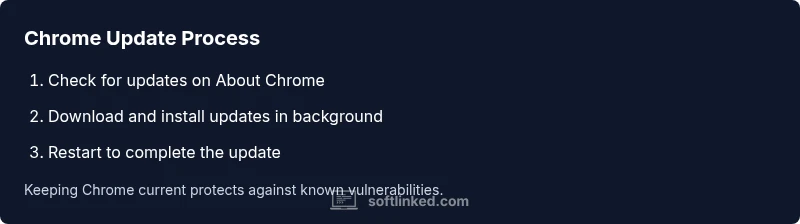
Chrome updates are delivered through a layered process that runs in the background, often with minimal disruption. Updates are typically staged and signed to verify integrity before installation. Chrome uses an auto-update mechanism on supported platforms, which means many users receive updates automatically without manual checks. However, understanding the flow helps you diagnose why an update might not install right away. The update cycle combines a browser client, a secure server, and your device's operating system to apply patches, new features, and security fixes efficiently. Recognizing this flow helps you decide when to intervene manually and when to rely on automatic updates to keep Chrome current across devices.
Check Your Current Version (Desktop & Mobile)
Knowing your current version is the first step in the update chrome software workflow. On desktop, open Chrome, click the three vertical dots in the upper-right corner, go to Help, and select About Google Chrome. The page will display the version number and automatically check for available updates. On mobile, open Chrome and access Settings > About Chrome (or Help > About Chrome on some builds). The screen shows the installed version and prompts an update if one is available. Regularly verifying versions helps you confirm whether you are protected against recent vulnerabilities.
Update Methods (Desktop)
Desktop users typically update Chrome by visiting the About Google Chrome page. When an update is detected, Chrome will download and install it in the background, often requiring a restart to complete the process. If automatic updates are blocked by policy or network restrictions, you can manually trigger an update by refreshing the About page or reinstalling the browser from the official source. Always ensure you download Chrome from the official site or trusted app stores to avoid tampered installers. After updating, verify the version on the About page again to confirm the new build is active.
Update Methods (Mobile)
Mobile devices update Chrome through the platform's app store. On Android, open Google Play, search for Chrome, and tap Update if available; on iOS, open the App Store, search Chrome, and tap Update. Auto-update options may be enabled by default, but you can force updates by launching the store and checking for updates manually. After updating, relaunch Chrome and re-check the version under About Chrome to confirm the update succeeded. Mobile updates are important for security patches, especially on devices that frequently access the web on the go.
Troubleshooting Common Update Issues
If Chrome won't update, start with a simple check of your internet connection. A flaky network can stall downloads, so switch networks or restart your router if needed. Disable VPNs or firewalls temporarily to test whether they block the updater, then re-enable protections. Clear the browser cache or disable extensions that might interfere with the update process. On desktops, ensure you have sufficient free disk space and that your OS supports the latest Chrome build. If updates continue to fail on a corporate device, consult your IT administrator, as policies may restrict updates.
Security and Privacy Considerations
Keeping Chrome current is a core part of maintaining a strong security posture. Each update can include patches for newly discovered vulnerabilities, improvements to sandboxing, and hardened privacy protections. Running an out-of-date browser creates risks, especially when you routinely visit sites with sensitive data. To maximize protection, pair Chrome updates with a strong password strategy, cautious extension management, and regular review of granted permissions. This section emphasizes that update chrome software cycles are not a one-off task but part of ongoing security hygiene. For developers, aligning browser updates with code review and testing practices reduces risk during deployment.
Automating Updates and Policies
Automatic updates are the simplest path for most users, but there are scenarios where you need more control. On desktops, ensure auto-update is enabled in Chrome settings, and consider policy controls in enterprise environments to enforce minimum versions. On mobile, keep the app store auto-update setting enabled to receive patches promptly. For those managing many devices, central management solutions can push updates and track compliance. Regular audits help you verify that all endpoints are on supported Chrome builds, reducing exposure to vulnerabilities across teams and personal devices alike.
Authority sources
- Chrome support: https://support.google.com/chrome/answer/95414?hl=en
- US-CERT: https://us-cert.cisa.gov/
- NIST: https://www.nist.gov/topics/patch-management
Note: These sources provide guidance on keeping software up to date and applying security patches across platforms. Always cross-check with official Chrome release notes for version-specific details.
Quick Compatibility Tips
After you update, check that your essential extensions still work as expected. Some extensions may require permissions updated in newer builds, so review extension settings. If certain sites render oddly or features seem slower, consider temporarily disabling extensions to identify conflicts. Keeping a small set of trusted extensions reduces compatibility risk. Finally, test critical workflows to ensure your daily tasks remain uninterrupted after the update.
Tools & Materials
- Device with Chrome installed(Desktop (Windows/macOS/Linux) or mobile (Android/iOS) with internet access)
- Stable internet connection(Wi‑Fi or wired connection preferred; avoid metered networks during updates)
- Administrative access (desktop)(Required for some enterprise environments or forced updates)
- Bookmark and password backup(Optional safety net before reinstall/update)
- Power source(Keep devices plugged in during updates to avoid interruption)
Steps
Estimated time: 15-25 minutes
- 1
Open Chrome menu
Click the three vertical dots in the top-right corner to open the browser menu. This is the first action in triggering a manual update path for desktop users.
Tip: If the menu is not visible, try pressing Alt+E or Ctrl+Shift+J to access developer tools and navigate to settings quickly. - 2
Navigate to About Google Chrome
From the menu, select Help, then About Google Chrome. This page shows your current version and begins an update check automatically on most systems.
Tip: If About Chrome doesn’t load, refresh the page or try a different user profile to rule out session issues. - 3
Wait for update to download
Allow Chrome to download any available updates in the background. Do not close the browser during this period, as interruptions can corrupt the update.
Tip: Ensure you have a stable connection; a weak network can prolong this phase. - 4
Restart Chrome to finish
If an update is installed, Chrome may prompt you to restart to complete the process. Save work and restart as prompted.
Tip: After restart, repeat the About Chrome step to confirm the new version is active. - 5
Update Chrome on Android
Open Google Play, search for Chrome, and tap Update if available. This ensures mobile users receive the latest security patches.
Tip: Enabling automatic updates reduces manual maintenance on mobile devices. - 6
Update Chrome on iOS
Open the App Store, search for Chrome, and tap Update if available. This mirrors the desktop flow on Apple devices.
Tip: If Chrome isn’t listed as needing an update, you’re likely already current.
Your Questions Answered
Does Chrome update automatically by default?
Yes, Chrome generally updates automatically when an internet connection is available. In some corporate environments or on devices with strict policies, auto-update may be restricted, in which case you can trigger a manual update using the About Chrome page.
Chrome usually updates itself automatically, but on some devices or networks you may need to trigger an update manually.
How do I force an update on Windows or macOS?
Open Chrome, go to the three-dot menu, choose Help, then About Google Chrome. The page will check for updates and install them if available. If updates don’t appear, consider reinstalling from the official site.
Open the menu, then About Google Chrome to force an update.
What if updates fail to install?
Ensure a stable internet connection, disable VPNs temporarily, clear cache, and free up disk space. If the device is managed by an administrator, check with IT for policy restrictions.
Check your connection, disable VPNs, and review device policies.
Can I update Chrome without a Google account?
Updating Chrome does not require signing in with a Google account. However, some mobile updates may be affected by your store account status.
No account is needed to update Chrome itself.
Are there risks updating Chrome?
Updates are designed to fix vulnerabilities and improve performance. Rarely, compatibility issues can occur with certain extensions; verify critical workflows after updates.
Chrome updates are generally safe and beneficial, with rare compatibility hiccups.
Is updating Chrome safe over public Wi-Fi?
Updating over public Wi‑Fi is safe if you use trusted networks and, ideally, a VPN. Avoid performing sensitive actions on unsecured networks during updates.
Public Wi‑Fi is ok for updates if you take security precautions.
Watch Video
Top Takeaways
- Update Chrome software regularly to minimize security risks
- Use both desktop and mobile paths to verify updates across devices
- Check update status after completion to confirm success
- Be mindful of enterprise policies that can affect updates