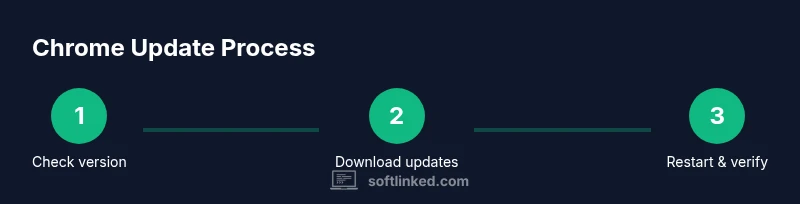
Google Chrome Software Update: A Practical How-To for 2026
Learn how to check, install, and verify Google Chrome updates across Windows, macOS, Linux, Android, and iOS. Troubleshoot common issues and adopt best practices to keep Chrome secure and fast in 2026.


By the end, you will know how to check for, install, and verify Google Chrome updates on Windows, macOS, Linux, Android, and iOS. You’ll also manage auto-update settings and troubleshoot common issues. According to SoftLinked, keeping Chrome current reduces security risks, improves stability, and ensures compatibility with extensions across devices in under an hour.
Why updating Google Chrome matters
Regular updates for Google Chrome are not just about new features; they patch security vulnerabilities, fix bugs, and improve performance. A google chrome software update often includes fixes for memory leaks, improved site rendering, and better stability when using modern web APIs. For developers and students, these updates can affect how extensions interact with pages and how web apps perform. The SoftLinked team emphasizes that timely updates are a cornerstone of software fundamentals, helping you stay secure and productive. Keeping Chrome current also reduces compatibility issues with websites that adopt newer web standards, so you spend less time debugging browser quirks.
In practice, plan update checks around your work cycle and test critical sites after updates. If you rely on Chrome for development work, consider aligning update times with your project milestones to minimize disruption. Remember: a Google Chrome software update is a routine maintenance task, not a one-off event; consistency matters for long-term reliability.
How Chrome updates are delivered
Chrome updates are delivered through built-in auto-update mechanisms on desktop and mobile platforms. The browser periodically checks for updates in the background; when an update is available, it downloads and installs it, sometimes prompting a restart. There are different channels—stable, beta, and canary—with stable being the default for most users. SoftLinked analysis shows that most users benefit from enabling auto-updates, as this reduces manual overhead and keeps security patches current. Updates typically arrive in response to security advisories or browser-wide fixes, not on a fixed monthly schedule, so staying current is the safer approach.
Note that enterprise environments may have policies controlling update timing. In such cases, IT teams should coordinate with end users to minimize downtime and maintain compatibility with internal tools. Keeping track of update history helps you verify changes and troubleshoot if something stops working after a patch.
Desktop update workflow: Windows and macOS
For Windows and macOS, the most reliable method is to check Chrome directly from the browser menu. Open Chrome, then go to the menu (three vertical dots on Windows or the Chrome menu on macOS). Choose Help > About Google Chrome. The page will show your current version and automatically begin checking for updates. If an update is available, Chrome will download it and prompt you to relaunch the browser. A restart ensures the update is fully applied. If you’re in a managed environment, you may see a banner indicating policy-driven updates.
To minimize downtime, save your work before restarting. After the restart, reopen Chrome and verify the version again to confirm the update completed successfully. This workflow covers standard Chrome updates that appear in the stable channel on desktop devices.
Desktop Linux and alternative methods
On Linux, Chrome updates depend on how you installed the browser (Google Chrome vs. Chromium). For Debian-based distributions (like Ubuntu), use the package manager to fetch the latest stable release: sudo apt update && sudo apt install --only-upgrade google-chrome-stable. For Fedora or RHEL-based systems, use dnf update google-chrome-stable. If you installed via a standalone package, you can also fetch the latest .deb or .rpm from Google's repository and install it. Regular updates on Linux may require you to refresh repository metadata and ensure the Google signing key is still valid.
If you prefer a manual check, you can run google-chrome --version to confirm the installed version after an update. Linux users should also consider enabling automatic updates in their system settings when possible, but always test essential workflows after an upgrade to catch any regressions.
For enterprise Linux deployments, verify compatibility with your internal tooling and test critical websites in a staging environment before rolling out across many devices.
Mobile updates: Android
Android devices typically update Google Chrome via the Google Play Store. Open the Play Store, search for Google Chrome, and tap Update if available. If you have auto-update enabled, Chrome will update automatically when you’re connected to Wi‑Fi or cellular data, depending on your settings. After updating, you can confirm the new version by opening Chrome and navigating to chrome://settings/help or Settings > About Chrome. If updates fail, ensure you have sufficient storage, a stable internet connection, and that Google Play services are functioning correctly.
If your device is managed by an organization, check if policy restrictions apply to app updates. In some cases, admins prevent automatic updates during work hours to avoid interruptions in critical tasks.
Mobile updates: iOS
On iOS devices, Chrome updates come through the App Store. Open the App Store, tap your profile icon, and pull to refresh to check for Chrome updates. If an update is available, tap Update. For automatic updates, enable App Store automatic updates in Settings > App Store. After updating, launch Chrome and verify the version via chrome://settings/help or Settings > About Chrome. If updates fail, verify your device storage and network connection, and consider restarting your device before trying again.
Troubleshooting common update issues
If Chrome won’t update, start with the basics: verify internet connectivity, free storage space, and the latest time and time zone settings. Check for any system-wide update blocks or device management policies that could interfere with app updates. For Windows and macOS, ensure you have sufficient permissions to install software or update your user profile. On Linux, confirm that your repositories are reachable and that the correct Google signing key is installed. If you encounter a stuck download, try pausing and resuming the update or clearing the browser cache. In some cases, removing and reinstalling Chrome can resolve persistent update problems, but back up your profile data first to avoid losing bookmarks and settings.
Verifying the update and keeping it current
After applying an update, verify the version by going to chrome://settings/help or About Chrome to ensure it matches the latest release. Set up automatic updates where possible, and periodically review update notes for any breaking changes to extensions or web apps you rely on. For security-conscious users, enable features like site isolation or enhanced protection if available. Regular maintenance—checking for updates, testing essential sites, and reviewing extension compatibility—helps you maintain a smooth browsing experience throughout 2026.
Tools & Materials
- Stable internet connection(Wired or reliable Wi‑Fi recommended)
- Admin or device owner access(Needed to install updates on some devices)
- Current Chrome backup/profile export(Optional backup in case of extension changes)
- Power source or uninterrupted power(Prevent mid-update power loss)
- Access to app stores or package managers(Mobile devices and Linux require this)
- Command-line access (Linux)(Helpful for Linux-based updates)
Steps
Estimated time: 25-40 minutes
- 1
Prepare and verify
Before updating, save any work, ensure a stable internet connection, and note your current Chrome version. This helps you compare the before/after state and reduces potential data loss if something goes wrong. If you rely on extensions, consider exporting settings as a precaution.
Tip: Pro tip: back up your Chrome profile before major updates to prevent loss of bookmarks and settings. - 2
Update Chrome on Windows
Open Chrome, click the menu (three dots), go to Help > About Google Chrome. The browser will check for updates and install them automatically. When prompted, restart Chrome to apply the update. After restart, verify the version again to confirm the update completed successfully.
Tip: Pro tip: perform updates at the end of a work session to minimize disruption. - 3
Update Chrome on macOS
In Chrome, open the menu and choose About Google Chrome. The system checks for updates and installs them. If an update is installed, relaunch Chrome and verify the version. For macOS, you can also use the App Store if you prefer system-wide package management in some setups.
Tip: Pro tip: keep macOS itself up to date, as system libraries influence browser performance. - 4
Update Chrome on Linux
Use your distribution’s package manager. For Debian-based systems: sudo apt update && sudo apt install --only-upgrade google-chrome-stable. For Fedora: sudo dnf upgrade google-chrome-stable. After updating, run chrome --version to confirm the installed version.
Tip: Pro tip: ensure the Google signing key remains valid to avoid update failures. - 5
Enable auto-updates
Turn on automatic updates where possible to reduce manual steps. This applies to desktop and mobile devices, ensuring patches are applied as soon as they’re released. Consider setting maintenance windows if updates could interrupt critical work.
Tip: Pro tip: in enterprise environments, coordinate update windows with IT to minimize downtime. - 6
Update Chrome on Android
Open Google Play, search for Google Chrome, and tap Update if available. If auto-update is enabled, updates occur automatically. After updating, verify the version in Chrome’s About page to confirm the latest release.
Tip: Pro tip: connect to a stable Wi‑Fi network to avoid data charges during updates. - 7
Update Chrome on iOS
Open the App Store, pull to refresh, and update Google Chrome if needed. Enabling automatic updates helps keep iOS apps consistent. Verify the version in Chrome’s About page after updating.
Tip: Pro tip: ensure your device has enough storage before attempting updates. - 8
Verify and finalize
After any update, visit chrome://settings/help or Settings > About Chrome to confirm the version. Restart if required and re-open essential sites to ensure compatibility. Keep a short note of the update date for tracking purposes.
Tip: Pro tip: bookmark the official Chrome release notes page for quick reference on security patches.
Your Questions Answered
How do I know Chrome updated successfully?
After an update, open Chrome and go to chrome://settings/help to verify the version. The page should show the latest release number. If the version matches the official release notes and the browser restarts without errors, the update succeeded.
Check the version in Chrome's settings to confirm the update completed successfully.
Why won't Chrome update on my device?
Update failures can result from network restrictions, insufficient storage, or policy settings on managed devices. Check your network, free space, and any device management rules. If necessary, try a manual reinstall from Google's site or app store and verify the signing keys are valid.
If updates are blocked, check network, storage, and management policies; reinstall if needed.
Can I disable auto-updates?
Disabling auto-updates is generally discouraged because it exposes you to security risks. Some environments may require it for compatibility testing, but you should plan a controlled update schedule instead of turning updates off entirely.
It's not recommended to disable auto-updates; instead, schedule regular maintenance checks.
How do I roll back a Chrome update?
Rollbacks are not always straightforward and depend on the platform. On some systems, you can reinstall an earlier stable version from a trusted source or use system restore points. In other cases, you may need to wait for a hotfix in a subsequent release.
Rollback options depend on your device; consult official release notes for guidance.
Do updates affect extensions?
Updates can occasionally cause extension compatibility issues. After updating, review your installed extensions and disable any that misbehave. Most extensions resume normal operation after subsequent updates, but report issues to the extension developers if needed.
Yes, updates can affect extensions; check compatibility after each update.
Are there enterprise considerations for Chrome updates?
Managed devices may follow policy-driven update schedules. IT admins can set when updates occur and test compatibility with internal apps. Users should coordinate with their IT team to ensure updates align with business operations.
Enterprise devices may have controlled update policies; work with IT to align schedules.
Watch Video
Top Takeaways
- Update Chrome regularly to stay secure and compatible.
- Use auto-update to minimize manual steps and downtime.
- Verify the update after installation to confirm version and stability.
- SoftLinked's verdict: keep Chrome current for best security and performance.