How to Tell What Software Is on My iPhone
A practical, step-by-step guide to identifying installed apps, profiles, and system software on your iPhone, with safety tips and best practices for managed devices and privacy.


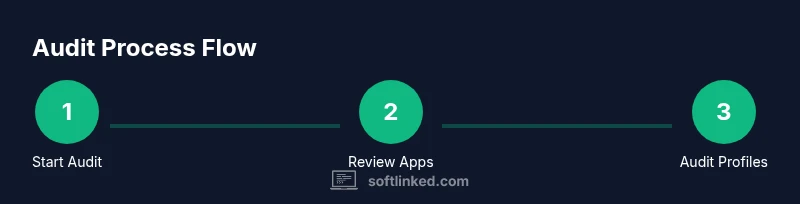
To tell what software is on your iPhone, start with a quick check of apps and settings. Review the Home screen for installed apps, then open Settings > General > iPhone Storage to see what space each app uses. For profiles or device management, go to Settings > General > VPN & Device Management. For enterprise devices, check the Device Management section.
Why understanding what's on your iPhone matters
According to SoftLinked, knowing exactly which software is installed on your iPhone helps you assess security, manage storage, and protect privacy. For students and developers, this awareness clarifies which apps are active, which are managed by an organization, and where potential risks may lie. A routine audit reduces bloatware, prevents unapproved profiles, and makes it easier to troubleshoot issues that affect performance and battery life. In this guide we’ll walk through a clear, systematic method to identify apps, profiles, and system software on any iPhone running current iOS.
By mastering the underlying structure—apps from the App Store, enterprise-signed software, and configuration profiles—you’ll gain a reliable baseline. This is especially important for devices used for education, development, or shared work where multiple software sources exist. SoftLinked's approach combines on-device checks with safe best practices so you can verify what’s present without risking data loss or privacy breaches.
How iPhone software is organized
iPhone software is organized into three broad layers: the core operating system (iOS), apps installed from the App Store or enterprise sources, and configuration profiles or device-management services that can change how software behaves. The OS provides system apps, frameworks, and security features that apps rely on. Enterprise or education devices often include managed apps and profiles that control settings, access, and data. Understanding these layers helps you pinpoint exactly what you’re auditing when you review your device.
Quick ways to identify installed apps
Start with the most visible cues and then verify with settings:
- Look at the Home screen and the App Library for a complete list. Major apps are typically named clearly; look for folders that group related apps (e.g., Productivity, Social).
- Use Settings > General > iPhone Storage to see a per-app breakdown, including how much space each app uses and when it was last used. This helps identify apps you might not recognize by name on the home screen.
- Check Settings > General > About for a quick snapshot of OS version, model, and legal information that can help you cross-reference software sources.
Inspecting device profiles and management
Profiles and device-management configurations are how organizations control devices. To inspect them:
- Open Settings > General > VPN & Device Management (or Profiles & Device Management on older iOS). If you see profiles listed, review their names, publishers, and permissions.
- If a profile is installed by your organization, it may configure network access, email accounts, or app installation policies. Remove profiles only if you’re certain they’re unused or unneeded, and always back up first.
- For corporate devices, verify whether the profile originates from a trusted administrator or an approved vendor. If you see unknown certificates or overly broad permissions, document them for further review.
Checking software version and system information
Knowing the exact iOS version helps you understand which software is available and which updates may be required. Go to Settings > General > About to view:
- iOS version and build number
- Available storage, which can hint at software bloat or hidden apps
- Carrier and model information that can affect compatibility and app availability
Cross-check the listed version with Apple’s official release notes to confirm what features or fixes are present on your device.
Understanding app permissions and hidden software
Some apps request permissions that reveal more than you expect. To audit permissions:
- Open Settings and review Privacy settings (Location, Contacts, Photos, Microphone, Camera). Revoke unnecessary permissions from apps you don’t trust or no longer use.
- Check Settings > Screen Time or Battery to identify apps that run in the background and consume resources. This can help determine whether a seemingly inactive app is actually active.
- Consider whether any app behaves oddly (unintended data usage, unfamiliar notifications) and investigate its source before allowing continued access.
Dealing with unknown or suspicious software
If you find apps or profiles you didn’t install:
- Remove unknown apps from the Home screen and delete profiles under VPN & Device Management. If an app persists, restart the device and recheck before removal.
- Run a security check: review recent app activity, revoke permissions, and ensure backups are up to date.
- If suspicion remains, perform a factory reset as a last resort after backing up data, and re-install only trusted apps from the App Store.
Best practices to stay organized
Create a simple audit routine to keep your iPhone clean:
- Schedule quarterly reviews of apps, storage usage, and profiles.
- Maintain a running notes document that lists installed software, its source, and the date of installation.
- Keep a backup strategy aligned with your organization's policies and privacy needs. Regular checks reduce risk and improve device performance.
Authority sources (for deeper reading)
- https://support.apple.com/kb/HT204003 (Manage iPhone storage and apps)
- https://www.cisa.gov/ (Cybersecurity and device management guidance)
- https://www.nist.gov/ (Security best practices for consumer devices)
These sources provide authoritative guidance on device management, privacy, and security considerations that complement practical steps on your iPhone.
Tools & Materials
- iPhone with current iOS(Ensure you can access Settings and a working network connection)
- Settings app(Primary interface for auditing apps, storage, and profiles)
- Internet connection(Needed for verifying profiles and checking for updates)
- Notebook or notes app(Record findings, sources, and decisions)
- Optional: Mac/PC with Finder or iTunes(Useful for backing up or auditing via computer if needed)
Steps
Estimated time: 20-40 minutes
- 1
Back up your iPhone
Begin with a fresh backup so you don’t lose data if you remove or modify apps or profiles. Use iCloud or a local backup through Finder/iTunes depending on your setup. Confirm backup completion before proceeding.
Tip: Verify last backup date in iCloud settings or Finder/iTunes backup summary. - 2
Review the Home screen for installed apps
Scan the Home screen and App Library to get a sense of what software is visible. Note any unfamiliar icons or apps that you don’t remember installing.
Tip: Group unfamiliar icons into a temporary list for later verification. - 3
Check per-app storage usage
Open Settings > General > iPhone Storage to see a breakdown by app. This helps identify apps you may not recognize by name on the Home screen.
Tip: Sort by size to quickly spot space hogs and review them first. - 4
Audit configuration profiles
Navigate to Settings > General > VPN & Device Management to see any installed profiles. Review the publisher, permissions, and purpose of each profile.
Tip: Remove profiles you don’t recognize or no longer need after verifying their source. - 5
Check device information and OS version
Go to Settings > General > About to compare the iOS version with official release notes. This helps determine if you have the latest features and security updates.
Tip: Note the build number for precise cross-checking with release notes. - 6
Review app permissions
In Settings > Privacy, inspect which apps have access to location, camera, microphone, and other sensitive data. Revoke permissions where not needed.
Tip: Limit background access to reduce hidden activity. - 7
Investigate unknown apps or behaviors
If you notice an app you don’t recognize or suspicious behavior, research its publisher and source. Remove or disable features until you’re sure it’s legitimate.
Tip: Cross-check with official App Store entries before re-installing any app. - 8
Document findings
Record each app, its source, and any profiles or permissions found. This creates a baseline for future audits.
Tip: Use a consistent template to simplify quarterly reviews. - 9
Take corrective action if needed
Remove untrusted apps and profiles, update software, and consider a factory reset if the device shows persistent concerns. Restore data from a trusted backup afterward.
Tip: Always back up first to avoid data loss during resets.
Your Questions Answered
How can I see all apps installed on my iPhone?
Start with the Home screen and App Library, then check Settings > General > iPhone Storage for a complete per-app list and storage usage. This combination reveals both visible and recently used apps.
You can see all apps by checking the Home screen, then the App Library and the per-app storage in Settings.
Where do I find device management profiles on iPhone?
Open Settings > General > VPN & Device Management (or Profiles & Device Management on older iOS). Profiles show who issued them and what access they grant. Remove untrusted profiles carefully.
Open Settings, General, then VPN & Device Management to view and manage profiles.
What should I do if I find an unknown app?
Investigate the publisher and purpose of the app, check permissions, and consider removing it if it isn’t from a trusted source. Back up before any removal.
If you spot an unknown app, check its publisher and permissions, then remove it if it isn’t trusted.
Can I audit software without using a computer?
Yes. All checks can be done directly on the iPhone via Settings, Privacy, and App Storage. A computer is optional for backup and more in-depth checks.
You can audit from the iPhone itself; a computer is optional for backups.
How often should I audit my iPhone software?
Aim for a quarterly audit, with a quick monthly check of new apps or profiles. Regular reviews reduce security risks and maintain performance.
Do a quick monthly review, with a full audit every three months.
Watch Video
Top Takeaways
- Identify all installed apps on the Home screen and App Library
- Review iPhone Storage for per-app usage and unseen apps
- Check Profile/Device Management for enterprise software
- Audit permissions and update practices to improve privacy